Select an Incident number ID
Click Edit
Select the Attachment tab
Click 

All
Users can attach a file to an Incident. Any type of file can be attached
either by a User, Customer or via email.
To add an Attachment:
Select an Incident number ID
Click Edit
Select the Attachment tab
Click
Click Choose File to browse and select a file
Mark Private, if the attachment is not to be available on the Customer Portal
Enter a file Description if necessary
Mark as Private if the attachment is not to be accessible from the Customer Portal
Select  to upload the file or
  to
cancel the process.
to
cancel the process.
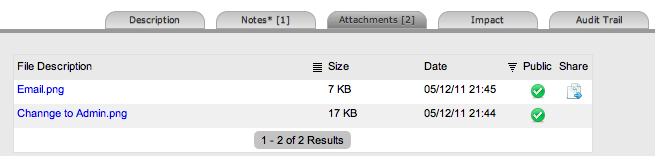
The uploaded Attachment is automatically date-stamped and shown as
a file name link along with its file size.
To open an Attachment, select the file name hyperlink.
Incidents that are part of a Request
Group and have Attachments uploaded within the Group Details Screen,
display  within the Share Column.
To delete an Attachment, select the checkbox beside the File Description then click Delete. The addition or removal of Attachments is recorded within the Audit Trail of the Incident.