Group Templates
Project or Group Templates are
created by Supervisors as a means to group related Quick Call templates.
For example, a Group Template could be created for when a new employee
begins work at an organization. The new employee will need a new PC, an
email account, a Username and password etc. Rather than creating a separate
request for each task, a Group Template could be created including all
the Quick Call requests.
Group Templates are available
to any User within the system.
Creating a Group Template
To create a new Group Template:
Select Home>Group
Templates
Click New
The Group Template editor appears.
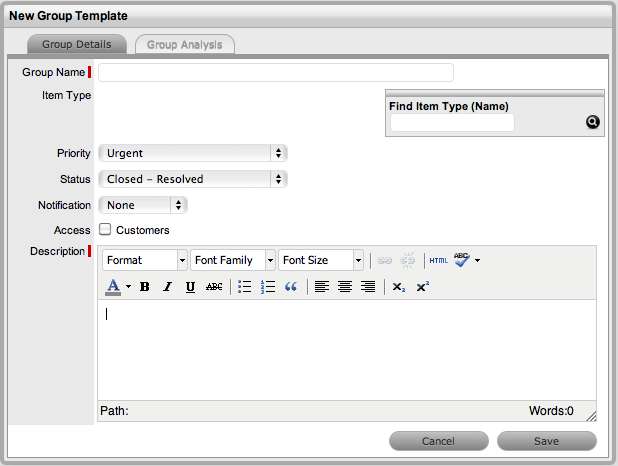
Enter the Group Name
Search
and select an Item Type the group will be based on, if required
Select the Priority
for the Template
Select a default Status
(Open or Closed- Resolved) and Notification method
Tick
the Customer Access option, if Customers are to be enabled to use
the Group Template in the Customer Portal
If this option is selected, the On Save and In Sequence options are
displayed, which defines how the individual tasks will be created
when the Template is saved by the Customer.
If
the In Sequence option is used, the first task within the Group Template
is created when the template is selected and saved by the Customer.
When the first task is Closed, the next task within the template is
automatically created and so goes the auto-creation process until
all tasks within the template have been created and closed in sequence.
When the On Save option is selected, all tasks included in the Template
are created in the system when the Customer saves the Group Template
in the Customer Portal.
Enter a Description
Click Save
The Group Analysis tab is displayed. The User is required to create
Task templates or Quick Calls for the Group Template
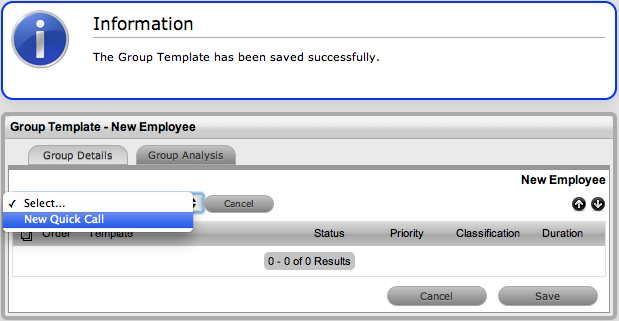
Assign a pre-existing
Quick Call by selecting options displayed beneath the dashed line
and selecting the Add button
Create new templates
by selecting New Quick Call in the drop down list
The Quick Call editor is displayed.
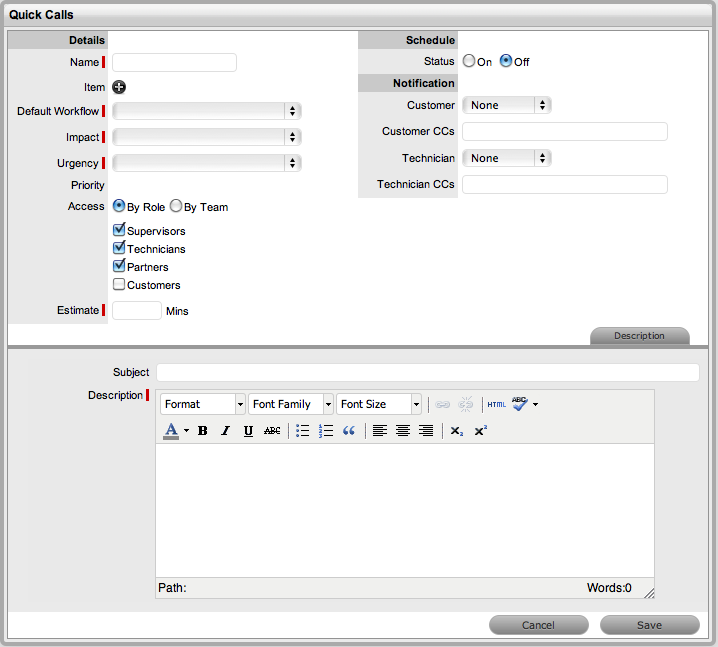
Enter Quick Call details
and Save
For more information about configuring Incident templates, see: Quick Calls.
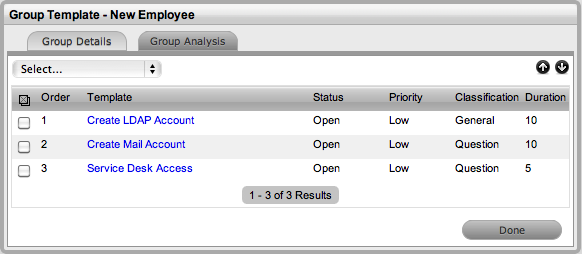
Continue to create additional
Incident templates, as required
When all relevant Quick
Call templates have been created for the group template, click Done.
Applying Group Templates
See: Incident Groups for more information
on applying a Group Template.

 buttons.