Searching for an Item
To search for Items in the CMDB use the Search button on the Configuration>Items
screen.
To search for an Item:
Click 
A search page is displayed with the options to search across the Team,
Item Status, Manufacturers, Global Items, Item Ownership, Item Categories
and Types. There is also the option for the search results to return
deleted Item information.
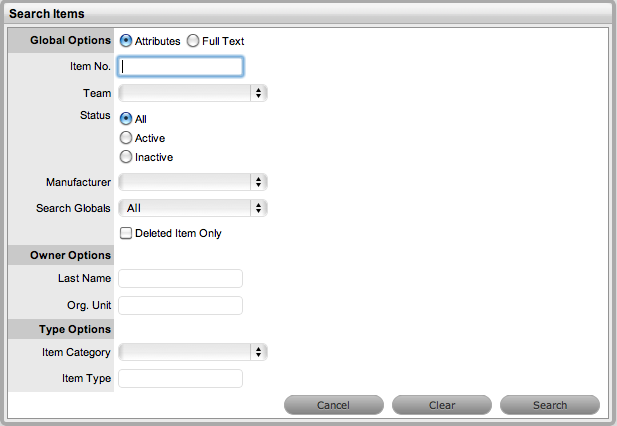
Define any Item Attributes
To complete a Full Text search select that option and then enter relevant
text in the Term field. (See: Full
Text Search.)
Click
A list of Items will be displayed.
For an advanced search on specific
Item details, it is necessary to enter the Item Category. When this is
selected the Search Items page will expand:
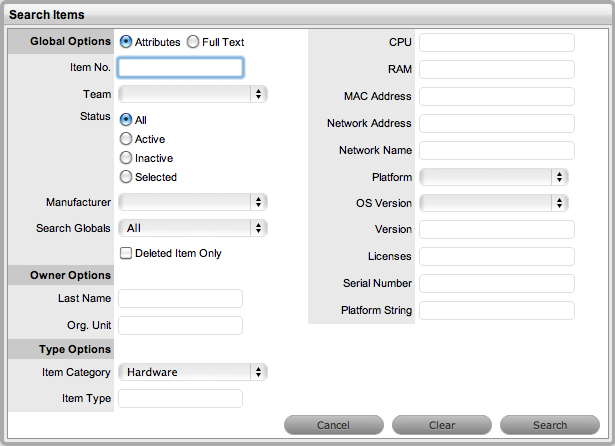
Tips on searching for an Item
Set
the Item Status option to Deleted, to return a list of all Items that
have been deleted in the system. To re-enable these deleted Items,
once the search is executed, select the Item ID# followed by 
To
search on an Item's Status, the Item Category must be selected first
To
search on attribute fields of an Item, first select the Item Category
To
return a list of Items that are allocated to Customers or Organizational
Units, select the Assigned Only option from the Search Globals drop-down
list.