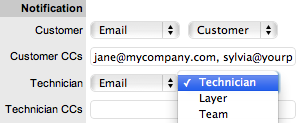
Notification
The
Notify option sets the method of messaging used by the application to
notify Customers and Technicians of the following changes to an Incident:
The
default Notification status of Incidents is set on a per Team basis, within
the Users>Teams>Team Information screen, with the default recipients
of new Notes being configured by the Administrator in the Setup>Email>Setup
tab. However, this can be adjusted on a per Incident basis within the
Notification Method field and on a per Note basis, when new Notes are
created.
The methods of Notification can be
set for Customers and Technicians, and include:
None, which ensures no
messages are sent
Email, which means an
email is sent containing the Incident detail updates
Notifications can be
sent to:
Customer - the Customer
who logged the Incident
All Owners - all
Customers who share the Item assigned to the Incident
Customer CC's - email
addresses to receive Customer email correspondence when the CC field
is selected in the New Notes screen
This field may be automatically populated by the system with email
addresses included in the CC list of the original email used to create
the Incident. Multiple addresses should be separated by a comma.
Current Team - notifications
can be switched off, sent to all members within the Team assigned
to the Incident, or restricted to members within the layer of escalation
to which the Incident is assigned
Technician CC's -
enter any User account email addresses that are to be sent Incident
Notifications. Multiple addresses should be separated by a comma
Alternate Team -
this option is visible if the Notify Alternate Team option is enabled
in the Admin>Email>Setup tab. Notifications can be sent to a
Team within the related Process, by the User selecting an option within
the drop-down list.
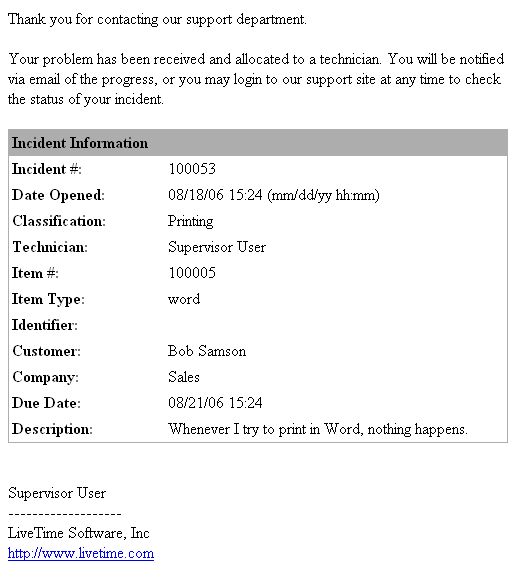
The following
is a sample email sent by the system to the Customer and assigned Technician,
confirming the creation of an Incident. The message and template sent
can be customized by the system Administrator:
Email Sample