Licenses

The Licenses menu displays information about the currently installed license. Details of the current license, hosting server and licensed Users can be viewed from this screen. A new license can also be installed.


Viewing a License

To view a license:

  1. Select Setup>License.
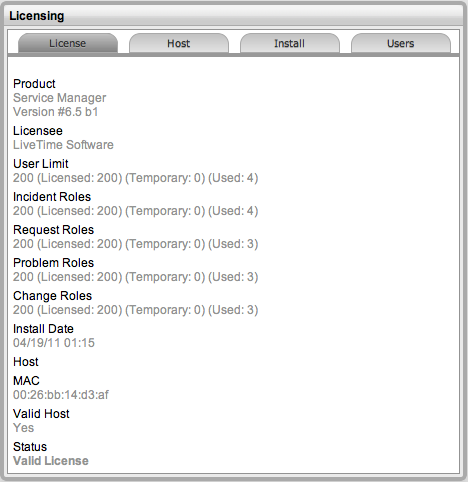
    The Licensing screen appears.
    setup_license.png

    License Information

    Product

    Identifies which service management  product is currently installed.

    Licensee

    The organization that holds the license.

    User Limit

    The maximum number of non-Customer users that are allowed to use the system. Value inside brackets indicates how many licenses have already been used.

    Incident Roles

    The number of individual Incident Management licenses purchased.

    Request Roles

    The number of individual Request Fulfillment licenses purchased.

    Problem Roles

    The number of individual Problem Management licenses purchased.

    Change Roles

    The number of individual Change Management licenses purchased.

    License Type

    Details on whether the current license is permanent or temporary.

    Host

    MAC

    The Mac Address of the host server.

    Valid Host

    This will be Yes if the Mac address in the License Key matches the Mac address of the deployment server.

    Status

    Indicates whether the license is currently valid.


Host Tab

The Host Tab shows the host name and IP address for the server where the application is deployed.


Install Tab

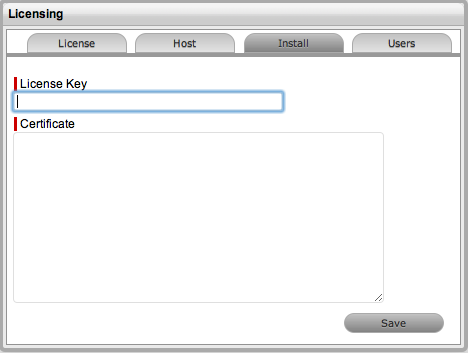
The Install Tab allows a new license to be entered using a License Key and Certificate for the application.
 

Updating License Information

To update License Information:

  1. Select Setup>Licenses>Install
    The Install Tab appears.

    install_license.png

  1. Enter the license key for the application

  2. Enter the Certificate details

  3. Click Save.
    The License tab will show the updated license details.


Users Tab

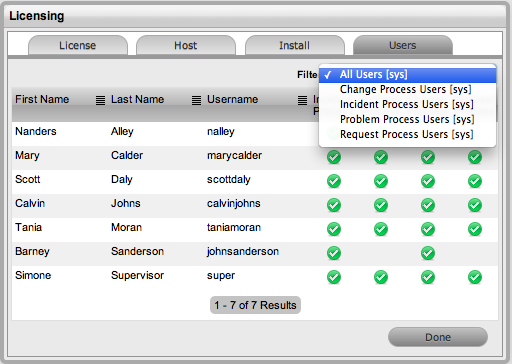
The Users Tab lists all current Users of the system, including their assigned processes. Administrators can
filter the list based on process by using the Filter drop-down box in the top right corner of the Users tab.
 

users_license.png