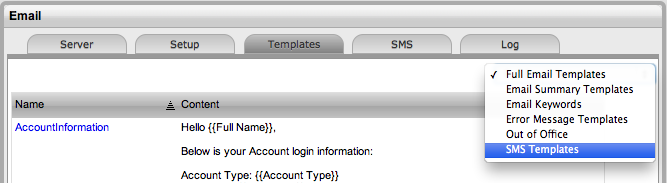
The templated text and parameters for SMS messages sent from the system
regarding requests and Item outages are configured within the SMS Templates
filter screen of the Templates tab.
SMS Templates |
|
ApproveChangeSMS |
Message sent to Managers when an RFC moves
to an Approval State. |
ApproveServiceRequestSMS |
Message sent to Managers when a Service
Request moves into an Approval State. |
ClosedRequestSMS |
Included at the beginning of the email when
a request is closed. |
ClosedTimeoutSMS |
Used by the handshake facility and prefaces
emails sent as Incident Note using the Propose button. |
CloseRequestLinkSMS |
Message sent with the hyperlink to enable
Customers to keep a request open after a possible solution has
been sent to them. If the Customer clicks on the link, the automated
close process is deactivated. |
CloseRequestSMS |
Message sent when the handshaking facility
is applied and the Technician proposes a Solution to the
Customer. |
CreateRequestSMS |
Message sent to a Customer when a
request is created. |
DeleteRequestSMS |
SMS sent to a User when a request is deleted. |
GroupCreateSMS
|
SMS sent to a User when a request group
has been created in the system. |
InvoicePrefixSMS |
Message sent to a Customer with a newly
created Invoice. |
ItemStatusChangeSMS |
SMS sent to a Customer when an Item Status
is changed. |
NewAttachmentToTechSMS |
SMS sent to a Technician when a Customer
uploads an attachment to a request in the Customer Portal. |
NoteClosedPrefixSMS |
SMS sent to when a new Note is added to
a closed request. |
NoteClosedSMS |
Sent to a Customer when they have attempted
to a Note to a request that is already closed. |
NotePrefixSMS |
Sent each time a new Note is associated
with an existing request. |
PlannedOutageSMS |
Included in the SMS sent when an Item is
scheduled to be taken offline. |
RequestDeescalate
FromToSMS |
Message
sent when a request is manually de-escalated this message is sent
to the newly assigned Technician. |
RequestDeescalate
NotAvailableSMS |
Message
sent when a request is manually de-escalated this message is sent
to the previously assigned Technician to let them know that the
request is no longer available for them to work on. |
RequestEscalateFromToSMS |
Message
sent when a request is manually escalated this message is sent
to the newly assigned Technician. |
RequestEscalateNot
AvailableSMS |
Message
sent when a request is manually escalated this message is sent
to the previously assigned Technician to let them know that the
request is no longer available for them to work on. |
RequestReassignedManager
PrefixSMS |
This
message is sent when the Manager responsible for processing the
approval of a request is changed and is sent to the previously
assigned Manager. |
RequestReassignedManager
ToTechPrefixSMS |
The
message included in an email when a request moves from a
Manager Approval State to the newly assigned Technician User. |
RequestReassignPrefixSMS |
When
a request is reassigned this message is sent with the request
details to the previously assigned User. |
RequestReassignToPrefixSMS |
When
a request is reassigned this message is sent with the request
details to the newly assigned User. |
RequestStatusChanged
PrefixSMS |
The
content of an email sent when the Status of a request is moved
from Pending-No Contract to the default open state of the assigned
Workflow. This is sent to the assigned Technician. |