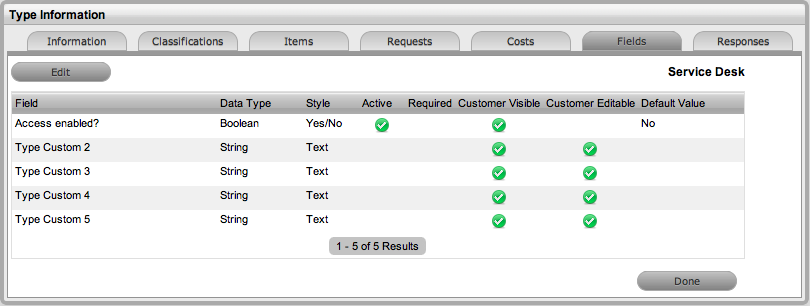
Within the system, service organizations can refine custom fields made available during the request creation process based on the Item assigned to the request. In the Fields tab a User can create custom fields that apply to the Item Type. Therefore, when a request is logged against an Item that uses an Item Type with custom fields configured within the Fields tab, the Fields are made available within the Details tab of the request creation process.
These fields are in addition to the fields created by the Administrator within the Admin>Setup>Custom Fields, which are created for the specific Process, such as Incident, Problem, Change and Service Requests.
To create Field labels within the Type Information screen:
Click the Fields tab
Click Edit
Select a Field hyperlink
The Custom Field screen is displayed.
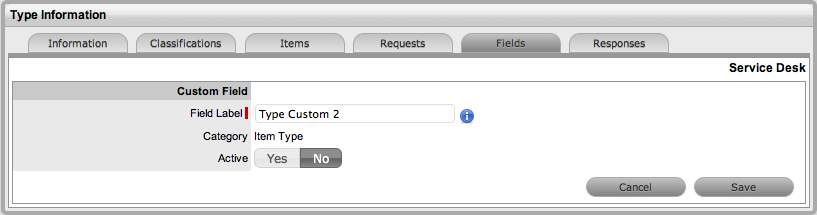
Click Yes to activate the Field
Complete the following details:
Categories Fields |
Description |
|---|---|
Category |
|
Field Label |
The name of the field. |
Active |
Indicates if the field is active. |
Required |
Indicates if the field is required or mandatory field. |
Customer Visible |
Defines if the Customer can see the field within the Customer Portal.
If Yes is selected, define if the Customer can edit the field information on the Customer Portal. |
Data Type |
Dictates the field's Data Type. The options available include :
|
Style |
Defines how the data is recorded or presented in the field. (e.g., String - List or Free Text field.)
|
Unique Value |
When active, the system prevents the duplication of data within the customized field. |
Default Value |
Value entered is the default system entry for the field, when the field is not completed manually. |
Input Validation |
When enabled the Input Mask and User Mask can be defined. Input Mask : A regular expression to use for data validation of values entered by a User (i.e., Zip/Post Code, telephone no.) User Mask: A User Friendly representation of the Input Mask that Customers can understand should it appear in a validation error message. |
Enable Description |
When enabled a Description field appears, allowing the User to enter details of what information is the field is expected to capture. These details are accessible next to the custom field on the relevant screen. |
Click Save
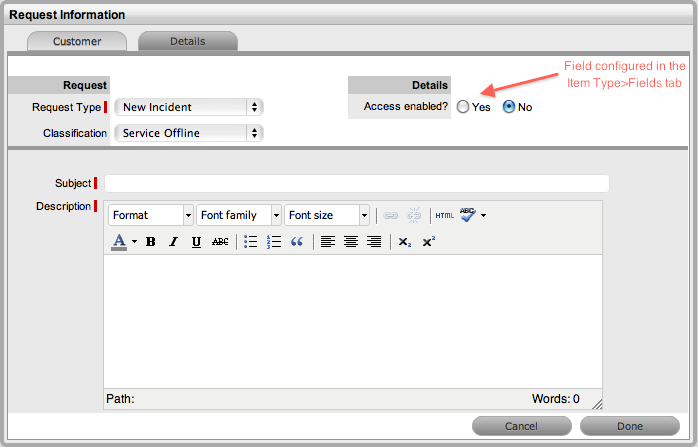
The active Field will now be available during the request creation
process, for all Items that use the Item Type.
When the Data Type String - List is selected the List Contents field is displayed, which provides the facility to create a drop down list to be created as options within the field.
To create a new list entry within the List Contents field:
Right click the Entries
link
The Create option is displayed
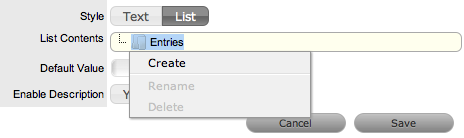
Click Create
A New node link displayed

Enter the name of the field
Click outside the field
to save the entry

Repeat this process
until all list entries have been added
To create a nested list, right click on the relevant list entry and
repeat the above process.
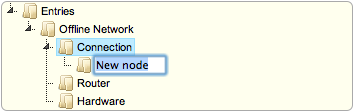
To move an existing
entry to a new position, select the entry, then drag and drop the
entry into its new location
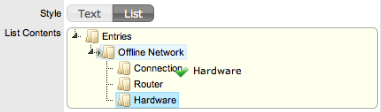
When all the relevant
details have been defined for the custom field, click Save.
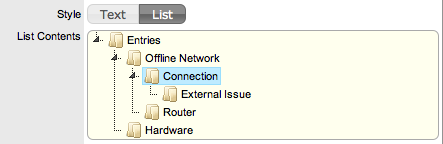
List entries can be expanded to include nested options.
To create a nested list:
Right-click the relevant
list entry header
The Create, Rename, Delete and Make Default options are displayed.

Select Create
A text box will appear under the list entry.
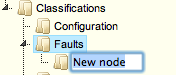
Enter the name for the list entry
Click away from the text box to commit and save the change
Move an existing list
entry to a new position, if required
Select the entry, then drag and drop the entry into its new location
The above steps can
be repeated until the nested list is complete.
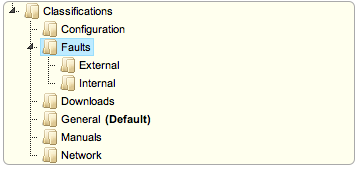
Any list entry can be renamed.
To rename a list entry:
Right-click the list
entry link
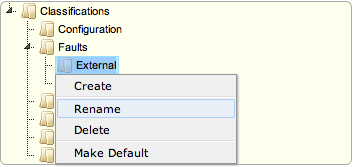
Click Rename
Edit the field content
Click away from the text field to save the change.
To delete a list entry:
Right-click the relevant list entry
Click Delete
Click Done when the list is complete.