Select Setup>Email>Templates
Choose the Keywords filter view
Click on the relevant Name hyperlink
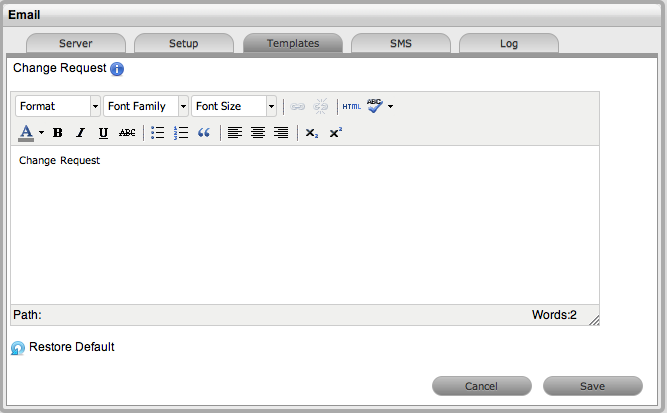
Enter the customized word
Click Save.
Keywords are used by the system to identify how to handle inbound and outbound email from the system.
The following table includes a list of all Keywords that are used by the system, which can be customized, and where they in the appear in the application:
Keyword |
Direction |
Description |
Accept |
Inbound |
Accept or Yes is used to Approve Requests and must be included in the approval email. |
Accepted |
Outbound |
Included in Subject line for emails generated when a request has been accepted and sent to the person responsible managing the approval. |
AddToGroup |
Outbound |
Not Used. |
Article |
Outbound |
Included in the Subject line of emails sent to Customers including an Knowledge Base Articles. |
Author |
Outbound |
Included in content of Forum update message. |
AutoReply |
Outbound |
Included in the Subject line of emails for error messages. |
ChangeRequest |
Inbound
Outbound |
Customer must include in email Subject line when updating a Change Request. Automatically included in Subject line of Change Request emails. |
ChatLog |
Outbound |
Used in the Subject line of emails sent to Customer with a copy of a chat transcript. |
Classification |
Inbound |
Included in Subject line with keyword “Item” e.g. Item Classification. Cannot be used alone. |
Closed |
Outbound |
Included in Subject line of email responding to request, e.g. Incident Closed. |
Contract |
Outbound |
Used in Subject line regarding Contract activity (i.e, Contract Active or Contract Low). |
Created |
Outbound |
Included in Subject line of email responding to creation of a request, e.g. Request (or Invoice) Created. |
Customer |
Outbound |
Keyword in Subject line of email regarding a Contract status, e.g. Customer Name Contract Active |
DeEscalated |
Outbound |
Included in Subject line of email to User regarding a request being de-escalated. |
Deleted |
Outbound |
Included in Subject line of email regarding a deleted request (or Invoice), e.g. Request Deleted. |
Delivered |
Outbound |
Included in Subject line of email regarding an Invoice, e.g. Item Delivered. |
Details |
Outbound |
Included in Subject line of email responding to a request, e.g. Request (or Invoice) Details. |
Escalated |
Outbound |
Included in Subject line of email responding to request, e.g. Request Escalated. |
Forum |
Outbound |
Keyword in Subject line e.g. Forum Update |
Group |
Outbound |
Not used |
Hours |
Inbound & Outbound |
Used in emails when the system refers to hours. For example, SLA and Contract emails. |
Incident |
Inbound
Outbound |
Customer must include in Subject line, when updating an Incident.
Automatically included in Subject line for emails generated regarding Incidents. |
IncidentQueue |
Outbound |
Inserted as the technician name when a request is assigned to the request Queue and the Technician Name is configured as a parameter in the outgoing email. |
Invoice |
Outbound |
Keyword in Subject line, e.g. Invoice Created (or Details/Deleted/Delivered). |
Item |
Inbound
Outbound |
Keyword in Subject line, e.g. Item Classification.
Keyword in Subject line e.g. Item # Contract Active, or Item # Status Update |
Minutes |
Inbound & Outbound |
Used in emails when the system refers to minutes. For example, SLA and Contract emails. |
NewNote |
Outbound |
Included in content of email advising that a new Note has been added to a request. |
NewSolution |
Outbound |
Not used. |
No |
Inbound |
Reject or No is used to Reject Requests and must be included in the rejection email. |
OrgUnit |
Outbound |
Keyword in Subject line of email regarding contract status, e.g. OrgUnit Name Contract Active |
PlannedOutage |
Outbound |
Included in Subject line of automated email notifications about planned Item outages. |
Prefix |
Inbound & Outbound |
Included as prefix in email subject line. |
Problem |
Outbound |
Automatically included in Subject line for emails generated regarding Service Requests. |
Reassigned |
Outbound |
Included in the Subject line of emails sent regarding reassigned requests. |
ReceivedMessage |
Outbound |
Included in content of email replying to Customer attempting to update a request that has already been closed. (Subject line Request closed.) |
Reject |
Inbound |
Reject or No is used to Reject Requests and must be included in the rejection email. |
Rejected |
Outbound |
Included in Subject line for emails generated when a request has been rejected and sent to the person responsible managing the approval. |
Reminder |
Outbound |
Reminding the Manager to process a Request that is waiting for approval. |
Resolution |
Outbound |
Included in Subject line for emails generated regarding SLA Resolution times. |
Resolved |
Outbound |
Included in Subject line for emails generated regarding SLA Resolution times. |
Response |
Outbound |
Included in Subject line for emails generated regarding SLA Respnse times. |
Restoration |
Outbound |
Included in Subject line for emails generated regarding SLA Restoration times. |
ReviewReminder |
Outbound |
In Subject line of email reminding User to review Article, e.g. ReviewReminder Article # |
Service Request |
Inbound
Outbound |
Customer must include in Subject line, when updating a Service Request.
Automatically included in Subject line for emails generated regarding Service Requests. |
SolutionCreated |
Outbound |
Included in Subject line of email to Customer when a solution has been created for an open request. |
SolutionFound |
Outbound |
Included in Subject line of email to Customer when a solution has been found and applied to an open request. |
Status |
Outbound |
Included in Subject line for emails regarding , e.g. Item # Status Update |
SystemWarning |
|
Outbound: Warning of unpaid invoice. |
Unknown |
Outbound |
Used in emails when the value of parameters selected for inclusion are not known. |
Unpaid |
Outbound |
Warning of unpaid invoice. |
Updated |
Outbound |
Included in Subject line of email, e.g. Request Updated. |
Yes |
Inbound |
Accept or Yes is used to Approve Requests and must be included in the approval email. |
To allow the system to recognize an alternative word for a System Keyword:
Select Setup>Email>Templates
Choose the Keywords filter view
Click on the relevant Name hyperlink
Enter the customized word
Click Save.