
Last Updated: June 28, 2000
WebSphere Application Server Advanced Edition for NetWare
Version 3.02
CT678IE
5801-AAR
IMPORTANT: Before using this information and the product it supports, read the general information under Appendix D, Notices.
About IBM WebSphere Application Server
Before you install WebSphere Application Server
Installing and configuring WebSphere Application Server
Starting and stopping WebSphere Application Server
Checking and troubleshooting the installation
Tips for using administrative server and console
Appendix A. Components available for installation
Appendix B. Installing and configuring NetWare Enterprise Web Server
Appendix C. Novell Directory Services
This Getting Started Guide is designed to help you install, configure, and start using IBM WebSphere Application Server, Advanced Edition 3 for Novell NetWare. It also describes how to verify your installation and points you to additional information resources. This book helps you to get started as quickly as possible by providing the information you need to install and configure WebSphere Application Server.
Additional information resources are available for learning to use WebSphere Application Server features. (See For More Information)
| Developing to WebSphere | If you are a programmer developing applications to run on WebSphere, consult the IBM WebSphere Application Server Web site or visit Novell at http://developer.novell.com/websphere for additional information. |
| Installing, configuring, or maintaining WebSphere Application Server | If you are responsible for installing, configuring and administering WebSphere Application Server, read this document and visit http://www.ibm.com/software/webservers/appserv/ or http://www.novell.com/documentation for the latest Release Notes and related documentation. |
This book is available in HTML and PDF formats on both IBM and Novell Web sites and on the product CD. Visit the Web sites listed above for the most updated version of this document.
WebSphere Application Server Advanced Edition enables Web transactions and interactions with a robust deployment environment for e-business applications. It provides a portable, Java-based Web application deployment platform focused on supporting and executing servlets, JavaBeans, JavaServer Pages (JSP) files, and enterprise beans. It builds on the Standard Edition of WebSphere Application Server to provide portability and control of server-side business applications along with the performance and manageability of enterprise beans to offer a comprehensive Java-based Web application platform. It extends the value and versatility of this platform with:
This WebSphere product is integral to managing and integrating enterprise-wide applications while leveraging open Java-based technologies and APIs. It enables powerful interactions with relational databases, transaction processing systems, and other applications. This Web application server provides deployment and management of Java, CORBA, and enterprise beans applications.
WebSphere Application Server Version 3, Advanced Edition provides a powerful deployment environment and set of application services for managing Java applications and components. New features include:
The marketplace of the World Wide Web continues to grow rapidly. Increasingly, Web sites with dynamic HTML pages gain the competitive edge by offering interactivity and self-serve transactions. The business logic applications for this interactivity work behind the scenes to provide immediate access to data in response to user requests.
Businesses are more frequently finding Java technologies that provide and support Web-based business logic. Web sites utilizing JavaServer Pages (JSP), servlets, and Java-enabled database connections support sophisticated transactions and dynamic interaction with customers. This growth introduces some challenges, such as:
IBM WebSphere Application Server Version 3.0 provides a solution to address these challenges, fitting your company's current needs and supporting its growth:
Each of these products separates Web authoring and design tasks from business logic programming tasks, allowing programmers and more traditional Web team members to work together with maximum efficiency and minimal interference.
The remainder of this section discusses the Java technologies supported by the WebSphere Application Server Advanced Edition and the environment it provides for deploying and managing the technologies:
Enterprise bean support is a primary feature of WebSphere Application Server Advanced Edition. This support combines transaction processing and distributed objects into a modern solution for complex enterprise information management problems.
With WebSphere Application Server enterprise bean support, application developers work in a simple, productive way, concentrating on the business rather than complex transaction processing or distributed objects. Enterprise beans support can handle these aspects of the work for the developers. For example, an application developer can use a simple command or methodology to transfer funds between bank accounts without worrying about where the actual behind-the-scenes data is located, or without being concerned about how to handle system failure during a transaction.
To learn more about any of the IBM WebSphere Application Server Version 3.0 editions, visit these Web sites:
http://www.ibm.com/software/webservers/appserv
http://developer.novell.com/websphere
http://www.novell.com/documentation/lg/websphere/docui/index.html
To extend the server's capabilities, Java servlets run on a Java-enabled Web server similar to the way Java applets run on a browser to extend the browser's capabilities. Servlets, like other business logic components, can generate Web site content or communicate with enterprise beans to access content from a database, allowing a new level of responsiveness to user requests.
WebSphere Application Server Advanced Edition provides a Java-based servlet engine compatible with several Web servers and operating systems. The servlet engine supports:
Combining Web servers and application servers, a Web team can produce a truly interactive Web site on which customers can perform transactions on a self-serve basis. In addition to HTML, other technologies are available for describing and displaying the data that flow in and out of the Web site from users and back-end databases during these transactions. The core technologies used include JavaServer Pages (JSP) from Sun Microsystems and the eXtensible Markup Language (XML).
WebSphere Application Server helps you combine JSP, XML, business logic applications, and HTML to present a Web-based storefront for collecting user requests, summoning business logic applications to generate or access the data, and formatting and displaying the results.
The WebSphere Application Server provides a JSP engine and tag support. JSP combines server-side scripting and tagging while allowing you to separate presentation logic (such as HTML) from business logic (such as a servlet). Within each JSP file, you can include JSP syntax, HTML tags, servlet tags, NCSA tags, and inline Java code to process user requests, accessing reusable business logic components, such as servlets, beans, and Java-based Web applications as needed. JSP also lets you separate document structure, content, and presentation, allowing Web team members to work in parallel with minimal impact on one another's work.
The WebSphere Application Server also provides XML Document Structure Services, which consist of a document parser, a document validation process, and a document generator for server-side XML processing. These features let you leverage the power of XML, a tagging alternative to HTML. XML makes it easier to:
WebSphere Application Server provides a secure, scalable environment for deploying and managing Web-based applications.
WebSphere Application Server for NetWare includes a NetWare Enterprise Web server plug-in that extends the Web server's ability to serve up Java applications. The plug-in is loaded with the Enterprise server and provides communication between the Web server and WebSphere Application Server.
The WebSphere Application Server supports more configuration scenarios than ever. Selected configurations support workload management, JVM pooling, multiple servers on multiple machines, and multiple Web server brands dispatching requests to an WebSphere Application Server.
For maximum flexibility to distribute Application Server, the Advanced Edition offers a Java Object Request Broker (Java ORB) with Remote Method Invocation (RMI) over connections using the Internet Inter-ORB Protocol (IIOP).
WebSphere Application Server provides a security server that works with the servlet engine and your Web server to provide access control to Web resources, including HTML pages, servlets, JavaServer Pages (JSP) files, and enterprise beans. The security server provides centralized security policy control and security services, such as authentication and authorization.
Application Server can authenticate users against the users already defined by your Lightweight Directory Access Protocol (LDAP) service, NetWare Directory Services (NDS), or Lightweight Third Party Authentication (LTPA) service.
Both basic and certificate authentication are available, depending on your Web server capabilities and other factors. Certificate authentication provides a highly secure, unobtrusive mechanism for protecting Web resources.
LTPA support provides the framework to achieve the convenient single-sign on. In other words, after authenticating themselves at the beginning of a session, users can access resources on various WebSphere Application Servers and Web servers within the enterprise without authenticating again.
Security information in the WebSphere Application Server user assistance discusses additional security features and guides you through the security set-up.
WebSphere Application Server supports user profiles and session tracking for clustered or stand-alone Web servers. These features help you maintain information about Web site users and to group requests from the same user into a session.
WebSphere Application Server provides a connection pooling feature that caches and reuses connections to your Java Database Connectivity (JDBC)-compliant databases. When a servlet needs a database connection, it can get one from the pool of available connections, eliminating the overhead required to open a new connection for each request.
WebSphere Application Server provides extensive monitoring capabilities to track resources including servlets, enterprise beans, threads, system resources, database connection pools, and user sessions. The monitoring interface provides chart and table views that make it simpler to diagnose the health and performance of the system.
Tracing and logging are also provided.
WebSphere Application Server Advanced Edition and Standard Edition provide Tivoli Ready Certified code. For instructions on installing and configuring Tivoli Ready Enablement, see Documentation Center.
WebSphere has samples gallery that includes a set of of small generic samples. The samples give you a quick way to add common function to your own Web sites, teach the basic concepts of the WebSphere Java programming model, and demonstrate handy techniques for getting the most out of the Application Server. The gallery also has a complete intranet Web site for a fictitious company, YourCo. The YourCo Web site shows you how you can apply and adapt the simple samples in the gallery to an (almost) real life situation.
After you have started the Application Server, see the IBM WebSphere Studio Web site for more information about the samples:
http://domain_name/WebSphereSamples/index.html
To use the samples, you need a Web browser that supports HTML 4, Cascading Stylesheets (CSS), and Java applets. Examples of such browsers are Netscape Navigator 4.07 and Microsoft Internet Explorer 4.01 or higher.
| NOTE: | Consult the Novell WebSphere Web site, or the IBM WebSphere Application Server Web site for corrections and additions to this information before installing WebSphere Application Server. Visit one of the following Web sites to view the latest Release Notes: |
There are several places to get the most recent information about WebSphere Application Server and developing for it:
| If you want to . . . | Visit . . . |
| Install, configure, or maintain the WebSphere Application Server on NetWare |
|
| Develop and deploy servlets on WebSphere Application Server on NetWare |
|
The Documentation Center, which resides on the server where you installed WebSphere, provides easy access to the product programming documentation, Administrative Console Help, Javadoc, the Web site, and other product resources.
To access the Documentation Center, you need a Web browser that supports HTML 4, Cascading Stylesheets (CSS), and Java applets. Compatible browsers include Netscape Navigator 4.07 and Microsoft Internet Explorer 4.01 or higher.
To access the Documentation Center from a Web browser:
You can also open the Documentation Center by mapping a drive to your NetWare server and opening the following path:
as_root\web\doc\begin_here\index.html
The WebSphere Administrative Console is a Java program that provides the systems management interface for the WebSphere Administrative Server.
The Help includes a tutorial on how to perform the primary tasks, help for dialogs, and help for input fields. To access the Help, you need a Web browser that supports HTML 4, Cascading Stylesheets (CSS), and Java applets. Examples of such browsers are Netscape Navigator 4.07 and Microsoft Internet Explorer 4.01 or higher.
To access the Help:
The WebSphere Application Server Web site includes:
Visit http://www.ibm.com/software/webservers/appserv/.
Novell's DeveloperNet Web site includes developer tools and support information, including:
Visit http://developer.novell.com/websphere.
Novell's documentation Web site includes updated versions of the following documentation components:
Visit http://www.novell.com/documentation/lg/websphere/docui/index.html.
This chapter provides information on planning for the WebSphere Application Server product on NetWare.
As always, before installing WebSphere Application Server, consult the Web sites listed above for the latest information.
The WebSphere Application Server installation program allows you to choose from the following install options:
This option features a default configuration for the administrative server, helping you begin administrative tasks more quickly. If installing a development environment, it is recommended that you select the default configuration (Development Kit).
WebSphere Application Server Advanced Edition Version 3 supports a variety of topologies. The popular configurations are presented here:
The basic topology:
Figure 1. Basic topology supported by WebSphere Application
Server

For instructions on installing the basic configuration, see Installing
and configuring WebSphere Application Server.
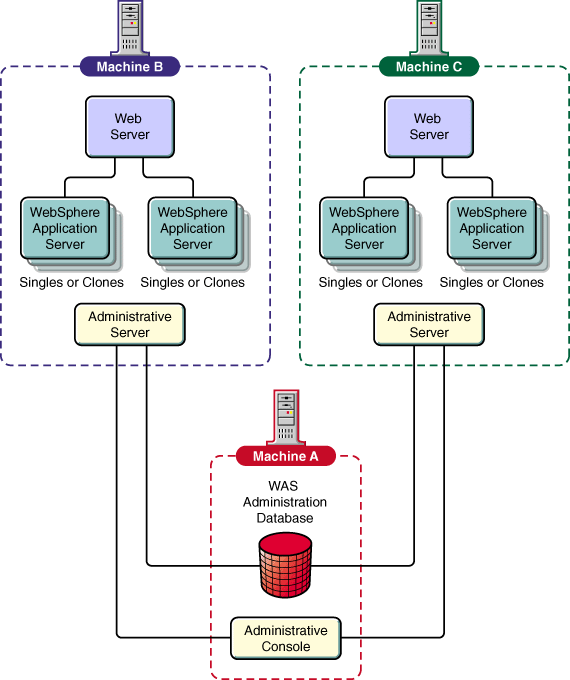
This topology option can be comprised of:
| NOTE: | A server group and all of its clones should reside on the same machine. |
This topology provides good servlet and JavaServer Pages performance. Multiple application server engines deploy several instances of Java applications, all managed within a logical server group.
Figure 2 shows that this configuration, combined with the topology in Figure 1, is ideal for horizontal scaling, where the eNetwork Dispatcher product is used to balance workload across several machines.
Figure 2. Advanced topology option I
For instructions on installing this topology, see Installing and
configuring WebSphere Application Server.
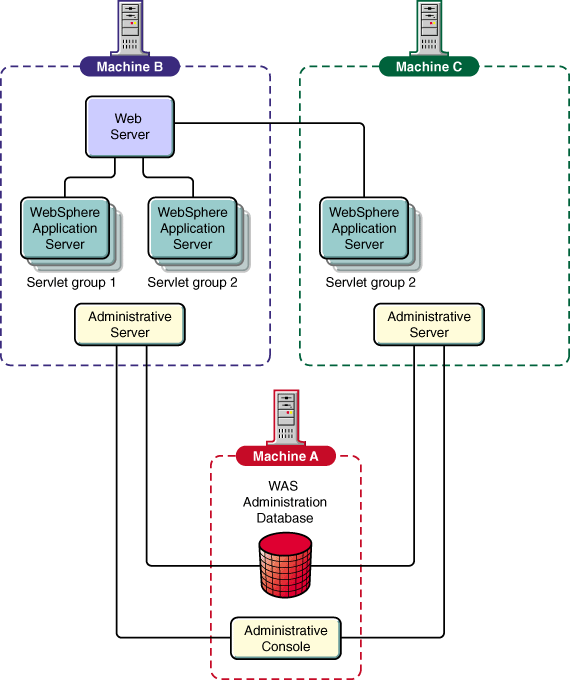
This topology option has all of the functions of advanced topology option I. Connections using non-secure encryption or Open Servlet Engine (OSE) connect the Web server or WebSphere Application Server plug-in to the application server groups as shown in Figure 3. The firewall in this topology must support a TCP port. If the firewall uses a protocol analyzer, it will fail.
This topology is the most flexible of those supported by WebSphere Application Server Version 3.0. The servlets and JavaServer Pages files dispatch via the Remote Method Invocation (RMI) through IIOP. Multiple workstations with multiple server groups with clones are permitted.
This topology allows maximum flexibility in distribution of objects. This topology also is the only secure configuration. In this topology, shown as Figure 3, the connection between the Web server and WebSphere Application Server is the only unsecured connection. The connections from the (OSE) listener to the application server groups use IIOP.
Figure 3. Advanced topology option II
For information on installing this advanced option, see Installing
and configuring WebSphere Application Server.
WebSphere Application Server supports cloning of application servers using WebSphere Administrative Console. WebSphere Application Server supports cloning for servlet engines, Web applications, and servlets for workload management, load balancing, and fail over.
If all of the Java Virtual Machines (JVMs) supporting a server and its clones (a "server group") are located on the same physical machine (node) as the Web server, the OSE transport should be used to route the servlet requests, using the pushed-based native load balancing.
If any of the JVMs participating in a servlet cluster are located on any node other than the node containing the Web server, the IIOP-based servlet redirector should be used to route the servlet request, taking advantage of the IIOP load balancing.
These tips are intended to highlight some important points about successfully installing WebSphere Application Server. For more information on planning and installation, including requirements and procedures, read sections of this book as they are applicable to your WebSphere application; review the main product Web site for Release Notes with known problems, limitations, and workarounds; and visit the following product Web site for the most recent planning and installation information:
http://www.ibm.com/software/websphere/appserv/doc/v302/install/install_guides.html
java full version "1.1.7B"
The user and password combination you specify will be the account under which the WebSphere Administrative Server runs.
The ID is also used for security purposes. Refer to the Security topic in the WebSphere Application Server help for more information.
For more information on starting the WebSphere Administrative Server, see Starting and stopping WebSphere Application Server.
As with any software, some planning is necessary to ensure a successful installation. This section discusses how to install WebSphere Application Server on the Novell NetWare operating system. It provides:
These are the minimum hardware requirements for installing and operating WebSphere Application Server on the Novell NetWare operating system:
These are the minimum software requirements for installing and operating the WebSphere Application Server on the Novell NetWare operating system:
Before you install WebSphere Advanced Application Server 3.0.2, you must first uninstall any Standard or Advanced versions you currently have installed on your NetWare server.
To uninstall an existing version of WebSphere:
- connect internal/password
- drop tablespace was including contents cascade constraints;
- drop user EJSADMIN cascade;
This chapter discusses how to install and configure WebSphere Application Server and its components. After you complete these tasks, WebSphere Application Server can run with full functionality, using primarily its default settings.
Before you install WebSphere Application Server, consult the Novell Developer Kit, Novell Documentation Web site, or the Library page of the WebSphere Application Server Web site for corrections and additions to this information:
http://developer.novell.com/websphere/
http://www.novell.com/documentation/lg/websphere/docui/index.html
http://www.ibm.com/webservers/appserv/library.html
Before installing WebSphere Application Server, quickly review the following list to make sure you have met all of the prerequisites for successfully installing WebSphere on NetWare. If you have read Before you install WebSphere Application Server, you may have already have done steps 1 through 3.
To install WebSphere on NetWare:
When the Install Options panel displays, select the component you want to install and the target directory.
The component options are described in WebSphere Application Server component options. The default option is Development Kit, which provides the basic topology described in Basic topology.
Alternatively, you can install the basic topology using the Custom Installation option. Selecting Custom Installation opens the Choose Application Server Components panel. The default options include:
When the Database Options panel displays, enter the information appropriate for your configuration.
IMPORTANT: Be sure to specify the correct path to your database. For example, if you are using Oracle and have installed the database on VOL1, make sure you specify VOL1.
The WebSphere Application Server requires a database to manage configuration and security information. WebSphere 3.02 Advanced for NetWare lets you use either Oracle or DB2.
The following table indicates where Oracle and DB2 databases can be stored in relation to where the WebSphere Administration Server resides. A local database is one that resides on the same NetWare server as the WebSphere administration server.
| Local Database | Remote Database | |
| Oracle | Allowed | Allowed |
| DB2 | Not Allowed | Allowed |
Scripts to create and initialize your database are provided for these configurations. Selecting either Oracle or DB2 will provide default values for all other fields. Oracle defaults will configure WebSphere to be used with Oracle on the local server.
Because DB2 is not available on NetWare, the installation process will simply install the necessary values needed to run a DB2 database on a remote server. This assumes that a WebSphere Application Server database was created in the directory C:\SQLLIB on the remote computer.
NOTE: Prior to running WebSphere, the database (or table space) and user account needs to be created. The WebSphere Application Server will use this information to access the database. The following section describes how to create and configure the database.
You can run the Oracle Server on your local node, or you can access an Oracle Server on another host. WebSphere lets you use an Oracle database or allows multiple hosts to share an Oracle database.
When you install WebSphere Application Server, the installation program generates a CREATEORACLE.NCF file in the as_root/bin directory. Follow the steps below for creating and configuring the Oracle database on NetWare or NT.
NOTE: If you are using Oracle, note that occasionally, when the Administrator's Console is started, items in the Topology tab are not visible. This can be fixed by editing the INITdatabase_instance.ORA file in the DATABASE subdirectory where the Oracle database was installed (e.g. DATA:ORAHOME1\DATABASE\INITORCL.ORA).
Edit this file by adding or modifying the following line:
OPEN_CURSORS=200
For the change to be effective, the database must be stopped, unloaded and then restarted (e.g. orastop, oraunld, oraload and orastart).
To create and initialize the table space in the Oracle database on NetWare:
IMPORTANT: These steps must be completed before starting WebSphere. Also, once you have WebSphere and Oracle running successfully, do not stop and unload Oracle before stopping WebSphere.
To create and initialize the table space in the Oracle database on NT:
You can use DB2 as the administrative server database, which is used to manage and store WebSphere Application Server configuration and administration information. Because DB2 does not run on NetWare, you will have to use it as a remote database running on an NT computer that is attached to your NetWare network where you have installed WebSphere. WebSphere allows multiple hosts to share a DB2 database as depicted in Figure 2 and Figure 3.
The following information describes how to use DB2 as your administrative server database.
When you install WebSphere Application Server, the installation program will generate a CREATEDB2.BAT and a CREATEWASDB.SCR file in the as_ root/bin directory.
To create and initialize the database on NT:
For example if you specified a port of 6789 in the JDBC URL, then you would enter the following:
db2jstrt 6789
For more information on using and configuring DB2, visit
http://www.software.ibm.com/cgi-bin/db2www/library/pubs.d2w/report#UDBPUBS
The WebSphere Application Server components, security runtime and Object Level Trace and Debugging (OLT and OLD), require post-installation steps before you can use the WebSphere Administrative Console to configure, start, and administer them.
The WebSphere security runtime might require some post-installation steps. Refer to http://domain_name/IBMWebAS/help/secure2.htm for the steps related to security.
In order for your applications to take advantage of WebSphere security, there are a few tasks you need to perform. If you are running the admin console from Windows NT, you will need to install the admin console and your Server Certificate. See Enabling Web distribution of the WebSphere Administration Console for instructions. Once your admin console is updated and you have installed your server certificate, you are ready to enable security.
To install the server certificate when running the Admin Console on Windows NT:
NOTE: If you did not unjar IBMWebASv3_NT_AdminClient.jar to C:\WebSphere\AppServer, you will need to edit PROPERTIES\SSL.PROPERTIES and set the SSL.CERTS property to the full path of RootCert.der.
Before you enable security, you need to create a separate account for the WebSphere administrator. The password for this account will not be secure, therefore it is recommended that you do not use the same password as the admininistrator account on your server.
To create the WebSphere administrator account:
When the WebSphere administrator account is created, use it when completing the next section, Enabling security in the Global Security Task.
The password for this account is not secure, so if you have not created this separate account follow the instructions in Creating a WebSphere administrator account to create this account.
NOTE: The first time you start your administrative server after enabling security, the administrative server will exit with a code of 1111. The administrative server will then restart automatically.
NDS eDirectory manages user accounts for WebSphere. If you are running NDS on a remote server--a server other than the server where you are running WebSphere--you can set up a secure connection using SSL and Novell International Cryptographic Infrastructure (NICI).
NICI is set up using keyring managment tools. You create a Key Management Object (KMO) which uses the digitial certificate for the sever which hosts NDS.
Setting up NICI involves the following process:
nssl.keystore=name
where name is the value used in step number 4 of Step B.
This chapter provides you with information on how to start and stop:
Remember to consult the IBM WebSphere Application Server Web site for the latest corrections or additions to this information.
When you install WebSphere on NetWare, your AUTOEXEC.NCF file is modified to run the Administrative Server when you start NetWare. Optionally, you can comment this line out and start the Administrative Server from a command prompt by typing startwebsphere.
To stop the Administrative Server, type stopwebsphere at the NetWare console prompt.
IMPORTANT: Do not stop and unload Oracle before stopping WebSphere.
You can start the WebSphere Administrative Console on NetWare through the NetWare GUI interface or from a command prompt.
To start from the NetWare console:
If you want to use the Administrative Console on a remote Windows NT client computer in your network, follow the steps outlined below.
To set up the Administrative Console on a remote NT client:
To exit the WebSphere Administrative Console, click Exit on the console menu bar.
To start an application server process from the WebSphere Administrative Console:
- Click the round green button on the administrative console tool bar.
- Right click, then select and click Start.
Similarly, to stop an application server process, follow the same first four steps used to start a server process, but then do the following:
NOTE: If you want to stop everything except the administrative console, refer to the starting and stopping topics.
Now that you have installed WebSphere Application Server, you can verify that it is installed and functioning correctly. This topic discusses:
Remember to consult the IBM WebSphere Application Server for NetWare Web site (http://www.novell.com/websphere) for the latest corrections or additions to this information.
Before testing servlets and enterprise beans, you must start the product and its prerequisites:
To verify that the NetWare Enterprise Web server is up and running, use a Web browser to open your Web server's default home page:
If it isn't running, type nsweb at the NetWare console prompt.
To verify the WebSphere Application Server installation, you must have started the Web servers. Use your browser to open:
http://domain_name/servlet/snoop
where domain_name is your host machine name.
Two sample applications (servlet groups) are installed under the Application Server hosts folder. The applications are default_app (which includes snoop) and examples. To serve servlets from these applications, use your browser to open the servlet URL. To view the servlet URL, use the WebSphere Administrative Console to display the servlet attributes.
If you cannot open and display your servlets, be sure that you have correctly installed the Web server and that it is running. Also, make sure you have used your host name and not localhost; and that you have started the Default Server from the WebSphere Administrative Console (refer to Starting and stopping an application server).
This section describes how to test the enterprise beans included with WebSphere Advanced Edition for NetWare to ensure that WebSphere is running correctly.
After you install WebSphere Application Server, you can test an enterprise bean by
NOTE: Before proceeding, you must disable security for the bean to work.
To create a JDBC driver:
Name:
SampleJDBC
Implementation class:
URL Prefix:
JTA Enabled:
To create a data source:
Name:
SampleDBSource
Database name:
Driver: SampleJDBC (created in the first step, To Create and Install a JDBC Driver)
To create a database or tablespace in DB2:
Type the following command at a DB2 command prompt:
db2 create database SampleDB
To create a database or tablespace in Oracle:
CREATE TABLESPACE sampledb DATAFILE 'sys:/orahome1/sampledb' SIZE 50K REUSE AUTOEXTEND ON NEXT 5K;
CREATE USER ejb IDENTIFIED BY ejb DEFAULT TABLESPACE sampledb;
GRANT CONNECT, RESOURCE, DBA TO ejb;
COMMIT;
To install the new JDBCDriver onto your host:
For single-system configuration, specify the host name on which you are currently running.
DB2: WebSphere\AppServer\lib\db2java.zip
Oracle: WebSphere\AppServer\lib\classes111.zip
To deploy the bean:
DB2: Use a db2 username and password.
Oracle: Use EJB and EJB from step 6b.
To start the EnterpriseBean:
To test the EnterpriseBean:
The number of hits should display.
You can use the HitCount sample described in Testing with the sample enterprise bean HitCount to test the security function.
To test the security function using the HitCount sample:
You can follow the steps in Testing with the sample enterprise bean HitCount to deploy other sample enterprise beans. Look in http://domain_name/WebSphereSamples/index.html.
This division provides an overview of the facilities available for logging, monitoring, and debugging WebSphere Application Server and its components.
The WebSphere Administrative Console help system provides instructions to help you enable debugging, tracing, logging, and monitoring to detect and diagnose problems in both the Application server and your own programs.
To access the help system, open:
as_root/web/help/helpcon.htm
where as_root is the root directory of your WebSphere Application Server installation.
If you have completed instructions in previous chapters, you should by now have the administrative server and administrative console running. Further, you might have used the administrative console to verify the installation with a servlet and an enterprise bean.
This chapter provides more information about the administrative console and points you to online helps that describe how to complete administrative tasks using the console.
The administrative console is a main window from which you can complete tasks using the following resources:
In addition, you can use the console to do the following:
For information on how to use the console, refer to the Help. To run the Help system, open the following file using your Web browser:
as_root/web/help/helpcon.htm
The WebSphere Application Server Web site and the Novell Developer Kit contain frequently asked questions and their answers.
http://www.ibm.com/software/webservers/appserv/library.html
http://developer.novell.com/websphere
You can also visit the user forum at
http://www.networking.ibm.com/was/forum.html
If you experience a problem with WebSphere Application Server, you can contact the Novell Support Connection.
The Novell Support Connection™ provides access to Novell’s networking
expertise through the Novell Support Connection Web site, the Novell Support Connection
CD, and support programs for customers and partners.
By using the Novell Support Connection Web site or CD, you can connect to the same
networking knowledge used by Novell technical support engineers. In addition, the Web site
provides an open Internet-based forum for customers and partners to share technical
support information and solutions. The forums are staffed by volunteer System Operators
(SysOps) who are invited and sponsored by Novell to answer questions posted in the forums.
The Web site also offers information on Advanced Technical Training videos, CBTs and
conferences.
For additional support, Novell encourages customers to contact a Novell partner. Customers
can locate qualified partners using the Novell Support Connection Web site. Searches are
based on geographic location, product expertise, or both.
Visit the Novell Support Connection at:
support.novell.com (Americas)
support.novell.de (Europe, Middle East, Africa)
support.novell.com.au (Asia Pacific )
or call:
Americas (English) 1-800-858-4000/801-861-4000
Europe, Middle East, Africa (English) (49) 211 5632 744
French (49) 211 5632 733
German (49) 211 5632 777
Asia Pacific (English) (61) 2 9925 3133
See the Novell Support Connection Web site for a complete list of languages and support
telephone numbers.
To order the Novell Support Connection CD, call 1-800-377-4136 or 1-303-297-2725 or visit
the Novell Support Connection Web site.
You can also e-mail IBM directly with your suggestions and requirements for future releases, and to report less critical defects that do not require a personal interaction or formal support: WASTEAM@US.IBM.COM
The Java client libraries component consists of the following subcomponents:
Install the production application server when you need to deploy servers together. The producation application server component consists of the following subcomponents:
Upon selection of the server installation option, all of the above WebSphere Application Server subcomponents are installed in the target directory you specify. Java client libraries are also installed.
Install the WebSphere Administrative Console component when you need to deploy a production machine to perform administrative tasks. This installation is a superset of the Java client libraries component, adding administrative and deployment tools. The administrative console component consists of the following subcomponents:
Install the WebSphere Application Server development kit when you need to develop and test applications. The development kit includes the following subcomponents:
The WebSphere Application Server Advanced Edition product requires a database for operation. An Oracle 8i database satisfying the product prerequisites is available for NetWare.
WebSphere Application Server Advanced Edition supports Oracle8i (Version 8.1.6) THIN JDBC Driver when used with the Java Development Kit Version 1.1.x. The OCI driver is not supported.
The NetWare Enterprise Web Server should be installed before you install the IBM WebSphere Application Server because installing the WebSphere Application Server changes the Web server OBJ.CONF file.
The following modifications are made to the NetWare Enterprise Web Server configuration files during the installation process:
Init fn="load-modules" funcs="init_exit,auth_exit,service_exit,term_exit" shlib="SYS:/WebSphere/AppServer/bin/ns35.nlm"
Init fn="init_exit" bootstrap.properties="SYS:/WebSphere/AppServer/properties/bootstrap.properties"
NameTrans fn="pfx2dir" from="/IBMWebAS" dir="SYS:/WebSphere/AppServer/web"
PathCheck fn="auth_exit"
Service fn="service_exit"
The default install directory for WebSphere is SYS:/WebSphere/Appserver. This will be different for non-default directories
Novell Directory Services® (NDSTM), also referred to as eDirectory is implemented as part of the IBM WebSphere 3.0 for NetWare infrastructure. NDS provides a seamless authentication capability and implements LDAP extensions.
SSL provides encryption of data and authentication using X.509v3 public-key certificates. The server may be configured to run with or without SSL support. The server supports LDAP referrals, allowing directories to be distributed across multiple LDAP servers. Replication is supported which makes additional read-only copies of the directory available, improving performance and reliability of access to the directory information. A powerful, easy-to-manage access control model is supported. Configuration and administration of the LDAP Directory is accomplished through an improved web-based interface.
NDS supports over a billion entries with peak sub-second response time for searches.
The NetWare Enterprise Web Server supports LDAP administration.
Directory client access is supported using LDAP or HTTP protocols. Client applications can be developed using the enhanced elements provided for supporting LDAP Version 3 protocols and APIs. Also included is the Java Naming and Directory Interface (JNDI) client API that provides Java applications with access to LDAP-enabled directories. Both clients support access to NDS using LDAP Version 2 or Version 3.
References in this publication to IBM products, programs, or services do not imply that IBM intends to make them available in all countries in which IBM operates. Any reference to an IBM product, program, or service is not intended to state or imply that only that IBM product, program or service may be used. Subject to IBM's valid intellectual property or other legally protectable rights, any functionally equivalent product, program, or service may be used instead of the IBM product, program, or service. The evaluation and verification of operation in conjunction with other products, except those expressly designated by IBM, are the responsibility of the user.
IBM may have patents or pending patent applications covering subject matter described in this document. The furnishing of this document does not give you any license to these patents. You can send license inquiries, in writing, to the IBM Director of Licensing, IBM Corporation, 500 Columbus Avenue, Thornwood, NY 10594, U.S.A.
Licensees of this program who wish to have information about it for the purpose of enabling: (i) the exchange of information between independently created programs and other programs (including this one) and (ii) the mutual use of the information which has been exchanged, should contact:
Director of LicensingThe licensed program described in this document and all licensed material available for it are provided by IBM under terms of the IBM Customer Agreement.
This document is not intended for production use and is furnished as is without any warranty of any kind, and all warranties are hereby disclaimed including the warranties of merchantability and fitness for a particular purpose.
This product includes computer software created and made available by CERN. This acknowledgement shall be mentioned in full in any product which includes the CERN computer software included herein or parts thereof.
The following terms are trademarks of IBM Corporation in the United States or other countries or both.
Microsoft, Windows, Windows NT and the Windows 95 logo are trademarks or registered trademarks of Microsoft Corporation.
UNIX is a registered trademark in the United States and other countries licensed exclusively through X/Open Company Limited.
Pentium II is a trademark or registered trademark of Intel Corporation.
NetWare is a trademark of Novell, Inc.
Java and all Java-based trademarks and logos are trademarks or registered trademarks of Sun Microsystems, Inc. in the United States and other countries.
Other company, product, and service names, which may be denoted by a double asterisk (**), may be trademarks or service marks of others.
First NetWare Edition (May 1999)
This edition applies to the licensed program IBM WebSphere Application Server Advanced Edition Version 3.02, Program Number 5801-AAR.
Order publications by phone or fax. IBM Software Delivery Solutions/IBM Publications Support takes publication orders between 8:30 a.m. and 7:00 p.m. Eastern Standard Time (EST). The phone number is (800) 879-2755. The fax number is (800) 284-4721.
You can also order publications through your IBM representative or the IBM branch office serving your locality. Publications are not stocked at the address below.
A form for your comments appears at the back of this publication. If the form has been removed, address your comments to:
IBM Corporation
Attn: Information Development
Department G7IA, Building 062
P.O. Box 12195
Research Triangle Park, NC 27709-2195
You can fax comments to (919) 254-0206.
When you send information to IBM, you grant IBM a nonexclusive right to use or distribute the information in any way it believes appropriate without incurring any obligation to you.
(C) Copyright International Business Machines Corporation 1998,1999. All rights
reserved
Note to U.S. Government users: Documentation related to restricted rights. This documentation is related to restricted rights. Use, duplication, or disclosure is subject to restrictions set forth in GSA ADP schedule contract with IBM Corporation.