The AMIE Snapshots submenu option is visible when at least one asset management tool is configured to be synched within AMIE as defined in the following:
Admin > Setup > AMIE > Setup tab
OR
Admin > Setup > ZENworks > ZENworks Import
The AMIE Snapshot submenu is also known as the staging area for building a federated CMDB, which is a CMDB that uses information sourced from multiple asset management repositories.
When the application is synchronized with multiple asset management tools and the automatic Item creation option is disabled in AMIE Import or ZENworks Import, the system creates an image or Snapshot of the asset information which is made available within the AMIE Snapshot tab. As different asset management tools may not record the same information for an Item, the Supervisor can combine the most relevant information from the different sources into the one Item within the CMDB, by merging snapshots created by the different tools using the Category Map configured for the Item Category. (See: Federation Tab.)
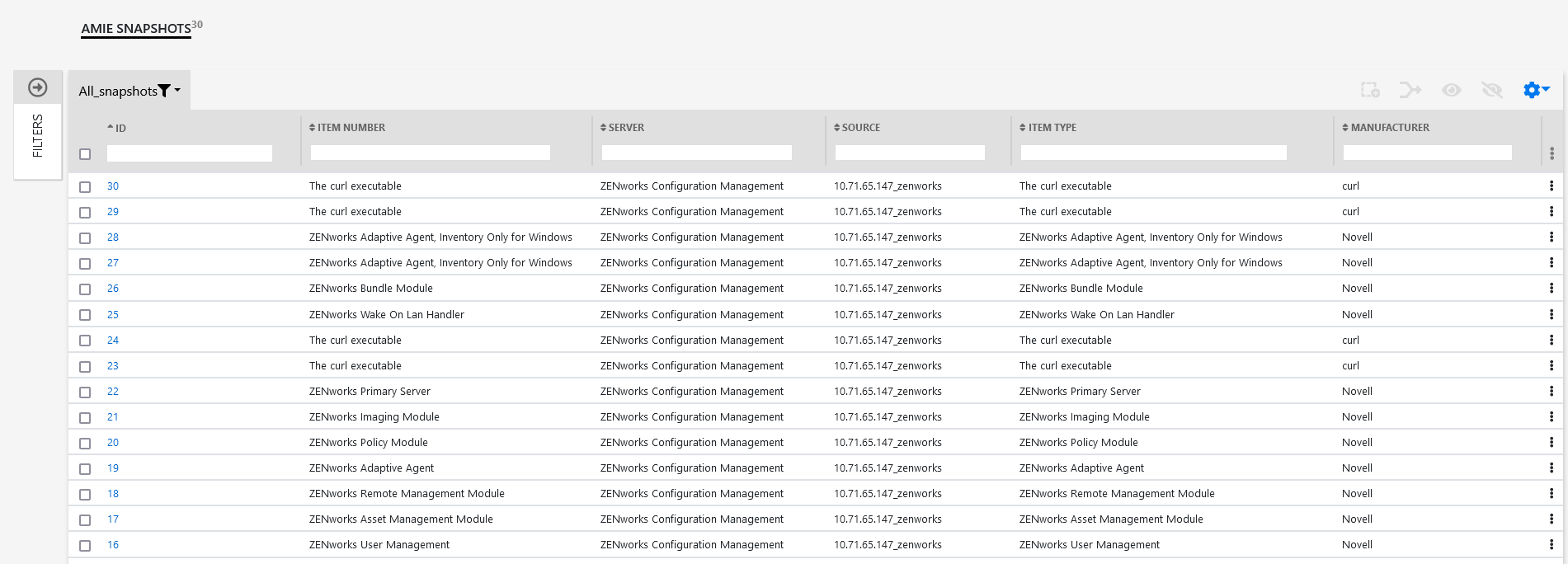
In the AMIE Snapshots list page, click any of the AMIE Snapshot IDs to view the snapshot details.
Create a snapshot
Hide the snapshot
Unhide the snapshot
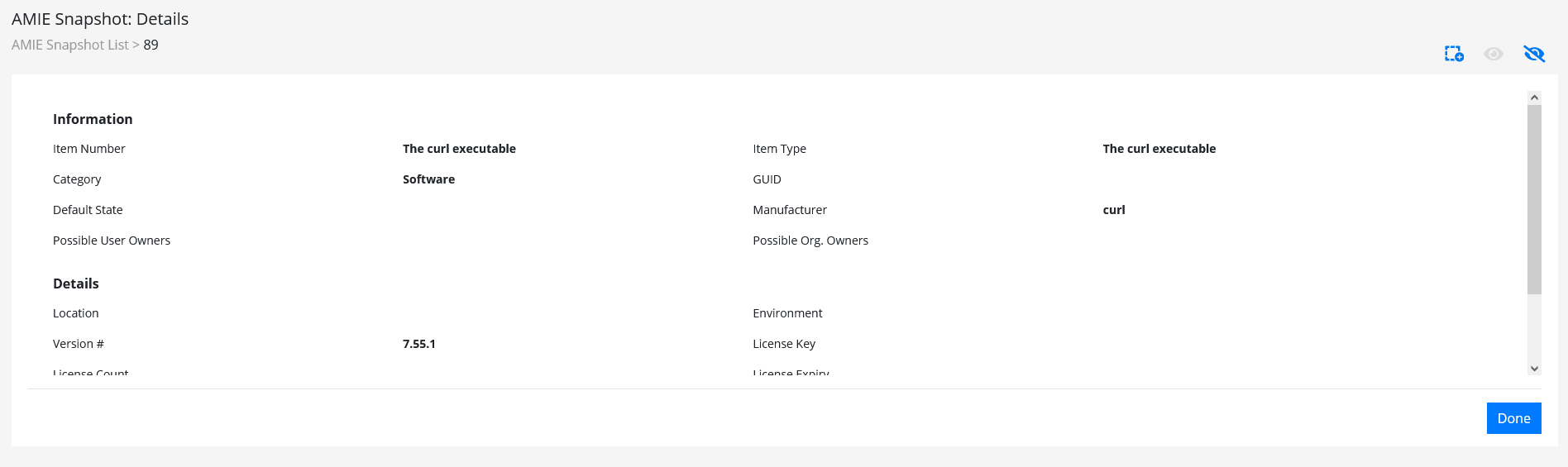
In the AMIE snapshot details page include actions that can be performed on the snapshot. Following are the actions that can be performed:
The following are the actions that can be performed in this page:

|
Actions |
Description |
|---|---|
|
Managing Columns |
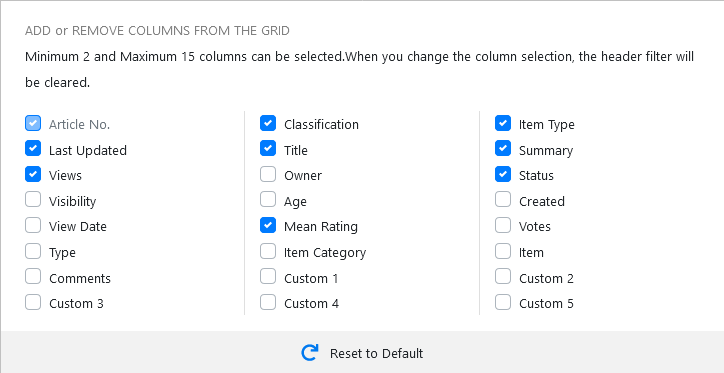
The columns displayed in the AMIE page can be rearranged, reordered and resized.
|
|
Row Actions |
Each row in this page has its own set of actions. To view the actions, Click the kebab menu icon (vertical three dots). Following are some of the actions displayed:
|
|
Bulk Operations |
Following are some of the bulk operations that can be performed in this page. Select one or more than one Knowledge Base, and then perform any of the following actions:
|
When Item information is recorded in multiple AMIE Snapshots, the Supervisor can merge images into one Item within the CMDB by first conducting a search on key fields such as MAC Address or Network Name for Hardware, or Version Number and Parent Id for Software Items. To maintain relationship data between the Hardware and Software Items (i.e., Parent/Child relationships), the order of Item creation is important. Always create parents first, then children, or in other words, Hardware first then the Software.
After identifying and selecting the relevant Snapshots, by ticking the fields next to the Id#, click the Merge button to display a synthesized Snapshot Detail screen. The information displayed on the Snapshot Detail, and recorded against the Item, is based on the Category Map configured for the Item Category.
If the Control CMS via RFC is enabled in Admin>Setup>Privileges>System, merged or promoted Snapshots are not automatically created as Items in the CMDB, but generate a Change Request that will require approval before the Item is saved in the CMDB. If the option is disabled, when the Save button is selected, the Item is automatically created in the CMDB.
All AMIE Snapshots applied to an Item are removed from the AMIE Snapshot List View, when the list filter is set to display Unassigned Snapshots.
To search and filter the Knowledge Base, refer to the following sections:
Use the column header level search to search the data within the column to narrow down the result. This option is available for many columns.

On the left-hand side of the Request page, the Filters panel is displayed. Using the options available in this panel, you can filter the unrelated data so that only the required data is displayed in the grid.
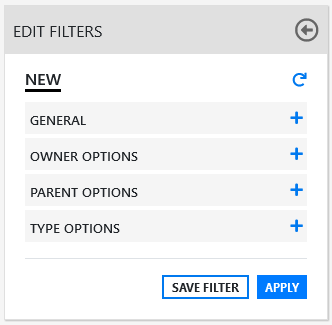
Search Parameter Options |
|
General |
|
Snapshot Status |
All : searches assigned and unassigned AMIE Snapshots. Unassigned : searches AMIE Snapshots that are not assigned to an Item. Assigned : searches AMIE Snapshots that have been assigned to an Item, and therefore not displayed in the List View. Hidden : searches through hidden AMIE Snapshots that have never been applied to an Item. |
Server |
Select a single server option to refine the search, or leave blank to search through all systems configured in AMIE. |
Manufacturer |
Enter Manufacturer details of the Item. This field supports partial text search. |
Owner Options |
|
Username |
Often the last logged in User for the Item. This field supports partial text search. |
Org Unit |
The Org. Unit owner for the Item. This field supports partial text search. |
Type Options |
|
Item Category |
Select a Category from the popup list to restrict AMIE Snapshots by the Item Category. A selection will display the custom fields for the chosen Category, which can be completed to refine the search. |
Item Type |
The Item Type of the Item. This field supports partial text search. |
Parent Options |
|
AMIE Snapshot Id |
Search on a parent AMIE Snapshot Id. This information is useful when merging children Items, such as Software. |
Following are some of the actions that can be performed in this Filters panel:
Apply Filters: After making the required modifications to the filter panel, click Apply to view the results.
Reset Filter: To reset the data displayed in the grid and clear the filter fields, click the  icon.
icon.
Save Filter: After modifying the filters, if required, you can save the filter for future use. To save the filter, click the Save Filter button.
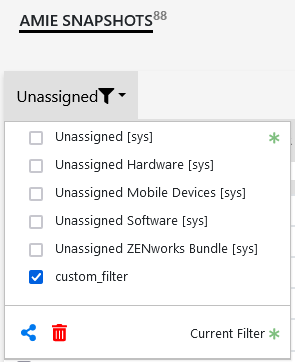
Load Saved Filters: To load or apply the saved filters, click the filter list panel, and then select the required filter.
Share Filter: To share the filter, click the share icon, and then select the required option in the displayed pop-up.
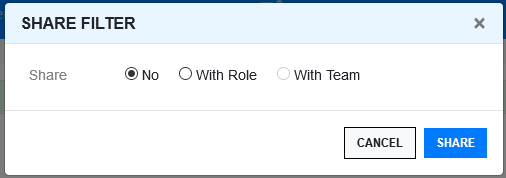
The available options are:
No: Select this option to stop sharing the filters that was shared earlier.
With Role: Select this option to share the filter with those who have same roles.
With Team: Select this option to share the filter with your team.
Delete Filter: Click the Delete button to delete the filter.
Note: Only the custom filters can be shared and deleted.
 icon, and then select the required field that should be displayed.