6.3 Chat
6.3.1 Chat Integration Configuration
In the ZENworks Service Desk, you can configure third-party chat software such as WhatsApp, Microsoft Teams, Slack and so on, enabling users to launch the chat application with a single click.
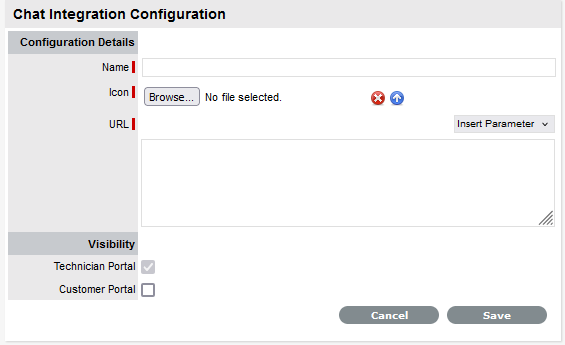
NOTE:Only 3 third-party chat applications can be integrated with ZENworks Service Desk.
-
Name: Specify a name for the chat application.
-
Icon: Upload an icon for the chat application.
-
URL: Specify the URL of the chat vendor. Refer to the chat vendor documentation for the URL.
Following are some of the official URLs:
-
WhatsApp: https://faq.whatsapp.com/425247423114725/?helpref=uf_share
-
Slack: https://api.slack.com/reference/deep-linking
-
Microsoft Teams: https://learn.microsoft.com/en-us/microsoftteams/platform/concepts/build-and-test/deep-link-teams
-
-
Insert Parameter: Along with the specified URL, select the required parameters with which the chat application should be opened.
The inserted parameters will be replaced with the actual user data. The available options are Username, Email, Phone and Mobile.
-
Visibility: Select the portal where the chat application should be available. By default, the chat application will be in the Technician portal, if required, select the Customer Portal check-box to get the chat application in the customer portal.
-
User Portal: The chat components will be displayed on the Request details page of any request. In the request details page, under the Customer field, Reported by field, and Technician field, the chat components will be displayed, and the User can click on the same to launch the chat application.
In the user portal, go to the Requests tab > Open any request details page by clicking the Request ID.
-
Customer Portal: While configuring the chat integration, if the Visibility for the Customer Portal is enabled, then the chat components will be displayed for each request details in the Requests tab.
The chat icon will be displayed next to the Requested By and Technician fields, allowing users to launch the chat application with a click.
-
Example 6-1 Configuring Microsoft Teams
To configure Microsoft teams, specify the following details:
-
Name: MS Teams
-
URL: https://teams.microsoft.com/l/chat/0/0?users={{EMAIL}}
Here, {{EMAIL}} is the parameter, which will be replaced with the actual user data.
Example 6-2 Configuring WhatsApp
To configure WhatsApp, specify the following details:
-
Name: WhatsApp
-
URL: https://wa.me/{{MOBILE}}
Here, {{MOBILE}} is the parameter, which will be replaced with the actual user data.