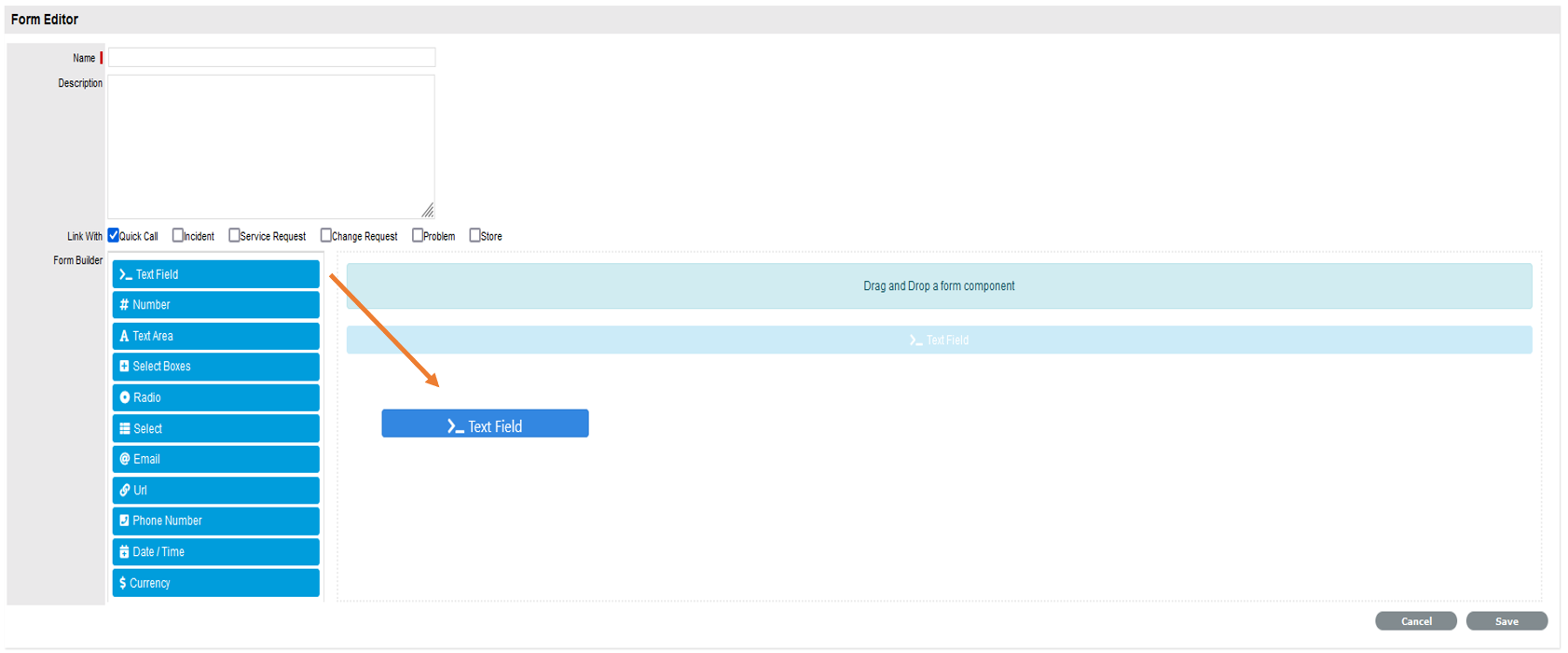
Using this page, you can create a new dynamic form or modify an existing form. Using the available Form Builder components, you can create your own forms by dragging and dropping the components.
Important: If a form is created or modified, then the existing request using that form will not be impacted.
To create a dynamic form, perform the following steps:
In the Dynamic Form page, click New.
In the Form Editor page, specify Name and Description for the form.
Using the Link With field, you can link the Dynamic Form with Quick Call, Incident, Service Request, Change Request, Problem and Store.

In the Form Builder section, based on requirements, drag and drop the form elements into the form canvas.
Each form component can be customized. For more information, see Form Components section.
After designing the dynamic form, click Save.
Following are some of the form components that are available in Service Desk. Depending on which component you are using, the field components will be displayed.
Following are some of the available form components:
Text Field: The Text field can be used for short a short text input. Use the options to define input masks and validations, allowing users restrict the number of characters that a user can add in the field
|
Options |
Description |
|
Display |
|
|
Label |
The label for this field. |
|
Placeholder |
The placeholder text that will appear when this field is empty. |
|
Input Mask |
An input mask helps the user with input by ensuring a predefined format. |
|
Disabled |
Disable the form input. |
|
Data |
|
|
Default Value |
The will be the value for this field, before user interaction. Having a default value will override the placeholder text. |
|
Validation |
|
|
Required |
A required field must be filled in before the form can be submitted. |
|
Minimum Length |
The minimum length requirement this field must meet. |
|
Maximum Length |
The maximum length requirement this field must meet. |
|
Custom Error Message |
Error message displayed if any error occurred. |
|
Conditional |
|
|
This component should Display |
Enables conditional visibility of the field |
|
When the form component |
The visibility is dependent on another component defined within the form. |
|
Has the value |
The logic is activated when the configured field contains the plaintext value defined in the settings. |
Number: The Number component can be used to limit users to specify only numbers.
|
Options |
Description |
|
Display |
|
|
Label |
The label for this field. |
|
Placeholder |
The placeholder text that will appear when this field is empty. |
|
Disabled |
Disable the form input. |
|
Data |
|
|
Use Delimiter |
Separate thousands by delimiter. |
|
Decimal Places |
The maximum number of decimal places. |
|
Require Decimal |
Always show decimals, even if trailing zeros. Default value is 20 places if "Decimal Places" is not defined. |
|
Default Value |
The will be the value for this field, before user interaction. Having a default value will override the placeholder text. |
|
Validation |
|
|
Required |
A required field must be filled in before the form can be submitted. |
|
Minimum Value |
The minimum length requirement this field must meet. |
|
Maximum Value |
The maximum length requirement this field must meet. |
|
Custom Error Message |
Error message displayed if any error occurred. |
|
Conditional |
|
|
This component should Display |
Enables conditional visibility of the field |
|
When the form component |
The visibility is dependent on another component defined within the form. |
|
Has the value |
The logic is activated when the configured field contains the plaintext value defined in the settings. |
Text Area: The Text area is similar to the text field. In the Text Area field allows multiple-line input.
|
Options |
Description |
|
Display |
|
|
Label |
The label for this field. |
|
Placeholder |
The placeholder text that will appear when this field is empty. |
|
Rows |
This allows control over how many rows are visible in the text area. |
|
Disabled |
Disable the form input. |
|
Data |
|
|
Default Value |
The will be the value for this field, before user interaction. Having a default value will override the placeholder text. |
|
Validation |
|
|
Required |
A required field must be filled in before the form can be submitted. |
|
Minimum Length |
The minimum length requirement this field must meet. |
|
Maximum Length |
The maximum length requirement this field must meet. |
|
Custom Error Message |
Error message displayed if any error occurred. |
|
Conditional |
|
|
This component should Display |
Enables conditional visibility of the field |
|
When the form component |
The visibility is dependent on another component defined within the form. |
|
Has the value |
The logic is activated when the configured field contains the plaintext value defined in the settings. |
Select Boxes: The Select boxes component is similar to Radio buttio, but allows multiple selection.
|
Options |
Description |
|
Display |
|
|
Label |
The label for this field. |
|
Values |
Each entry under this section will represent a checkbox. |
|
Placeholder |
The placeholder text that will appear when this field is empty. |
|
Inline Layout |
Displays the checkboxes horizontally. |
|
Disabled |
Disable the form input. |
|
Data |
|
|
Default Value |
The will be the value for this field, before user interaction. Having a default value will override the placeholder text. |
|
Validation |
|
|
Required |
A required field must be filled in before the form can be submitted. |
|
Custom Error Message |
Error message displayed if any error occurred. |
|
Conditional |
|
|
This component should Display |
Enables conditional visibility of the field |
|
When the form component |
The visibility is dependent on another component defined within the form. |
|
Has the value |
The logic is activated when the configured field contains the plaintext value defined in the settings. |
Radio: The Radio component enables you to display a list, but users can select only one option.
|
Options |
Description |
|
Display |
|
|
Label |
The label for this field. |
|
Values |
Each entry under this section will represent a radio option. |
|
Placeholder |
The placeholder text that will appear when this field is empty. |
|
Disabled |
Disable the form input. |
|
Data |
|
|
Default Value |
The will be the value for this field, before user interaction. Having a default value will override the placeholder text. |
|
Validation |
|
|
Required |
A required field must be filled in before the form can be submitted. |
|
Custom Error Message |
Error message displayed if any error occurred. |
|
Conditional |
|
|
This component should Display |
Enables conditional visibility of the field |
|
When the form component |
The visibility is dependent on another component defined within the form. |
|
Has the value |
The logic is activated when the configured field contains the plaintext value defined in the settings. |
Select: The Select components displays list of values in a drop-down list and users can select one of the values in the list.
|
Options |
Description |
|
Display |
|
|
Label |
The label for this field. |
|
Placeholder |
The placeholder text that will appear when this field is empty. |
|
Disabled |
Disable the form input. |
|
Data |
|
|
Data Source Values |
Each entry under this section will represent an entry in the drop-down list. |
|
Item Template |
The HTML template for the data items to determine how the values will be displayed in the select box |
|
Enable Static Search |
Enables searching within the list of items in the drop-down. |
|
Default Value |
The will be the value for this field, before user interaction. Having a default value will override the placeholder text. |
|
Validation |
|
|
Required |
A required field must be filled in before the form can be submitted. |
|
Minimum Value |
The minimum length requirement this field must meet. |
|
Maximum Value |
The maximum length requirement this field must meet. |
|
Custom Error Message |
Error message displayed if any error occurred. |
|
Conditional |
|
|
This component should Display |
Enables conditional visibility of the field |
|
When the form component |
The visibility is dependent on another component defined within the form. |
|
Has the value |
The logic is activated when the configured field contains the plaintext value defined in the settings. |
Email: The Email component is similar to the text field component. This field has custom validation to ensure correct value is provided.
|
Options |
Description |
|
Display |
|
|
Label |
The label for this field. |
|
Placeholder |
The placeholder text that will appear when this field is empty. |
|
Disabled |
Disable the form input. |
|
Data |
|
|
Default Value |
The will be the value for this field, before user interaction. Having a default value will override the placeholder text. |
|
Validation |
|
|
Required |
A required field must be filled in before the form can be submitted. |
|
Custom Error Message |
Error message displayed if any error occurred. |
|
Conditional |
|
|
This component should Display |
Enables conditional visibility of the field |
|
When the form component |
The visibility is dependent on another component defined within the form. |
|
Has the value |
The logic is activated when the configured field contains the plaintext value defined in the settings. |
URL: The URL component is also similar to the text field, where you can provide a link to website.
|
Options |
Description |
|
Display |
|
|
Label |
The label for this field. |
|
Placeholder |
The placeholder text that will appear when this field is empty. |
|
Input Mask |
An input mask helps the user with input by ensuring a predefined format. |
|
Disabled |
Disable the form input. |
|
Data |
|
|
Default Value |
The will be the value for this field, before user interaction. Having a default value will override the placeholder text. |
|
Validation |
|
|
Required |
A required field must be filled in before the form can be submitted. |
|
Custom Error Message |
Error message displayed if any error occurred. |
|
Conditional |
|
|
This component should Display |
Enables conditional visibility of the field |
|
When the form component |
The visibility is dependent on another component defined within the form. |
|
Has the value |
The logic is activated when the configured field contains the plaintext value defined in the settings. |
Phone Number: The Phone number component is similar to the number component.
|
Options |
Description |
|
Display |
|
|
Label |
The label for this field. |
|
Placeholder |
The placeholder text that will appear when this field is empty. |
|
Input Mask |
An input mask helps the user with input by ensuring a predefined format. |
|
Disabled |
Disable the form input. |
|
Data |
|
|
Default Value |
The will be the value for this field, before user interaction. Having a default value will override the placeholder text. |
|
Validation |
|
|
Required |
A required field must be filled in before the form can be submitted. |
|
Custom Error Message |
Error message displayed if any error occurred. |
|
Conditional |
|
|
This component should Display |
Enables conditional visibility of the field |
|
When the form component |
The visibility is dependent on another component defined within the form. |
|
Has the value |
The logic is activated when the configured field contains the plaintext value defined in the settings. |
Data / Time: The Date / Time component can be used to input dates and times.
|
Options |
Description |
|
Display |
|
|
Label |
The label for this field. |
|
Display In Timezone |
This will display the captured date time in the select timezone. |
|
Use Locale Settings |
Use locale settings to display date and time. |
|
Allow Manual Input |
Check this if you would like to allow the user to manually enter in the date. |
|
Format |
The date format for saving the value of this field. |
|
Placeholder |
The placeholder text that will appear when this field is empty. |
|
Disabled |
Disable the form input. |
|
Date |
|
|
Enable Date Input |
Enables date input for this field. |
|
Minimum Date |
The minimum date that can be picked. You can also use Moment.js functions. For example: moment().subtract(10, 'days') |
|
Maximum Date |
The maximum date that can be picked. You can also use Moment.js functions. For example: moment().add(10, 'days') |
|
Time |
|
|
Enable Time Input |
Enables time input for this field. |
|
Hour Step Size |
The number of hours to increment/decrement in the time picker. |
|
Minute Step Size |
The number of minutes to increment/decrement in the time picker. |
|
12 Hour Time (AM/PM) |
Display time in 12 hour time with AM/PM. |
|
Data |
|
|
Default Value |
The will be the value for this field, before user interaction. Having a default
value will override the placeholder text. |
|
Default Value |
The will be the value for this field, before user interaction. Having a default
value will override the placeholder text. |
|
Validation |
|
|
Required |
A required field must be filled in before the form can be submitted. |
|
Custom Error Message |
Error message displayed if any error occurred. |
|
Conditional |
|
|
This component should Display |
Enables conditional visibility of the field |
|
When the form component |
The visibility is dependent on another component defined within the form. |
|
Has the value |
The logic is activated when the configured field contains the plaintext value defined in the settings. |
Currency: The currency component similar to the number component and allows decimal values.
|
Options |
Description |
|
Display |
|
|
Label |
The label for this field. |
|
Placeholder |
The placeholder text that will appear when this field is empty. |
|
Disabled |
Disable the form input. |
|
Data |
|
|
Currency |
The currency to use in currency formatting. Possible values are (ISO-4217) currency codes. |
|
Default Value |
The will be the value for this field, before user interaction. Having a default value will override the placeholder text. |
|
Validation |
|
|
Required |
A required field must be filled in before the form can be submitted. |
|
Custom Error Message |
Error message displayed if any error occurred. |
|
Conditional |
|
|
This component should Display |
Enables conditional visibility of the field |
|
When the form component |
The visibility is dependent on another component defined within the form. |
|
Has the value |
The logic is activated when the configured field contains the plaintext value defined in the settings. |