Select Setup>Privileges>System
The System Privileges tab is displayed.
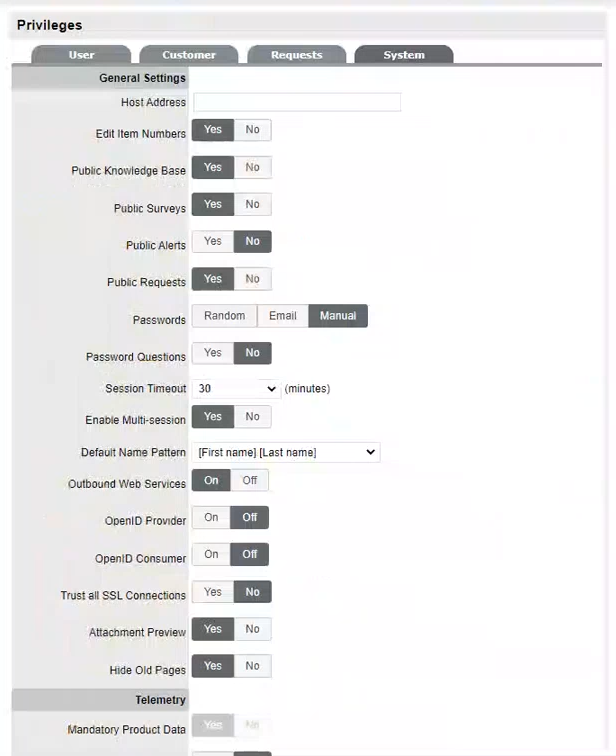
Customer Privileges |
Description |
|---|---|
General Settings |
|
Host Address |
To be completed with details of the machine hosting the NSD Application. The Host Address should always be a reachable External IP Address. The Private/Internal/NAT’ed IP may not be reachable. |
Edit Item Numbers |
Allows users to edit the identification number of an Item. |
Public Knowledge Base |
Allows access to the Public Knowledge Base on the Login Page. |
Public Surveys |
Provides access to Public Surveys on the Login Page. |
Public Alerts |
Alerts with the visibility defined as "Everyone" will be made available on the Login Page. |
Public Request |
Enables a user (any role) to create a request without logging into the application. This option is displayed on the Login page. |
Passwords |
When
LDAP or Active Directory Authorization is not used internal
authentication is used. To define the password type to be
used by the system select: Email: The Users Email Address will be used as the password. Manual: Allows the User to manually create a password. |
Password Questions |
Enables the ability to set security questions within the My Account screen for Customers and Users, which are referenced when resetting or re-sending login credentials. |
Session Timeout |
The number of minutes the system waits before terminating idle sessions.
|
Enable Multi-session |
Enables ZENworks Service Desk users to log into multiple accounts on the same site, simultaneously. |
Terminate Active Session |
When enabled, if a User attempts to log into the system when they already have an active session, they will be prompted to end the active session to allow for the new login. |
Default Name Pattern |
Select the order for names being displayed in the system, when the First and Last Name are shown together on a screen. |
Outbound Web Services |
When enabled, request Workflow States and Item Lifecycle States can be assigned a 'listener', which allows these details to be updated in external systems. (Refer to the Extend section of the LiveTime website for details on how to develop a listener.) |
OpenID Provider |
Enables the system to function as an OpenID Provider for User authentication across network resources, as the user authentication source. The OpenIDProvider URL should be: <PROTOCOL>://<SERVER>/LiveTime/WebObjects/LiveTime.woa/ wa/providerLookup The Protocol should be set to http or https and the server details should include where the system is hosted. |
OpenID Consumer |
Enables the system to delegate authentication of Users and/or Customers to one or more OpenID Providers (i.e., Google, Yahoo). OpenID Providers that are to be used as delegates are configured in the Setup>Authentication>Social tab. |
Trust all SSL Connections |
Enables the system to automatically trust certificate while integration with a 3rd party server such as Email, LDAP and ZENworks. By default (and recommended), Trust all SSL Certificates will be set to "No" and users have to manually trust the certificates. |
Attachment Preview |
Enables attachment preview of the supported files in the request detail page. Note: * The preview might not be displayed immediately. * Sometimes Preview might not be generated even for the supported files. |
Hide old pages |
Hides placeholder pages of the older UI which has been re-designed. |
Telemetry |
|
Telemetry |
Telemetry enables Micro Focus to collect statistical data about your usage of Service Desk. This data will enable us to make the right decisions to ensure that you have the best possible experience with Service Desk. Telemetry is scheduled to run once a month. If your Service Desk server does not have outward connectivity and you want to upload the data manually, then perform the following:
|
Mandatory Product Data |
Telemetry collects the following mandatory product data:
|
Gather Configuration Data |
(Optional) This collects the list of categories and count. |
Gather Feature Usage Data |
(Optional) This collects the following feature usage data:
|
ZENworks Integration Options |
|
Enable ZENworks Integration |
This option enables and disables ZENworks integration. When enabled, the ZENworks tab shall be displayed in the ZENworks Service Desk menu for additional configuration. |
Enable ZENworks Remote Control |
This option enables and disables usage of ZENworks remote management capability to remotely manage the device from service desk console. |
Store Setting |
|
Store Config Enable |
This option enables and disables the store feature. |
Store Customer Enable |
This option enables and disables the store in Customer portal. |
Forum Options |
|
Use Forums |
This option enables and disables all Forums within the system. |
Default Sort Order |
Sets the default Forum Topic sort order to either ascending or descending. |
Public Forums |
This option enables Public Forums to be viewed from the login page and does not require an account to view. |
Chat Options |
|
Enable Chat |
Select 'Yes' to activate Chat facility within the application. Note: The Chat feature is no longer supported and might not work. This feature is not available in the new customer portal. |
Chat Request Assignment |
Set to Technician if Customers are to be restricted to chatting only with the Technician assigned to their Request. Set to 'Team' to allow Customers to chat with any member of the Team assigned to their request. |
Default Technician Availability |
Sets the default availability for chat status in newly created Technician Account information screens. |
Outages Options |
|
Planned Outages Page |
A link to the Planned Outages page is displayed on the Login Screen. Outages can be set within Configuration Item properties to schedule when the item will be off-line. Note: To display the Outages tile, Planned Outages Page and Outages Page should be set to Yes in Setup > Privileges > System | Outage Options. The Outage will be displayed only when the Minimum Criticality for an Item Category is set to equal or higher criticality, and the Item must be deployed. For Item, Criticality must be equal to or higher than the Item Category Minimum Criticality setting. To view the Outages Offline, go to the “Item Category” and ensure that the Offline State and Customer Visible are set to Yes. |
Outages Page |
A link to the Outages Page is displayed on the Login Screen. |
Minimum Criticality |
Defines the Minimum Criticality required for Items to be displayed on the Outages pages. |
Show Affected Relationships |
Enables Item from the Outages page to show the Item's Relationships. |
Show Affected Users |
Allows Item owner's details to be displayed on the Outages page. |
Show Inactive Items |
Displays inactive Items on the Outages page. An inactive Item is an Item that is currently not in use by the organization. |
Show Change Requests |
Allows Customers to view Change Requests related to Outages displayed in the Customer Portal. |
Search Outages |
Enables Outages to be searched using the Customer email addresses or Item number. |
KBA Review Options |
|
Review KBA |
When enabled a Review date field is displayed in the KBA Information screen. The default number of days between reviewing KBAs should be set and the number of days before the review date for an Alert Reminder, should also be entered. |
KBA Comment Options |
|
Enable KBA Comments |
Enables commenting on the KBAs. |
KBA Comment Visibility |
Using this field, you can enable the comment visibility to Customers and Technicians. Owner of KBA will always have comment visibility. |
Click Yes to enable, or No to disable a Privilege option
Click Save.