View the NSS Configuration
Once you create the storage group and NSS volume, you can check your NSS configuration. If no NSS volumes appear here, your setup probably was not successful or NSS is not loaded. If your setup was not successful, return to "Setting Up" , "Configure NSS Storage Groups and Volumes Using the NSS Administration Menus," or "Troubleshooting."
NOTE: This procedure uses the NWCONFIG utility or the NSS Administration menus, which allows you to view your NSS configuration in detail. For a simple list of all your volumes, including NSS volumes, enter volumes at the server console.
Using the NWCONFIG Utility
To view storage groups and NSS volumes, do the following:
-
Enter nwconfig at the server console.
NSS loads automatically with NWCONFIG.
-
Select NSS Disk Options.
-
Select NSS Volume Options.
-
Authenticate to NDS by entering your full context and password.
-
Select View volumes.
Figure 12.
List of NSS Volumes
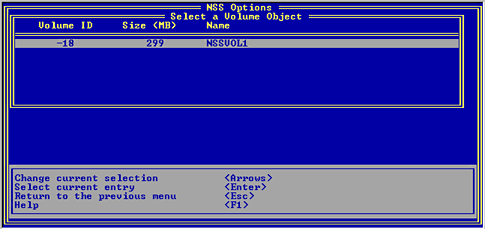
This option displays information about existing NSS volumes: the Volume ID, size, and NSS volume name.
Using the NSS Administration Menus
To view storage groups and NSS volumes, do the following:
-
Load NSS.
-
Open the NSS Administration menus.
At the server console prompt, enter nss /menu to open the menus.
-
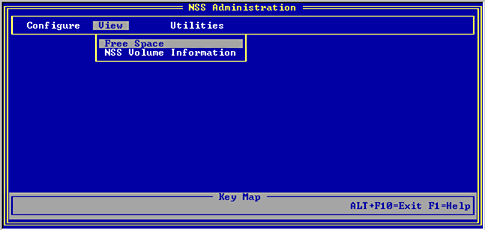
Select View.
The following screen appears.
Figure 13.
View NSS Configuration
-
Select one of the following: