Initiating a Remote View or a Remote Control Session
Initiating a Remote View or a Remote Control Session from a Device Object
-
In ConsoleOne, right-click the Windows CE device object that you want to remotely view or control, click Actions, then click Remote Control.
NOTE: We recommend you to initiate a Remote View or Remote Control session in a secure network environment.
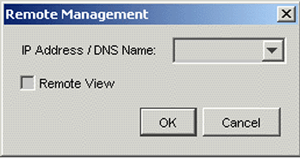
The Remote Management dialog box is displayed.
-
In the Remote Management dialog box, do the following:
-
Select the IP address or the DNS name of the handheld device.
IMPORTANT: Ensure that the IP address or the DNS name of the device you want to remotely control is correct.
-
(Conditional) If you only want to initiate a Remote View session, select the Remote View option.
-
Click OK.
-
If prompted, enter the VNC password of the device (which is set in Setting a VNC Password on the Handheld Device).
NOTE: If the password contains more than eight characters, only the first eight characters are validated.
-
Initiating a Remote View or a Remote Control Session from a User Object
You can initiate a Remote View or a Remote Control session from a user object if a user is associated to a handheld device.
-
In ConsoleOne, right-click user object, click Actions, then click Remote Control a Handheld.
NOTE: We recommend you to initiate a Remote View or Remote Control session in a secure network environment.
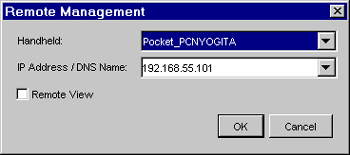
The Remote Management dialog box is displayed.
-
In the Remote Management dialog box, do the following:
-
Select the handheld device that you want to remotely view or control.
-
Select the IP address or the DNS name of the handheld device.
IMPORTANT: Ensure that the IP address or the DNS name of the device you want to remotely control is correct.
-
(Conditional) If you only want to initiate a Remote View session, select the Remote View option.
-
Click OK.
-
If prompted, enter the VNC password of the device (which is set in Setting a VNC Password on the Handheld Device).
NOTE: If the password contains more than eight characters, only the first eight characters are validated.
-