Printer Setup with YaST2: Selecting the Model
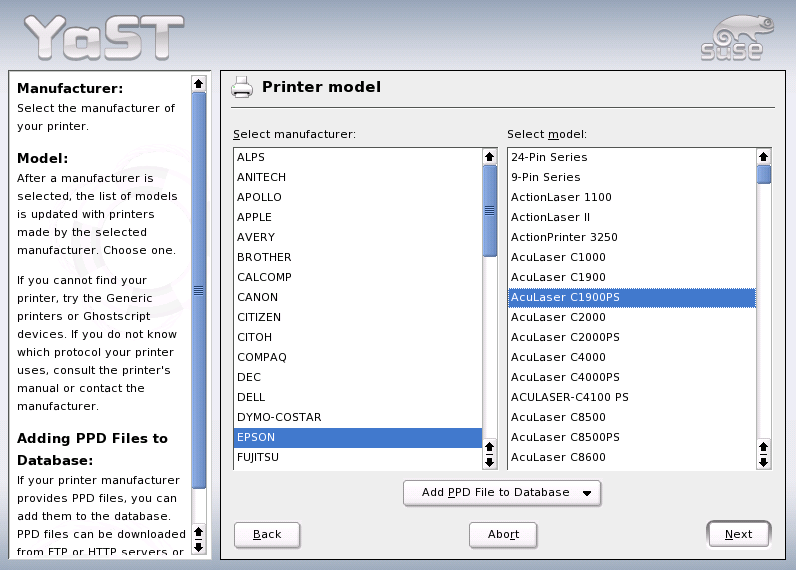
New hardware must first be installed or connected as specified by the vendor. Turn on external devices and start the respective YaST module. Most devices are automatically detected by YaST and the technical data is displayed. If the automatic detection fails, YaST offers a list of devices (model, vendor, etc.) from which to select the suitable device. Consult the documentation enclosed with your hardware for more information.
IMPORTANT: If your model is not included in the device list, try a model with a similar designation. However, in some cases the model must match exactly, as similar designations do not always indicate compatibility.
Within the scope of the installation, all detected CD-ROM drives are integrated in the installed system by means of entries in the file /etc/fstab. The respective subdirectories are created in /media. Use this YaST module to integrate additional drives in the system.
When the module is started, a list of all detected drives is displayed. Mark your new drive using the check box at the beginning of the line and complete the integration with Finish. The new drive is then integrated in the system.
A Linux system manages printers through print queues. Before any data is printed, it is sent to a print queue for temporary storage. From there, it is retrieved by a print spooler, which sends it to the printer device in the required order.
However, this data usually is not available in a form that can be processed by the printer. A graphical image, for instance, first needs to be converted into a format the printer can understand. This conversion into a printer language is achieved with a print filter, a program called by the print spooler to translate data as needed, so the printer can handle it.
NOTE: More detailed information about printing in Linux can be found in Printer Operation.
To configure the printer, select HardwarePrinter in the YaST control center. This opens the main printer configuration window, where the detected devices are listed in the upper part- The lower part lists any queues configured so far. If your printer was not autodetected, you can configure it manually.
YaST is able to configure the printer automatically if the parallel or USB port can be set up automatically and the connected printer can be autodetected. Additionally, the ID string of the printer, as supplied to YaST during hardware autodetection, must be included in the printer database. Given that this ID may differ from the actual name of the model, you may need to select the model manually.
To make sure everything works properly, each configuration should be checked with the print test function of YaST. The YaST test page also provides important information about the configuration that is being tested.
If the requirements for automatic configuration are not met or if you want a custom setup, configure the printer manually. Depending on how successful the autodetection is and how much information about the printer model is found in the database, YaST may be able to determine the right settings automatically or at least make a reasonable preselection.
The following parameters must be configured:
The configuration of the hardware connection depends on whether YaST has been able to find the printer during hardware autodetection. If YaST is able to detect the printer model automatically, it can be assumed that the printer connection works on the hardware level, and no settings need to be changed in this respect. If YaST is unable to autodetect the printer model, there may be some problem with the connection on the hardware level. In this case some manual intervention is required to configure the connection.
The queue name is used when issuing print commands. Therefore, the name should be relatively short and consist of lowercase letters and numbers only.
All printer-specific parameters (such as the Ghostscript driver to use and the printer filter parameters for the driver) are stored in a PPD file. For many printer models, choose among various PPD files, for example, if several Ghostscript drivers work with the given model.
When you select a manufacturer and a model, YaST selects the PPD file that corresponds to the printer. If several PPD files are available for the model, YaST defaults to one of them (normally the one marked recommended). You can change the default PPD file after selecting Edit.
For non-PostScript models, all printer-specific data is produced by the Ghostscript driver. For this reason, the driver configuration is the single most important factor determining the output quality. The printout is affected both by the kind of Ghostscript driver (PPD file) selected and the options specified for it. If necessary, change additional options (as made available by the PPD file) after selecting Edit.
Figure 29
Printer Setup with YaST2: Selecting the Model
Always check whether your settings work as expected by printing the test page. If the output is garbled, for example with several pages almost empty, you should be able to stop the printer by first removing all paper then stopping the test from YaST.
If the printer database does not include an entry for your model, you can use a collection of generic PPD files to make the printer work with one of the standard printer languages. To do so, select UNKNOWN MANUFACTURER as your printer manufacturer.
Normally, there should be no need to change any of these settings.
Applications rely on the existing printer queues in the same way as any command-line tools do. There is usually no need to reconfigure the printer for a particular application, as you should be able to print from applications using the available queues.
Printing from the Command Line: To print from the command line, enter the command lp -d queuename filename, substituting the corresponding names for queuename and filename.
Printing from Applications Using the Command-Line Tool: Some applications rely on the above-mentioned lp command for printing. In this case, enter the correct command in the application's print dialog (but usually without specifying filename), for example, lp -d queuename. To make this work with KDE programs, enable Print through an external program. Otherwise you cannot enter the print command.
Using the CUPS Printing System: Tools such as xpp and the KDE program kprinter provide a graphical interface to choose among queues and to set both CUPS standard options and printer-specific options as made available through the PPD file. You can use kprinter as the standard printing interface of other (non-KDE) applications by specifying kprinter or kprinter --stdin as the print command in the print dialogs of these applications. The behavior of the application itself determines which of these two commands to choose. If set up correctly, the application should call the kprinter dialog whenever a print job is issued from it, so you can use the dialog to select a queue and to set other printing options. This requires that the application's own print setup does not conflict with that of kprinter and that printing options are only changed through kprinter after it has been enabled.
If there is some kind of error in the communication between the computer and the printer, the printer may no longer be able to interpret data in the correct way. This could cause the output to be garbled and use up large amounts of paper. To correct this, follow the instructions in Defective Print Jobs and Data Transfer Errors.
For guidelines on the installation of CUPS in the network, see http://portal.suse.com/sdb/de/2004/05/jsmeix_print-cups-in-a-nutshell.html. In the case of "CUPS in the network" the following three subject areas are differentiated:
Configure the queues for the printers belonging to the server on the server.
Permit access to the queues for the client computers.
Activate the transmission of browsing information to the client computer.
In the case of point 1, the following cases must be distinguished:
In the case of point 2, the default settings are usually sufficient. When in doubt, see the portal article mentioned above.
In the case of point 3, complete YaST Start printer configurationChange...AdvancedCUPS server settings in YaST. Then select Browse AddressesAdd. Enter the broadcast IP address of the network or @LOCAL here. Conclude the configuration with OKNextAcceptFinish.
Normally YaST configures the hard disk controller of your system during the installation. If you add controllers, integrate these into the system with this YaST module. You can also modify the existing configuration, but this is generally not necessary.
The dialog presents a list of detected hard disk controllers and enables assignment of the suitable kernel module with specific parameters. Use Test Loading of Module to check if the current settings work before they are saved permanently in the system.
WARNING: Configuration of the Hard Disk Controller
It is advised to test the setting before making it permanent in the system. Incorrect settings can prevent the system from booting.
The graphical user interface, or X server, handles the communication between hardware and software. Desktops, like KDE and GNOME, and the wide variety of window managers use the X server for interaction with the user.
The graphical user interface is initially configured during installation. To change the settings afterwards, run this YaST module. In the configuration dialog, choose between Text Mode Only and the graphical user interface. The current settings are saved and you can reset to them at any time. The current values are displayed and offered for modification: the screen resolution, the color depth, the refresh rate, and the vendor and type of your monitor, if autodetected.
If you have just installed a new graphics card, a small dialog appears asking whether to activate 3D acceleration for your graphics card. Click Edit. SaX2, the configuration tool for the input and display devices, starts in a separate window. This window is shown in Figure 30.
Figure 30
The Main Window of SaX2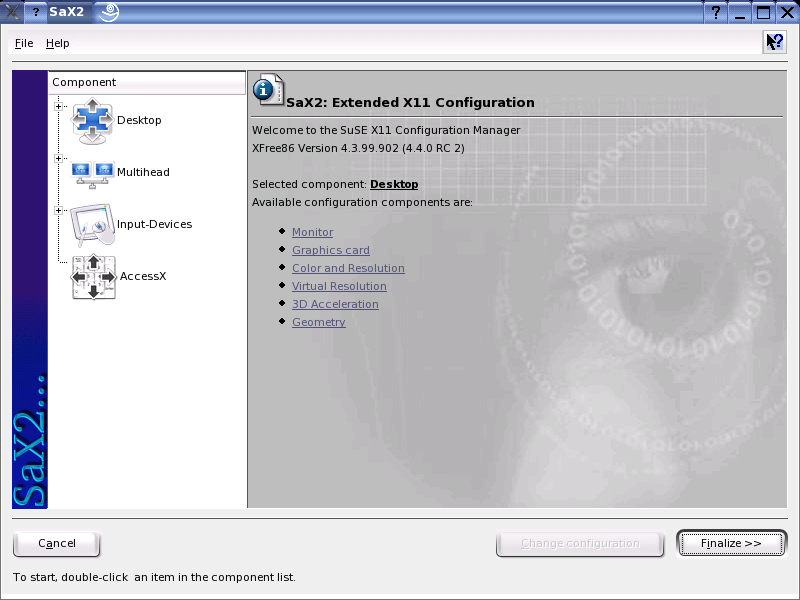
In the left navigation bar, there are four main items: Display, Input devices, Multihead, and AccessX. Configure your monitor, graphics card, color depth, resolution, and the position and size of the screen under Display. The keyboard, mouse, touchscreen monitor, and graphics tablet can be configured under Input devices. Use Multihead to configure multiple screens (see Multihead). AccessX is a useful tool for controlling the mouse pointer with the number pad.
Select your monitor and graphics card. Usually, the monitor and graphics card are autodetected by the system. In this case, no manual settings are required. If your monitor is not autodetected, automatically proceed to the monitor selection dialog. Select your monitor from the extensive list of vendors and devices or manually enter the monitor values specified in the monitor manual. Alternatively, select one of the preconfigured VESA modes.
Click Finish in the main window following the completion of the settings for your monitor and your graphics card then test your settings. This ensures that your configuration is suitable for your devices. If the image is not steady, terminate the test immediately by pressing Esc and reduce the refresh rate or the resolution and color depth. Regardless of whether you run a test, all modifications are only activated when you restart the X server.
With Edit configurationProperties, a window with the tabs Monitor, Frequencies, and Expert appears.
In the left part of the window, select the vendor. In the right part, select your model. If you have floppy disks with Linux drivers for your monitor, install these by clicking Driver disk.
Figure 31
Monitor Selection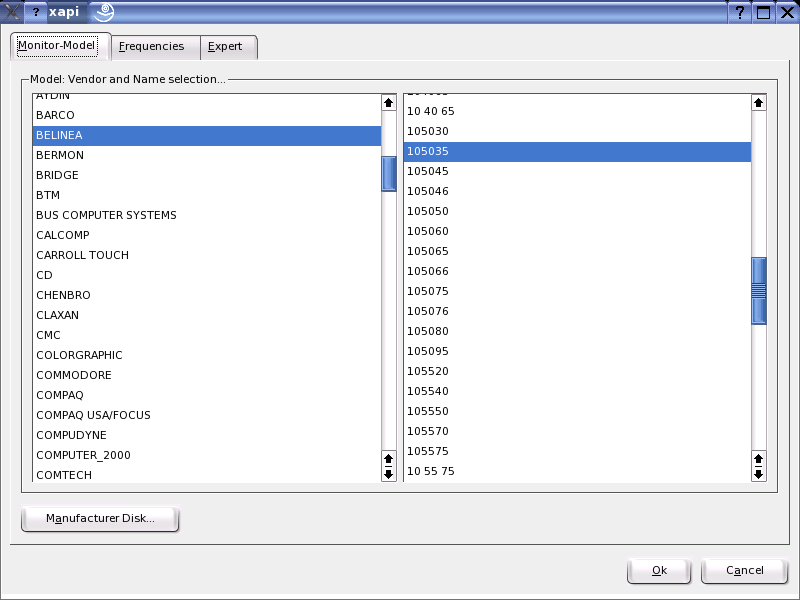
Here, enter the horizontal and vertical frequencies for your screen. The vertical frequency is another designation for the image refresh rate. Normally, the acceptable value ranges are read from the model and entered here. Usually, they do not need to be changed.
Here, enter some options for your screen. In the upper selection field, define the method to use for the calculation of the screen resolution and screen geometry. Do not change anything unless the monitor is addressed incorrectly and the display is not stable. Furthermore, you can change the size of the displayed image and activate the power saving mode DPMS.
WARNING: There are safety mechanisms, but you should still be very careful when manually changing the allowed frequencies. False values may destroy your monitor. If in doubt, refer to the manual of the monitor.
The graphics card dialog has two tabs: General and Expert. In General, select the vendor of your graphics card on the left side and the model on the right.
Figure 32
Selecting the Graphics Card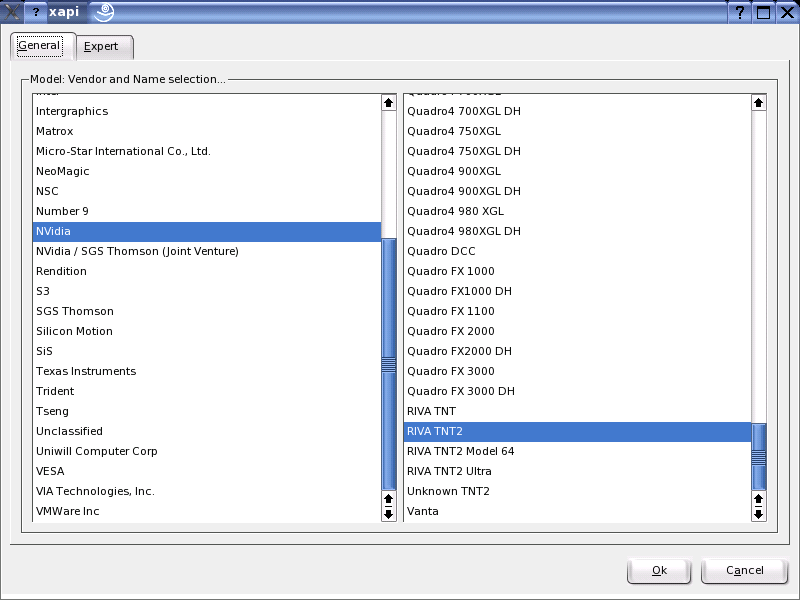
Expert offers more advanced configuration possibilities. On the right side, turn your screen to the left or to a vertical position (useful for some turnable TFT screens). The entries for the BusID are only relevant if you operate several screens. Normally, nothing needs to be changed here. You should not modify the card options unless you have experience in this field and know what the options mean. If necessary, check the documentation of your graphics card.
Here, three tabs, Colors, Resolution, and Expert, are available.
Depending on the hardware used, select a color depth of 16, 256, 32768, 65536, or 16.7 million colors (4, 8, 15, 16, or 24 bit). For a reasonable display quality, set at least 256 colors.
When the hardware is detected, the resolution is queried. Therefore, the module usually only offers resolution and color depth combinations that your hardware can display correctly. This keeps the danger of damaging your hardware with incorrect settings very low in SUSE LINUX. If you change the resolution manually, consult the documentation of your hardware to make sure the value set can be displayed.
Figure 33
Configuring the Resolution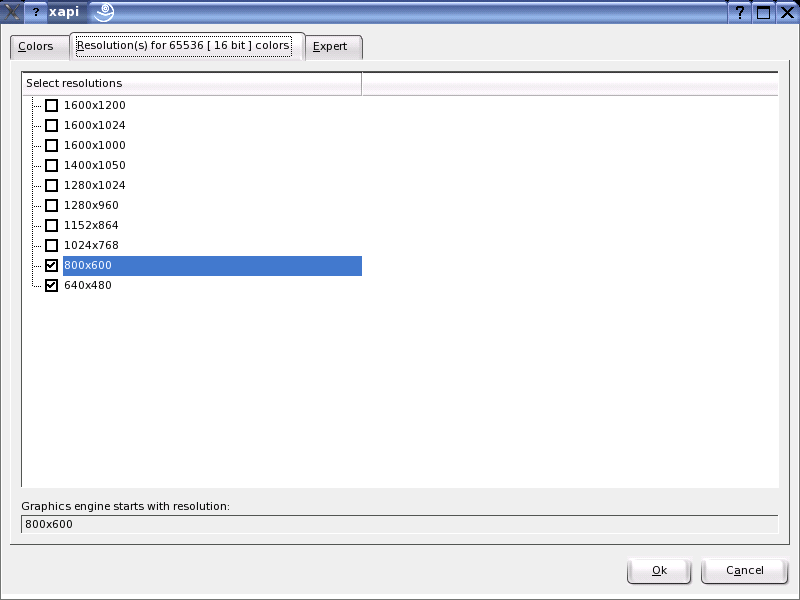
In addition to the resolutions offered in the previous tab, this tab enables you to add your own resolutions, which will subsequently be included for selection in the tab.
Every desktop has a certain resolution that is displayed over the full screen of the monitor. Additionally, it is possible to set the resolution larger than the visible area of the screen. If you move the mouse beyond the margins of the desktop, the virtual part of the desktop is displayed on screen. This increases the available work space.
Figure 34
Configuring the Virtual Resolution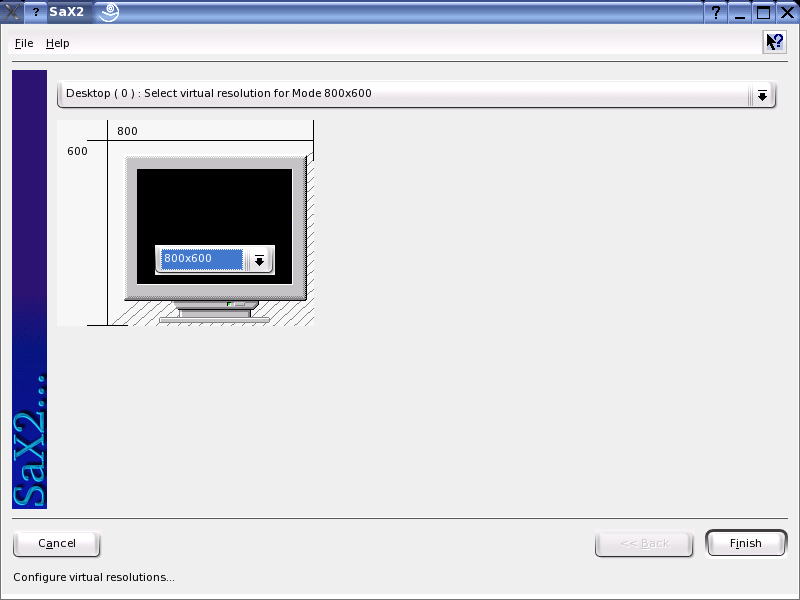
The virtual resolution can be set in two different ways. To set it using By Drag&Drop, move the mouse pointer over the monitor image so it turns into crosshairs. Keep the left mouse button pressed and move the mouse to enlarge the raster image, which corresponds with the virtual resolution. This method is best if you are not quite sure how much virtual space you want on your desktop.
For By selection from the pop-up menu, the pop-up menu in the middle of the raster image displays the currently used virtual resolution. To use one of the default virtual resolutions, select one from the menu.
Under these two tabs, precisely adjust the size and the position of the image with the arrows. See Figure 35. If you have a multihead environment (more than one screen), use Next screen to switch to the other monitors to adjust their size and position. Press Save to save your settings.
Figure 35
Adjusting the Image Geometry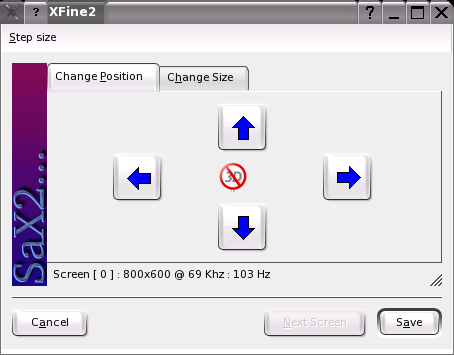
If you have installed more than one graphics card in your computer or a graphics card with multiple outputs, you can connect more than one screen to your system. If you operate two screens, this is referred to as dualhead. More than two is referred to as multihead. SaX2 automatically detects multiple graphics cards in the system and prepares the configuration accordingly. Set the multihead mode and the arrangement of the screens in the multihead dialog. Three modes are offered: Traditional (default), One screen (Xinerama), and Clone mode.
Traditional Multihead: Each monitor represents an individual unit. The mouse pointer can switch between the screens.
Cloned Multihead: In this mode, all monitors display the same contents. The mouse is only visible on the main screen.
Xinerama Multihead: All screens combine to form a single large screen. Program windows can be positioned freely on all screens or scaled to a size that fills more than one monitor.
The layout of a multihead environment describes the arrangement of and the relationship between the individual screens. By default, SaX2 configures a standard layout that follows the sequence of the detected graphics cards, arranging all screens in a row from left to right. In the Layout dialog of the multihead tool, determine the way the monitors are arranged by using the mouse to move the screen symbols in the grid. After completing the layout dialog, verify the new configuration by clicking Test.
Linux currently does not offer 3D support for Xinerama multihead environments. In this case, SaX2 deactivates the 3D support.
If the mouse already works, you do not need to do anything. However, if the mouse does not work, control it with the number pad of the keyboard as described in AccessX.
If the automatic detection fails, use this dialog to configure your mouse manually. Refer to the documentation of your mouse for a description of the model. Select your model from the list of supported mouse types and confirm by pressing 5 on the number pad.
Use the selection field at the top of this dialog to specify the kind of keyboard to use. Then select the language for the keyboard layout (the country-specific position of the keys). Use the test field to check if special characters are displayed correctly.
The status of the check box used for activating and deactivating the entry of accented letters depends on the respective language and does not need to be changed. Click Finish to apply the new settings to your system.
Currently, XFree86 only supports Microtouch and Elo TouchSystems touchscreens. SaX2 can only autodetect the monitor, not the toucher. The toucher is treated as an input device.
To configure the toucher, start SaX2 and select Input devicesTouchscreens. Click Add and add a touchscreen. Save the configuration by clicking Finish. You do not need to test the configuration.
Touchscreens feature a variety of options and usually must be calibrated first. Unfortunately, there is no general tool for this purpose in Linux. The standard configuration contains suitable default values for the dimensions of the touchscreen. Normally, no additional configuration is required.
Currently, XFree86 only supports a limited number of graphics tablets. SaX2 enables the configuration of graphics tablets connected to the USB port or the serial port. From the configuration perspective, a graphics tablet is just an input device like a mouse.
Start SaX2 and select Input devicesGraphics tablet. Click Add, select the vendor from the following dialog, and add a graphics tablet from the selection list. Mark the check boxes to the right if you have connected a pen or eraser. If your tablet is connected to the serial port, verify the port. /dev/ttyS0 refers to the first serial port. /dev/ttyS1 refers to the second. Additional ports use similar notation. Save the configuration by clicking Finish.
If you do not use a mouse on your computer, start SaX2 and activate AccessX to be able to control the mouse pointer with the keys on the numeric keypad. (See Table 1).
Table 1. AccessX --- Operating the Mouse with the Numeric Keypad
With the slider, set the speed of the mouse pointer movement when a key is pressed.
For more information about the X Window System and its properties, refer to The X Window System.
YaST detects hardware for the configuration of hardware components. The detected technical data is displayed in this screen. This is especially useful, for example, if you want to submit a support request for which you need information about your hardware.
Figure 36
Displaying Hardware Information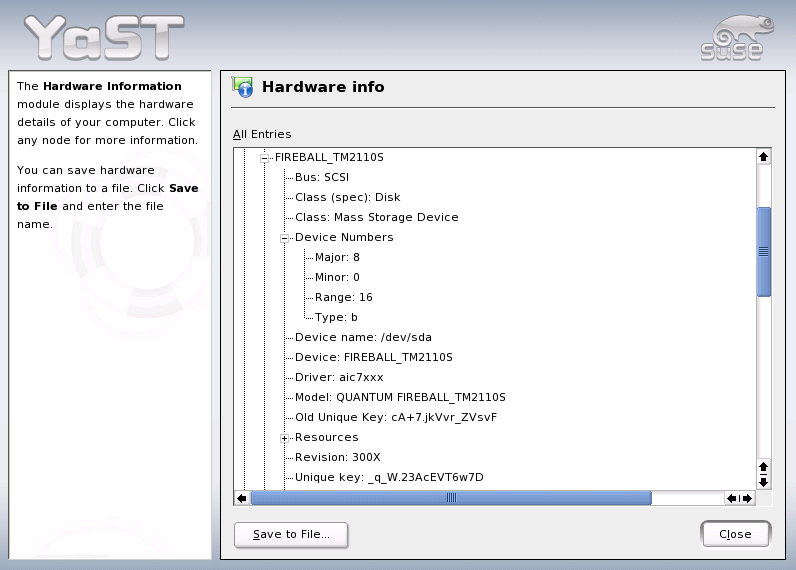
With this module, activate and deactivate the DMA mode for your IDE hard disks and your IDE CD and DVD drives in the installed system. This module does not have any effect on SCSI devices. DMA modes can substantially increase the performance and data transfer speed in your system.
During the installation, the current SUSE LINUX kernel automatically activates DMA for hard disks but not for CD drives, as default DMA activation for all drives often caused problems with CD drives. Use the DMA module to activate DMA for your drives. If the drive supports the DMA mode without any problems, the data transfer rate of your drive can be increased by activating DMA.
IMPORTANT: DMA (direct memory access) means that your data can be transferred directly to the RAM, bypassing the processor control.
Configure your mouse with this YaST module. As the procedure for the selection of the mouse was already explained for installation, refer to Mouse.
If your scanner is connected and switched on, it should be detected automatically when this YaST module is started. In this case, the dialog for the installation of the scanner appears. If no scanner is detected, the manual configuration dialog appears. If you have already installed one or several scanners, a list of existing scanners that can be modified or deleted is displayed. Press Add to configure a new device.
Next, an installation is performed with default settings. If the installation is successful, a corresponding message appears. Now, test your scanner by inserting a document and clicking Test.
Only supported scanners can be autodetected. Scanners connected to another network host cannot be detected. The manual configuration distinguishes three types of scanners: USB scanners, SCSI scanners, and network scanners.
USB Scanner: Specify the vendor and model. YaST then attempts to load USB modules. If your scanner is very new, the modules may not be loaded automatically. In this case, continue automatically to a dialog in which to load the USB module manually. Refer to the YaST help text for more information.
SCSI Scanner: Specify the device (such as /dev/sg0). SCSI scanners should not be connected or disconnected when the the system is running. Shut the system down first.
Network Scanner: Enter the IP address or the host name. To configure a network scanner, refer to the Support Database article Scanning in Linux, keyword scanner).
If your scanner was not detected, the device probably is not supported. However, sometimes even supported scanners are not detected. If that is the case, proceed with the manual scanner selection. If you can identify your scanner in the list of vendors and models, select it. If not, select Cancel. Information about scanners that work with Linux is provided at http://cdb.suse.de/index.php?LANG=en, http://sdb.suse.de/en/, and http://www.mostang.com/sane.
WARNING: Only assign the scanner manually if you are absolutely sure. Incorrect selection could damage your hardware.
Your scanner may not have been detected for one of the following reasons:
WARNING: SCSI scanners should not be connected or disconnected when the the system is running. Shut the system down first.
When the sound configuration tool is started, YaST tries to detect your sound card automatically. Configure one or multiple sound cards. To use multiple sound cards, start by selecting one of the cards to configure. Press Configure to enter the Setup dialog. Edit opens a dialog in which to edit previously configured sound cards. Finish saves the current settings and completes the sound configuration. If YaST is unable to detect your sound card automatically, press Add Sound Card in Sound Configuration to open a dialog in which to select a sound card and module.
With Quick Automatic Setup, you are not required to go through any of the further configuration steps and no sound test is performed. The sound card is configured automatically. With Normal Setup, you have the possibility to adjust the output volume and play a test sound. Advanced Setup allows you to manually customize the sound card options.
Set up your joystick by clicking the respective check box. Select the joystick type in the following dialog and click Next. The same dialog appears when you click Joystick in the YaST Control Center.
Test your sound configuration in this test screen. Use + and - to adjust the volume. Start at about ten percent to avoid damage to your speakers or hearing. A test sound should be audible when you press Test. If you cannot hear anything, increase the volume. Press Continue to complete the sound configuration. The volume setting will be saved.
Use Delete to remove a sound card. Existing entries of configured sound cards are deactivated in the file /etc/modprobe.d/sound. Click Options to open a dialog in which to customize the sound module options manually. In Volume, configure the individual settings for the input and output of each sound card. Next saves the new values and Back restores the default configuration. Under Add Sound Card..., configure additional sound cards. If YaST detects another sound card, continue to Configure a Sound Card. If YaST does not detect a sound card, automatically be directed to Manual Sound Card Selection.
If you use a Creative Soundblaster Live or AWE sound card, automatically copy SF2 sound fonts to your hard disk from the original Soundblaster driver CD-ROM with Install Sound Fonts. The sound fonts are saved in the directory /usr/share/sfbank/creative/.
Enable or disable the start-up of ALSA when booting the machine with Start ALSA. For playback of MIDI files, activate Start Sequencer. This way, the sound modules required for sequencer support are loaded along with the ALSA modules.
The volume and configuration of all sound cards installed are saved when you click Finish. The mixer settings are saved to the file /etc/asound.conf and the ALSA configuration data is appended at the end of the file /etc/modprobe.conf.
If multiple sound cards were detected, select your preferred card under List of Automatically Recognized.... Continue to Setup with Next. If the sound card was not automatically detected, click Select from List and, with Next, proceed to Manual Sound Card Selection.
If your sound card was not automatically detected, a list of sound card drivers and models are shown from which to choose. With All, see the entire list of supported cards.
Refer to your sound card documentation for the information required. A reference list of sound cards supported by ALSA with their corresponding sound modules is available in /usr/share/doc/packages/alsa/cards.txt and at http://www.alsa-project.org/~goemon/. After making your selection, click Next to return to Setup.