29.1 Creating a Data CD or DVD
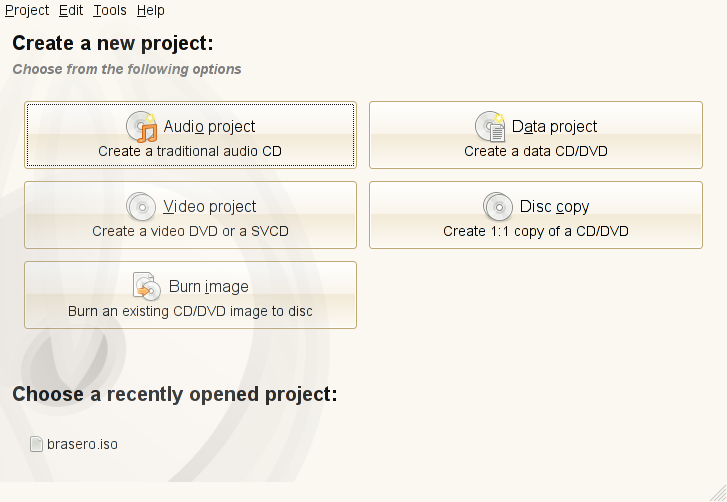
After starting Brasero for the first time, the main window appears as shown in Main View of Brasero. To create a CD or DVD, click on .
Figure 29-1 Main View of Brasero
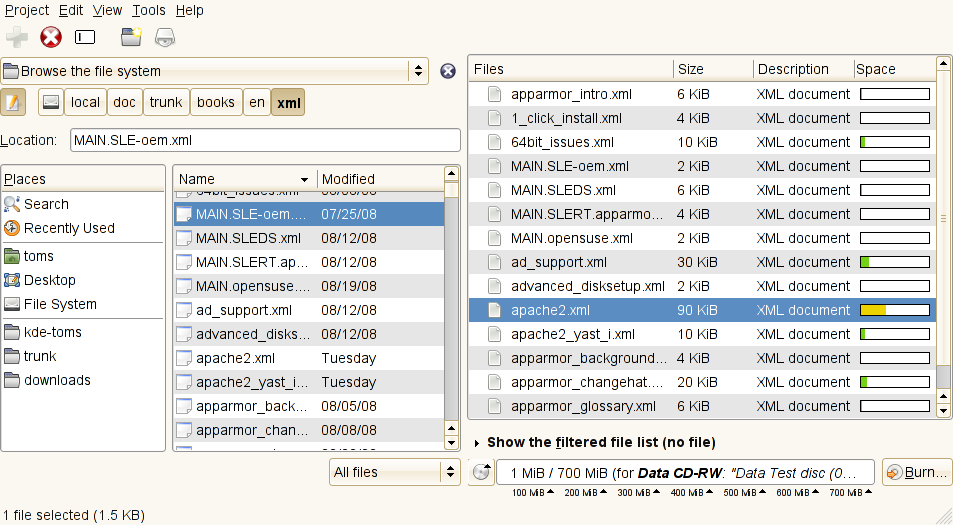
The project view appears. Drag and drop the desired directories or individual files either from your file manager or by clicking on . To show your directory structure directly in Brasero, select . Save the project under a name of your choice with . After you are finished, click .
A new dialog box appears where you can select the disc device to write to. Alternatively you can save your CD or DVD as a ISO image file. Give your CD or DVD a name in , decide if you need compatibility with Windows systems and finish with .
An overview of the dialog box can be seen at Copying Dialog.
Figure 29-2 Copying Dialog