20.3 Managing Bookmarks
Bookmarks offer a convenient way of saving links to your favorite Web sites. Firefox not only makes it very easy to add new bookmarks with just one mouse click, it also offers multiple ways to manage large bookmark collections. You can sort your bookmarks into folders, create filtered views—called smart bookmarks—that will be updated on the fly, or you can classify bookmarks with tags.
Add a bookmark by clicking on the star in the location bar. The star will turn yellow to indicate the page is bookmarked. Clicking once will save the bookmark in the folder under the page title. Double clicking on the star opens a menu which lets you choose a location where to save the bookmark and lets you enter a name and tags. Bookmarking tabs is done via the context menu: right-click in a tab and choose whether to or to . In the latter case Firefox asks you to create a new folder for the tab links.
To remove or edit a bookmark, open it and click on the star in the location bar. You can also choose , right-click the bookmark in the list, then click to remove the bookmark or to edit it.
20.3.1 Organizing Bookmarks
The can be used to manage the properties (name and address location) for each bookmark and organize the bookmarks into folders and sections. It resembles Figure 20-3.
Figure 20-3 The Firefox Bookmark Library
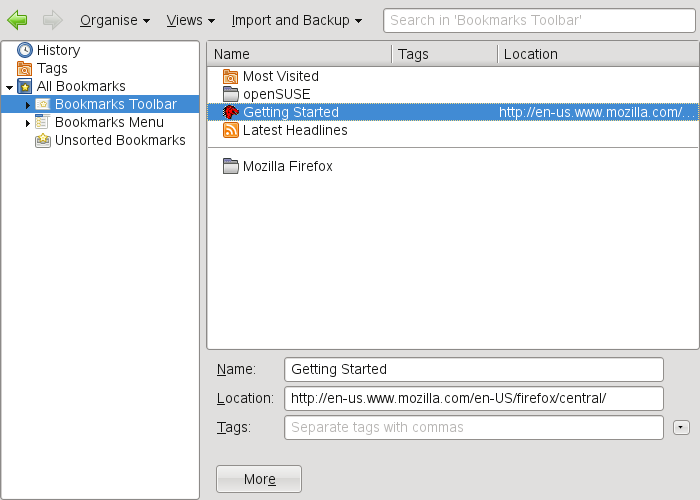
To open the , click . The library window is split into two parts: the left pane shows the folder tree view, the right pane the subfolders and bookmarks of the selected folder. Use to customize the right pane. The left pane contains three main folders:
- History
-
Contains your complete browsing history. You cannot alter this list other than deleting entries from it.
- Tags
-
Lists bookmarks for each tag you have specified. See Section 20.3.2, Tags for more information on tags.
- All Bookmarks
-
This category contains the three main bookmark folders:
- Bookmarks Toolbar
-
Contains the bookmarks and folders displayed beneath the location bar. See Section 20.3.6, The Bookmarks Toolbar for more information.
- Bookmarks Menu
-
Holds the bookmarks and folder accessible via the entry in the main menu or the bookmarks side menu.
- Unsorted Bookmarks
-
Contains all bookmarks created with a single click on the star in the location bar. This folder is only visible in the library and the bookmarks sidebar.
Organize your bookmarks using the right pane. Choose actions for folders or bookmarks either from the context menu that opens when you right-click on an item or from the dialog. The properties of a chosen folder or bookmark can be edited in the bottom part of the right pane. By default, only , , and are displayed for a bookmark. Click to gain access to all properties.
Use drag and drop to rearrange your bookmarks. Left-click a bookmark and drag it to a new position while holding the mouse button pressed. Drop it by releasing the mouse button. You can use this technique to move a bookmark or a folder to a different folder, or to change the order of bookmarks in a folder.
20.3.2 Tags
Tags offer a convenient way to file a bookmark under several categories. You can tag a bookmark with as much terms as you want. For example, to access all sites tagged with suse enter suse into the location bar. Whats more, a smart bookmark folder for each tag is automatically created in the tags folder of the library. Drag and drop a smart bookmark for a tag onto your bookmark toolbar or into a folder of your bookmarks menu to easily access it.
To add tags to a bookmark, open the bookmark in Firefox and click on the yellow star in the location bar. The dialog opens where you can add a comma separated list of tags. It is also possible to add tags via the bookmark's properties dialog which you can open in the library or by right-clicking on a bookmark in the menu or the toolbar.
20.3.3 Importing and Exporting Bookmarks
If you used a different browser in the past, you probably want to use your old bookmarks in Firefox, too. Firefox can automatically import bookmarks from other browsers installed on your system, such as Netscape or Opera. You also can import bookmarks from a file exported from a browser on different computer or from a backup.
To import bookmarks from another browser or from a file in HTML format, open the library by choosing . Start the Import Wizard by choosing and choose an import location. Start the import by clicking . Bookmarks from another browser are imported to a separate folder under the bookmarks menu named From Browser Name. Imports from an HTML file are imported as is.
Exporting bookmarks is also done via the dialog in the library window. To save your bookmarks as an HTML file, choose . In order to create or restore a backup of your bookmarks, choose or . Firefox uses the JavaScript Object Notation file format (.json) for backups.
20.3.4 Live Bookmarks
Live bookmarks display headlines in your bookmark menu and keep you up to date with the latest news. This enables you to save time with one glance at your favorite sites. Live bookmarks update automatically.
Many sites and blogs support this format. A Web site indicates this by showing an orange icon in the right part of the location bar. Click the icon and choose in the page that opens. A dialog box opens in which to select the name and location of your live bookmark. Confirm with . This page also lets you choose alternative applications to subscribe to, such as , or .
20.3.5 Smart Bookmarks
Smart bookmarks are virtual bookmark folders that are dynamically updated. By default, three smart bookmark folders are already predefined: the links are available from your bookmarks toolbar, links and are located in the bookmarks menu. You can create new smart bookmarks by searching for certain entries in your library.
To create a new smart bookmark, open the library by choosing and proceed as follows:
-
Either select one of the main folders (, , ) or a specific bookmarks folder.
-
Enter a search term into the input field, for example Linux. This will do a case insensitive search for all links containing the phrase Linux in either the Web page title, the tags, or the URL.
-
the search to create a new smart bookmark. A smart bookmark will always be saved to the bookmarks menu folder—drag and drop it to the desired location.
HINT: Creating a smart bookmark from your saved bookmarks creates an up-to-date filtered view on your bookmarks that only changes when you add or delete bookmarks matching the search term.
A smart bookmark folder based on your browsing history dynamically
changes as you surf the Web. Every time you browse a site that matches
the search term, it gets added
to your smart bookmark.
For this reason, it is recommended to use search terms as specific as
possible. If you are interested in links to SUSE Linux specific topics
as opposed to general Linux topics, use SUSE Linux
rather than Linux.
WARNING: Clearing the private data also deletes the browsing history (unless configured otherwise) and so will also clear history based smart bookmarks!
20.3.6 The Bookmarks Toolbar
The Bookmarks Toolbar is displayed beneath the location bar and lets you quickly access bookmarks. You can also add, organize, and edit bookmarks directly. By default the Bookmarks Toolbar is populated with a predefined set of bookmarks organized in several folders (see Figure 20-1).
To manage the Bookmarks Toolbar you can use the library as described in Section 20.3.1, Organizing Bookmarks. Its content is located in the . It is also possible to manage the toolbar directly. To add a folder, bookmark, or separator, right-click on an empty space in the toolbar and choose the appropriate entry from the pop-up menu. For adding the current page to the bar use drag and drop: left-click on the Web page's icon in the location bar and drag it to the desired position on the bookmarks toolbar while holding the mouse button pressed. Hovering over an existing bookmark folder for a short while will automatically open it, enabling you to place the bookmark within this folder.
To manage a certain folder or bookmark, right-click on it. A pop-up menu opens which lets you it or change its . To move or copy an entry, choose , or and it to the desired position.