Designing Buttons and Dialog Boxes
There are four steps to create buttons and dialog boxes:
- Creating the Snap-In Dialog
- Adding Dialog Controls
- Creating Drop-Down Menus
- Attaching Event Handlers to Controls
Creating the Snap-In Dialog
-
From the main menu, select Insert > Resource.
-
Expand the Dialog resource type.
-
Click IDD_FORMVIEW > New, as shown in the following screen shot.
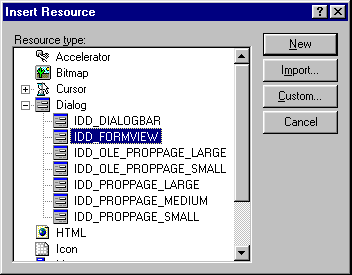
A captionless form will be created and displayed in the resource editor.
-
Increase the size of the captionless form by dragging the lower right-hand anchor so that its dimensions are approximately 200 x 165 pixels.
The dialog position and size appear in the lower right-hand corner of the status bar.
TODO: Layout Formview is a static text control that is useful for displaying printer status information. By convention, the printer status information simulates the display panel of the printer on the snap-in control by recessing the static text control. (You can also paint text directly on a bitmap using the TextOut Window's function.)
-
To recess the static text control, right-click the static text control.
-
Click the Properties > Styles tab.
-
Check the Center Vertically and Sunken options.
By default, all static text controls use the same ID, ID_STATIC. Since ID_STATIC is defined to be -1, it poses a problem when you attempt to get its dialog ID for direct text manipulation.
-
To remedy the ID_STATIC ID, select the General tab.
-
Change the ID from ID_STATIC to ID_STATIC_STATUS.
-
Delete the TODO: Layout Formview caption property and close the Text Properties dialog box.
-
Resize the static text control dimensions to approximately 85 x 15 pixels, and reposition the control 25 pixels from the left and 110 pixels from the top of the dialog box.
Adding Dialog Controls
-
Click the button control on the controls palette.
-
Click the form to add the button.
-
To change the button text, right-click the form's button control.
-
Select the Properties > General tab.
-
Change the Caption field to
&Identification
-
Change the ID field to IDC_BUTTON_IDENTIFICATION, and close the dialog box.
-
Resize the button to 65 x 14 pixels and reposition it 128 pixels from the left and 34 pixels from the right.
-
Continue adding buttons by changing the ID and Caption fields as follows:
Once you've added all the buttons, the dialog box should look similar to the following screen shot:

Creating Drop-Down Menus
The Jobs and Control buttons have the letter 'v' to the right, indicating that a drop-down menu is attached to the button.
-
From the main menu, select Insert > Resource.
-
Select Menu from the resource list.
-
Click New.
-
To identify this menu for the Jobs button, type Jobs and press Enter.
-
Type the following list for the drop-down menu and press Enter after each line:
- &Job List
- &Spooling Configuration
You don't need to type an ID for each menu item. Visual C++ will automatically assign an identifier to the menu item based upon the menu item description.
-
Press the Right Arrow key to move to the next menu.
-
Type Control and press Enter.
-
Type the following list for the next drop-down menu and press Enter after each line:
- &Reset
- &Form Feed
- &Mount Media
- Set &Defaults
We'll show you how to attach the submenus to the buttons later in this tutorial.
Attaching Event Handlers to Controls
-
Switch back to the IDD_FORMVIEW dialog by double-clicking IDD_FORMVIEW in the ResourceView.
-
Double-click anywhere on the resulting dialog box to display the following screen shot:

-
Select Create a New Class and click OK.
-
Type My Dialog in the Name field and click OK to launch the MFC ClassWizard.
The following MFC ClassWizard window should appear:

Object IDs displays all the objects that are associated with the MyDialog class. Each object contains a set of messages that vary for the different object types. For example, menu item objects contain the COMMAND and UPDATE_COMMAND_UI messages; button objects contain the BM_CLICKED and BN_DOUBLECLICKED messages.
-
To create an event handler for an object, select the object from the list.
-
Select a message to associate with the event handler, and click Add Function.
A resulting Add Member Function dialog box appears. The Member Function Name is the name of the control's event handler.
-
Accept the default name given to the event handler and click OK.
A new function is added to the Member Functions list as shown in the following screen shot:

The ClassWizard adds code for the event handler function to both the MyDialog.h and MyDialog.cpp files.
-
Select each object from the Object ID list and attach an event handler based on the message type as follows:
IDC_STATIC_ is excluded from this list because it does not require an event handler for the purposes of this tutorial.
-
To remove the DoDataExchange prototype from the class, click the function on the Member Functions list > Delete Function > Yes.