The Endpoint Agent provides three ways for you to access the bundles that are assigned to you:
The Application Portal is a standalone window that you can launch from the Start menu or the command prompt.
Click Start > Programs > OpenText Endpoint Agent > Application Portal
The Application Portal left pane displays the following:
[All] folder: Contains all bundles that have been distributed to you, regardless of the folder in which they are located.
Folder: Contains all bundles that have not been assigned to a different folder. The folder is the default folder for bundles; however, your administrator can create additional folders in which to organize bundles, and can even rename the folder.
Favorites: Contains all bundles that have been set a favorite. This folder will be displayed only if the setting Enable Users to manage Favorites is enabled in the Application Explorer Configuration Policy.
When you select a folder in the left pane, the right pane displays the bundles that are contained within the folder. You can:
Install a bundle or launch an application for an already installed bundle.
View the properties of a bundle. The properties include a description of the bundle, information about people to contact for help with the bundle, the times when the bundle is available for use, and the system requirements established for the bundle.
Repair an installed application.
Uninstall an application. This is an administrator-controlled feature that might not be enabled.
Postpone Operation. This feature allows a user to postpone the download of contents until the next refresh. The postpone operation appears only when the content being downloaded is fairly large in size.
Open the command prompt and execute the following command:
zapp-launcher
The following command line switches can be used when starting the Application Window using zapp-launcher.
Table 13-1 Application Window Command Line Switches
|
Switch |
Description |
|---|---|
|
: EXAMPLE: zapp-launcher: |
Hides the initial splash screen. |
|
/? EXAMPLE: zapp-launcher /? |
Displays the help. |
|
/max EXAMPLE: zapp-launcher /max |
Displays the Application Window maximized when first loaded, overriding the window state (size and position) that was saved when exiting the previous Application Window session. |
|
/min EXAMPLE: zapp-launcher /min |
Displays the Application Window minimized when first loaded, overriding the window state (size and position) that was saved when exiting the previous Application Window session. |
|
/runonce EXAMPLE: zapp-launcher /runonce |
This command is used for internal purposes and it is located at HKLM\SOFTWARE\Microsoft\Windows\CurrentVersion\Run. Ensure that you do not delete it. |
|
/s EXAMPLE: zapp-launcher /s |
Makes the Application Window act like the Windows shell. For example, on the File menu, the Exit Application Launcher option changes to Shutdown and gives the user the standard Windows shutdown options. The Contents option on the Help menu is disabled. So, you cannot view the help. This is not a true replacement for the Windows shell. If users minimize the Application Window, they have access to the normal desktop. |
|
/d EXAMPLE: zapp-launcher /d |
Displays the Application Window with the Contents option on the Help menu disabled. So, you cannot view the help. |
|
/norm Example: zapp-launcher /norm |
Displays the Applications Portal window in its original state when first loaded, and maintains the window state (size and position) that was saved when exiting the previous Applications Portal window session. |
If the Applications Portal is used as a Windows shell, only the Applications Portal is visible on the device. You do not have access to the device desktop so the Start menu, Quick Launch toolbar, and the Agent Tray Icon are also not visible. Also, help is disabled on the device.
Using the Applications Portal as a Windows shell is useful in scenarios where you want to restrict the user on the managed device to access only the applications displayed in the Applications Portal. For example, if you want the user to access only applications such as Notepad and Calculator, ensure that the Applications Portal displays only these applications. To shut down the device, click File > Shutdown.
To use the Applications Portal as a shell:
On the Windows device, run regedit.exe and locate the following setting:
HKEY_LOCAL_MACHINE\SOFTWARE\Microsoft\Windows NT\CurrentVersion\Winlogon\Shell
Change the SHELL value to:
Program Files\OpenText\Endpoint Agent\bin\zapplauncher.exe
Close regedit.exe.
Restart Windows.
Application Explorer is an extension to Windows Explorer that enables bundles to be displayed in Windows Explorer, on the desktop, on the Start menu, on the Quick Launch toolbar, and in the notification area.
Figure 13-1 Bundles Displayed in Windows Explorer
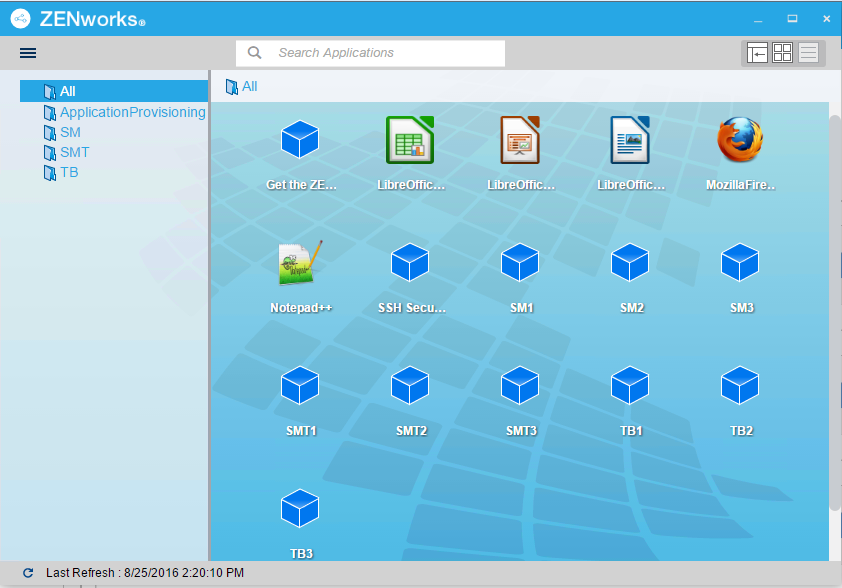
Figure 13-2 Bundles Displayed on the Desktop
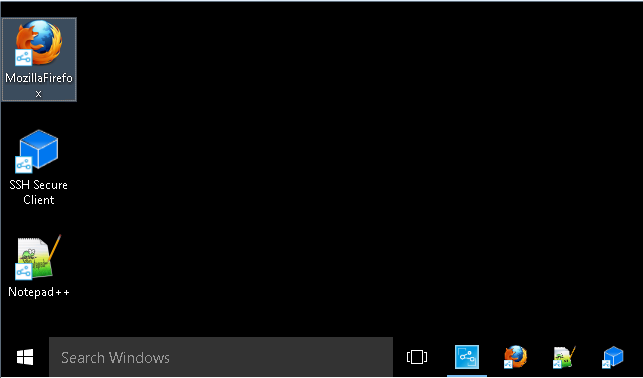
You can perform the same tasks on the bundles in the Application Explorer as you can in the Applications Portal.
NOTE:Windows does not allow certain characters in folder paths ( \ / : * ? “< > | ). If you use any of these characters as part of the name of the Application Explorer folder path, each character displays as an underscore ( _ ) in the Start menu. The characters display correctly in the Applications Portal.
The Agent Tray Icon
is located in the Windows notification area. You can double-click the icon to display the Endpoint Agent properties. Located in the left navigation pane, the Bundles link lets you view the bundles that are assigned to you and to your device.
The bundle list includes the following information:
Name: Displays the name of the bundle. Click the name to display the properties for the bundle, including such information as the version, folder and icon locations, and help contacts.
Version: Displays the version of the bundle.
Status: Displays the installation status for the bundle.
Effective:
Displays whether or not the bundle can be used on the device. If the Effective box is selected, the bundle meets all system requirements and constraints to be used. You can click the bundle icon
to launch the bundle.
If the box is not selected, it cannot be used; to find out why, click the bundle name to display the system requirements and properties.