T27 Connect User's Guide
CHAPTER 2
While there are many ways to go about creating T27 Components, the most commonly used steps in creating a simple component are as follows:
Enter Record mode and navigate through the program using terminal emulation available via the component editor's Native Environment Pane.
Drag and drop input-document data into the screen as needed.
This chapter will cover the first two steps in this process.

Although it is not strictly necessary to do so, your T27 Component may require you to create XML templates so that you have sample documents for designing your component. (For more information, see Chapter 5, "Creating XML Templates," in the exteNd Composer User's Guide.)
In many cases, your input documents will be designed to contain data that a terminal operator might type into the program interactively. Likewise, the output documents are designed to receive data returned to the screen as a result of the operator's input. For example, in a typical business scenario, a terminal operator may receive a phone request from a customer interested in the price or availability of an item. The operator would typically query the host system via his or her T27 terminal session by entering information (such as a part number) into a terminal when prompted. A short time later, the host responds by returning data to the terminal screen, and the operator relays this information to the customer. This session could be carried out by an exteNd Composer Web Service that uses a T27 Component. The requested part number might be represented as a data element in an XML input document. The looked-up data returned from the host would appear in the component's output document. That data might in turn be output to a web page, or sent to another business process as XML, etc.
NOTE: Your component design may call for other xObject resources, such as custom scripts or Code Table maps. If so, it is also best to create these objects before creating the T27 Component. For more information, see the exteNd Composer User's Guide.
Once you have the XML templates in place, your next step will be to create a Connection Resource to access the host program. If you try to create a T27 Component in the absence of any available Connection Resources, a dialog will appear, asking if you wish to create a Connection Resource. By answering Yes to this dialog, you will be taken to the appropriate wizard.
When you create a Connection Resource for the T27 Component, you will have what appear to be three choices: a straight Connection, a Logon Connection and a MultiBridge Connection. Generally speaking, you will use the straight T27 Connection to connect to your host environment. The Logon Connection is used for connection pooling, which will be explained in greater detail in Chapter 6 of this Guide. The MultiBridge Connection is a gateway server version that minimizes the number of connections going back to the host and also contains added security. A MultiBridge connection would need to be specially enabled with the help of Novell and a third party business partner. If you think that your application needs to use a MultiBridge connection, please contact exteNd Technical Support.
After setting up your T27 Connection Resource, it will be available for use by any number of T27 Components that might require a host connection.
 To create a T27
Connection Resource:
To create a T27
Connection Resource:
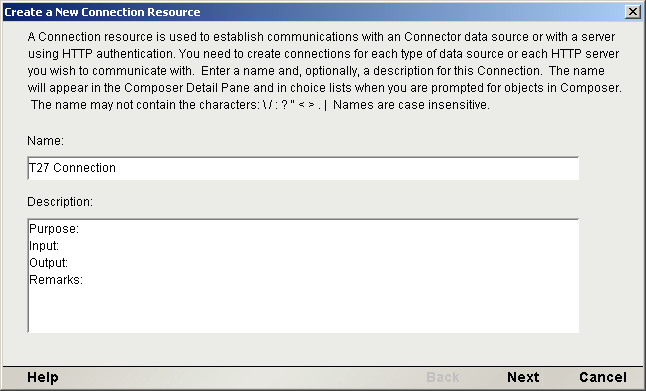
From the Composer File menu, select New>xObject, then open the Resource tab and select Connection.
NOTE: Alternatively, under Resource in the Composer window category pane you can highlight Connection, click the right mouse button, then select New.
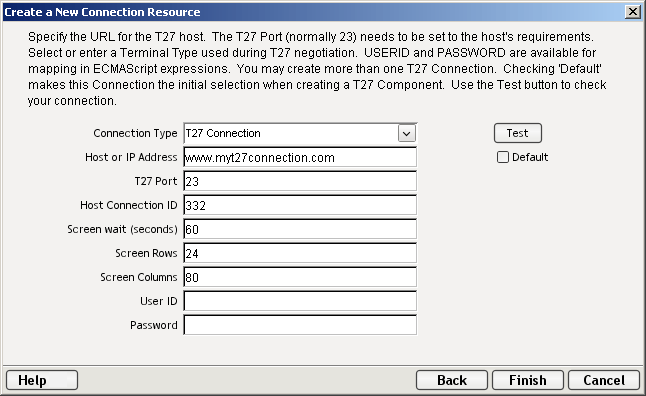
Select the T27 Connection type from the pull-down menu. The dialog changes appearance to show just the fields necessary for creating the T27 connection.
In the Host or IP Address field, enter the physical (IP) address or hostname alias for the machine to which you are connecting.
In the T27 Port field, enter the number of the T27 port. The default port number is 23.
In the Host Connection ID field, enter an identifier string used to manage your terminal connection to the host.
In the Screen Wait (seconds) field, enter the amount of time in seconds that a T27 Terminal component will wait for the arrival of the next screen in the Check Screen Action pane (this sets the default value).
In the Screen Rows field, specify the default number of rows per screen.
In the Screen Columns field, specify the default number of columns per screen.
Enter a UserID and Password. These are not actually submitted to the host during the establishment of a connection. They are simply defined here (the password is encrypted.) Right-mouse-click and choose Expression if you want to make these fields expression-driven.
NOTE: After you've entered UserID and Password info in this dialog, the ECMAScript global variables USERID and PASSWORD will point to these values. You can then use these variables in Set Screen Text expressions (or as described under "Native Environment Pane Context Menu" in Chapter 3.
Click the Default check box if you'd like this particular T27 connection to become the default connection for subsequent T27 Components.
Click Finish. The newly created resource connection object appears in the Composer Connection Resource detail pane.
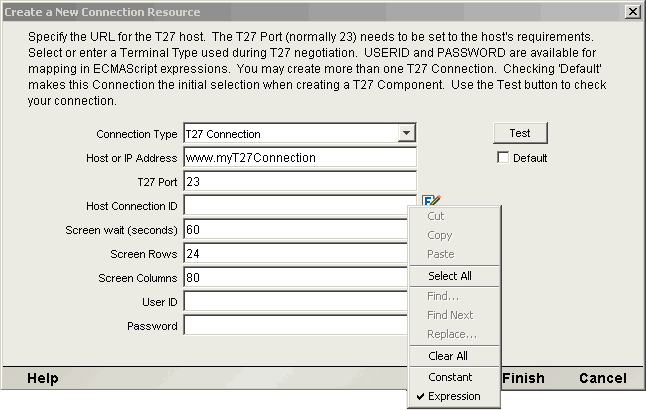
You can specify Connection parameter values in one of two ways: as Constants or as Expressions. A constant-based parameter uses the static value you supply in the Connection dialog every time the Connection is used. An expression-based parameter allows you to set the value in question using a programmatic expression (that is, an ECMAScript expression), which can result in a different value each time the connection is used at runtime. This allows the Connection's behavior to be flexible and vary based on runtime conditions.
For instance, one very simple use of an expression-driven parameter in a T27 Connection would be to define the User ID and Password as PROJECT Variables (e.g.: PROJECT.XPath("USERCONFIG/MyDeployUser"). This way, when you deploy the project, you can update the PROJECT Variables in the Deployment Wizard to values appropriate for the final deployment environment. At the other extreme, you could have a custom script that queries a Java business object in the Application Server to determine what User ID and Password to use.
To switch a parameter from Constant-driven to Expression-driven:
Click the right mouse button in the parameter field you are interested in changing.
Select Expression from the context menu and the editor button will appear or become enabled. See below.
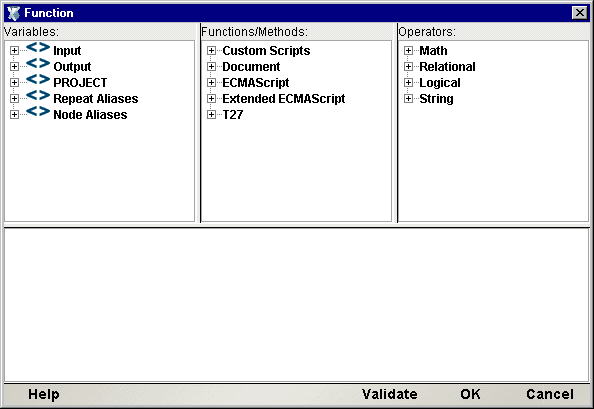
Click on the Expression Editor button. The Expression Editor appears.
Create an expression (optionally using the pick lists in the upper portion of the window) that evaluates to a valid parameter value at runtime. Click OK.
Copyright © 2004 Novell, Inc. All rights reserved. Copyright © 1997, 1998, 1999, 2000, 2001, 2002, 2003 SilverStream Software, LLC. All rights reserved. more ...