T27 Connect User's Guide
CHAPTER 3
As discussed in the previous chapter, before you proceed with creating a T27 component you must first prepare any XML templates needed by the component. (For more information, see "Creating a New XML Template" in the Composer User's Guide.) During the creation of your component, you will use these template's sample documents to represent the inputs and outputs processed by your component.
Also, as part of the process of creating a T27 component, you must specify a T27 connection for use with the component (or you can create a new one). See the previous chapter for information on creating T27 Connection Resources.
 To create a new T27
Component:
To create a new T27
Component:
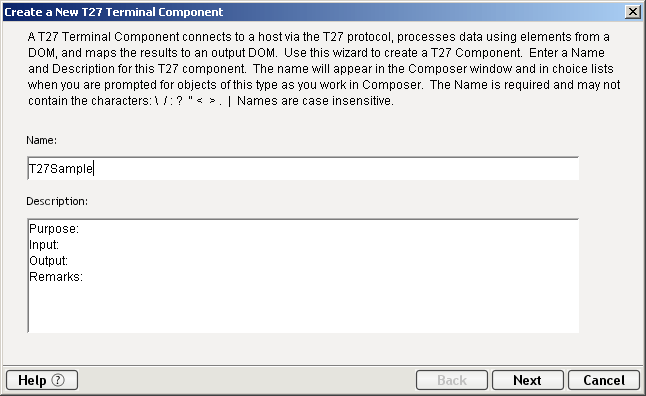
Select File>New>xObject then open the Component tab and select T27 Terminal.
NOTE: Alternatively, under Component in the Composer window category pane you can highlight T27 Terminal, click the right mouse button, then select New.
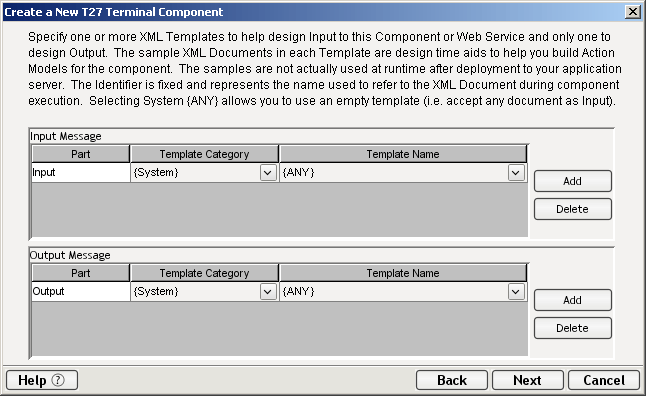
Click Next. The XML Input/Output Property Info panel of the New T27 Component Wizard appears.
Specify the Input and Output templates as follows.
Type in a name for the template under Part if you wish the name to appear in the DOM as something other than "Input".
Select a Template Category if it is different than the default category.
Select a Template Name from the list of XML templates in the selected Template Category.
To add additional input XML templates, click Add and choose a Template Category and Template Name for each.
To remove an input XML template, select an entry and click Delete.
Select an XML template for use as an Output DOM using the same steps outlined above.
NOTE: You can specify an input or output XML template that contains no structure by selecting {System}{ANY} as the Input or Output template. For more information, see "Creating an Output DOM without Using a Template" in the User's Guide.
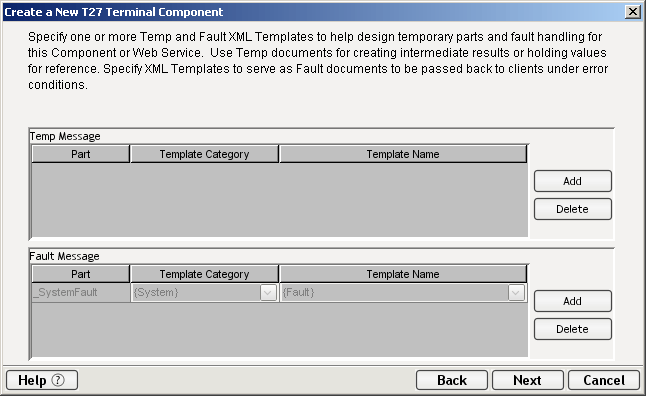
Click Next. The XML Temp/Fault Template Info panel of the New T27 Component Wizard appears.
If desired, specify a template to be used as a scratchpad under the "Temp Message" pane of the dialog window. This can be useful if you need a place to hold values that will only be used temporarily during the execution of your component or are for reference only. Specify the templates as indicated in Step 6 above.
Under the "Fault Message" pane, select an XML template to be used to pass back to clients when an error condition occurs.
As above, to add additional temp or fault XML templates, click Add and choose a Template Category and Template Name for each. Repeat as many times as desired. To remove an XML template, select an entry and click Delete.
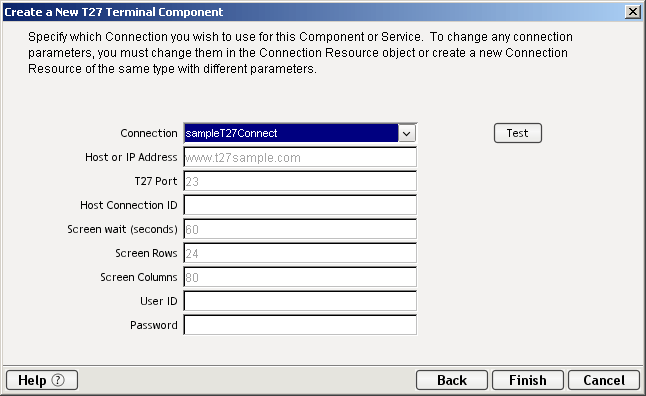
Click Next. The Connection Info panel of the Create a New T27 Component Wizard appears.
Select a Connection name from the pulldown list. For more information on the T27 Connection, see "Creating a T27 Connection Resource" in Chapter 2.
Click Finish. The component is created and the T27 Component Editor appears.
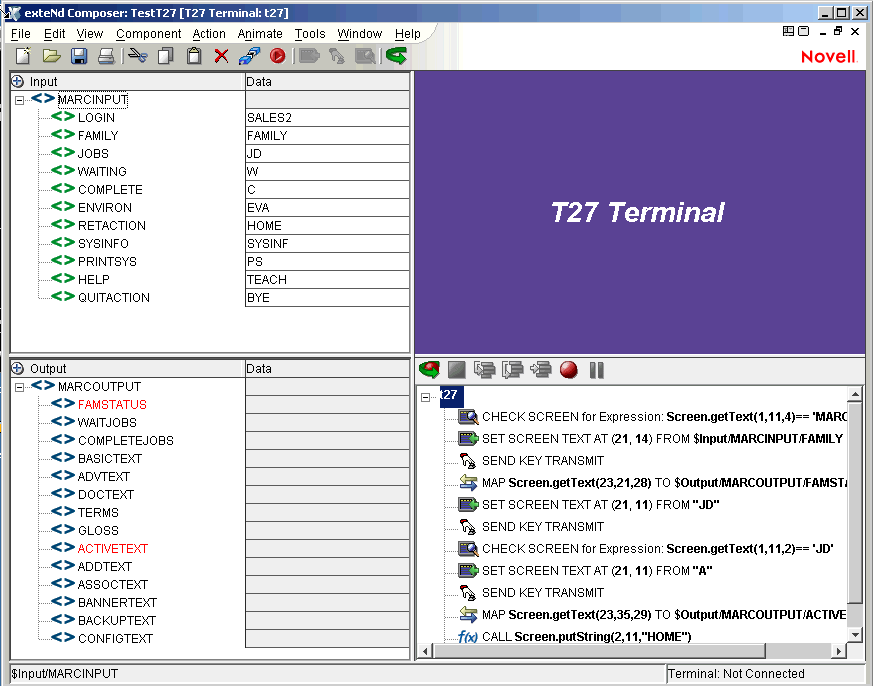
The T27 Component Editor includes all the functionality of exteNd Composer's XML Map Component Editor. For example, it contains mapping panes for Input and Output XML documents as well as an Action pane.
There is one main difference, however. The T27 Component Editor also includes a Native Environment Pane featuring a T27 emulator. This screen appears blue until you either click the Connection icon in the main toolbar or begin recording by clicking the Record button in the toolbar. Either action establishes a T27 emulation session inside the Native Environment Pane with the host that you specified in the connection resource used by this T27 component.
The T27 Native Environment Pane provides T27 emulation of your host environment. From this pane, you can execute a T27 session in real time, interacting with the Native Environment Pane exactly as you would with the screen on a terminal connected to a Unisys mainframe. You can also do the following:
Use data from an Input XML document (or other available DOM) as input for a T27 screen field. For example, you could drag a SKU number from an input DOM into the "part number" field of a T27 screen, which would then query the host and return data associated with that part number, such as description and price.
Map the data from the returned T27 screen and put it into an Output XML document (or other available DOM, e.g., Temp, MyDom, etc.).
Map header and detail information (such as a form with multiple line items) from the Native Environment Pane to an XML document using an ECMAScript expression or function.
The T27 Native Environment Pane supports the use of several special attention keys including: Clear Home, Local, Previous Page, Specify, Forms Mode Toggle, Next Page, Receive and Transmit. The function for each attention key may vary depending on the host application. These keys are mapped to the PC Keyboard as follows:
|
T27 Keys |
PC Key |
|---|---|
|
Clear Home |
Ctrl+Home |
|
Local |
F10 or F6 |
|
Previous Page |
PageUp |
|
Specify |
F9 or F5 |
|
Forms Mode, Toggle |
Esc, Alt+S or O |
|
Next Page |
PageDown |
|
Receive |
F11 or F7 |
|
Transmit |
F12 or F8 |
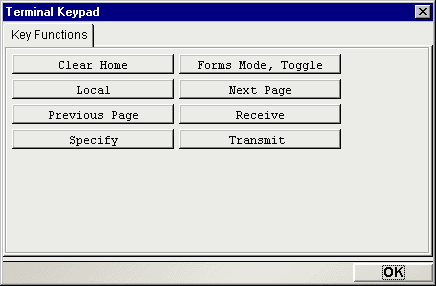
You can either use the keys directly from the keyboard as you create your T27 Component, or you can use a keypad tool bar available from the view menu.
How to Use the Floating
Keypad:
Select View/Terminal Keypad from the Composer Menu. A floating Keypad appears.
Click on the key you wish to invoke. If you require help, hover the mouse over that key. Help will display the T27 keyboard equivalent for that key. You will see the result of the key you clicked in the Native Environment Pane.
Click OK to close the keypad. In order for the keypad to redisplay, you must repeat step 1.
The Screen Object is a byte-array representation of the emulator screen shown in the Native Environment Pane, with methods for manipulating the screen contents.

The T27 component communicates with the host environment via the block mode terminal data stream , in a T27 session. A block of data essentially represents a screen. The host sends a screen block that is displayed in the component. The screen is edited by the user (and ultimately by the component you create) and the modified screen block is sent back to the host for processing after you press an attention key. The Screen Object represents the current screen's block of data. For a 24 x 80 terminal screen, this is 1,920 bytes of data.
When character data arrives from the host, appropriate updates to the Native Environment Pane occur in real time. Those updates might be anything from a simple cursor repositioning to a complete repaint of the terminal screen. The screen content is, in this sense, highly dynamic.
When you have signaled exteNd Composer (via a Set Screen Text action) that you wish to operate on the current screen's contents, the screen buffer is packaged into a Screen Object that is made accessible to your component through ECMAScript.
Many times, it is not necessary for your component to "know" or understand the complete screen contents prior to sending keystrokes back to the host or prior to mapping data into a prompt. But when mapping outbound from the screen to a DOM, it can be useful to have programmatic access to the Screen Object. To make this possible, the Connect for T27 defines a number of ECMAScript extensions for manipulating screen contents. These extensions are described in further detail in the next chapter. For now, a simple example will suffice. Suppose you are interested in obtaining a string value that occurs on the screen in row 23 at column position 21. If the string is 28 characters long, you could obtain its value by using an ECMAScript expression as the Source in a Map action (with an output DOM or temp DOM as the Target):
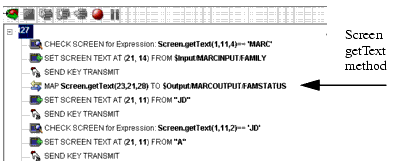
In the example shown above, the 28 characters beginning at row 23, column 21 on the screen would be mapped to the Output DOM, with the XPATH /MARCOUTPUT/FAMSTATUS.
Map actions and screen methods will be discussed in greater detail in the section on "T27-Specific Expression Builder Extensions" in the Chapter 4.
If you are familiar with exteNd Composer, you will notice immediately that the T27 Connect includes a number of Connect-specific tool icons on the component editor's main toolbar. They appear as shown below.
 Record icon (normal state)
 Record icon (recording in progress)
 Record icon (disabled)
The Record button allows you to capture keyboard and screen manipulations as you interact with the Native Environment Pane. Recorded operations are placed in the Action Model as actions, which you can then "play back" during testing.
 Connection (disconnected state)
 Connection (connected state)
 Connection (connected/disabled state)
The Connection button on Composer's main toolbar toggles the connection state of the component (using settings you provided during the creation of the Connection Resource associated with the component).
NOTE: When you are recording or animating, a connection is automatically established, in which case the button will be shown in the "connected/disabled" state. When you turn off recording, the connection the button will return to the enabled state.
 The Set Screen Text button on exteNd Composer's main toolbar is used to indicate that you wish to send data to the screen object. Clicking this button will brings up the Set Screen Text dialog, allowing you to create a new Set Screen Text Action.. (See the next chapter for a detailed discussion of this action type.)
 The Send Key button on Composer's main toolbar would be pressed when you wish to add a Send Key Action to the Action Model. (See the next chapter for a detailed discussion of this action type.) The various T27 attention keys are discussed in the section above entitled "T27 Keyboard Support".
 The Create Check Screen button on Composer's main toolbar is used to check that the terminal screen is in the state you expect it to be. Clicking this button will brings up the Check Screen dialog, allowing you to create a new Check Screen Action. (The next chapter contains a detailed discussion of this action type.)
Two additional items have been added to the Component drop down menu for the T27 Connect. These are Start/Stop Recording and Connect/Disconnect (depending on your current status).
Start/Stop Recording—This menu option manages the automatic creation of actions as you interact with a host program. Start will enable the automatic creation of actions as you interact with the screen and Stop will end action creation.
Connect/Disconnect—This menu option allows you to control the connection to the host. When you are recording or animating, a connection is automatically established (and consequently, the connection icon is shown in the "connected/disabled" state). However, this menu choice is useful if you are not recording and you merely want to establish a connection for the purpose of navigating the T27 environment.
The T27 Connect also includes context-menu items that are specific to this Connect. To view the context menu, place your cursor in either the Native Environment pane or the Action pane and click the right mouse button.
When you right-mouse-click in the Native Environment Pane, you will see a contextual menu. The menu items will be greyed out if you are not in record mode. In record mode, the context menu has the following appearance:
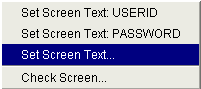
The four commands work as follows:
Set Screen Text: USERID—Automatically sends User ID information to the host, based on the value you supplied (if any) for User ID in the T27 Connection Resource for this component. Also creates the corresponding Set Screen Text action in the Action Model.
Set Screen Text: PASSWORD—Automically transmits Password information to the host, based on the Password you supplied (if any) in the T27 Connection Resource for this component. Also creates the corresponding Set Screen Text action in the Action Model.
Set Screen Text...—Creates a new Set Screen Text dialog, allowing you to create a new Set Screen Text Action. (See the next chapter for a detailed discussion of the use of this command).
Check Screen...—Brings up the Check Screen dialog, allowing you to create a new Check Screen Action. (This will be discussed in greater detail in the next chapter.)
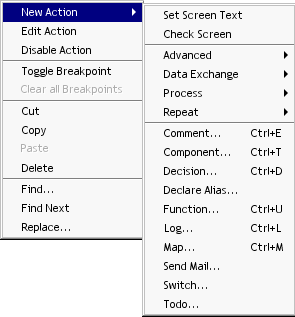
If you click the right mouse button when the mouse is located anywhere in the Action pane, a context menu appears as shown.
The T27-specific functions of the context menu items are as follows:
Set Screen Text—Allows you to create a Set Screen Text action to send data to the host. A dialog appears, allowing you to specify what you want to send to the host as well as determining the screen position where the informatin will be received. (See the next chapter for a detailed discussion of the use of this command.)
Check Screen— Allows you to create a new Check Screen action which is used to make sure the appropriate screen is present before the component continues processing. A dialog appears, allowing you to specify various go-ahead criteria as well as a Timeout value. (The next chapter contains a detailed discussion of the Check Screen action.)
Copyright © 2004 Novell, Inc. All rights reserved. Copyright © 1997, 1998, 1999, 2000, 2001, 2002, 2003 SilverStream Software, LLC. All rights reserved. more ...