7.3 Using Advanced Find
Use Advanced Find when you want to use very specific and possibly complex search criteria. Advanced Find is available both from Find and from Global Find.
7.3.1 Composing an Advanced Find
-
Click Find in the Item List header of a folder.
or
Click
 on the toolbar.
-
Click .
-
Select a field in the first drop-down list, click an operator, then type or select a value.
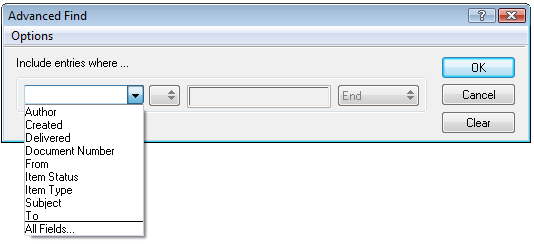
For an explanation of the available fields, see Section 7.3.2, Selecting Fields in Advanced Finds and Rules.
The available operators depend upon the field you choose. For information about the operators and their functions, see Section 7.3.3, Using Operators in Advanced Finds and Rules and Section 7.3.4, Using Wildcard Characters and Switches in Advanced Finds and Rules.
-
Click the last drop-down list, then select an action:
And: Creates a new row. The Find results list items that match the conditions in each row joined by And.
Or: Creates a new row. The Find results list items that match the conditions in either row joined by Or. The items don’t need to match the conditions in both rows.
Insert Row: Inserts a new row below the current row and pushes the remaining rows down. Insert Row is useful if you’ve already created some search criteria, and you want to add more criteria in the middle.
Delete Row: Removes the current row from the search criteria.
New Group: Begins a new group of rows. You can then join the groups by an And or Or. If two groups are joined by And, the items must match all conditions in both groups. If two groups are joined by Or, the items must match all conditions in either group, but not necessarily both.
End: Designates the last row of conditions in the search criteria. If you select End in a row that is followed by other rows or groups, the subsequent rows and groups are deleted.
-
Click to transfer your search criteria to the Find dialog box.
-
(Optional) Click if you want to store your search criteria for future use.
Saving enables you to use the same criteria in the future without needing to enter it again.
-
Click to begin the Advanced Find.
7.3.2 Selecting Fields in Advanced Finds and Rules
This section explains many of the fields available to you when you’re creating an Advanced Find or a rule. Other user-defined fields might also be available.
|
Field Name |
This Field Refers to: |
Field Criteria Entry |
|---|---|---|
|
|
The percentage complete for a task. |
Specify the task completion percentage. You can use equal to, less than, greater than, and so on. |
|
|
The account used to send or the account the item was received from. |
Specify GroupWise, POP3, IMAP, or NNTP. |
|
|
The start date of a task. |
Depending on the operator, you can specify a time period that the task falls within, or specify an exact date. |
|
|
Types of attachments such as files, sounds, movies, or OLE objects. Rules that inspect the attachment list for attachments recognize attachments only when the attachments are at the first level of the message. Attachments that are nested further down in the message hierarchy are not recognized by the rule. |
Select an attachment from the drop-down list. |
|
|
Attachments containing certain text or phrases that you specify. |
Specify attachment text. |
|
|
The name of the person who authored a document. |
Specify the document author’s name. |
|
|
Text appearing in the field of a phone message. |
Specify a company name. |
|
|
Text appearing in the field of a phone message. |
Specify a caller name. |
|
|
A phone number appearing in the field of a phone message. |
Specify a phone number. |
|
Category |
The category assigned to an item. |
Specify an existing category. |
|
|
A person’s name appearing in the field of an item. |
Specify a field name. |
|
|
The date when a user marks a task Completed. |
Specify the task completion date. You can use equal to or you can use before or after today’s date. |
|
|
The type of message a user receives (, , or ). |
Select , , or from the drop-down list. |
|
|
The date you clicked the button or posted an item to your Calendar. |
Depending on the operator, you can specify a time period that the item falls within, or specify an exact date. |
|
|
The date a document was last opened. |
Depending on the operator, you can specify a time period that the document falls within, or specify an exact date. |
|
|
The date and time that the item appeared in the recipients’ Mailboxes. |
Depending on the operator, you can specify a time period that the item falls within, or specify an exact date. |
|
|
The date the document was created. |
Depending on the operator, you can specify a time period that the item falls within, or specify an exact date. |
|
|
The name of the person who created the document. |
Specify the document creator’s name. |
|
|
The number of a document. |
Specify an integer. |
|
|
The type of a document in the library, such as a form, expense report, or memo. |
Specify a document type. |
|
|
The date that a task is due, or the end date and time of an appointment. |
Depending on the operator, you can specify a time period that the task or appointment falls within, or specify an exact date. |
|
|
The filename extension of a document in a library. |
Specify a filename extension (for example, .exe). |
|
|
The name of a person in the field of an item. |
Specify the field. |
|
|
Whether the item was received, sent, posted, or a draft. |
Select the item source from the drop-down list. |
|
|
Whether an item has been accepted, completed, opened, read, marked private, or the subject is concealed. |
Select the item status from the drop-down list. |
|
|
Types of items such as mail messages, appointments, and so on. |
Select the item type from the drop-down list. |
|
|
The library in which documents are stored. |
Select the library from the drop-down list. |
|
|
Text appearing in the field of an item. |
Type part or all of the field. |
|
|
Text appearing in the field of the tab. |
Specify part or all of the text. |
|
|
The number of recipients that have accepted an item you sent. |
Depending on the operator, you can specify an integer or select a variable from the drop-down list. |
|
|
The number of recipients that have completed an item you sent. |
Depending on the operator, you can specify an integer or select a variable from the drop-down list. |
|
|
The number of recipients that have deleted an item you sent. |
Depending on the operator, you can specify an integer or select a variable from the drop-down list. |
|
|
The number of recipients that have opened an item you sent. |
Depending on the operator, you can specify an integer or select a variable from the drop-down list. |
|
|
The number of recipients that have replied to an item you sent. |
Depending on the operator, you can specify an integer or select a variable from the drop-down list. |
|
|
The name of the person who last opened this version of a document. |
Specify a name. |
|
|
Text in attachments that have been added to received items. |
Type the text to search for. |
|
|
Text appearing in the field of an appointment. |
Type part or all of the field. |
|
|
Name appearing in the field of a posted item. |
Specify the field. |
|
|
The priority of an item: high, standard, or low. |
Select the priority from the drop-down list. |
|
|
Items with a Reply Requested send option. |
Select the option from the drop-down list. |
|
|
The size of an item including its attachments. |
Specify an integer. |
|
|
The start date of a task. When a task is carried forward to the next day, the start date becomes the new date. |
Depending on the operator, you can specify a time period that the task falls within, or specify an exact date. |
|
|
Other items such as forms, custom messages, and C3PO programs. |
|
|
|
Text appearing in the Subject box of an item. |
Specify part or all of the field. |
|
|
The alphabetical priority of a task (A, B, C, and so on). |
Specify a single letter. |
|
|
The numerical priority of a task (1, 2, 3, and so on). |
Specify an integer. |
|
|
The “state” assigned to an item in a message thread. |
Specify , , or . |
|
|
A person’s name appearing in the field of an item. |
Specify a field name. |
|
|
The total number of recipients of an item. |
Depending on the operator, you can specify an integer or select a variable from the drop-down list. |
|
|
The date a specific version of a document was created. |
Depending on the operator, you can specify a time period that the document falls within, or specify an exact date. |
|
|
The name of the person who created this version of a document. |
Specify the document creator’s name. |
|
|
The description of the document version. |
Specify a document version description. |
|
|
The version number of the document. |
Select the version from the drop-down list, or click and specify the version number. |
|
|
The current status of a document. |
Select a status from the drop-down list. |
|
|
The name of the view in which you’re creating or reading an item. The view names correspond to the names displayed when you click the down-arrow next to the item view buttons on the toolbar. |
Specify a view name. |
7.3.3 Using Operators in Advanced Finds and Rules
When you click , the Advanced Find dialog box appears. Select the operator from the drop-down list  .
.
The available operators depend on the field you have selected in the first drop-down list. With the exception of the []Contains and [x] Does Not Contain, all of the operators use a string pattern algorithm to find matching items as is used in many programs such as Web browsers and text editors. For example mac would find all items with mac, macos, macintosh, etc. You can use wildcard characters and switches as discussed in Section 7.3.4, Using Wildcard Characters and Switches in Advanced Finds and Rules.
The [] Contains and [x] Does Not Contain operators use a whole-word index that matches the entire word and not a set of characters included in any word. However, you should not include punctuation with the words. For example, [OS] will not find any results; however, OS would find [OS] and other words such as cost, across, post, etc.
|
Operator |
Example |
Result Includes |
|---|---|---|
|
= Equal To |
Item Type = Mail |
Only mail messages. |
|
! Not Equal To |
Item Type ! Appointment |
All item types except appointments. |
|
< Less Than |
Number Accepted < 4 |
Items that fewer than 4 recipients accepted. |
|
<= Less Than or Equal To |
Number Accepted <= 4 |
Items that 4 or fewer recipients accepted. |
|
> Greater Than |
Number Read > 6 |
Items that more than 6 recipients read. |
|
>= Greater Than or Equal To |
Number Read >= 6 |
Items that 6 or more recipients read. |
|
= Equal to Field |
Number Accepted = Total Recipients |
Items where the number of recipients who accepted equals the total number of recipients. |
|
! Not Equal to Field |
Number Read ! Number Accepted |
Items where the number of recipients who read the item is not equal to the number of recipients who accepted. |
|
< Less Than Field |
Number Opened < Total Recipients |
Items where the number of recipients who opened the item is less than the total number of recipients. |
|
<= Less Than or Equal to Field |
Number Opened <= Total Recipients |
Items where the number of recipients who opened the item is less than or equal to the total number of recipients. |
|
> Greater Than Field |
Number Opened > Number Deleted |
Items in which the number of recipients who have opened the item is greater than the number of recipients who have deleted the item. |
|
>= Greater Than or Equal to Field |
Number Opened >= Number Deleted |
Items where the number of recipients who have opened the item is greater than or equal to the number of recipients who have deleted the item. |
|
[ ] Includes |
Item Status [ ] Completed |
Items that have been completed. |
|
! Does Not Include |
Item Status ! Accepted |
Items that have not been accepted. |
|
[ ] Contains |
From [ ] Bill |
Items where the From field contains "Bill," such as items from Bill Jones, Bill Smith, and so on. Does not support wildcard characters. |
|
[x] Does Not Contain |
From [x] Bill |
Items where the field does not contain “Bill,” such as items from Bill Jones, Bill Smith, and so on. Does not support wildcard characters. |
|
|-> Begins With |
To -> cli |
Items where the field begins with “cli” such as “Client Group” or “Clive Winters.” |
|
= Matches |
Subject = customer reports |
Items where the field reads “Customer Reports.” |
|
= On |
Created = Today |
Items that were sent today. |
|
>= On or After |
Created >= Yesterday |
Items that were sent yesterday or later. |
|
> After |
Created > Yesterday |
Items that were sent later than but not including yesterday. |
|
< Before |
Due/End Date < Tomorrow |
Tasks that are due before tomorrow. |
|
<= On or Before |
Due/End Date <= Tomorrow |
Tasks that are due tomorrow or earlier. |
|
-> Within |
Due/End Date -> 3 Day |
Tasks that are due between and including today and three days after today. |
|
<- Previous |
Due/End Date <- 3 Day |
Tasks that were due between and including today and three days before today. |
|
= On Date |
Created = 5/29/11 |
Items that were created on May 29, 2011. |
|
> After Date |
Created > 5/29/11 |
Items that were created after May 29, 2011. |
|
>= On or After Date |
Created >= 5/29/11 |
Items that were created on or after May 29, 2011. |
|
< Before Date |
Created < 5/29/11 |
Items that were created before May 29, 2011. |
|
<= On or Before Date |
Created <= 5/29/11 |
Items that were created on or before May 29, 2011. |
7.3.4 Using Wildcard Characters and Switches in Advanced Finds and Rules
The wildcard characters and switches are available in the Advanced Find dialog box and the Define Conditions dialog box only when you selected certain fields that require you to type additional text. They are applicable only when you select the [ ] Contains operator.
|
Wildcard Character(s) and Switches |
What the Find or Rule Will Match |
|---|---|
|
AND, &, or a space |
All items that meet two or more conditions. For example, mountain & goat, mountain AND goat, and mountain goat all find items containing the words “mountain” and “goat.” |
|
OR or | |
All items that meet one of two or more conditions. For example, mountain goat and mountain OR goat both find items containing “mountain” or “goat” or both words. |
|
NOT or ! |
All items containing one condition but not the other. For example, mountain ! goat and mountain NOT goat both find items containing the word “mountain” but not the word “goat.” Items that contain both are not included. |
|
" |
All text found within quotation marks. For example, “mountain goats” finds all items containing the phrase “mountain goats.” This does not work with documents or document references. |
|
? |
Matches any one character. For example, jo?n finds all items containing the word “john,” “joan,” “join,” and so on. |
|
* |
Matches zero or more characters. For example, mountain* finds all items containing the words “mountain,” “mountains,” “mountainous,” and so on. |
|
/NOCASE (default) |
Items containing a specific word, regardless of case. For example, /NOCASE ZOO finds both “Zoo” and “zoo.” |
|
/WILDCARD (default) |
Items containing the search terms where * and ? are treated as wildcard characters. For example, /WILDCARD jo?n finds “john”, “joan”, and “join.” |