Supporting GroupWise Remote Users
GroupWise Remote lets GroupWise users connect to their GroupWise mailboxes over a modem and have most of the functionality of the GroupWise Windows client. With the help of an Async Gateway connection, GroupWise Remote users can update their Remote Mailboxes and send requests to their Master Mailboxes on the GroupWise system.
GroupWise Remote Concepts
GroupWise Remote lets users perform most GroupWise functions while they are away from the office. These functions include sending and receiving mail, scheduling meetings, writing notes, and assigning tasks.
GroupWise Remote can be set up on a laptop, docking computer, or a desktop computer at a remote site. When you use GroupWise in the office, the mailbox you open is the Master Mailbox. When you use GroupWise Remote, the mailbox you open is the Remote Mailbox. A docking computer can connect directly to a Remote station and download the Address Book and items in the Master Mailbox; however, to connect users away from the office, GroupWise Remote requires the GroupWise Async Gateway or the GroupWise X.25 Gateway. For information about setting up a remote user, see "Using Remote Mode" in the GroupWise 6.5 Windows Client User Guide.
When setting up GroupWise Remote, keep the following considerations in mind:
- Remote users must have passwords set on their mailboxes. Passwords are case-sensitive.
- Users must be prepared to provide the following information:
- User information such as full name, user ID, and mailbox password.
- System information such as domain and post office.
- Modem information such as a description (name), com port, baud rate (this might depend on the master GroupWise system's gateway modem).
- Modem connection information such as gateway phone number, gateway login ID, gateway password, modem script (name and location, if required).
- The Modem Disconnect Method should be configured as When All Updates Are Received, Do Not Wait for Responses.
- The Redial Attempts setting should be set to the default value of 5. If you want the Remote users to use another setting, keep them informed.
- The Redial Retry Interval setting should be 1 minute. If you want the Remote users to use another setting, keep them informed.
- The Network Connection Information setting should be the path to the user's post office.
- The Network Disconnect Method should be configured as When All Updates Are Received, Do Not Wait for Responses.
- The Time Zone Information setting should be the Remote user's time zone.
Defining a GroupWise Remote Profile
A GroupWise Remote profile must be configured for the Async Gateway before GroupWise can support dial-up connections from the GroupWise Remote client. The profile defines the connection used by GroupWise Remote users or groups of users to connect to GroupWise.
A single profile can be used by any number of GroupWise Remote users, depending on the message traffic. If you prefer, you can create only one profile for all the GroupWise Remote users you are responsible for.
The GroupWise Hit the Road feature pulls information from the profile to define the remote connections that GroupWise Remote uses when connecting to the GroupWise system through the Async Gateway. This process makes it possible for GroupWise Remote users to configure their connections without any information from you.
To define a GroupWise Remote Profile:
-
In ConsoleOne, browse to and select the Domain object where you created the Async Gateway.
-
Right-click the Async Gateway object, then click Properties.
-
Click GroupWise Remote Profiles.
-
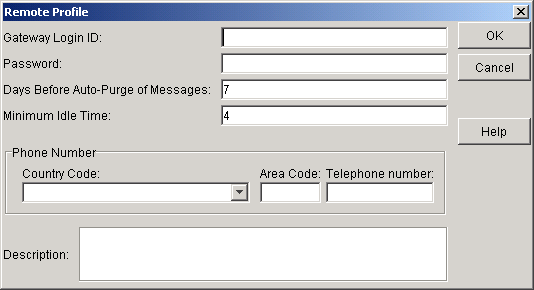
Click Create to display the Remote Profile dialog box.
-
Fill in the fields:
Gateway Login ID: You can use any string of characters you want, but the ID should be descriptive. Try using a string a group of users could identify as the correct connection. For example, you could use Sales for the Login ID used by your field salespeople.
Password: The access password to the Async Gateway. Provide a password that a group of users can easily remember.
Days Before Auto-Purge of Messages: The number of days you want to keep non-downloaded messages in the GroupWise Remote holding account before they are purged.
Minimum Idle Time: The number of minutes that you want the Async Gateway to remain connected while waiting for responses from the GroupWise system. If you set the number of minutes to 0 (zero), your site immediately disconnects after the user uploads the requests. To keep the connection open to give the user an opportunity to receive responses to requests sent, specify a number of minutes.
Phone Number: The telephone number of the modem you have defined for this Async Gateway connection, including country code and area code as needed.
Description: Any information that helps you to identify this Remote profile.
-
Click OK to save the Remote profile.