Planning Your Migration from Exchange to GroupWise
Several aspects of your system must be considered as you plan your migration from Exchange to GroupWise:
- Gateway Preparation
- Exchange Preparation
- GroupWise Preparation
- eDirectory Preparation
- Migration Scenarios
- Time Requirements
- Existing eDirectory User Objects
- Existing GroupWise Accounts
- Exchange Migration Planning Worksheet
- Exchange Migration Quick Checklist
Print the Planning Worksheet to help you gather the information you need as you perform the migration. Use the Quick Checklist to track migration progress.
Gateway Preparation
If you are migrating a large Exchange system, you cannot complete the migration in a single day or even in a single weekend. To keep e-mail flowing for users, you can implement the Exchange Gateway to connect your existing Exchange system with your new GroupWise system during the time while users are being migrated.
Install and start the Exchange Gateway with directory synchronization and exchange enabled before you install and run the Migration Utility. This creates a representation of your Exchange system in your GroupWise system. Each Exchange server is represented by a GroupWise external post office. The external post offices all belong to an external domain that represents your Exchange system.
The Exchange Gateway is available on the Novell Downloads page. Documentation for the Exchange Gateway is available on the GroupWise Gateways Documentation Web site.
Exchange Preparation
Make sure you know how many Exchange servers are in your Exchange system. You migrate users from one Exchange server at a time. You can list your Exchange servers on the Exchange Migration Planning Worksheet.
Make sure that you have administrator rights to all Exchange servers.
GroupWise Preparation
You migrate users into one GroupWise post office at a time. The number of Exchange users you have determines how many GroupWise post offices you need.
The maximum size for a GroupWise post office can range from 1000 to 2500 users, taking into account the following considerations:
- Minimizing the impact if you have a problem with a server.
- Avoiding excessive time requirements for performing post office and mailbox maintenance activities including backups.
- Allowing room to grow while maintaining best performance.
For more information about planning the size and composition of your GroupWise post offices, see "Understanding the Purpose of Post Offices" and "Planning a New Post Office " in "Post Offices" in the GroupWise 6.5 Administration Guide. See also the GroupWise 6.5 Best Practices Guide.
Complete the following GroupWise tasks before starting the migration:
- Make a list of which Exchange users you want in each post office. Use the Exchange Migration Planning Worksheet.
- Create the GroupWise domains and post offices where you want to migrate your Exchange users.
- Install and start the Message Transfer Agent (MTA) for each domain.
- Install and start the Post Office Agent (POA) for each post office.
- Decide whether you want to use LDAP authentication in the GroupWise post offices. For information about GroupWise authentication and passwords, see "Providing LDAP Authentication for GroupWise Users" in "Post Office Agent" in the GroupWise 6.5 Administration Guide. However, do not change the post office security level from the default of low until after you have migrated the Exchange mailboxes into it.
- Install and start the Internet Agent for your GroupWise system to facilitate name resolution between the GroupWise and Exchange systems.
Complete GroupWise installation and setup instructions are available on the GroupWise 6.5 Documentation Web site
You can create the post offices on any supported GroupWise platform (NetWare, Linux, or Windows).
IMPORTANT: If you want to migrate Exchange mailboxes into an existing GroupWise post office where existing users log in to GroupWise using LDAP authentication, see Existing eDirectory User Objects for an additional GroupWise preparation step.
Use the Exchange Migration Planning Worksheet to list the GroupWise post offices where you want to migrate Exchange users.
eDirectory Preparation
The Migration Utility can create both eDirectoryTM User objects and GroupWise accounts at the same time, or it can add GroupWise accounts to existing User objects. The Migration Utility also migrates Exchange distribution lists/groups and creates Distribution List objects for them.
IMPORTANT: If User objects already exist in your system for the users being migrated, see Existing eDirectory User Objects for an additional eDirectory preparation step.
Make sure you know all of the eDirectory contexts where you want to migrate users and create the User objects if desired.
If you are distributing users and distribution lists throughout many eDirectory contexts, you can provide the Migration Utility with a simple ASCII text file that lists the users and distribution lists, along with their eDirectory contexts. The Migration Utility expects each line to provide two pieces of information, separated by a tab:
user_ID context
distribution_list context
You need to create this eDirectory account file before you run the Migration Utility. For easiest access, create it in the directory where you install the Migration Utility. Make sure that the contexts you list in the file already exist in eDirectory. The Migration Utility does not create new contexts.
IMPORTANT: If User objects already exist in your system, make sure that you provide the correct context for those users. If the Migration Utility uses one context for a user and an existing User object resides in a different context, duplicate users result.
You can use the Exchange Migration Planning Worksheet to list users, trees, and contexts.
Migration Scenarios
- Small System Migration: One Exchange Server to One GroupWise Post Office
- Large System Migration: One Exchange Server to Multiple GroupWise Post Offices
- Large System Migration: Multiple Exchange Servers to One GroupWise Post Office
- Large System Migration: Multiple Exchange Servers to Multiple GroupWise Post Offices
- Large System Migration Tips
Small System Migration: One Exchange Server to One GroupWise Post Office
If your Exchange system is small, you can perform the migration as a single migration procedure. The Migration Utility can migrate users from one Exchange server into one GroupWise post office.
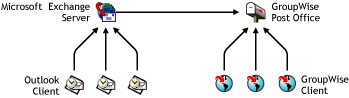
The migration procedure for a small system entails three Migration Utility sessions: one for mailboxes, one for distribution lists/groups, and one for public folders. The mailbox session must be completed before you start the distribution list/group session. The distribution list/group session must be completed before you start the public folder session.
If you have more than one Exchange server or you want to divide your Exchange users into more than one GroupWise post office, you must perform a large system migration.
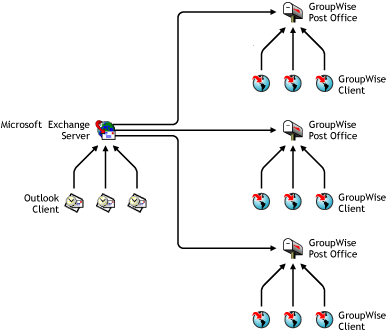
Large System Migration: One Exchange Server to Multiple GroupWise Post Offices
You might want to migrate your Exchange users into multiple GroupWise post offices. You need a separate Migration Utility session for the users going into each post office.
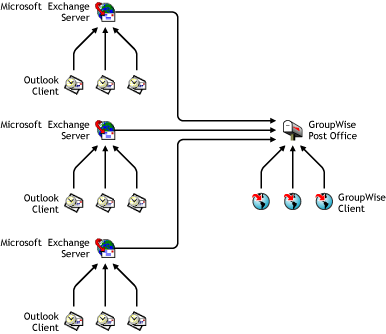
Large System Migration: Multiple Exchange Servers to One GroupWise Post Office
You might need to migrate users from multiple Exchange servers. You need a separate Migration Utility session for the users on each Exchange server.
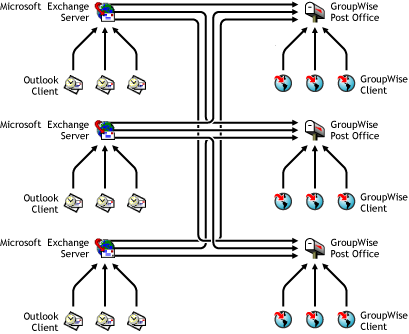
Large System Migration: Multiple Exchange Servers to Multiple GroupWise Post Offices
You will probably need to migrate users from multiple Exchange servers to multiple GroupWise post offices. This can require a substantial number of Migration Utility sessions to cover all the pairings of Exchange server and GroupWise post office.
Large System Migration Tips
For a large system migration, you can run Migration Utility sessions simultaneously on multiple servers or workstations. Because the Migration Utility is CPU-intensive, you might want to install and run each Migration Utility session on a different server or workstation. However, you can run multiple sessions on the same server or workstation if sufficient system resources are available.
For a large system migration, you can preconfigure each Migration Utility session before you actually start the migration. To accomplish this, you can run the Migration Utility at each location up until you would click Start to perform the migration. This creates a control file named ExchMig.uct that contains a list of users to be migrated. The control file is created in the Migration Utility installation directory. After creating the control file, you can cancel out of the Migration Utility, then proceed to the next location and create a control file there. In this way, you can preconfigure the entire migration before you ever click Start. You can create a Migration Quick Checklist for each session to help you track migration progress.
An advantage to running multiple Migration Utility sessions is that if one session must be stopped, it does not halt the entire migration process. When you restart a session, the Migration Utility picks up where it left off. It does not need to start over at the top of the list of users to migrate.
Time Requirements
Depending on the number of users and the amount of e-mail that users have accumulated, the migration process can require a substantial amount of time. The larger the amount of e-mail, the more servers or workstations you should concurrently run the Migration Utility on, in order to speed up the process. Large numbers of recurring appointments are especially high in overhead.
You can also streamline the migration process by choosing not to migrate items older than a specified date, sent items, journal items, and deleted items.
Existing eDirectory User Objects
If the users whose mailboxes are being migrated to GroupWise already have eDirectory User objects with personal passwords already set, the security level on the post office to which the users are being migrated is important. You can check the security setting in ConsoleOne®:
-
Browse to and right-click the Post Office object, then click Properties.
-
Click GroupWise > Security.
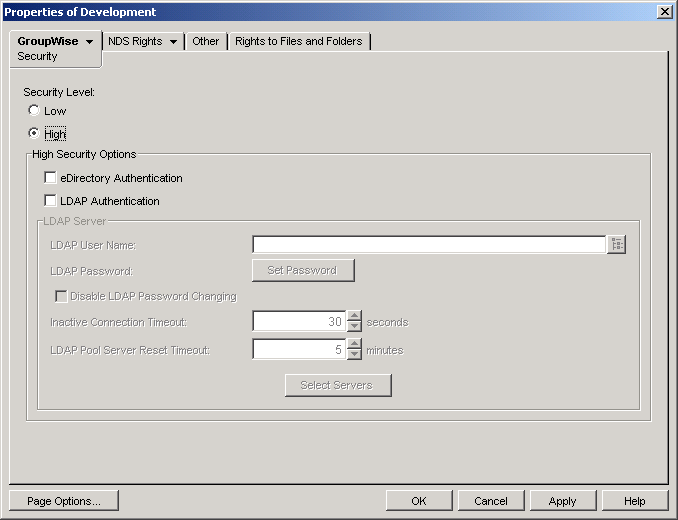
If Security Level is set to Low or High, or if eDirectory Authentication is selected, the Migration Utility can add GroupWise accounts to existing User objects as they are added to the post office. However, if LDAP Authentication is selected, the Migration Utility cannot add GroupWise accounts because the Migration Utility cannot perform LDAP authentication.
-
If LDAP Authentication is selected, select a different security option, then click OK to save your change.
-
After all Exchanges user have been migrated to the post office, return to ConsoleOne and select LDAP Authentication again.
Existing GroupWise Accounts
You cannot use the Migration Utility to migrate data from a mailbox in an Exchange system into an existing GroupWise mailbox that has a personalized password that does not match the default password used by the Migration Utility. To accomplish this task, the user can use Microsoft Outlook to save all data from the Exchange mailbox into a PST file, then use the GroupWise Import Utility for Microsoft Outlook to import the Exchange data into the existing GroupWise mailbox. For instructions, see Using the GroupWise Import Utility 2.1 for Microsoft Outlook.