3.2 Creating the User Application driver
To create the driver:
-
Log into the instance of iManager that manages your Identity Vault.
-
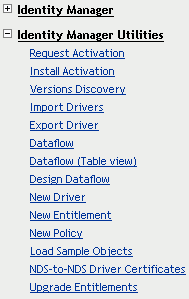
Open the Identity Manager Utilities node in the iManager navigation frame.
-
Click New Driver. The Create Driver Wizard is displayed:

The next step is to select where you would like to create the new driver. You can create the driver in an existing driver set, or create a new driver set.
-
If you select In an existing driver set, a wizard is displayed that you use to browse the Identity Vault to locate the driver set. Select the existing driver set, then select Next.
If you select In a new driver set, a screen is displayed that you use to define the properties for the new driver set. Specify a name, a tree context, and a server for the driver set, then select Next.
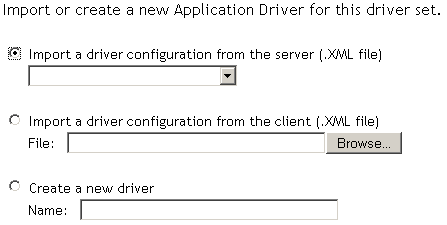
The next screen in the Create Driver Wizard is displayed:
-
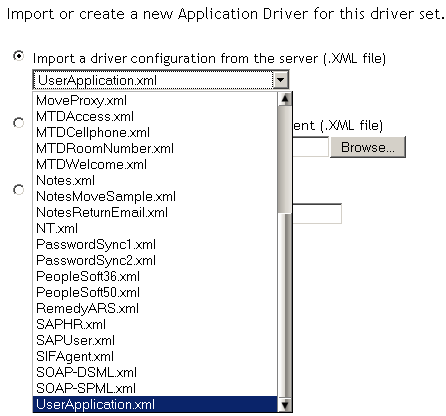
Click the Import a driver configuration from the server option, then select UserApplication.xml from the list of XML files:
-
Click Next. The Create Driver Wizard displays a page that you use to name and configure the driver:
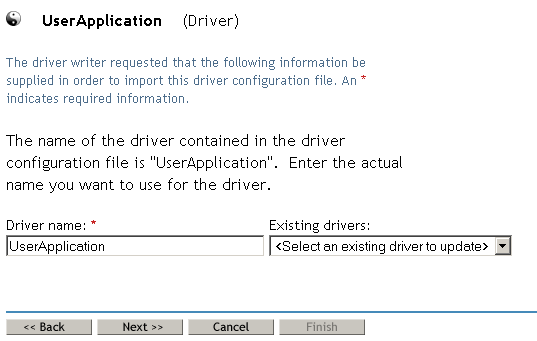
The default name of the driver is UserApplication. While you can use the default name, you may want to choose a more meaningful name for your project.
-
If desired, type a new name for the driver in the Driver name field.
-
In the Authentication ID field, specify the DN of the user application administrator (see Section 1.1.2, User Application Administrator for a description of the user application administrator), using the dot format (for example, admin.orgunit.novell).
-
In the Application Password and Reenter the password fields, specify the password for the user application administrator identified in the Authentication ID field.
-
In the Application Context field, type the application name that was specified when the user application was installed. The default name is IDM.
-
In the Host field, specify the host name or IP address of the application server on which the user application runs.
-
In the Port field, specify the port on which the driver will communicate with the user application running on the application server (for example, 8080).
-
Click Next. A message indicating that the driver configuration is being imported is displayed, then the next page of the Create Driver wizard is displayed:
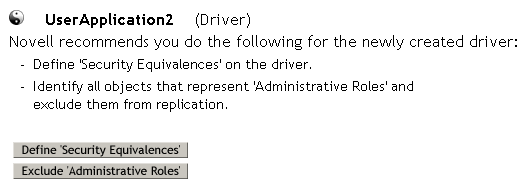
The driver object must be granted sufficient Identity Vault rights to any object that it reads or writes. You do this by granting Security Equivalences to the driver object. The driver must have Read/Write access to users, post offices, resources, and distribution lists, and Create, Read, and Write rights to the post office container. Normally, the driver should be given security equal to Admin.
-
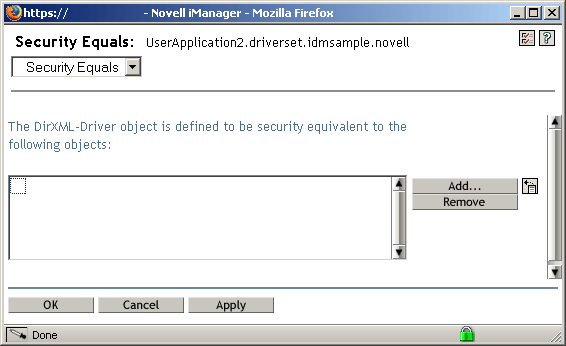
Click Define Security Equivalences. A new window is displayed:
-
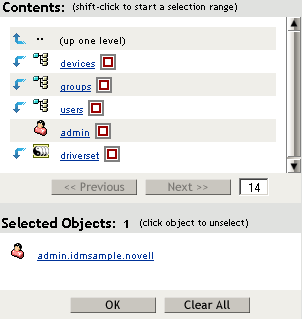
Click Add. A window is displayed that you use to select an object in the tree that has the appropriate level of rights that you would like to assign to this driver (for example, admin):
-
Select an object that has the desired level of Identity Vault rights from the tree, then click OK. You are returned to the previous window.
-
Click OK. You are returned to the Create Driver wizard.
-
Click Exclude Administrative Roles. The Excluded Users window is displayed. You use this feature to prevent an admin from being locked out of the user application driver if the administrator password changes in another Identity Vault that replicates back to the tree to which this driver belongs.
-
Click Add. A window is displayed that you use to browse the directory tree for users who should be excluded from having their data passed to the driver. Normally, you would exclude admin objects, since replicating their data across a driver connection is not good practice in most cases.
-
Select the administrative roles that you want to exclude, then click OK. You are returned to the previous window.
-
Click OK. You are returned to the Create Driver wizard.
-
Click Next. A driver summary page is displayed.
-
Click Finish with Overview. A graphical representation of the driver in the Identity Vault is displayed:
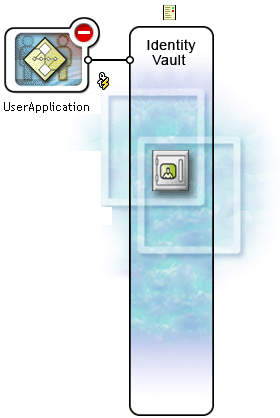
NOTE:You can view this screen again at any time by using the Identity Manager Overview link under Identity Manager in the iManager navigation tree.
The new driver appears as a large icon connected to the Identity Vault trunk.