3.4 Setting up Workflows to start automatically
When the provisioning module is installed, workflows are automatically started when a user starts a provisioning request by requesting a resource. In addition, the Identity Manager user application driver listens for events in the Identity Vault and, when configured to do so, responds to events by starting the appropriate provisioning workflows. For example, you can configure the user application driver to automatically start a provisioning workflow if a new user is added to the Identity Vault. You configure the user application driver to automatically start workflows using Identity Manager policies and rules.
3.4.1 About policies
You can use filters and policies with the user application driver in the same way that you can with other Identity Manager drivers. When an event occurs in the Identity Vault, Identity Manager creates an XML document that describes the event. The XML document is passed along the channel to the connected system (in this case, the connected system is the user application). Filters and policies associated with a driver allow you to define how to respond to the event, and in the process transform that XML document to the format that is expected by the connected system. Identity Manager provides several categories of policies (for example, Event Transformation, Command Transformation, Schema Mapping, Output Transformation) that you can apply, in a prescribed order, to transform the XML document. In this section we provide an example of starting a workflow based on events in the Identity Vault. While any of the policies can be used to trigger a workflow, this example demonstrates the easiest and most useful method.
When you create a user application driver, an Event Transformation Policy is created for use by the driver. The Event Transformation Policy is responsible for creating the XML document that will be processed by the remaining Subscriber channel policies.
NOTE:Do not change the Event Transformation policy that was created when the user application driver was created. The DN of this policy begins with Manage.Modify.Subscriber. Changing this policy may cause the workflow process to fail.
An empty Schema Mapping Policy is also created. You can use this policy as a starting point for triggering a workflow based on events in the Identity Vault.
3.4.2 Setting up a workflow to start based on an event in the Identity Vaul
The simplest method of starting a workflow automatically is accomplished using the Schema Mapping Policy Editor, and the user application driver provides an empty policy for you to edit for this purpose.
You use the Schema Mapping Policy Editor to map Identity Vault attributes (including the eDirectory trigger attribute that, when it changes, starts the workflow) to the runtime data of a target workflow. The runtime data is determined by the workflow definition template (see Section 22.0, Configuring Provisioning Request Definitions for information about workflow definition templates). The runtime data is needed for a workflow to complete successfully. When a workflow is created, a number of global attributes are created in the Identity Vault that can be used to customize the behavior of the user application driver. A global attribute is an attribute that does not belong to any Identity Vault object class. These attributes are called <workflowName>_StartWorkflow, <workflowName>_recipient, and <workflowName>_reason. The are also two other attributes that always exist named AllWorkflows:reason and AllWorkflows:recipient. The _StartWorkflow attribute is used to start a workflow. The _recipient and _reason attributes are used for accepting runtime data needed by the workflow from the Identity Vault.
Before you perform this procedure, you should know the name of the Identity Vault attribute that you want to use as a trigger for the workflow. You also need to know the name of the workflow that you want to start. All workflows include a special attribute named <workflowName>_StartApprovalFlow. You configure a workflow to start automatically based on an event in the Identity Vault by mapping the desired eDirectory attribute to the <workflowName>_StartApprovalFlow attribute for the workflow.
To Set up a workflow to start based on an event in the Identity Vault:
-
In iManager, click the Identity Manager Overview link under Identity Manager in the iManager navigation tree.
The Identity Manager Overview page is displayed. This page prompts you to select a driver set.
-
Click Search Entire Tree; then click Search. The Identity Manager Overview page is displayed, with a graphic that depicts the drivers in the currently selected driver set.
-
Click the large driver icon for the user application driver:
The Identity Manager Driver Overview is displayed:

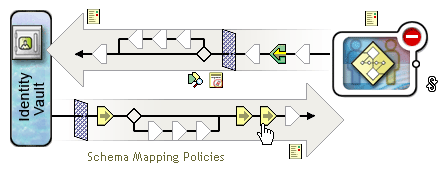
The top horizontal arrow represents the Publisher channel (which is not used in the user application driver) and the bottom horizontal arrow represents the Subscriber channel. As you pass the mouse pointer over an object in the graphic, a description of the object is displayed:
-
Click the Schema Mapping Policies icon for the Subscriber channel. The Schema Mapping Policies dialog box is displayed, with the name of the default schema mapping policy highlighted:

-
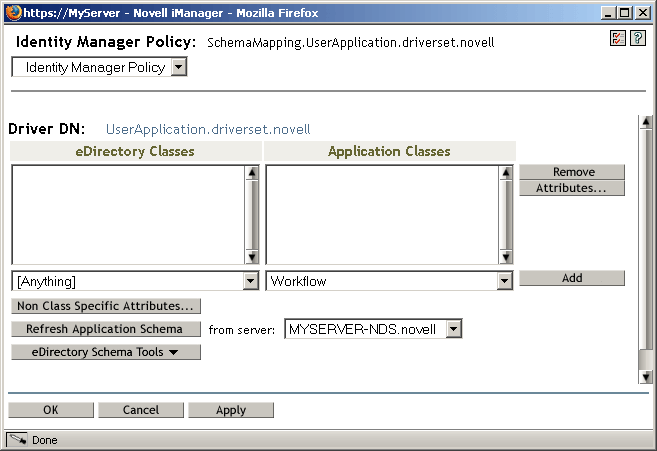
Click Edit. The Identity Manager Policy dialog box is displayed. This dialog box is used to map Identity Vault classes to application classes. This procedure does not make use of this feature. Instead we will be mapping eDirectory attributes to global user application attributes.
-
Click Refresh Application Schema. A message is displayed informing you that the driver must be stopped to read the schema, then restarted. It may take about 60 seconds to refresh the schema. This step reads the latest set of workflow information in preparation for the following step, which specifies the information to move from the Identity Vault to the workflow that will be started.
-
Click OK to refresh the schema. A message is displayed when the schema refresh is completed.
-
Click OK to close the schema refresh message. You are returned to the Identity Manager Policy dialog box.
-
Click Non Class Specific Attributes. The Identity Manager Schema Mapping Policy Editor is displayed.
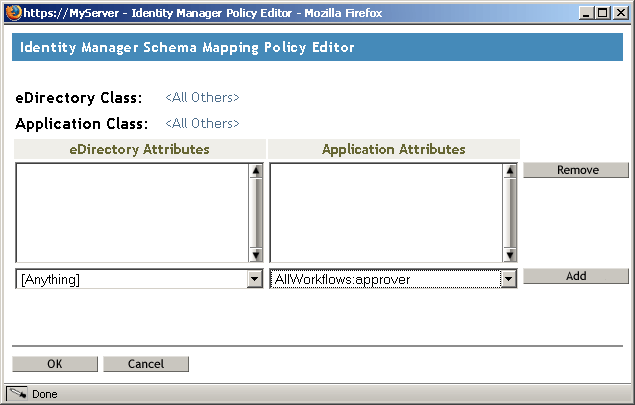
The eDirectory Attributes dropdown list contains all eDirectory attributes.
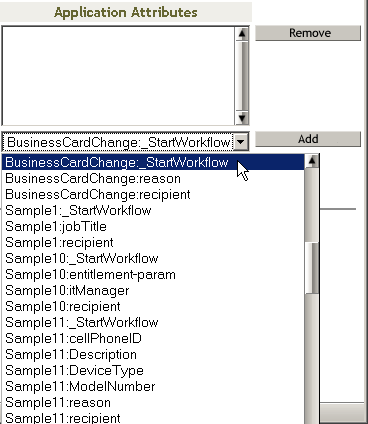
The Application Attributes dropdown list contains the attributes in all active Workflows. Attributes in the list are prefaced with either AllWorkflows (meaning that the attribute applies to all workflows), or the name of a specific workflow. If you want the same eDirectory attribute (for example manager) to be mapped to the manager attribute for all workflows, you would map manager to Allworkflows:manager. If you wanted a different eDirectory attribute (for example, HRmanager) to be used for a specific workflow, you would map the eDirectory attribute to the specific workflow attribute (for example BusinessCardChange:manager).
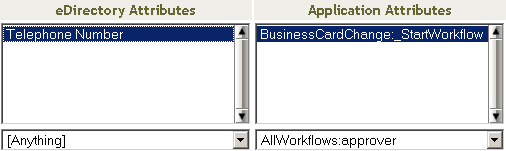
Attributes that have been mapped are displayed side-by-side in the eDirectory Attributes and Application Attributes columns.
In the following steps, we will map the eDirectory attribute that we want to use to start the workflow to the _StartWorkflow attribute for that workflow. If additional eDirectory attributes are expected by the workflow, you should also map those attributes. For example, if an eDirectory Address attribute is the trigger for a workflow, the workflow may also require attributes like City and State. Alternatively, these attributes may be mapped in policies.
-
In the Application Attributes list, select the _StartWorkflow attribute for the Workflow that you want to configure. The following example shows the _StartWorkflow attribute for a BusinessCardChange workflow (BusinessCardChange_StartWorkflow).
-
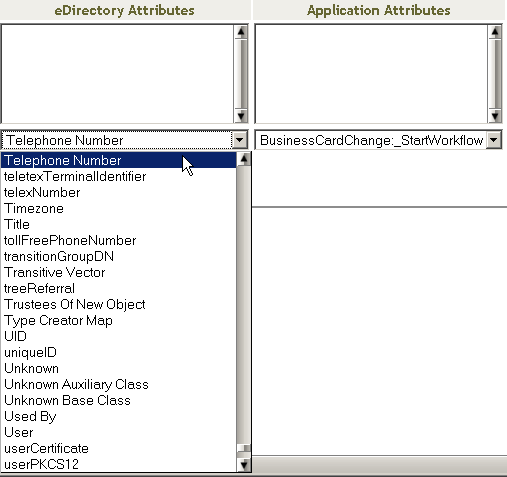
In the eDirectory Attributes list, select the eDirectory attribute that you want to use to start the workflow when that attribute changes. In the following example, the Telephone attribute is selected. This means that the BusinessCardChange workflow will start whenever an employee’s telephone number changes.
-
Click Add. The eDirectory attribute is mapped to the Application attribute.
-
If there are additional eDirectory attributes that are needed by the workflow, repeat Step 10 through Step 12 until you have mapped all of the attributes that you need to map.
The workflow will start automatically when a change occurs in the eDirectory attribute that is mapped to an application _StartApprovalFlow attribute. However, the eDirectory attribute will only reach the Schema Mapping policy if the eDirectory attribute is included in the Subscriber channel Driver Filter. In the following steps we will add the eDirectory attribute to the Subscriber channel Driver Filter
-
Click OK to close the Identity Manager Schema Mapping Policy Editor.
-
Click OK to close the Identity Manager Policy dialog box.
-
Click Close to close the Schema Mapping Policies dialog box.
-
Click the Driver Filter icon for the Subscriber channel.
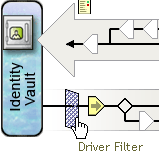
The filter window is displayed:
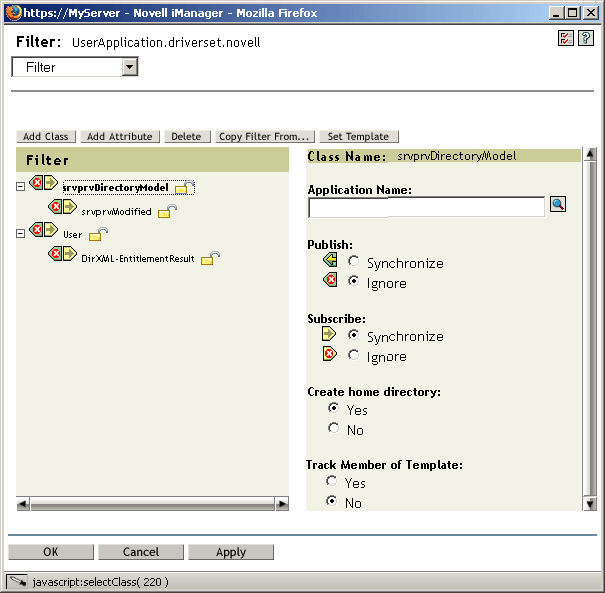
Event filters specify the object classes and the attributes for which the Identity Manager engine processes events. The read-only Filter list on the left shows the attributes of the class. The Class Name list on the right displays options associated with the target object.
-
Click the name of the class to which the attribute that you want to add to the filter belongs (for example, User).
-
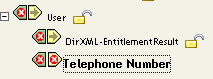
Click Add Attribute. A list of attributes is displayed.
-
Select an attribute, then click OK. The attribute is added to the Filter list.
-
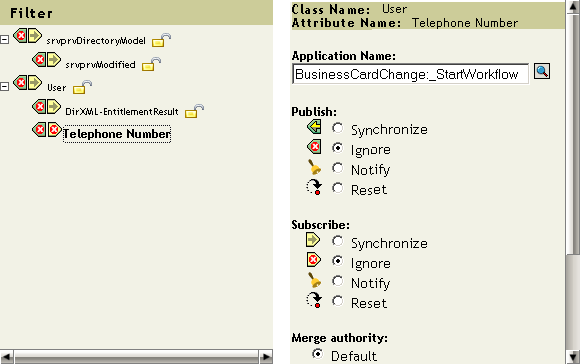
Click on the attribute name. The synchronization options for the attribute are displayed on the panel on the right.
-
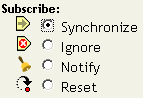
Under Subscribe, click Synchronize.
-
Specify any other attributes for the filter. Select Synchronize for an attribute if you want changes to attribute values to be reported and synchronized. Select Ignore if you do not want changes to attribute values to be reported and synchronized.
-
Click OK. A message is displayed asking you if you’d like the driver to be restarted to put the changes into effect.
-
Click OK. You are returned to the Identity Manager Driver Overview page.