3.3 Installing the Driver for JDBC
3.3.1 Installing the Driver
You can install the Driver for JDBC (along with other Identity Manager drivers) at the same time that the Metadirectory engine is installed. See the Identity Manager 3.0.1 Installation Guide .
You can also install the driver separately, after the Metadirectory engine is installed.
Installing to Windows
-
Run the installation program ( \nt\install.exe) from the Identity Manager 3 download image or CD.
Downloads are available from Novell Downloads.
-
In the Welcome dialog box, click , then accept the license agreement.
-
In the first Identity Manager Overview dialog box, review the information, then click .
The dialog box provides information on the following:
-
A Metadirectory server
-
A connected server system
-
-
In the second Identity Manager Overview dialog box, review the information, then click .
The dialog box provides information on the following:
-
A Web-based administration server
-
Identity Manager utilities
-
-
If you are installing locally, select only , then click .

If you are installing remotely (a Remote Loader), select Connected System and refer to
Setting Up Remote Loaders
andSetting Up a Connected System
in the Novell Identity Manager 3.0.1 Administration Guide .If you install a Remote Loader, the policies (and binaries that the policies reference) run locally, but the driver shim binaries run remotely. If you install the Metadirectory Server, all binaries and policies run locally.
-
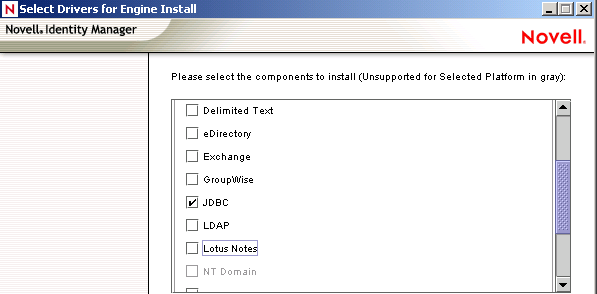
In the Select Drivers for Engine Install dialog box, select only , then click .
-
In the Identity Manager Upgrade Warning dialog box, click .
-
In the Summary dialog box, review the selected options, then click .
-
In the Installation Complete dialog box, click .
After installation, configure the driver as explained in Importing the Example Configuration File.
Installing to NetWare
-
At the NetWare® server, insert the Identity Manager CD and mount the CD as a volume.
If you don’t have a CD, download Identity_Manager_3_NW_Win.iso and create one. Downloads are available from Novell Downloads.
To mount the CD, enter m cdrom.
-
(Conditional) If the graphical utility isn’t loaded, load it by entering startx.
-
In the graphical utility, click the Novell icon, then click .
-
In the Installed Products dialog box, click .
-
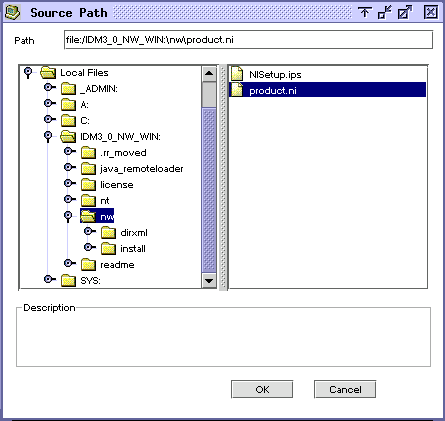
In the Source Path dialog box, browse to and select the product.ni file.
-
Browse to and expand the CD volume ( IDM_3_0_NW_WIN ) that you mounted earlier.
-
Expand the nw directory, select product.ni, then click twice.
-
-
In the Welcome to the Novell Identity Manager 3.0 Installation dialog box, click , then accept the license agreement.
-
View the two Overview dialog boxes, then click .
-
In the Identity Manager Install dialog box, select only .
Deselect the following:
-
Identity Manager Web Components
-
Utilities
-
-
Click Next.
-
In the Select Drivers for Engine Install dialog box, select only .
Deselect the following:
-
Metadirectory engine
-
All drivers except Delimited Text
-
-
Click Next.
-
In the Identity Manager Upgrade Warning dialog box, click .
The dialog box advises you to activate a license for the driver within 90 days.
-
In the Summary page, review the selected options, then click .
-
Click .
After installation, do the following:
-
Import the example . xml configuration file. See Importing the Example Configuration File.
-
Set up a Remote Loader (optional). See Setting Up a Remote Loader.
-
Configure database objects. See Installing and Configuring Database Objects.
Installing to Linux or Solaris
By default, the Identity Manager Driver for JDBC is installed when you install the Metadirectory engine. If the driver wasn’t installed at that time, this section can help you install it.
As you move through the installation program, you can return to a previous section (screen) by entering previous.
-
In a terminal session, log in as root.
-
Insert the Identity Manager CD and mount it.
If you don’t have a CD, download Identity_Manager_3_Linux.iso and create one. Downloads are available from Novell Downloads.
Typically, the CD is automatically mounted. The following table lists examples for manually mounting the CD:
-
Change to the setup directory.
-
Run the installation program by entering ./dirxml_linux.bin.
-
In the Introduction section, press Enter.
-
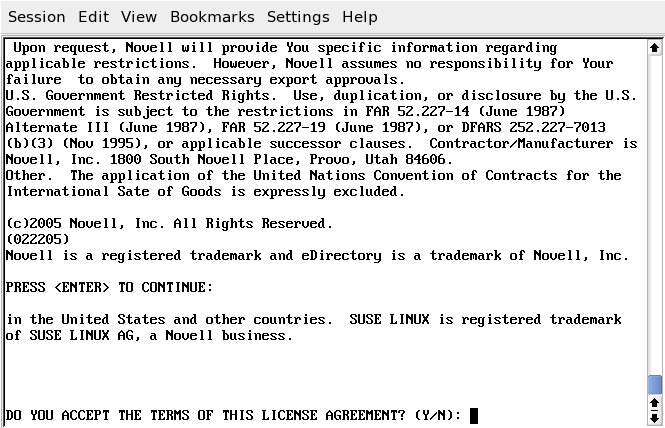
Accept the license agreement.
Press Enter until you reach , type y, then press Enter.
-
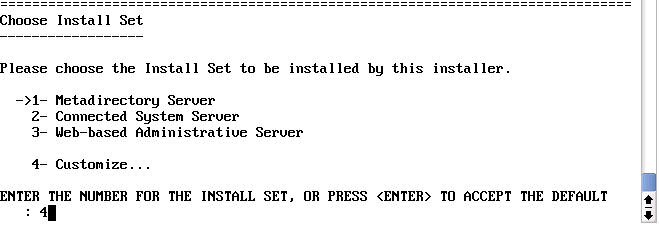
In the Choose Install Set section, select the option.
Type 4, then press Enter.
-
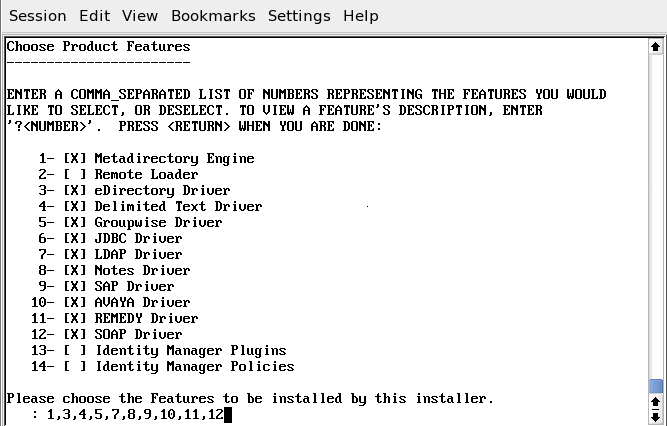
In the Choose Product Features section, deselect all features except JDBC, then press Enter.
To deselect a feature, type its number. Type a comma between additional features that you deselect.
-
In the Pre-Installation Summary section, review options.
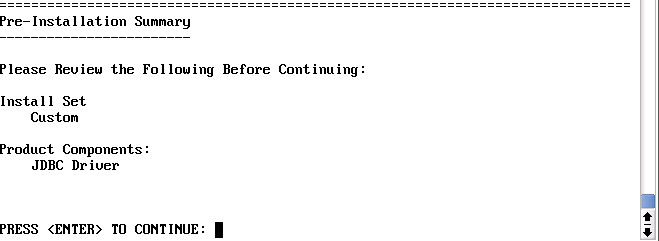
To return to a previous section, type previous, then press Enter.
To continue, press Enter.
-
After the installation is complete, exit the installation by pressing Enter.
After installation, configure the driver. See Section 5.0, Configuring the Identity Manager Driver for JDBC.
3.3.2 Importing the Example Configuration File
To set up the Identity Manager Driver for JDBC, import a driver configuration file and configure a database. Database configuration consists of executing SQL scripts. We recommend that you execute database SQL scripts and test them before starting the driver.
The shipping . xml configuration file is an example only. We recommend that you install the shipping configuration into a test environment before attempting to customize the configuration.
Importing the Sample Driver Configuration File: iManager
The current example . xml configuration file creates and configures the Identity Manager objects needed for the sample driver to work properly. The configuration file also includes sample policies that you can customize.
-
In iManager, select > .
-
Select a driver set, then click .
If you place this driver in a new driver set, specify a driver set name, context, and associated server.
-
Select .
Driver configuration files are installed on the Web server when you set up iManager.
-
From the drop-down list, select the current example XML option, then click .
-
When prompted to enter a name for the driver, specify the driver’s name (for example, JDBC 2), then click .
-
Select the target database, select whether the driver is local or remote, then click .
-
Select a synchronization model, select a third-party JDBC implementation, then click .
-
Select a data flow (for example, bidirectional), specify a database host IP address, enter a port number, then click .
-
Specify the User container DN, the Group container DN, and the publication mode, then click .
-
(Optional) Click .
-
Click Add, then select an object with Admin rights (or any other rights that you want the driver to have).
-
Click , then click .
-
-
(Optional) To exclude objects from replication, click .
-
Click , then select any users you want to exclude (such as the admin user).
-
Click , then click .
-
-
To view the import summary, click .
-
Verify that the configuration is correct, then click
The installation created the necessary Identity Manager driver objects. If you didn’t define security equivalences or exclude administrative users at import time, you can complete these tasks by modifying the driver object’s properties.
Configuration File Conventions
-
Database usernames are the surname of a user concatenated with the corresponding numeric primary key value. For example, John Doe’s username could be Doe1.
-
Initial passwords are the surname of a user. For example, John Doe’s password would be Doe. Sybase passwords must be at least 6 characters long. When shorter than 6 characters, last names are padded with the character “p.” For example, John Doe’s password would be Doeppp. The padding character can be adjusted in the Subscriber Command Transformation policies.
Importing the Driver Configuration File: Designer
You can import the basic driver . xml configuration file for JDBC by using Designer for Identity Manager. This basic file creates and configures the objects and policies needed to make the driver work properly.
The following procedure explains one of several ways to import the example configuration file:
-
Open a project in Designer.
-
In the modeler, right-click the Driver Set object, then select .
-
From the drop-down list, select , then click .
-
Click , in the Perform Prompt Validation window.
-
Configure the driver by filling in the fields.
Specify information specific to your environment. For information on the settings, see Configuration Parameters.
-
After specifying parameters, click to import the driver.
-
Customize and test the driver.
-
Deploy the driver into the Identity Vault.
See
Deploying a Driver to an Identity Vault
in the Designer for Identity Manager 3: Administration Guide .
3.3.3 Setting Up a Remote Loader
Using a Remote Loader is optional. It isn’t required unless you want the JDBC driver to run in a connected system.
-
If a Remote Loader isn’t already installed, install one.
See
Setting Up a Connected System
in the Novell Identity Manager 3.0.1 Administration Guide . -
Copy the appropriate third-party JDBC driver jar files onto the Remote Loader server.
-
For information on third-party JDBC driver filenames and where to get them, refer to Supported Third-Party JDBC Drivers.
-
For information on file installation paths, refer to Placing Jar Files.
-
-
Configure the remote driver.
In the parameters, set the parameter to
com.novell.nds.dirxml.driver.jdbc.JDBCDriverShim.
-
Configure other remote loader parameters. See
Setting Up a Connected System
in the Novell Identity Manager 3.0.1 Administration Guide .
3.3.4 Installing and Configuring Database Objects
Install and configure database objects (for example, tables, triggers, and indexes) for synchronization with the example driver configuration. If you don’t configure database objects, the example . xml configuration file won’t work.
SQL Script Conventions
The following table lists default locations for SQL scripts:
Table 3-3 Default Locations for SQL Scripts
|
Platform |
Default Location |
|---|---|
|
Windows |
c:\novell\NDS\jdbc\sql\ database-abbreviation |
|
iUNIX or Linux |
/usr/lib/dirxml/rules/jdbc/ database-abbreviation |
For example, when installed on a SuSE Linux Enterprise Server with eDirectory, the DB2 scripts are found in /usr/lib/dirxml/rules/jdbc/db2/*.
All SQL scripts use the same conventions, regardless of the database.
The maximum size of a DB2 identifier is 18 characters. This least common denominator length defines the upper bound of database identifier length across all SQL scripts. Because of this restricted length, abbreviations are used. The following table summarizes identifier abbreviations and their meaning:
Table 3-4 Identifier Abbreviations and Meanings
1 The more common abbreviation is sp_. This prefix is reserved for system-stored procedures on Microsoft* SQL Server. Also, this prefix forces lookup of a procedure first in the master database before evaluating any qualifiers (for example, database or owner). To maximize procedure lookup efficiency, this prefix has been deliberately avoided.
The following table indicates identifier naming conventions for indexes, triggers, stored procedures, functions, and constraints:
Table 3-5 Identifier Naming Conventions
Other conventions:
-
All database identifiers are lowercase.
This is the most commonly used case convention between databases.
-
String field lengths are 64 characters.
Fields of this length can hold most eDirectory™ attribute values. You might want to refine field lengths to enhance storage efficiency.
-
For performance reasons, primary key columns use native, scalar numeric types whenever possible (such as BIGINT as opposed to NUMERIC).
-
The record_id column in event log tables has the maximum numeric precision permitted by each database to avoid overflow.
-
Identity columns and sequence objects do not cache values. Some databases throw away cached values when a rollback occurs. This action can cause large gaps in identity column or sequence values.
Installing IBM DB2 Universal Database (UDB)
IMPORTANT:For IBM* DB2, you must manually create operating system user accounts before running the provided SQL scripts.
Because the process to create user accounts differs between operating systems, Step 1 below is OS-specific. These instructions are for a Windows NT operating environment. If you rerun the SQL scripts, repeat only Steps 2 through 5.
The directory context for DB2 is install-dir\jdbc\sql\db2_udb\install
-
Create user accounts for users idm, indirect and direct.
Use novell as the password in .
Remember to deselect for this account.
You might want to also select .
NOTE:The remaining instructions are OS-independent.
-
Adjust the file path to idm_db2.jar in the 1_install.sql installation script. The file path to idm_db2.jar should reflect the location of this file on your client machine.
-
Execute the 1_install.sql script from the Command Line Processor (CLP.)
For example: db2 -f 2_install_8.sql
IMPORTANT:The scripts won’t execute in the Command Center interface beyond version 7. The scripts use the ‘\' line continuation character. Later versions of the Command Center don’t recognize this character.
-
For versions 8 or later, execute the 2_install_8.sql script.
For example: db2 -f 2_install_8.sql
Installing Informix Dynamic Server (IDS)
IMPORTANT:For Informix* Dynamic Server, you must manually create an operating system user account before running the provided SQL scripts.
Because the process of creating user accounts differs between operating systems, Step 1 below is OS-specific. These instructions are for a Windows NT operating environment. If you rerun the SQL scripts, you should repeat only Steps 2 through 4.
The directory context for Informix SQL scripts is install-dir\jdbc\sql\informix_ids\install .
-
In Windows NT, create a user account for user idm.
Use novell as the password in .
Remember to deselect for this account.
You might want to also select .
NOTE:The remaining instructions are OS-independent.
-
Start a client such as SQL Editor.
-
Log in to your server as the informix user or another user with DBA (database administrator) privileges.
By default, the password for the informix user is informix.
NOTE:If you execute scripts as a user other than informix, change all references to informix in the scripts prior to execution.
-
Open and execute 1_install.sql from either the ansi (transactional, ANSI-compliant), log (transactional, non-ANSI-compliant), or no_log (non-transactional, non-ANSI-compliant) subdirectory, depending upon which type of database you want to create.
Installing Microsoft SQL Server
The directory context for Microsoft SQL Server scripts is install-dir\jdbc\sql\mssql\install .
-
Start a client such as Query Analyzer.
-
Log in to your database server as the sa user.
By default, the sa user has no password.
-
Execute the installation script.
For version 7, execute 1_install_7.sql.
For version 8 (2000), execute 1_install_2k.sql.
NOTE:The execute hotkey in Query Analyzer is F5.
Installing MySQL
The directory context for MySQL* SQL scripts is install-dir\jdbc\sql\mysql\install .
-
From a MySQL client, such as mysql, log in as root user or another user with administrative privileges.
For example, from the command line, execute
mysql -u root -p
By default, the root user has no password.
-
Execute the installation script 1_install_innodb.sql or 1_install_myisam.sql, depending upon which table type you wish to use.
For example: mysql> \. c:\1_install_innodb.sql
HINT:Don’t use a semicolon to terminate this statement.
Installing Oracle
The directory context for Oracle SQL scripts is install-dir\jdbc\sql\oracle\install.
-
From an Oracle client, such as SQL Plus, log in as the SYSTEM user.
By default, the password for SYSTEM is MANAGER.
NOTE:If you execute scripts as a user other than SYSTEM with password MANAGER, change all references to SYSTEM in the scripts prior to execution.
-
Execute the installation script 1_install.sql.
For example: SQL> @c:\1_install.sql
Installing PostgreSQL
The directory context for PostgreSQL scripts is install-dir\jdbc\sql\postgres\instal l. The directory context for executing Postgres commands is postgres-install-dir/pgsql/bin.
-
Create the database idm.
For example, from the UNIX* command line, execute the command createdb: ./createdb idm
-
Install the plpgsql procedural language to database idm.
For example, from the UNIX command line, execute the command createlang: ./createlang plpgsql idm
-
From a Postgres client such as psql, log on as user postgres to the idm database.
For example, from the UNIX command line, execute the command psql: ./psql -d idm postgres
By default, the Postgres user has no password.
-
From inside psql, execute the script 1_install.sql.
For example: idm=# \i 1_install.sql
-
Update the pg_hba.conf file.
For example, add entries for the idm database user. Adjust the IP-ADDRESS and IP-MASK as necessary:
# TYPE  DATABASE    USER   IP-ADDRESS        IP-MASK           METHOD# allow driver user idm to connect to database idm
host    idm         idm    255.255.255.255   255.255.255.0     password
-
Restart the Postgres server to effect changes made to the pg_hba.conf file.
Installing Sybase Adaptive Server Enterprise (ASE)
IMPORTANT:Ensure that you have JDBC metadata support installed on the database server. This is usually an issue for versions earlier than 12.5 only.
The directory context for Sybase SQL scripts is install-dir\jdbc\sql\sybase_ase\install .
-
From a Sybase client, such as isql, log in as the sa user and execute the 1_install.sql installation script.
For example, from the command line, execute: isql -U sa -P -i 1_install.sql
By default, the sa account has no password.
3.3.5 Testing
Test scripts for each database are located in the following directories:
Table 3-6 Location of Database Scripts
We recommend that you try the test scripts before starting the sample driver.
3.3.6 Troubleshooting
-
Publication events might not be recognized by the Publisher channel unless you explicitly commit changes. For the commit keywords of supported databases, see Section 10.3.7, Commit Keywords.
-
The test scripts should be executed by a user other than the driver’s idm database user account. If you execute them as the idm user, events are ignored by the driver’s Publisher channel, unless publication loopback is allowed. For additional information on allowing or disallowing publication loopback, refer to Allow Loopback?.