14.1 Synchronizing Users and Groups from an LDAP Directory
14.1.1 Adjusting LDAP Synchronization of Users and Groups
When you initially set up your Kablink Teaming site, your main consideration for LDAP synchronization is to add users and groups from your LDAP directory into your Teaming site. As time passes, deletion of obsolete users and groups from your Teaming site becomes a larger concern. Periodically review the LDAP synchronization options described in LDAP Synchronization Options
in Basic Installation
in the Novell Teaming 3 Installation Guide to ensure that obsolete users and groups are being managed properly.
14.1.2 Synchronizing Additional LDAP Attributes
By default, Teaming synchronizes the following attributes from the LDAP directory:
-
First name
-
Last name
-
Phone number
-
E-mail address
-
Description
This information displays on each user’s personal user profile.
To synchronize additional LDAP attributes, complete the following sections:
Identifying or Creating a Corresponding Teaming Field
Before you can synchronize Teaming user profiles with additional attributes from your LDAP directory, you first need to ensure that there is a corresponding Teaming field for the LDAP attribute that you want to synchronize.
To view the existing fields in the user profile:
-
Navigate to a user profile and see if there is an existing field that corresponds to the LDAP attribute that you want to synchronize.
-
If the appropriate field already exists, continue with Copying the Data Name of the Teaming Field.
If the appropriate field doesn’t already exist, you must create it, as described in Section 3.2.4, Customizing the Default User Profile View. After you have created the field, continue with
Copying the Data Name of the Teaming Field
Each field in Teaming has an internal data name. When you create a field, using the Form and View Designers tool, Teaming requires that you enter a data name. This name is how Teaming identifies the field.
To map an LDAP attribute to a Teaming field, you must find the data name for the field.
To find the data name for a particular field in the user profile:
-
Click the icon
 .
.
-
In the section, click .
-
Expand , then click .
-
Expand , then expand , then locate the Teaming field that you want to synchronize with an LDAP attribute.
-
Click the name of the field, then click in the dialog box on the right-hand side of the page.
-
Copy the text in the field, then continue with Mapping the Teaming Field with the LDAP Attribute.
Mapping the Teaming Field with the LDAP Attribute
After you have copied the data name of the Teaming field that you want to synchronize with an LDAP attribute as described in Copying the Data Name of the Teaming Field, you can map the Teaming field to the LDAP attribute that you want to synchronize.
-
Click the icon
.
The Administration page is displayed.
-
In the section, click .
The map box in the section lists the LDAP attributes that are currently being synchronized.
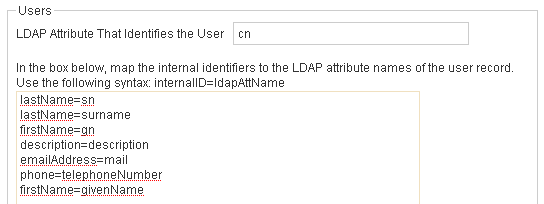
The items in the list have the following format:
teaming_field_name=ldap_attribute_name
-
Add a new line to the list, specifying the Teaming field name to the left of the equal sign (=) and the LDAP attribute name to the right of the equal sign.
The teaming_field_name is the data name that you copied in Copying the Data Name of the Teaming Field, and ldap_attribute_name is the name of the LDAP attribute in your LDAP directory.
-
Repeat Step 3 for each LDAP attribute that you want to add to the user profile.
-
Select , then click .
The status box shows the LDAP attribute information being added to Teaming users.