4.3 Setting a Default Home Page
By default, all users who log in to the Teaming site are first taken to their personal workspace. However, you can change this default behavior to have all users taken to the same home page. This might be a corporate landing page that provides links to important places on the Teaming site.
4.3.1 Setting a Default Home Page for All Licensed Teaming Users
-
Log in to the Teaming site as the Teaming administrator.
-
Create a landing page on the workspace that you want to set as the new default home page for all registered users.
For example, you might navigate to the directory and create a landing page on this workspace.
For information on how to create a landing page, see
Creating and Managing Landing Pages
in the Kablink Teaming 3 Advanced User Guide. -
Set the access control for the workspace to allow all users to be visitors to the workspace, if it is not set already.
-
Click > in the Action toolbar.
-
In the section, select , then click .
-
In the row, ensure that the box is selected in the column.
-
Click > .
-
-
Click the icon
 in the upper-right corner of the page.
-
Under , click .
-
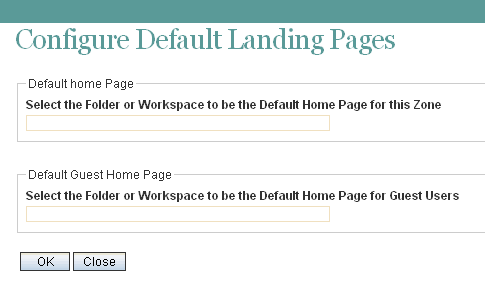
In the field, begin typing the name of the folder or workspace that you want to set as the default home page for all licensed users, then click it when it appears in the drop-down list.
-
Click .
If you want users to be automatically taken to this page before they log in, and if you want people who do not have a user account to have access to the page, see Making the Guest User Default Home Page the Same as the Home Page for Licensed Users.
4.3.2 Setting a Default Home Page for Guest Users
When you allow people who do not have a user account to access the Teaming site as a guest user, as described in Section 5.4.2, Setting Up Guest Access for the Teaming Site, then by default they are taken to the Guest User workspace when they access Teaming. If you want guest users to be taken to a workspace other than the Guest User workspace, you can set a default home page for guest users that is different from the Guest User workspace. The default home page might be the same default home page that you have set up for your licensed Teaming users, or it might be a different page.
Making the Guest User Default Home Page the Same as the Home Page for Licensed Users
If you have already set up a default home page for your licensed Teaming users, as described in Section 4.3.1, Setting a Default Home Page for All Licensed Teaming Users, you can configure Teaming to allow guest users who access the Teaming site to be taken to the same home page. If you configure Teaming in this way, everyone who accesses the Teaming site is taken directly to the default home page without logging in.
-
Follow the steps in Section 4.3.1, Setting a Default Home Page for All Licensed Teaming Users.
-
Navigate to the workspace that you want to set as the default home page for guest users, which is the workspace that you already set as the default home page for licensed Teaming users in Section 4.3.1, Setting a Default Home Page for All Licensed Teaming Users.
-
Click > in the Action toolbar.
The Configure Access Control page is displayed.
-
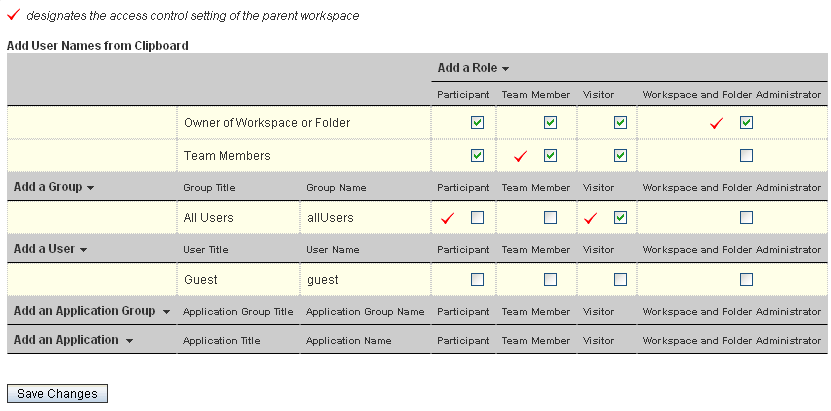
Click start typing Guest in the field, then click when it appears in the drop-down list.
This adds as a new row in the Access Control table.
-
In the row, ensure that the box is selected in the column.
-
Click > .
Setting Up a Default Home Page Specifically for Guest Users
You might want guest users who access the Teaming site to be taken to a workspace that is designated specifically for guest users.
-
Log in to the Teaming site as the Teaming administrator.
-
Create a landing page on the workspace that you want to set as the new default home page for guest users.
For information on how to create a landing page, see
Creating and Managing Landing Pages
in the Kablink Teaming 3 Advanced User Guide. -
Set the access control for the workspace to allow guest users to be visitors to the workspace.
-
Click > in the Action toolbar.
-
In the section, select , then click .
-
Click start typing Guest in the field, then click when it appears in the drop-down list.
This adds as a new row in the Access Control table.
-
In the row, ensure that the box is selected in the column.
-
Click > .
-
-
Click the icon
in the upper-right corner of the page.
-
Under , click .
-
In the field, begin typing the name of the folder or workspace that you want to set as the default home page for guest users, then click it when it appears in the drop-down list.
-
Click .
4.3.3 Removing the Default Home Page
If you remove the default home page, users are taken to their individual workspaces when they first access the Teaming site.
-
Click the icon
in the upper-right corner of the page.
-
Under , click .
-
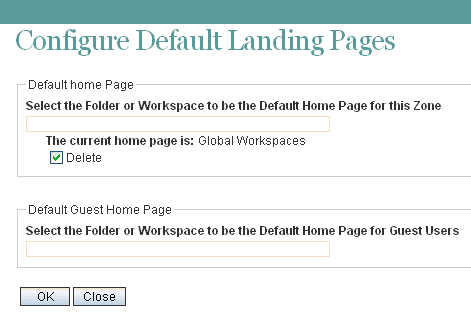
Beneath , select .
-
Click .