| |
To set up the Windows portion of Novell Native File Access Pack in an environment running Novell Cluster Services, complete the following steps:
Remove the CIFSSTRT.NCF command from each server's AUTOEXEC.NCF file.
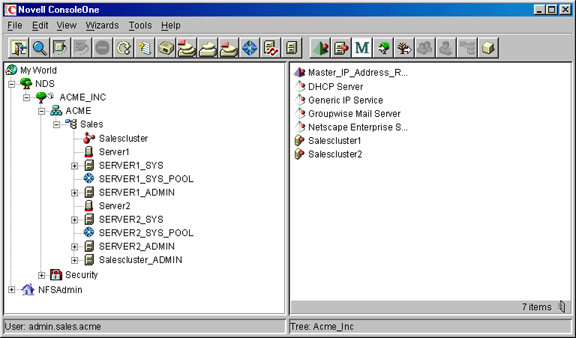
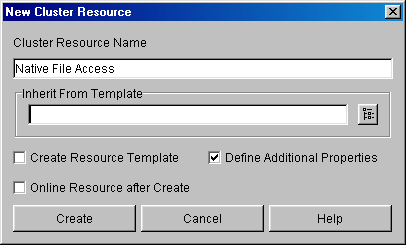
Create a Cluster Resource object that corresponds with the Novell Native File Access Pack support for Windows.
Edit the Cluster Resource Load Script.
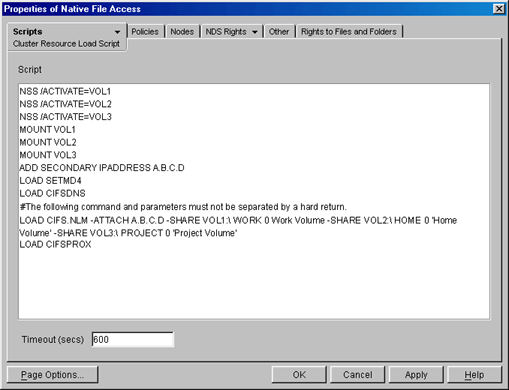
HINT: A sample Cluster Resource Load Script is given at the end of this step.
The commands for configuring the Windows portion of Novell Native File Access Pack are controlled by the Cluster Resource Load Script.
Click File > Properties.
Click Scripts > Cluster Resource Load Script.
Add the following commands to the Cluster Resource Load Script replacing VOL1, VOL2, and VOL3 with the names of the shared disk volumes:
Assign the IP address that will be used to move the Cluster Resource object during failover and failback by adding the following commands and replacing A.B.C.D with the IP address assigned to the Cluster Resource object created in Step 2.
Attach the IP address to the shared volume by entering the following command and substituting the A.B.C.D with the proper IP address, VOL1 with the path you are exporting, WORK with the name of the share, 0 with the number of connections, and Work_Volume with the name to display.
NOTE: Do not separate this command and its parameters by hard returns.
You can specify multiple instances of parameters such as the following:
NOTE: All shares to be advertised must reside on the shared-disk system.
Make sure that all commands and parameters in the SYS:\ETC\CIFS.CFG file on each server are added to the LOAD CIFS.NLM command.
For example, if the CIFS.CFG file contains the command and parameters LOAD CIFS.NLM -SERVERNAME Server1 -UNICODE Off -AUTHENT Local -WORKGROUP -Workgroup, you would add these parameters to the LOAD command.
Adding to the example in Step 3.e, the command would be updated to
LOAD CIFS.NLM -SERVERNAME Server1 -UNICODE Off -AUTHENT Local -WORKGROUP Workgroup -ATTACH A.B.C.D -SHARE VOL1:\ WORK 0 'Work Volume' -SHARE VOL2:\ HOME 0 'Home Volume' -SHARE VOL3:\ PROJECT 0 'Project Volume'.
NOTE: Do not separate this command and its parameters by hard returns.
Rename each SYS\ETC\CIFS.CFG file to SYS:\ETC\CIFS.BAK.
Add the command LOAD CIFSPROX.
Add the command HTTP A.B.C.D /KEYFILE:"SSL CertificateIP".
Add the command LOAD NFAP4NRM to automatically load the NetWare Remote Manager component that lets you set up and manage passwords.
For more information on the NFAP4NRM.NLM program, see Using NetWare Management Portal.
NSS /ACTIVATE=VOL1
NSS /ACTIVATE=VOL2
NSS /ACTIVATE=VOL3
MOUNT VOL1
MOUNT VOL2
MOUNT VOL3
TRUSTMIG VOL1 WATCH
TRUSTMIG VOL2 WATCH
TRUSTMIG VOL3 WATCH
ADD SECONDARY IPADDRESS A.B.C.D
# Add commands to start Native File Access for CIFS
LOAD SETMD4
LOAD CIFSDNS
LOAD CIFS.NLM -SERVERNAME Server1 -UNICODE Off -AUTHENT Local -WORKGROUP -Workgroup -ATTACH A.B.C.D -SHARE VOL1:\ WORK 0 'Work Volume' -SHARE VOL2:\ HOME 0 'Home Volume' -SHARE VOL3:\ PROJECT 0 'Project Volume'
LOAD CIFSPROX
HTTPBIND A.B.C.D /KEYFILE:"SSL CertificateIP"
LOAD NFAP4NRM
Edit the Cluster Resource Unload Script.
Open the Cluster Resource Unload Script.
Add the following command replacing A.B.C.D with the proper IP address:
Add the following commands to stop the Native File Access service:
Add the following commands replacing VOL1,VOL2, and VOL3 with the names of the shared disk volumes:
Add any other UNLOAD commands that might exist to the CIFS.CFG file located in the SYS:\ETC\ directory on each server.
DEL SECONDARY IPADDRESS A.B.C.D
HTTPUNBIND A.B.C.D
UNLOAD NFAP4NRM
# Add commands to stop Native File Access for CIFS
UNLOAD CIFSPROX
UNLOAD CIFS
UNLOAD CIFSDNS
UNLOAD SETMD4
# Edit the following lines to match the volume name
# and IP address chosen.
# Client and server software should be configured with
# the IP address of the service. Use << to pipe
# characters into any command the requires keyboard input.
TRUSTMIG VOL3 UNWATCH
TRUSTMIG VOL2 UNWATCH
TRUSTMIG VOL1 UNWATCH
DISMOUNT VOL3 /FORCE
DISMOUNT VOL2 /FORCE
DISMOUNT VOL1 /FORCE
NSS /FORCEDEACTIVATE=VOL3
NSS /FORCEDEACTIVATE=VOL2
NSS /FORCEDEACTIVATE=VOL1
Configure the Cluster Resource policies.
For a complete description of policies and modes such as failback, failover, and start mode, see the NetWare Cluster Services documentation.
Assign the cluster resource preferred nodes.
NetWare Cluster Services automatically assigns the Cluster Resource to all nodes in the cluster. The order of assignment is the order that the nodes appear in the resource list.
| |