DNS Server Installation: Forwarder Settings
DNS (domain name system) is needed to resolve the domain and host names into IP addresses. In this way, the IP address 192.168.0.0 is assigned to the host name earth, for example. Before setting up your own name server, read the general information about DNS in Domain Name System. The configuration examples below are only valid for BIND 9.
On a SUSE LINUX system, the name server BIND (Berkeley Internet name domain) comes preconfigured so it can be started right after installation without any problem. If you already have a functioning Internet connection and have entered 127.0.0.1 as the name server address for localhost in /etc/resolv.conf, you normally already have a working name resolution without needing to know the DNS of the provider. BIND carries out the name resolution via the root name server, a notably slower process. Normally, the DNS of the provider should be entered with its IP address in the configuration file /etc/named.conf under forwarders to ensure effective and secure name resolution. If this works so far, the name server runs as a pure caching-only name server. Only when you configure its own zones will it become a proper DNS. A simple example of this is included in the documentation as /usr/share/doc/packages/bind/sample-config.
However, do not set up any official domains until assigned one by the responsible institution. Even if you have your own domain and it is managed by the provider, you are better off not to use it, as BIND would otherwise not forward any more requests for this domain. The provider's web server, for example, would not be accessible for this domain.
To start the name server, enter the command rcnamed start as root. If "done" appears to the right in green, named, as the name server process is called, has been started successfully. Test the name server immediately on the local system with the host or dig programs, which should return localhost as the default server with the address 127.0.0.1. If this is not the case, /etc/resolv.conf probably contains an incorrect name server entry or the file does not exist at all. For the first test, enter host 127.0.0.1, which should always work. If you get an error message, use rcnamed status to see whether the server is actually running. If the name server does not start or behaves in an unexpected way, you can usually find the cause in the log file /var/log/messages.
To use the name server of the provider or one already running on your network as the forwarder, enter the corresponding IP address or addresses in the options section under forwarders. The addresses included in are just examples. Adjust these entries according to your own setup.
options {
        directory "/var/lib/named";
        forwarders { 10.11.12.13; 10.11.12.14; };
        listen-on { 127.0.0.1; 192.168.0.99; };
        allow-query { 127/8; 192.168.0/24; };
        notify no;
        };
The options entry is followed by entries for the zone, for localhost, 0.0.127.in-addr.arpa, and the type hint entry under ".", which should always be present. The corresponding files do not need to be modified and should work as is. Also make sure that each entry is closed with a ";" and that the curly braces are in the correct places. After changing the configuration file /etc/named.conf or the zone files, tell BIND to reread them with rcnamed reload. Achieve the same by stopping and restarting the name server with rcnamed restart. Stop the server at any time by entering rcnamed stop.
All the settings for the BIND name server itself are stored in the file /etc/named.conf. However, the zone data for the domains to handle, consisting of the host names, IP addresses, and so on, are stored in separate files in the /var/lib/named directory. The details of this are described further below.
/etc/named.conf is roughly divided into two areas. One is the options section for general settings and the other consists of zone entries for the individual domains. A logging section and acl (access control list) entries are optional. Comment lines begin with a "#" sign or "//". A minimalistic /etc/named.conf is shown in .
options {
        directory "/var/lib/named";
        forwarders { 10.0.0.1; };
        notify no;
};

zone "localhost" in {
       type master;
       file "localhost.zone";
};

zone "0.0.127.in-addr.arpa" in {
        type master;
        file "127.0.0.zone";
};

zone "." in {
        type hint;
        file "root.hint";
};
IMPORTANT: Further Information on BIND
Refer to /usr/share/doc/packages/bind/README.SuSE for further up-to-date information on BIND in SUSE LINUX.
What, how, and where logging takes place can be extensively configured in BIND. Normally, the default settings should be sufficient. shows the simplest form of such an entry and completely suppresses any logging.
logging {
        category default { null; };
};
zone "my-domain.de" in {
      type master;
      file "my-domain.zone";
      notify no;
};
After zone, specify the name of the domain to administer, my-domain.de, followed by in and a block of relevant options enclosed in curly braces, as shown in . To define a slave zone, switch the type to slave and specify a name server that administers this zone as master (which, in turn, may be a slave of another master), as shown in .
zone "other-domain.de" in {
      type slave;
      file "slave/other-domain.zone";
      masters { 10.0.0.1; };
};
The zone options:
Two types of zone files are needed. One assigns IP addresses to host names and the other does the reverse --- supplies a host name for an IP address.
NOTE: The . has an important meaning in the zone files. If host names are given without a final ., the zone is appended. Complete host names specified with a full domain name must end with a . to avoid having the domain added to it again. A missing or wrongly placed dot is probably the most frequent cause of name server configuration errors.
The first case to consider is the zone file world.zone, responsible for the domain world.cosmos, shown in .
$TTL 2D
world.cosmos. IN SOA      gateway  root.world.cosmos. (
            2003072441  ; serial
            1D          ; refresh
            2H          ; retry
            1W          ; expiry
            2D )        ; minimum

            IN NS       gateway
            IN MX       10 sun

gateway     IN A        192.168.0.1
            IN A        192.168.1.1
sun         IN A        192.168.0.2
moon        IN A        192.168.0.3
earth       IN A        192.168.1.2
mars        IN A        192.168.1.3
www         IN CNAME    moon
Line 1: $TTL defines the default time to live that should apply to all the entries in this file. In this example, entries are valid for a period of two days (2 D).
Line 2: This is where the SOA (start of authority) control record begins:
Line 3: The serial number is an arbitrary number that is increased each time this file is changed. It is needed to inform the secondary name servers (slave servers) of changes. For this, a ten-digit number of the date and run number, written as YYYYMMDDNN, has become the customary format.
Line 4: The refresh rate specifies the time interval at which the secondary name servers verify the zone serial number. In this case, one day.
Line 5: The retry rate specifies the time interval at which a secondary name server, in case of error, attempts to contact the primary server again. Here, two hours.
Line 6: The expiration time specifies the time frame after which a secondary name server discards the cached data if it has not regained contact to the primary server. Here, it is a week.
Line 7: The last entry in the SOA record specifies the negative caching TTL --- the time for which results of unresolved DNS queries from other servers may be cached.
Line 9: The IN NS specifies the name server responsible for this domain. gateway is extended to gateway.world.cosmos because it does not end with a .. There can be several lines like this --- one for the primary and one for each secondary name server. If notify is not set to no in /etc/named.conf, all the name servers listed here are informed of the changes made to the zone data.
Line 10: The MX record specifies the mail server that accepts, processes, and forwards e-mails for the domain world.cosmos. In this example, this is the host sun.world.cosmos. The number in front of the host name is the preference value. If there are multiple MX entries, the mail server with the smallest value is taken first and, if mail delivery to this server fails, an attempt is made with the next higher value.
Lines 12-17: These are the actual address records where one or more IP addresses are assigned to host names. The names are listed here without a . because they do not include their domain, so world.cosmos is added to all of them. Two IP addresses are assigned to the host gateway, because it has two network cards. Wherever the host address is a traditional one (IPv4), the record is marked with A. If the address is an IPv6 address, the entry is marked with A6. (The previous token for IPv6 addresses was AAAA, which is now obsolete.)
Line 18: The alias www can be used to address mond (CNAME means canonical name).
The pseudodomain in-addr.arpa is used for the reverse lookup of IP addresses into host names. It is appended to the network part of the address in reverse notation. So 192.168.1 is resolved into 1.168.192.in-addr.arpa. See .
$TTL 2D
1.168.192.in-addr.arpa. IN SOA gateway.world.cosmos. root.world.cosmos. (
                        2003072441      ; serial
                        1D              ; refresh
                        2H              ; retry
                        1W              ; expiry
                        2D )            ; minimum

                        IN NS           gateway.world.cosmos.

1                       IN PTR          gateway.world.cosmos.
2                       IN PTR          earth.world.cosmos.
3                       IN PTR          mars.world.cosmos.
Line 1: $TTL defines the standard TTL that applies to all entries here.
Line 2: The configuration file should activate reverse lookup for the network 192.168.1.0. Given that the zone is called 1.168.192.in-addr.arpa, should not be added to the host names. Therefore, all host names are entered in their complete form --- with their domain and with a . at the end. The remaining entries correspond to those described for the previous world.cosmos example.
Lines 3-7: See the previous example for world.cosmos.
Line 9: Again this line specifies the name server responsible for this zone. This time, however, the name is entered in its complete form with the domain and a . at the end.
Lines 11-13: These are the pointer records hinting at the IP addresses on the respective hosts. Only the last part of the IP address is entered at the beginning of the line, without the . at the end. Appending the zone to this (without the .in-addr.arpa) results in the complete IP address in reverse order.
Normally, zone transfers between different versions of BIND should be possible without any problem.
Secure transactions can be made with the help of transaction signatures (TSIGs) based on shared secret keys (also called TSIG keys). This section describes how to generate and use such keys.
Secure transactions are needed for the communication between different servers and for the dynamic update of zone data. Making the access control dependent on keys is much more secure than merely relying on IP addresses.
Generate a TSIG key with the following command (for details, see man dnssec-keygen):
dnssec-keygen -a hmac-md5 -b 128 -n HOST host1-host2
This creates two files with names similar to these:
Khost1-host2.+157+34265.private Khost1-host2.+157+34265.key
The key itself (a string like ejIkuCyyGJwwuN3xAteKgg==) is found in both files. To use it for transactions, the second file (Khost1-host2.+157+34265.key) must be transferred to the remote host, preferably in a secure way (using scp, for instance). On the remote server, the key must be included in the file /etc/named.conf to enable a secure communication between host1 and host2:
key host1-host2. {
 algorithm hmac-md5;
 secret ";ejIkuCyyGJwwuN3xAteKgg==;
};
WARNING: File Permissions of /etc/named.conf
Make sure the permissions of /etc/named.conf are properly restricted. The default for this file is 0640, with the owner being root and the group named. As an alternative, move the keys to an extra file with specially limited permissions, which is then included from /etc/named.conf.
To enable the server host1 to use the key for host2 (which has the address 192.168.2.3 in this example), the server's /etc/named.conf must include the following rule:
server 192.168.2.3 {
  keys { host1-host2. ;};
};
Analogous entries must be included in the configuration files of host2.
In addition to any ACLs (Access Control Lists --- not to be confused with filesystem ACLs) that are defined for IP addresses and address ranges, add TSIG keys for these to enable transaction security. The corresponding entry could look like this:
allow-update { key host1-host2. ;};
This topic is discussed in more detail in the BIND Administrator Reference Manual under update-policy.
The term dynamic update refers to operations by which entries in the zone files of a master server are added, changed, or deleted. This mechanism is described in RFC 2136. Dynamic update is configured individually for each zone entry by adding an optional allow-update or update-policy rule. Zones to update dynamically should not be edited by hand.
Transmit the entries to update to the server with the command nsupdate. For the exact syntax of this command, check the manual page for nsupdate (man 8 nsupdate). For security reasons, any such update should be performed using TSIG keys as described in Secure Transactions.
DNSSEC, or DNS security, is described in RFC 2535. The tools available for DNSSEC are discussed in the BIND Manual.
A zone considered secure must have one or several zone keys associated with it. These are generated with dnssec-keygen, just like the host keys. Currently the DSA encryption algorithm is used to generate these keys. The public keys generated should be included in the corresponding zone file with an $INCLUDE rule.
With the command dnssec-makekeyset, all keys generated are packaged into one set, which must then be transferred to the parent zone in a secure manner. On the parent, the set is signed with dnssec-signkey. The files generated by this command are then used to sign the zones with dnssec-signzone, which in turn generates the files to include for each zone in /etc/named.conf.
You can use the DNS module of YaST to configure a DNS server for your local network. The module can work in two different modes:
Wizard Configuration: When starting the module for the first time, you will be prompted to make just a few basic decisions concerning the server administration. Completing this initial setup produces a very basic server configuration that should be functioning in its essential aspects.
Expert Configuration: The expert mode can be used to deal with the more advanced configuration tasks, such as setting up ACLs, logging, TSIG keys, and other options.
The wizard consists of three steps or dialogs. At the appropriate places in the dialogs, you are given the opportunity to enter the expert configuration mode.
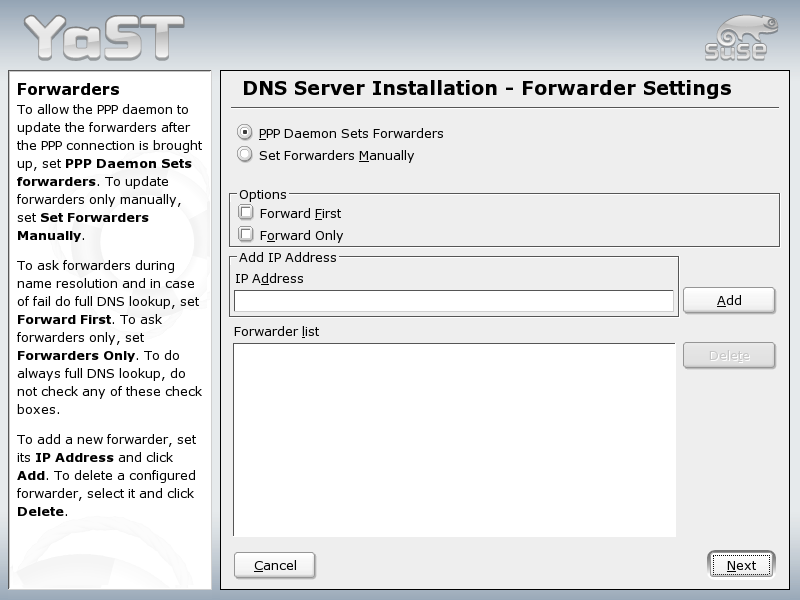
DNS Server Installation: Forwarder Settings: When starting the module for the first time, see the dialog shown in Figure 84. It allows you to decide whether the PPP daemon should provide a list of forwarders on dial-up via DSL or ISDN (PPP Daemon Sets Forwarders) or whether you want to supply your own list (Set Forwarders Manually).
Figure 84
DNS Server Installation: Forwarder Settings
DNS Server Installation: DNS Zones: The individual entries shown are explained in the discussion of the expert configuration (see Expert Configuration).
DNS Server Installation: Finish Wizard: In the final step, specify whether the DNS server should always be started as part of the boot procedure and whether it should use LDAP support. See Figure 85.
Figure 85
DNS Server Installation: Finish Wizard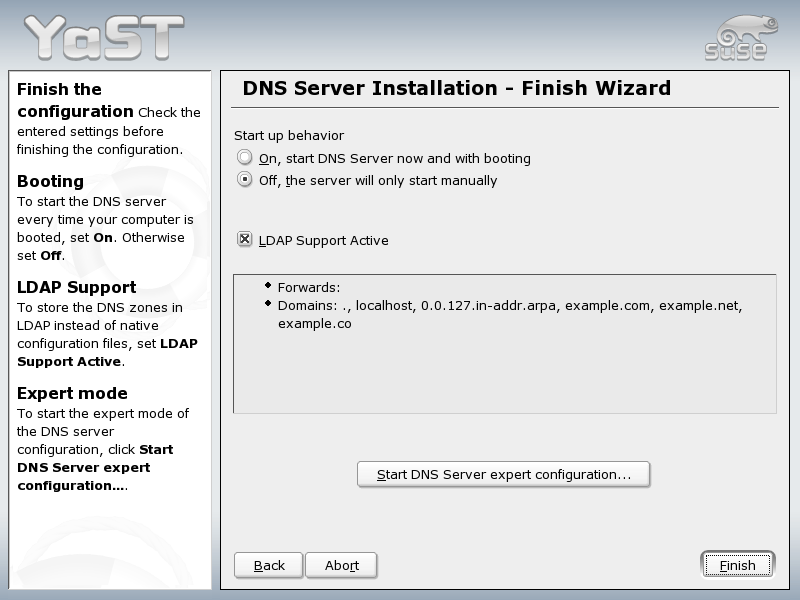
After starting the module, YaST opens a window displaying several configuration options. Completing it results in a DNS server configuration with the basic functions in place:
Under Booting, define whether the DNS server should be On or Off by default. To start the DNS server right away, select Start DNS Server Now.
By selecting LDAP Support Active, have the zone files managed by an LDAP database. Any changes of zone data as written to the LDAP database are picked up by the DNS server as soon as it is restarted or prompted to reload its configuration.
This is the same dialog as the one opened after starting the wizard configuration (see Wizard Configuration).
In this section, set basic server options. From the Option menu, select the desired item then specify the value in the corresponding entry field. Include the new entry by selecting Add.
This section allows you to set options concerning the contents and the location of the DNS server's log data. Under Log Type, specify where the DNS server should write its log data. Use the system-wide log file /var/log/messages by selecting Log to System Log orspecify a different file by selecting Log to File. In the latter case, additionally specify the maximum file size in megabytes and the number of log files to store.
Further options are available under Additional Logging: Enabling Log Named Queries causes every query to be logged, in which case the log file could grow extremely large. For this reason, it is not a good idea to enable this option for other than debugging purposes. To log the data traffic during zone updates between DHCP and DNS server, enable Log Zone Updates. To log the data traffic during a zone transfer from master to slave, enable Log Zone Transfer. See Figure 86.
Figure 86
DNS Server: Logging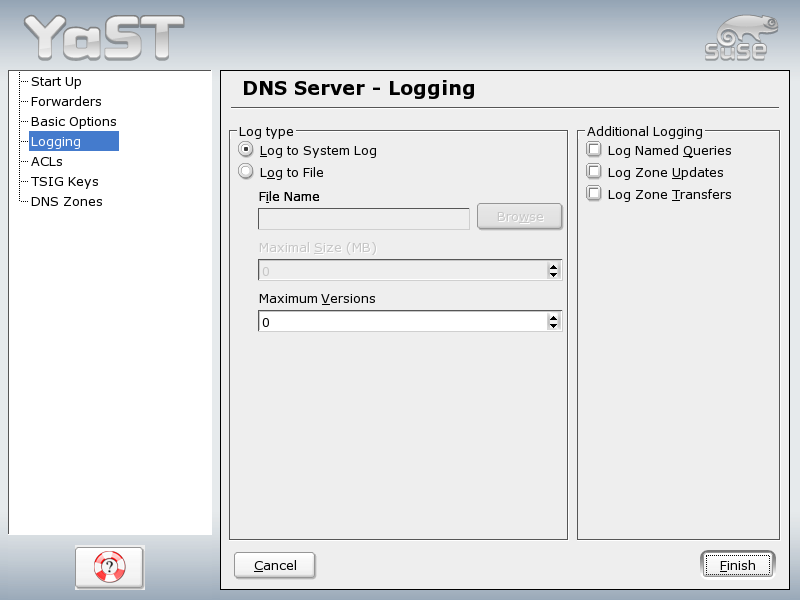
Use this window to define ACLs (access control lists) to enforce access restrictions. After providing a distinct name under Name, specify an IP address (with or without netmask) under Value, in the following fashion:
{ 10.10/16; }
The syntax of the configuration file requires that the address ends with a semicolon and is put into curly braces.
The main purpose of TSIGs (transaction signatures) is to secure communications between DHCP and DNS servers. They are described in Secure Transactions.
To generate a TSIG key, enter a distinctive name in the field labeled Key ID and specify the file where the key should be stored (File Name). Confirm your choices with Add.
To use a previously created key, leave the Key ID field blank and select the file where it is stored under File Name. After that, confirm with Add.
This part of the configuration uses several dialogs to configure the management of zone files (see Structure of Zone Files). For a new zone, provide a name for it in Zone Name. To add a reverse zone, the name must end in .in-addr.arpa. Finally, select the Zone Type (master or slave). See Figure 87. For each zone, set additional options after selecting Edit Zone ....
Figure 87
DNS Server: DNS Zones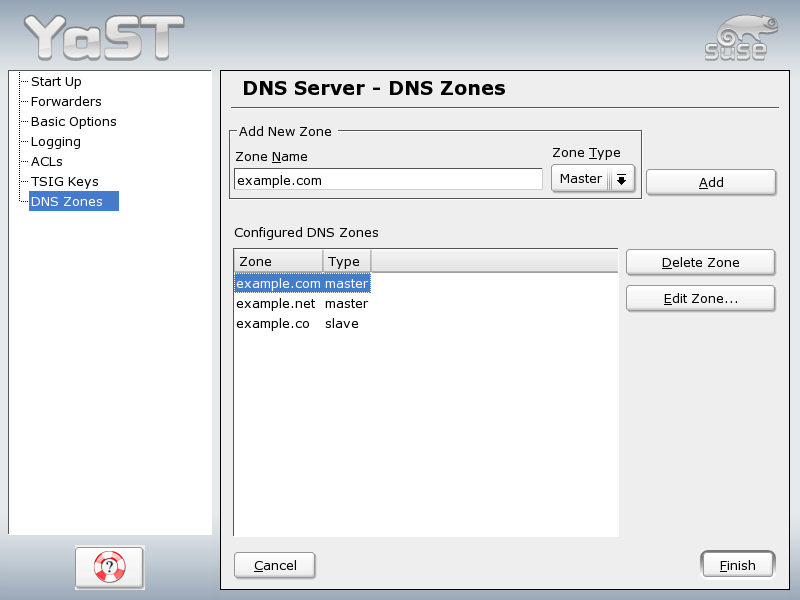
This dialog opens if you select the zone type Slave in the step described in Expert Configuration. Under Master DNS Server, specify the master from which the slave shall fetch its data. To limit access to the server, you can select one of the previously defined ACLs from the list. See Figure 88.
Figure 88
DNS Server: Slave Zone Editor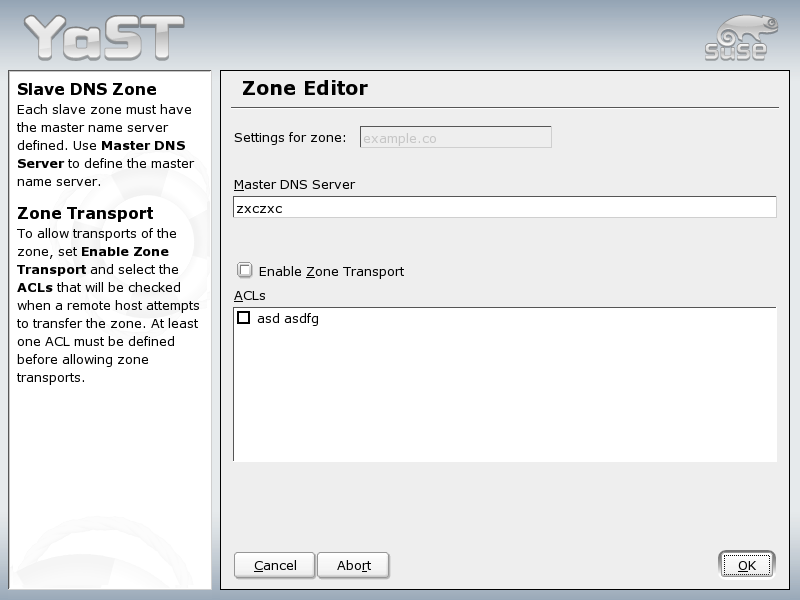
This dialog is opened if you selected the zone type Master in the step described in Expert Configuration. The dialog comprises several pages: Basic (the one opened first), NS Records, MX Records, SOA, and Records. For each of these pages, find a description in the following paragraphs.
The dialog shown in Figure 89 lets you define settings for dynamic DNS and access options for zone transfers to clients and slave name servers. To permit the dynamic update of zones, select Allow Dynamic Updates as well as the corresponding TSIG key. The key must have been defined before the update action starts.
To enable zone transfers, select the corresponding ACLs. ACLs must have been defined already.
Figure 89
DNS Server: Zone Editor (Basic)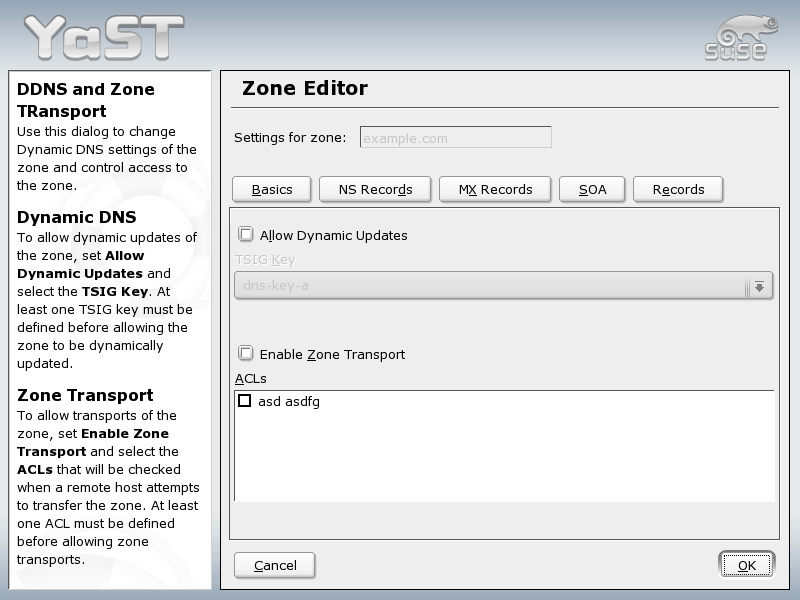
This dialog allows you to define alternative name servers for the zones specified. Make sure that your own name server is included in the list. To add a record, enter its name under Name Server to Add then confirm with Add.
To add a mail server for the current zone to the existing list, enter the corresponding address and the priority value. After doing so, confirm by selecting Add.
This page allows you to create SOA (start of authority) records. For an explanation of the individual options, refer to . Please note that the changing SOA records is not supported for dynamic zones managed via LDAP.
Figure 90
DNS Server: Zone Editor (SOA)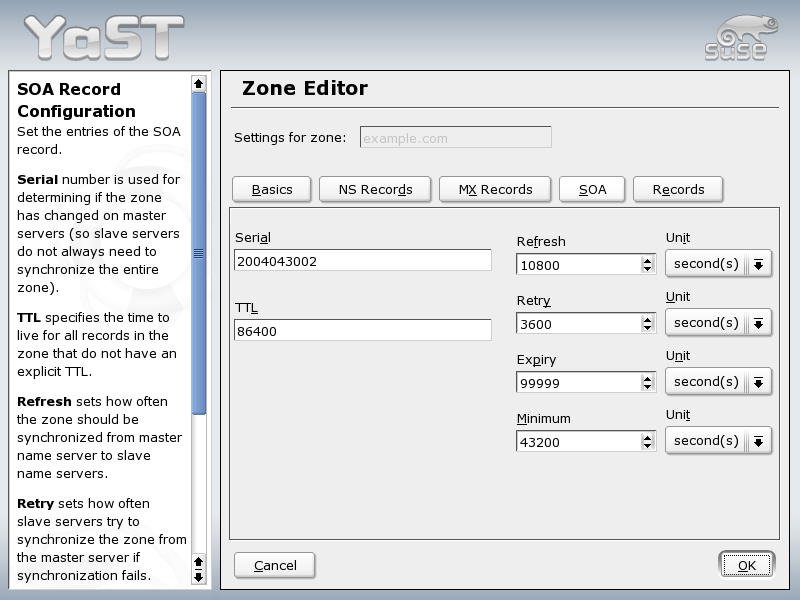
This dialog lets you manage a list of IP addresses and the corresponding names as assigned to them. In Name, enter the host name then select its type. A-Record represents the main entry. CNAME is an alias. Under MX-Relay the entry (name) is replaced with its value.
For additional information, refer to the BIND Administrator Reference Manual, which is installed under /usr/share/doc/packages/bind/. Consider additionally consulting the RFCs referenced by the manual and the manual pages included with BIND.