Configuration of the Network Card
Currently TCP/IP is the standard network protocol by which all modern operating systems can communicate. Nevertheless, Linux also supports other network protocols, such as the IPX protocol (formerly) used by Novell Netware or the Appletalk protocol used by Macintosh machines. This chapter merely focuses on the integration of a Linux host in a TCP/IP network. To integrate arcnet, token ring, or FDDI network cards, refer to the kernel source documentation in /usr/src/linux/Documentation (package kernel-source).
The machine must have a supported network card. Normally, the network card is detected during the installation and a suitable driver is loaded. To see if your card has been integrated correctly with the appropriate driver, enter the command ifstatus eth0. The output should list all information about the network device eth0 or display an error message.
If the kernel support for the network card is implemented as a module, default for the SUSE kernel, the name of the module must be entered as an alias in /etc/modules.conf. This is done automatically when the driver support for the network card is loaded in linuxrc during the first installation. This task can also be done after installation with YaST.
If you are using a hotplug network card (e.g., PCMCIA or USB), the drivers are autodetected when the card is plugged in. No configuration is necessary.
After starting the module, YaST displays a general network configuration dialog. The upper part shows a list with all the network cards yet to be configured. Any card properly autodetected during the boot procedure is listed with its name. Devices that could not be detected are listed as Other (not detected). In the lower part, the dialog displays a list of the devices configured so far, with their network type and address. You can now configure a new network card or change an existing configuration.
The configuration of a network card that was not autodetected includes the following items:
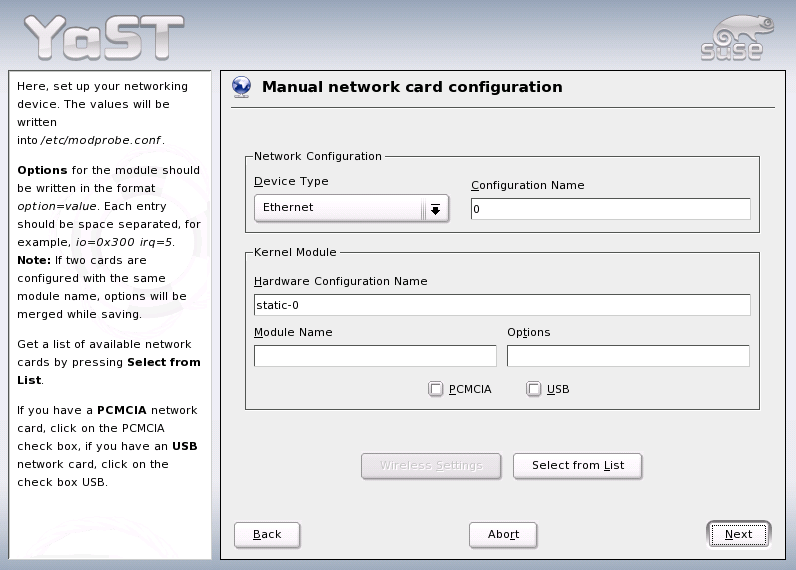
Device Type: Specify the type of network device and the device number.
Wireless Settings: If you are within reach of a wireless network and your network card is designed for this connection type, use Wireless Settings to open a dialog in which to set the operating mode, the network name (ESSID), the network identifier (NWID), the encryption key, and a nickname. After setting these options, close the dialog with OK.
Kernel Module and Selection of Network Card: If your network card is a PCMCIA or USB device, enable the corresponding check boxes then leave the dialog by selecting Next. Otherwise, use Select from List then specify your network card. YaST automatically loads the appropriate driver for the selected card. Leave this dialog by selecting Next.
Figure 78
Configuration of the Network Card
This lets you specify how the address should be assigned to your network card:
Automatic Address Setup (via DHCP): If your network includes a DHCP server, you can rely on it to set up your network address automatically. The option should also be used if you are using a DSL line but with no static IP assigned by the ISP. If you decide to use DHCP, configure the details after selecting DHCP Client Options. Specify whether the DHCP server should always honor broadcast requests and any identifier to use. By default, DHCP servers use the card's hardware address to identify an interface. if you have a virtual host setup where different hosts communicate through the same interface, an identifier is necessary to distinguish them.
Static Address Setup: If your have a static address, enable the corresponding check box. Then enter the address and subnet mask for your network. The preset subnet mask should match the requirements of a typical home network.
Leave this dialog by selecting Next or proceed to configure the host name, name server, and routing details (see Host Name and DNS and Routing).
In some countries (Austria, US), it is quite common to access the Internet through the TV cable network. The TV cable subscriber usually gets a modem that is connected to the TV cable outlet on one side and to a computer network card on the other (using a 10Base-TG twisted pair cable). The cable modem then provides a dedicated Internet connection with a fixed IP address.
Depending on the instructions provided by your ISP, when configuring the network card either select Automatic Address Setup (via DHCP) or Static Address Setup. Most providers today use DHCP. A static IP address often comes as part of a special business account.
For further information about the configuration of cable modems, read the Support Database article on the topic.
In the YaST Control Center, access the modem configuration under Network Devices. If your modem was not automatically detected, open the dialog for manual configuration. In the dialog that opens, enter the interface to which the modem is connected under Modem Device.
Figure 79
Modem Configuration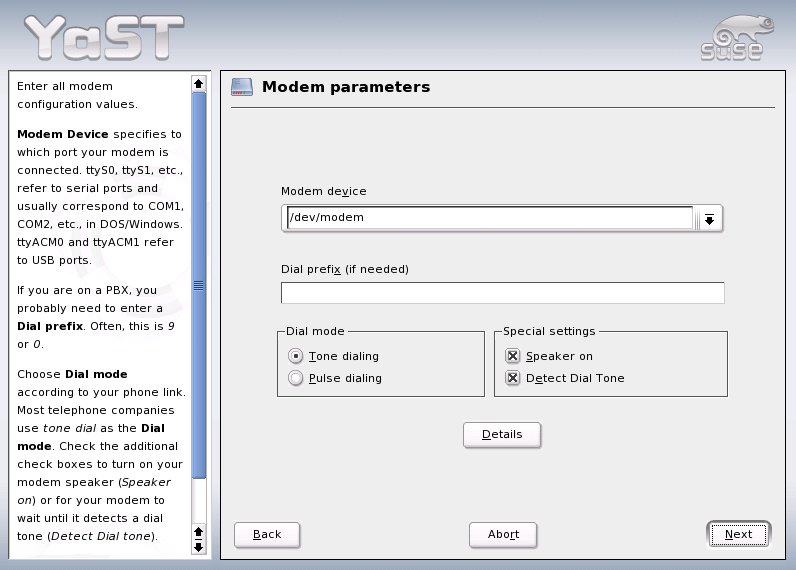
If you are behind a private branch exchange (PBX), you may need to enter a dial prefix. This is often a zero. Consult the instructions that came with the PBX to find out. Also select whether to use tone or pulse dialing, whether the speaker should be on, and whether the modem should wait until it detects a dial tone. The latter option should not be enabled if the modem is connected to an exchange.
Under Details, set the baud rate and the modem initialization strings. Only change these settings if your modem was not autodetected or if it requires special settings for data transmission to work. This is mainly the case with ISDN terminal adapters. Leave this dialog by selecting OK.
In the next dialog, select the ISP (Internet service provider). To choose from a predefined list of ISPs operating in your country, select Countries. Alternatively, click New to open a dialog in which to provide the data for your own ISP. This includes a name for the dial-up connection and for the ISP and the login and the password as provided by your ISP. Enable Always Ask for Password, to be prompted for the password each time you connect.
The last dialog allows specification of additional connection options:
Dial on Demand: If you enable dial on demand, specify at least one name server.
Modify DNS when Connected: This check box is enabled by default, with the effect that the name server address is updated each time you connect to the Internet. However, if you enable Dial on Demand, disable this and also provide a fixed name server address.
Stupid Mode: This option is enabled by default. It has the effect that input prompts sent by the ISP's server are ignored to prevent it from interfering with the connection process.
Activate Firewall: Selecting this option enables the SUSE firewall, which protects you from outside attacks for the time of your Internet connection.
Idle Time-out (seconds): With this option, specify a period of network inactivity after which the modem disconnects automatically.
IP Details: This opens the address configuration dialog. If your ISP does not assign a dynamic IP address to your host, disable Dynamic IP Address then enter your host's local IP address and the remote IP address. Ask your ISP for this information. Leave Default Route enabled and close the dialog by selecting OK.
Selecting Next returns to the original dialog, which displays a summary of the modem configuration. Close this dialog with Finish.
To configure your DSL device, select the DSL module from the YaST Network Devices section. This YaST module consists of several dialogs in which to set the parameters of DSL links based on one of the following protocols:
The configuration of a DSL connection based on PPPoE or PPTP requires that the corresponding network card has already been set up in the correct way. If you have not done so yet, first configure the card by selecting Configure Network Cards (see Configuring the Network Card with YaST). In the case of a DSL link, addresses may be assigned automatically but not via DHCP, which is why you should not enable the option Automatic address setup (via DHCP). Instead, enter a static dummy address for the interface, such as 192.168.22.1. In Subnet Mask, enter 255.255.255.0. If you are configuring a stand-alone workstation, make sure to leave the Default Gateway field empty.
NOTE: Values in the IP Address and Subnet Mask fields are only placeholders. They are only needed to initialize the network card and do not represent the DSL link as such.
To begin the DSL configuration (see Figure 80), first select the PPP mode and the ethernet card to which the DSL modem is connected (in most cases, this is eth0). Then use Device Activation to specify whether the DSL link should be established during the boot process. The dialog also lets you select your country and allows you to choose from a number of ISPs operating in it. The details of any subsequent dialogs of the DSL configuration depend on the options set so far, which is why they are only briefly mentioned in the following paragraphs. For details on the available options, read the detailed help available from the dialogs.
Figure 80
DSL Configuration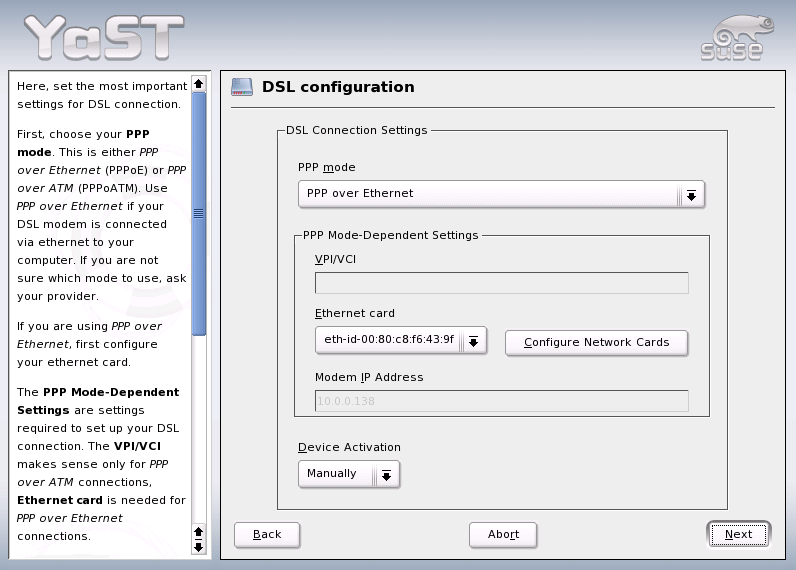
To use Dial on Demand on a stand-alone workstation, also specify the name server (DNS server). Most ISPs support dynamic DNS --- the IP address of a name server is sent by the ISP each time you connect. For a single workstation, however, provide a placeholder address like 192.168.22.99. If your ISP does not support dynamic DNS, enter the name server IP address provided by your ISP.
Idle Time-out (seconds) defines a period of network inactivity after to terminate the connection automatically. A reasonable time-out value is between 60 and 300 seconds.
NOTE: Dial on Demand
If you enable Dial on Demand in addition to the option mentioned above, the connection will not be completely terminated after the time-out. Instead, the connection remains in a standby mode and is reestablished automatically as soon as a program requests some kind of data traffic. If Dial on Demand is disabled, the connection is completely terminated and must by reestablished manually when needed. It may then be useful to set the time-out to zero to prevent automatic hang-up.
The configuration of T-DSL is very similar to the DSL setup. Just select T-Online as your provider and YaST opens the T-DSL configuration dialog. In this dialog, provide some additional information required for T-DSL --- the line ID, the T-Online number, the user code, and your password. All of these should be included in the information you received after subscribing to T-DSL.
Figure 81
T-DSL Configuration (Germany)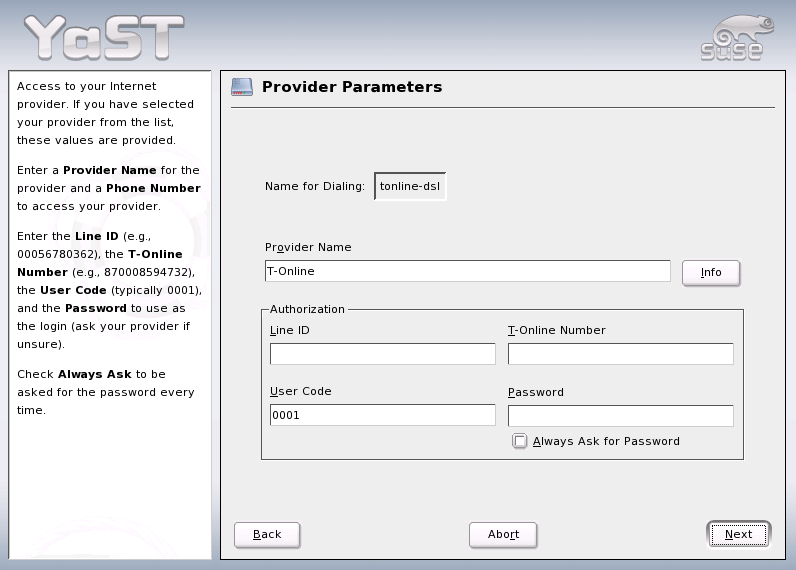
Use this module to configure one or several ISDN cards for your system. If YaST did not autodetect your ISDN card, manually select it. Multiple interfaces are possible, but several ISPs can be configured for one interface. In the subsequent dialogs, set the ISDN options necessary for the proper functioning of the card.
In the next dialog, shown in Figure 82, select the protocol to use. The default is Euro-ISDN (EDSS1) (see points 1. and 2.a below), but for older or larger exchanges, select 1TR6 (see point 2.b below). If you are in the US, select NI1. Select your country in the relevant field. The corresponding country code then appears in the field next to it. Finally, provide your Area Code and the dial prefix (if necessary).
Figure 82
ISDN Configuration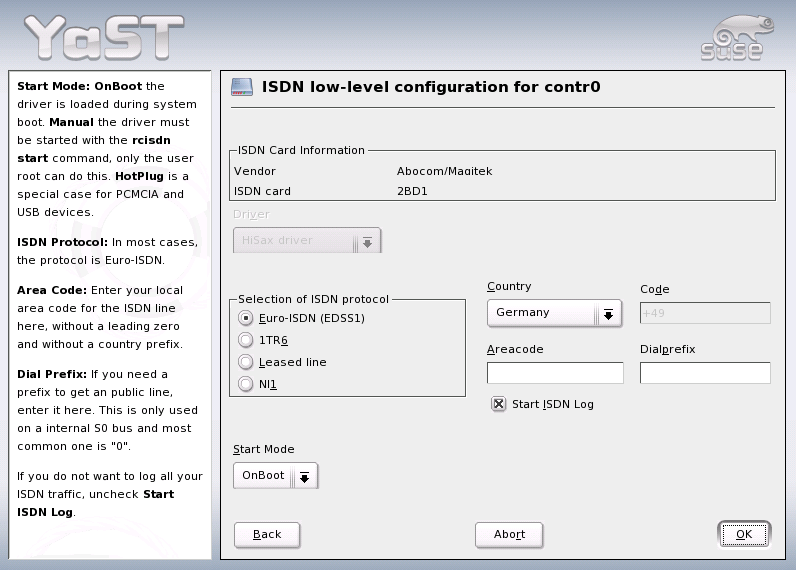
Start Mode defines how the ISDN interface should be started. OnBoot causes the ISDN driver to be initialized each time during the boot process. Manual requires you to load the ISDN driver as root with the command rcisdn start. Hotplug, used for PCMCIA or USB devices, loads the driver after the device is plugged in. When finished with all these settings, select OK.
In the next dialog, specify the interface type for your ISDN card and add ISPs to an existing interface. Interfaces may be either the SyncPPP or the RawIP type, but most ISP operate in the SyncPPP mode, which is described below.
Figure 83
ISDN Interface Configuration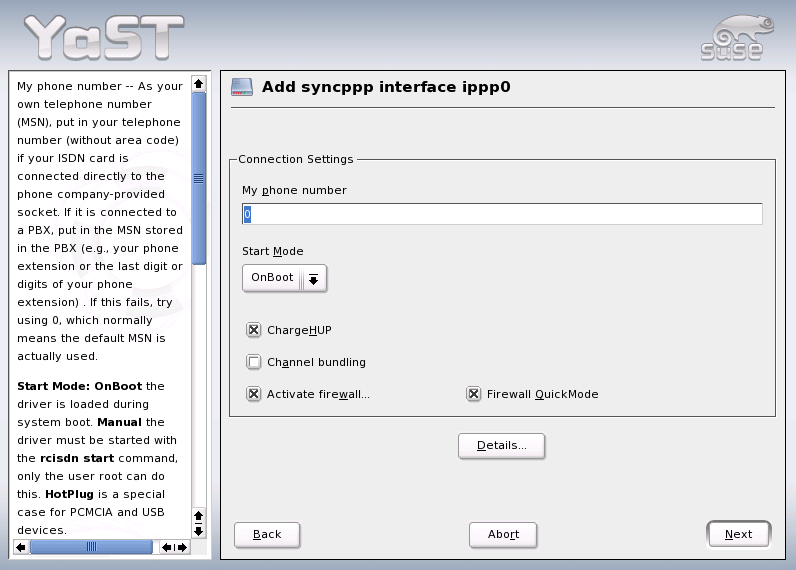
The number to enter for My Phone Number varies depending on your particular setup:
ISDN card directly connected to phone outlet
A standard ISDN line provides three phone numbers (called multiple subscriber numbers, or MSNs). If the subscriber asked for more, there may be up to ten. One of these MSNs must be entered here, but without your area code. If you enter the wrong number, your phone operator automatically falls back to the first MSN assigned to your ISDN line.
ISDN card connected to a phone exchange
Again, the configuration may vary depending on the equipment installed:
Use one of the internal numbers as your MSN. You should be able to use at least one of the exchange's MSNs that have been enabled for direct outward dialing. If this does not work, try a single zero. For further information, consult the documentation that came with your phone exchange.
For the connection to be terminated just before the next charge unit is due, enable ChargeHUP. However, remember that may not work with every ISP. You can also enable channel bundling (multilink PPP) by selecting the corresponding check box. Finally, you can enable SuSEfirewall2 for your link by selecting Activate Firewall.
Details... opens a dialog in which to implement more complex connection schemes. Leave this dialog by selecting Next.
In the next dialog, make IP address settings. If you have not been given a static IP by your provider, select Dynamic IP address. Otherwise, use the fields provided to enter your host's local IP address and the remote IP address according to the specifications of your ISP. If the interface should be the default route to the Internet, select Default Route. Each host can only have one interface configured as the default route. Leave this dialog by selecting Next.
The following dialog allows you to set your country and to select an ISP. The IPSs included in the list are call-by-call providers only. If your ISP is not in the list, select New. This opens the Provider Parameters dialog in which to enter all the details for your ISP. When entering the phone number, make sure you do not include any blanks or commas among the digits. Finally, enter your login and the password as provided by the ISP. When finished, select Next.
To use Dial on Demand on a stand-alone workstation, also specify the name server (DNS server). Most ISPs support dynamic DNS, which means the IP address of a name server is sent by the ISP each time you connect. For a single workstation, however, you still need to provide a placeholder address like 192.168.22.99. If your ISP does not support dynamic DNS, specify the name server IP addresses of the ISP. If desired, specify a time-out for the connection --- the period of network inactivity (in seconds) after which the connection should be automatically terminated. Confirm your settings with Next. YaST displays a summary of the configured interfaces. To make all these settings active, select Finish.
Hotplug network cards, like PCMCIA or USB devices, are managed in a somewhat special way. Normal network cards are fixed components assigned a permanent device name, such as eth0. By contrast, PCMCIA cards are assigned a free device name dynamically on an as-needed basis. To avoid conflicts with fixed network cards, hotplug and PCMCIA services are loaded after the network has been started.
PCMCIA-related configuration and start scripts are located in the directory /etc/sysconfig/pcmcia. The scripts are executed as soon as cardmgr, the PCMCIA device manager, detects a newly inserted PCMCIA card, which is why PCMCIA services do not need to be started before the network during boot.
To configure IPv6, you will not normally need to make any changes on the individual workstations. However, IPv6 support must be loaded. To do this, enter modprobe ipv6 as root.
Because of the autoconfiguration concept of IPv6, the network card is assigned an address in the link-local network. Normally, no routing table management takes place on a workstation. The network routers can be queried by the workstation, using the router advertisement protocol, for what prefix and gateways should be implemented. The radvd program can be used to set up an IPv6 router. This program informs the workstations which prefix to use for the IPv6 addresses and which routers. Alternatively, use zebra for automatic configuration of both addresses and routing.
Consult the manual page of ifup (man ifup) to get information about how to set up various types of tunnels using the /etc/sysconfig/network files.