7.5 Monitoring the Health of SSL VPN Servers
You can monitor the health of an SSL VPN Server through the Health page, which displays the current status of the server.
7.5.1 Monitoring the Health of a Single Server
-
In the Administration Console, click > [Server Name] > .
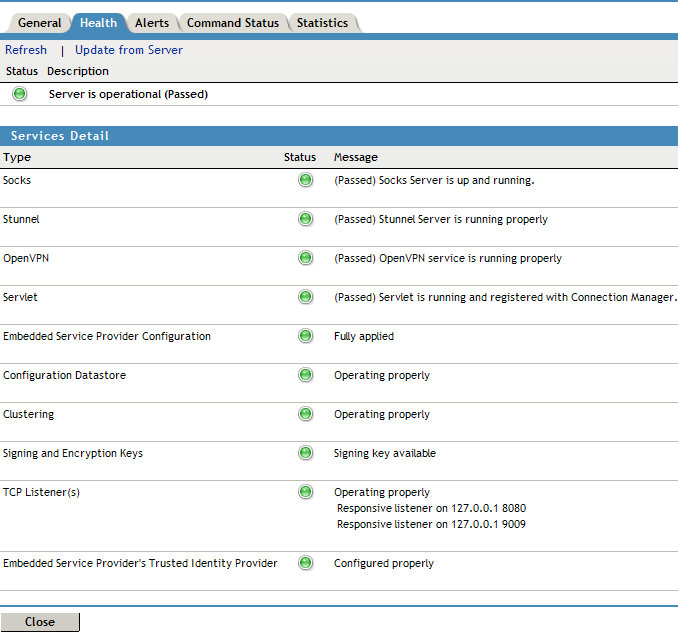
The column displays the current state, and the column explains the significance of the current state.
The section provides the following information:
Type: Displays the type of service.
Status: Displays the status of the service.
Message: Displays a description of the status of the service.
-
To reload the current page with the latest status, click .
-
To send a request to the agent to update its status information, click . Click in the confirmation dialog box. This can take a few minutes.
-
To close the Health page, click .
7.5.2 Monitoring the Health of an SSL VPN Cluster
You can monitor the health of an SSL VPN Server through the Health page, which displays the current status of the server.
-
In the Administration Console, click > [Cluster Name] > .
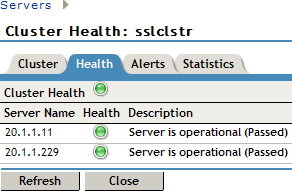
The section displays the current state, and the column explains the significance of the current state.
The section provides the following information:
Server Name: Displays the name of the SSL VPN server in the cluster.
Health: Displays the health status of the server. The following health states are possible:
Click the icon to get the health status of individual servers.
Description: Displays a description of the status of the server.
-
To reload the current page with the latest status, click .
-
To send a request to the agent to update its status information, click . Click in the confirmation dialog box. This can take a few minutes.
-
To close the Health page, click .


