

| |
You can administer corporate scripts in an NT environment.
Run the NT Corporate Script Editor from the Start menu.
From the NT Corporate Configuration Editor screen, select an option.
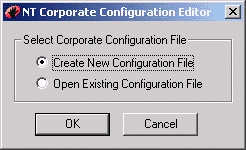
Create New Configuration File enables you to create a new corporate script for your environment.
Open Existing Corporate Script enables you to modify an existing corporate script for your environment.
Select a current corporate script or define a name for a new corporate script.
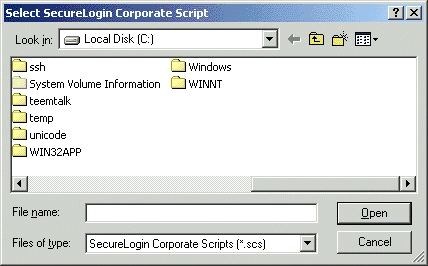
The location of this corporate script must be in a shared directory that users have access to.
Access to the corporate script files is governed by the standard NT file permissions.
IMPORTANT: Ensure that general users have Read Only access to this file.
Select a configuration to edit.
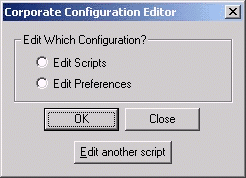
To edit the current corporate scripts, select Edit Scripts.
To edit the current preferences for this corporate script, select Edit Preferences.
To browse for another script to edit, select Edit Another Script.
The following figure illustrates the main NT script editor window and the preferences page for the current corporate script.
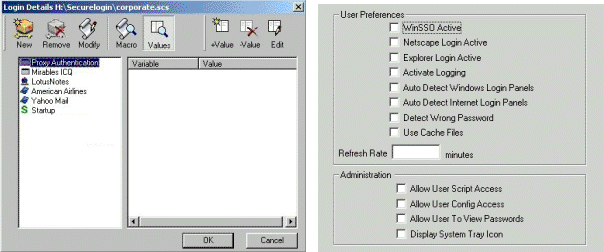
This editor operates in the same manner as the user script editor. However, no user variables are stored at this location and there is no Display Passwords option.
For more information refer to Managing SecureLogin.
A user's configuration can be set up to load a corporate script in one of two ways:
Edit the registry and change the setting HK_CURRENT_USER/Software/Microsoft/Windows/Current/Run so it has the corporate script location after PROTO.EXE.
C:\PROGRAM FILES\SECURELOGIN\PROTO.EXE S:SECURELOGIN\PRODUCTION.SCS Place this shortcut in the user's startup folder. To ensure that SecureLogin will also read from this location, another registry setting exists to keep track of the last location a corporate script was run from. The location for this registry setting is HKEY_CURRENT_USER\software\\Protocom\\SecureLogin\\LastNTCORPLocation. If you close and reload SecureLogin, it will load the corporate script from the last known location.
| |