

| |
The SecureLogin snap-ins for NetWare Administrator and ConsoleOne currently work with NWADMN.EXE, NWADMIN95.EXE, and NWADMIN32.EXE. These snap-ins allow you to set up corporate scripts as well as set up user configurations.
When installed, these snap-ins add two new pages to the administration details of User, Organizational Unit, and Organization objects.
This page operates the same way as the script editor tool as described in Editing Login Details. The only difference is that in the NetWare Administrator version a password variable cannot be viewed. This omission prevents anyone from stealing passwords.
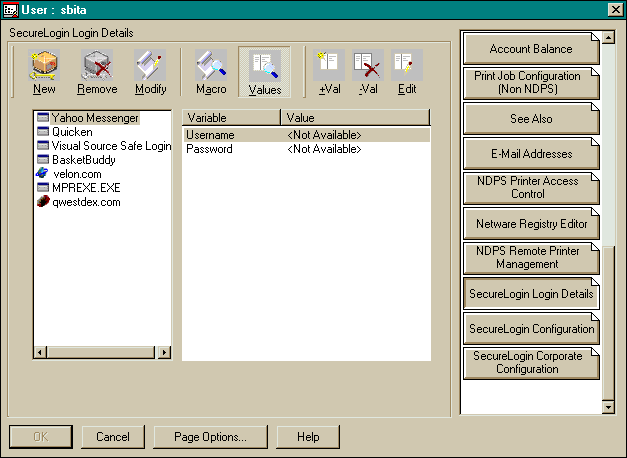
On Organizations and Organizational Units, this page is used to write corporate scripts. Corporate scripts can be created and entered manually or copied from a wizard-generated example.
This page is similar to the preferences page for workstations. However, several extra parameters are available only through the snap-ins to NetWare Administrator and ConsoleOneTM. These parameters enable you to limit users' access to certain features.
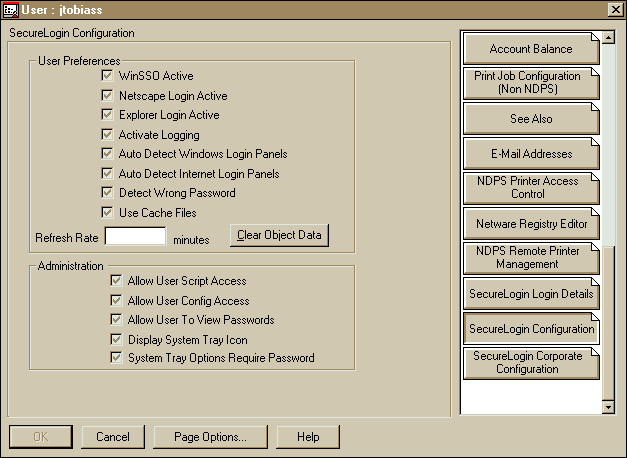
To prevent users from using the New, Modify, and Macro buttons in the script editor, uncheck Allow User Script Access.
Default: On (checked)
To prevent users from using the Preferences option on the SecureLogin administration tool, uncheck Allow User Config Access.
Default: On (checked)
To prevent users from viewing their own SSO passwords, uncheck Allow User to View Passwords.
Default: On (checked)
To prevent users from displaying and accessing the system tray icon, uncheck Display System Tray Icon.
Default: On (checked)
If you set this option, users must provide their passwords before they can access options on the system tray's icon.
This page enables you to select where SecureLogin reads its corporate configuration and application information from. By default, SecureLogin reads its information from the current user's context and then searches up the eDirectoryTM tree. This setting allows you to prevent upward searches.
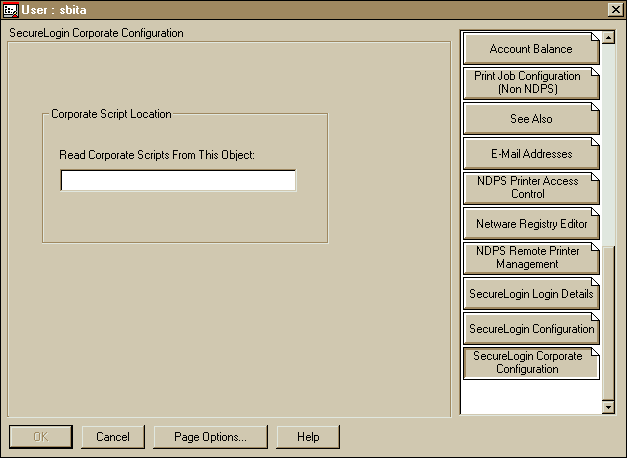
A User object or Container object will read its corporate scripts. Configuration and application information can be read from a specific context within eDirectory by pointing this configuration page directly to it.
| |