

| |
Most of the script commands related to logging into Window applications require a dialog control ID. A control ID is a number that uniquely identifies a field (called a control) within a window.
To enable you to efficiently determine these control IDs, SecureLogin includes a tool on the start menu, called the Windows Finder.
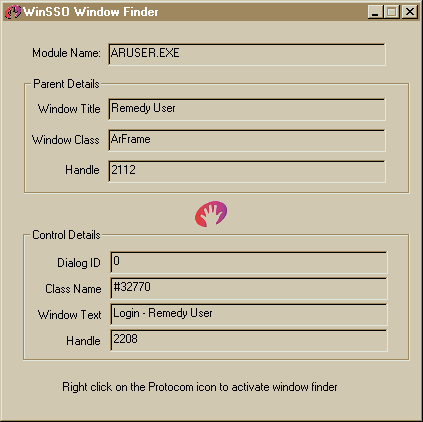
To inspect a control, right-click the SecureLogin icon and drag it over the control of interest. The Windows tool displays the details of the control.
If an application page hides the Window Finder, click the WinSSO Window Finder icon on the system tray.
Module Name: The name of the executable that created the window.
Use this name for the platform name of the Windows single sign-on script.
Window Title: The title of the window that contains the control.
You can use this title in a window or title statement.
Window Class: A field for information only.
Each window has a class associated with it.
Dialog ID: A unique identifier.
Each control has a unique identifier called the control ID. Use this number as the target for Type, Click, Ctrl, and Setplat statements. For information on each of these commands, see SecureLogin Commands.
Class Name: A name determines the type of the control.
For single sign-on to work correctly, the SecureLogin Windows component must be able to read and write text to the specified control. The class name determines the type of the control and whether reading and writing is possible. Supported classes include edit, combobox, and static.
Window Text: A field displays the text contained within the control.
This information can be useful in troubleshooting and for writing the regular expression required by the Setplat command.
For more complicated applications, advanced diagnostic tools such as Window Watcher are available from Technical Services.
| |