14.4 Domain Services for Windows
Novell Domain Services for Windows (DSfW) allows eDirectory users on Windows workstations to access storage on both OES servers and Windows servers through native Windows and Active Directory authentication and file service protocols.
DSfW enables companies with Active Directory and Novell eDirectory deployments to achieve better coexistence between the two platforms.
-
Users can work in a pure Windows desktop environment and still take advantage of some OES back-end services and technology, without the need for a Novell Client™ or even a matching local user account on the Windows workstation.
-
Network administrators can use Microsoft Management Console (MMC) to administer users and groups within the DSfW domain, including their access rights to Samba-enabled storage on OES servers.
This section discusses the following:
14.4.1 Graphical Overview of DSfW
File Access
Figure 14-2 DSfW File Access Overview

Table 14-1 DSfW File Access
User Management
Figure 14-3 DSfW User Management Overview
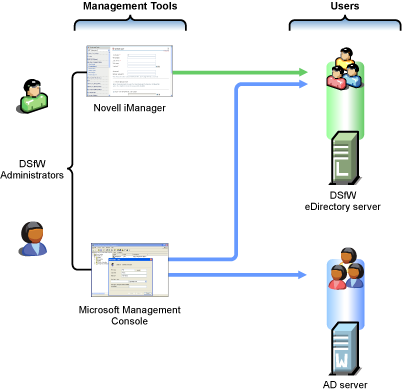
Table 14-2 DSfW User Management
Storage Management
Figure 14-4 DSfW Storage Management Overview
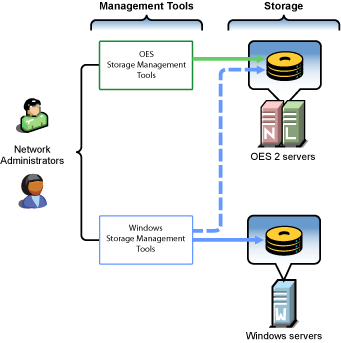
Table 14-3 DSfW Storage Management
14.4.2 Planning Your DSfW Implementation
For planning information, see the OES 2 SP2: Domain Services for Windows Administration Guide.
14.4.3 Implementing DSfW on Your Network
This section highlights some of the potential caveats to consider when installing DSfW. For complete information, see the OES 2 SP2: Domain Services for Windows Administration Guide, especially the Troubleshooting DSfW
section.
Universal Password in a Name-Mapped Scenario
If you install DSfW into an existing tree and your users don’t currently have a Universal Password policy assigned, they won’t be able to log in without the Novell Client until the Universal Password has been set.
Therefore, you should consider implementing Universal Password and giving users an opportunity to log into the network before installing DSfW. Logging in after a password policy is in place creates a Universal Password for users so that their transition to DSfW is seamless.
DSfW Must Be Installed at the Root of an eDirectory Partition
You must install DSfW in the root container or an eDirectory partition, either one that currently exists or one that you create for DSfW. In both cases, the first DSfW server installed in the partition becomes the master of the partition.
Hierarchical Placement of Users in the eDirectory Tree
DSfW users must reside in the same eDirectory partition where DSfW is installed, either in the same container or in a container below it in the hierarchy. Therefore, DSfW should be installed high enough in the eDirectory tree that it encompasses all of the users that you want to enable for DSfW access.
OES 2 Service Limitations
Only designated OES 2 services can be installed on a DSfW server. For more information, see Unsupported Service Combinations
in the OES 2 SP2: Domain Services for Windows Administration Guide.
Domain and Container Names Must Match
When you install DSfW, the Domain name you specify must match the name of the container you are installing into. For more information, see Installing the First DSfW Server in a New eDirectory Tree
in the OES 2 SP2: Domain Services for Windows Administration Guide.
Install DSfW on a New OES 2 Linux Server When Possible
Because of the service limitations mentioned in OES 2 Service Limitations, Novell strongly recommends that you install DSfW on a new server.
DNS Configuration
As you set up DNS, observe the following guidelines:
-
First DSfW Server (FRD): This should point to itself as the primary DNS server, and to the network DNS server as the secondary DNS server (if applicable).
-
Subsequent DSfW Servers: These must point to the FRD as their primary DNS server and optionally to the network DNS server as their secondary DNS server.
-
DSfW Workstations: These must be able to resolve the FRD of the DSfW forest. For example, you might configure workstations to point to the FRD as their primary DNS server and to the network DNS server secondarily. Or if the network DNS server is configured to forward requests to the DSfW server, then workstations could point to it as their primary DNS server.