

| |
This section describes AUDITCON's top-level menus, how to select a different current server and volume, and how to log in to a volume audit trail (if audit passwords are enabled).
If you are an auditor for multiple volumes, you perform activities on one audit trail, then return to the top-level menu and select a different volume for auditing.
NOTE: AUDITCON selects a current server and current volume when it starts, based on where it was run. Consequently, you might need to change the server or the volume before you can begin auditing the volume you are interested in.
When you run AUDITCON, it displays a screen with an Available audit options menu as shown in Figure 7. There are five such top-level menus. The one AUDITCON displays depends on four variables:
Because AUDITCON selects a current server and volume when it starts, you might see different top-level menus based upon the initial current server and volume.
The following table summarizes the algorithm AUDITCON uses to determine which menu it displays, based on the above variables.
Table 6. AUDITCON Top-Level Menu Selection
The five top-level Available audit options menus are described, as follows:
Menu 101. AUDITCON displays this menu when the auditor has rights through NDS to access the selected volume audit trail or has successfully logged in to the audit trail.
Figure 8
Menu 101: Available Audit Options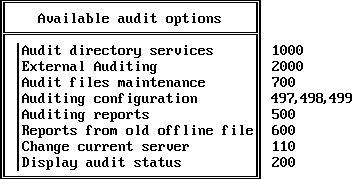
Menu 101A. This menu is similar to menu 101 but includes a restart option and is displayed when the volume audit trail is in the overflow state.
Figure 9
Menu 101A: Available Audit Options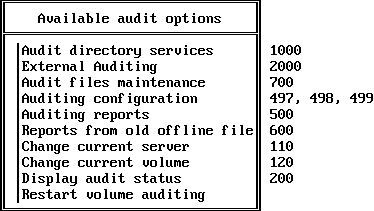
Menu 102. AUDITCON displays this menu when the current volume on the current server is not enabled for auditing.
Figure 10
Menu 102: Available Audit Options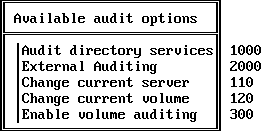
Menu 103. AUDITCON displays this menu when the current volume is enabled for auditing, but you do not have rights to read or enable the current volume audit trail.
Figure 11
Menu 103: Available Audit Options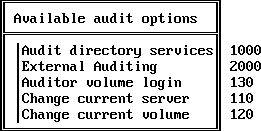
Menu 104. AUDITCON displays this menu when you do not have sufficient rights to determine the state of auditing on the currently selected volume.
Figure 12
Menu 104: Available Audit Options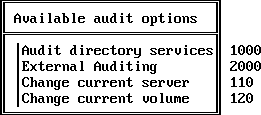
From menus 101, 101A, 102, 103, or 104, choose Change current server and press Enter.
AUDITCON displays menu 110, which lists servers where you are authenticated, and your identity on each server.
Figure 13
Menu 110: Server List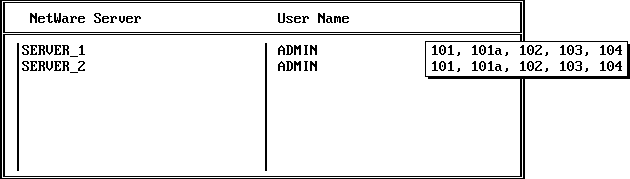
If you are using the standard background authentication, then your identity will be the same on all servers. This menu allows you to choose a different server for auditing.
Choose a different server and press Enter.
AUDITCON updates the server name in the second line of the header and returns to the previous menu.
Depending on the volume chosen on the new server, AUDITCON will display menu 101, 101A, 102, 103, or 104 (using the same rules that were used to select an initial menu).
If you are using password-based access, you can press Insert to display a list of other NetWare servers or press Delete to log out from any server except the default server. Press F3 to change your user identity.
AUDITCON displays menu 111, which provides a list of additional servers.
Choose a server and press Enter to add the server to the list in menu 110.
Figure 14
Menu 111: Other NetWare Servers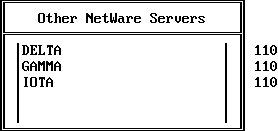
This list shows those servers that you are neither logged in nor background authenticated to.
(Optional) If you pressed F3 in Step 3, AUDITCON permits you to change your user identity on the server.
If more than one server is listed in menu 110, AUDITCON does a bindery login (NetWare 3.x) for the name that you specify in this menu. (This is different from logging in to an audit trail; in this case, the auditor is actually changing your identity on the specified server. This identity persists after you exit from AUDITCON.)
Enter the password necessary to change your identity on the specified server.
AUDITCON requests your password for a bindery login to the server. AUDITCON does not echo your password to the screen.
If you use this method to log in to a server, you can log in only as a user whose User object is in the default bindery context. If your user ID is not in the default bindery context for the server you want to use, you should exit AUDITCON, map a drive from the server you want to access, and restart AUDITCON.
From menu 101, 101A, 102, 103, or 104, choose Change current volume and press Enter.
AUDITCON displays menu 120.
Use menu 120 to choose a different volume audit trail on the server.
When you choose the new volume, AUDITCON updates the volume in the second line of the AUDITCON header.
NOTE: If you can't access the volume you want, exit AUDITCON, map a drive to that volume, and try again.
If the volume is enabled for auditing and you have access to the volume, AUDITCON displays menu 101 or 101A (depending on whether the volume is in the overflow state).
If the volume is not enabled for auditing, AUDITCON displays menu 102.
If the volume is enabled for auditing but you do not have access, AUDITCON displays menu 103 or 104, depending on whether password-based access is allowed.
Figure 15
Menu 120: Volume List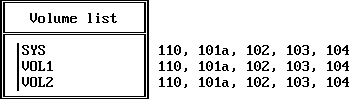
Logging in to an audit trail is different from logging in to a NetWare server. When you log in to a NetWare server, your login password is used to authenticate your identity to NDS during your login session.
If you decide to use audit passwords to control access to the audit trail, do not reuse your NetWare login password.
Choose Auditor volume login in the Available audit options menu and press Enter.
AUDITCON prompts you to enter the volume audit password.
Enter the volume audit password and press Enter to log in to the current volume's audit trail.
AUDITCON does not echo your password to the screen.
If your login is successful, AUDITCON displays menu 101, which provides the complete list of audit options for the audit trail.
If you have the wrong password or audit passwords are disabled for your current server, AUDITCON displays an error report.
NOTE: If you can't log in to the audit trail, and you do not have NDS rights to the volume Audit File object, see your system administrator.
Press Enter to return to menu 103.
This menu item appears in menu 101A when the volume audit trail has overflowed. You must manually restart volume auditing using this function before nonadministrative users can use the volume again.
From menu 101A, choose Restart volume auditing.
Press Enter.
If AUDITCON is able to restart volume auditing, it will return to menu 101.
If it is unsuccessful, an error is displayed explaining why the restart failed, and AUDITCON returns to menu 101A.
| |