

| |
Log in to the network.
With Novell Directory ServicesTM, you log in once to NDS and are background authenticated to individual servers.
Run AUDITCON from a network drive (for example, Z:), a local drive (for example, C:), or in your current directory, as follows:
Z:\PUBLIC\AUDITCON Enter
C:\AUDITDIR\AUDITCON Enter
AUDITCON Enter
AUDITCON displays the screen shown in Figure 7. The screen includes a header, a menu area, and a footer line.
Figure 7
Initial Layout of Auditcon Screen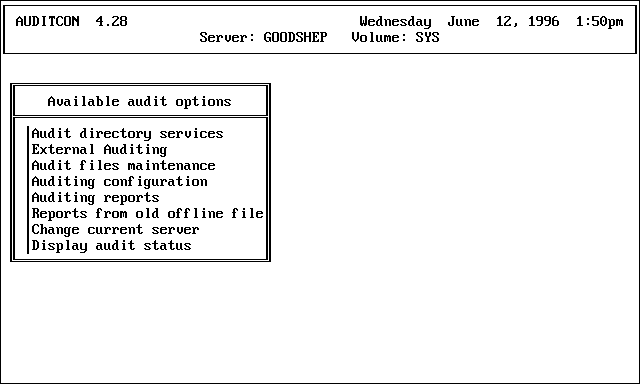
The two header lines shows the version of AUDITCON that you are running, the current date and time, and the current server and volume assigned by AUDITCON for your auditing session.
If you want to audit a different volume than the one shown, see Choosing an Alternate Volume. For container auditing, see Using AUDITCON for Container Auditing. For external auditing, the current server and volume information is replaced with the current NDS container context. For more information, see Using AUDITCON to Audit External Audit Trails.
WARNING: The date and time displayed in the top line of the header area are the workstation's local date and time. To make reasonable decisions about the server's audit configuration, you must ensure that your workstation Network Trusted Computing Base (NTCB) partition is synchronized with the network time maintained by NDS.
The menu area contains menus, with the most recent menu layered on top of previous menus. Menus have a header (in this example, Available audit options, a list of available options, and a scroll bar). Use the Up- and Down-arrow keys to highlight the desired selection. If the menu has more entries than can be displayed in the menu box, the menu will show an up arrow or down arrow to indicate that there are additional choices at the top or bottom of the menu.
The footer line describes the actions associated with various keys for the current menu. For the previous example, pressing Esc exits AUDITCON, while pressing Enter selects the highlighted entry and moves to the corresponding screen in the menu tree.
Move down the menu tree by highlighting an entry in the current menu, choosing that entry, and finding the desired entry in the succeeding menu.
AUDITCON provides separate menu trees for volume, container, and external auditing. See Using AUDITCON for Volume Auditing, Using AUDITCON for Container Auditing, and Using AUDITCON to Audit External Audit Trails.
You can perform volume, container, and external auditing in a single session (without restarting AUDITCON), but AUDITCON does not provide any way of merging audit data or reports from multiple volumes, containers, or external audit trails.
In general, you can move back up the menu tree by pressing until you reach the top of the tree. At any time, you can press F1 for context-sensitive help.
When you are finished with AUDITCON, press Escape until you reach the Exit? menu, choose Yes (by pressing the arrow keys to move the cursor), and press Enter.
Using AUDITCON for Volume Auditing describes the use of AUDITCON for auditing server volumes. This includes accesses to files and directories, server events (including server console commands), and QMS events.
Using AUDITCON for Container Auditing, describes the use of AUDITCON for auditing NDS container events.
Using AUDITCON to Audit External Audit Trails, describes the use of AUDITCON for auditing external clients.
WARNING: At any time when you are logged in to a NetWare server as an auditor, you might see a message on the workstation screen indicating that the volume, container, or external audit trail is full, and that your actions are no longer being audited. If this occurs, you must record your actions manually with respect to the volume, container, or external audit trail for use when generating a complete historical reference of actions performed on the server.
This manual recording of events performed at a client is not the same as manual recording of server console usage.
Each of the remaining sections applies to the appropriate branch of the AUDITCON menu tree. Menu numbers, 100 for example, are not part of the displayed menu, but are used in this manual to identify specific menus. The number to the right of each menu option indicates the number of the menu that is displayed if that option is selected.
| |