To set up a terminal server for use with DeFrame, complete the following tasks. You must perform these tasks on all terminal servers you plan to use with DeFrame:
The DeFrame Terminal Server Setup program (setup.exe) installs DeFrame files to the terminal server and creates a DeFrame Terminal Server object in eDirectory.
At the terminal server, make sure you are logged in to the eDirectory tree where you installed DeFrame and that your primary connection is to that tree.
To ensure that your primary tree connection is correct, right-click the N icon in the status area of the taskbar > click NetWare Connections, select the correct tree, then click Set Primary.
Use the Add/Remove Programs option to run the Setup program.
Use must use Add/Remove Programs to launch the Setup program unless you use the CHANGE USER /INSTALL command at a command prompt to enable the Setup program to write changes to the system directory. To launch the Setup program using Add/Remove Programs:
Click the Start menu > Settings > Control Panel, then click Add/Remove Programs.
Click Add New Programs, click CD or Floppy, click Next, browse for and select the setup.exe program located in the \deframe\tssetup directory on the Novell ZENworks OnDemand Services 2 CD, then click Finish to start the Setup program.
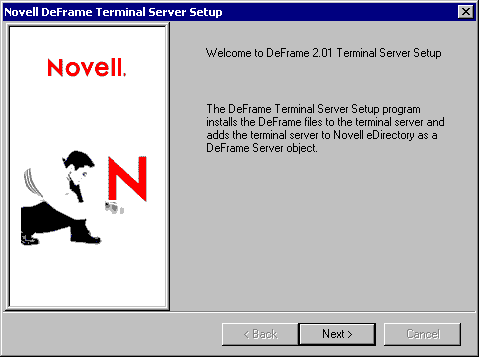
Click Next to display the license agreement.
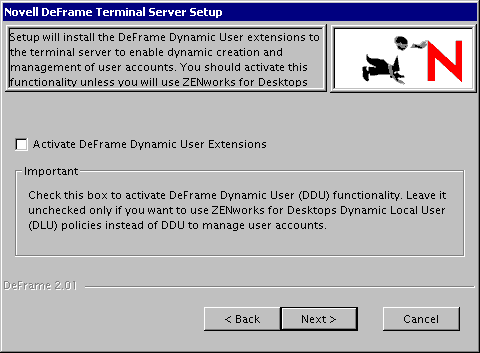
Read the license agreement, then click Next to accept the license and display the following page.
Select the Activate Deframe Dynamic User Extensions check box.
or
If you have ZENworks for Desktops 3.2 and want to use Dynamic Local User policies to create and manage user profiles instead of the DeFrame Dynamic User functionality, make sure the option is not selected.
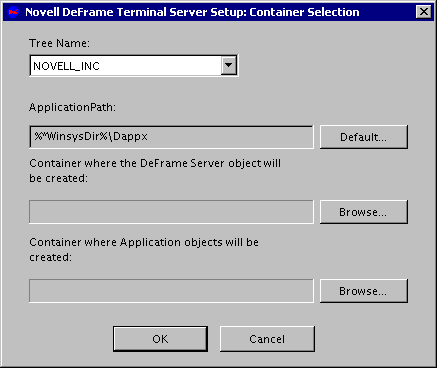
Click Next to install the DeFrame files and display the following dialog box:
Fill in the following fields:
Tree Name: Verify that the selected tree is the one where you want a DeFrame Server object created for the terminal server. This should be the same tree whose schema you extended using the DeFrame eDirectory Setup program.
ApplicationPath: Leave this field as is. It represents an ApplicationPath variable that specifies where the DeFrame client, used to launch thin-client applications, resides on a user's workstation.
DeFrame Server Object Container: Browse for and select the container where you want the DeFrame Server object created. You can select any container in the tree. If the container does not exist, you can create the container as you browse the tree.
Application Objects Container: This container is used only if you use the DeFrame Published Application Sync service to automatically create Application objects for applications published through the Citrix Published Application Manager utility. Setup of the DeFrame Published Application Sync service is covered in Using the DeFrame Published Application Synchronization Utility to Create the Application Object .
You can specify any container. If you already have a container for Application objects, you can specify that container.
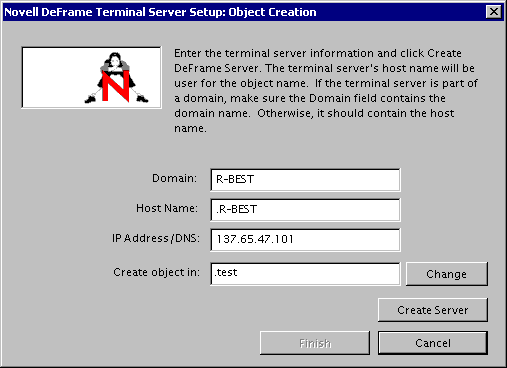
Click OK, then click Next to display the following dialog box:
You use this dialog box to define the terminal server's information and create its DeFrame Server object.
Fill in the following fields:
Domain: If the terminal server is a Primary Domain Controller or a Backup Domain Controller, make sure the domain name is entered in this field. This enables DeFrame, when using DeFrame Dynamic User (DDU) functionality, to dynamically create user accounts in the domain database when the user logs into the terminal server.
IMPORTANT: DeFrame will also remove the name from the domain database when the user is logged out of the terminal server. If you have domain users who should not be removed from the domain database, make sure that their usernames and passwords do not match any users who will log into the terminal server. If a match occurs, DeFrame will use the existing domain user account and then remove it when the user is logged out of the terminal server.
If the terminal server is not a Primary Domain Controller or Backup Domain Controller, make sure the server's host name is entered in this field. This enables DeFrame, when using DDU functionality, to dynamically create (and remove) user accounts in the terminal server's local user database.
If you don't plan to use DDU functionality to dynamically create user accounts, you can leave this field blank. However, you will need to ensure that users have permanent local or domain user accounts on the terminal server, or you will need to use ZENworks for Desktops 3.2 Dynamic Local User (DLU) policies to create the user accounts. If you create permanent user accounts, the usernames and passwords for those accounts must match the users' eDirectory usernames and passwords.
Host Name: Displays the terminal server's host name. Verify that the name is correct. The host name will be used as the DeFrame Server object name. The dot preceding the host name is not necessary and will not be included in the object name.
IP Address/DNS: Displays the terminal server's IP address or DNS host name. Verify that the information is correct.
Create Object In: Displays the container where the terminal server's DeFrame Server object will be created. This is the container you specified previously. Click Change if you want to change it at this point.
Click Create Server to create the object, then click Finish.
Click Finish again to exit the Setup program.
Exit the Add/Remove Programs dialog box.
Applying Support Pack 1
You should update the DeFrame server files at this point by applying the OnDemand Services 2 Support Pack . For instructions, For instructions, refer to section 3.6 Updating DeFrame Terminal Server Files in the support pack's Readme file (Readme_ODS2SP1.txt)
If you have not yet done so, you can download the patch from the Novell Support site.
Starting the DeFrame Services
The DeFrame Terminal Server Setup program installs three services to the terminal server:
DeFrame Access Control Service: Provides users with file system rights required to run applications, creates and manages dynamic user accounts, and keeps track of mapped drives when using Novell iFolderTM as your file storage solution. It must be run on each terminal server.
DeFrame Watchdog Service: Provides server load balancing. It must be run on each terminal server that will participate in load balancing. The
The Watchdog service is discussed in detail in Configuring Load Balancing Services . If you plan to use DeFrame Load Balancing Services, you should review that information.
DeFrame Disconnected Session Tracking Service: Tracks disconnected sessions in order to reactivate a disconnected session whose session information (user, application, and so forth) matches the information for a newly-opened session. The newly-opened session is then removed. You should run it on each terminal server in order to minimize the proliferation of disconnected sessions.
By default, the Access Control, Watchdog, and Disconnected Session Tracking services are configured to start automatically on server startup.
To start a service immediately rather than waiting for a server restart:
Click the Start menu > Settings > Control Panel > Administrative Tools > Services.
Double-click a service. The display names for the services are:
Novell DeACL Service
Novell Dewatch Balancing Service
Novell Disc Session Tracking Service
Click Start.
Click OK.
Repeat Step 2 through Step 4 for each service you want to start.
Configuring the Terminal Server to Support Contextless Login
With contextless login, when a user launches a thin-client application from his or her workstation, OnDemand Services or Novell Application Launcher passes the user's eDirectory distinguished name and password to the DeFrame client running on the terminal server. The DeFrame client then uses the name to log the user into eDirectory (which is where the dynamic user information and other required information is stored). In order for contextless login to work without the user being prompted for his or her eDirectory username and password, you need to perform the following steps:
Turn on the server's Use Client Provided Logon Information setting and turn off the Always Prompt for Password setting. To do so:
At the terminal server, click Start > Programs > Administrative Tools > Terminal Services Configuration
Highlight a connection type (the default is RDP-Tcp) and double-click to enter the properties.
In the Logon settings tab, check the Use Client Provided Logon Information setting and uncheck the Always Prompt for Password setting.
Repeat for each connection type.
Configure the default profile for the Novell ClientTM. To do so:
Right-click the Novell icon (N icon) in the status area of the taskbar > click Novell Client Properties.
Click the Location Profiles tab.
In the Location Profiles list, select Default, then click Properties to display the Location Profiles Properties dialog box.
Select Login Service in the Service list, select Default in the Service Instance List, then click Properties to display the Novell Login dialog box.
Deselect (turn off) the Save Profile After Successful Login option.
Click the NDS tab.
In the Tree field, select the eDirectory tree where the thin-client applications are configured as Application objects.
Delete any information from the Context and Server fields.
To save the configuration settings, click OK until you've closed all dialog boxes.
Limiting Access to the Terminal Server File System
When you install a Windows 2000 server with Terminal Server Components selected, you are given the option of defining default user and group object permissions as Windows 2000 compatible only or pre-Windows 2000 compatible.
By default, pre-Windows 2000 compatible is selected, which means users receive full access to the registry and file system on the server. This option is required in order to run many legacy (16-bit) applications.
With pre-Windows 2000 compatible permissions, the Everyone group receives Full Control rights to the drive, which is inherited down the file system. With Windows 2000 compatible permissions, the Everyone group receives Full Control right to the root of the drive and user profile directory only (permissions are not inherited) and Read and Execute rights to the rest of the file system.
You should ensure that you restrict user access to the server as much as possible. The easiest way to globally control access to system resources is to modify the Everyone group's default permissions. You can also remove the Everyone group and add a group meeting your security requirements. For detailed information, see your Windows 2000 server documentation.