Browsing the Internet
Apart from Konqueror (KDE's default Web browser), openSUSE also includes the Firefox Web browser. To start Konqueror or Firefox, press Alt+F2 and enter konqueror or firefox.
With features like tabbed browsing, pop-up window blocking, and download and image management, both browsers combine the latest Web technologies. Their easy access to different search engines help you to find the information you need.
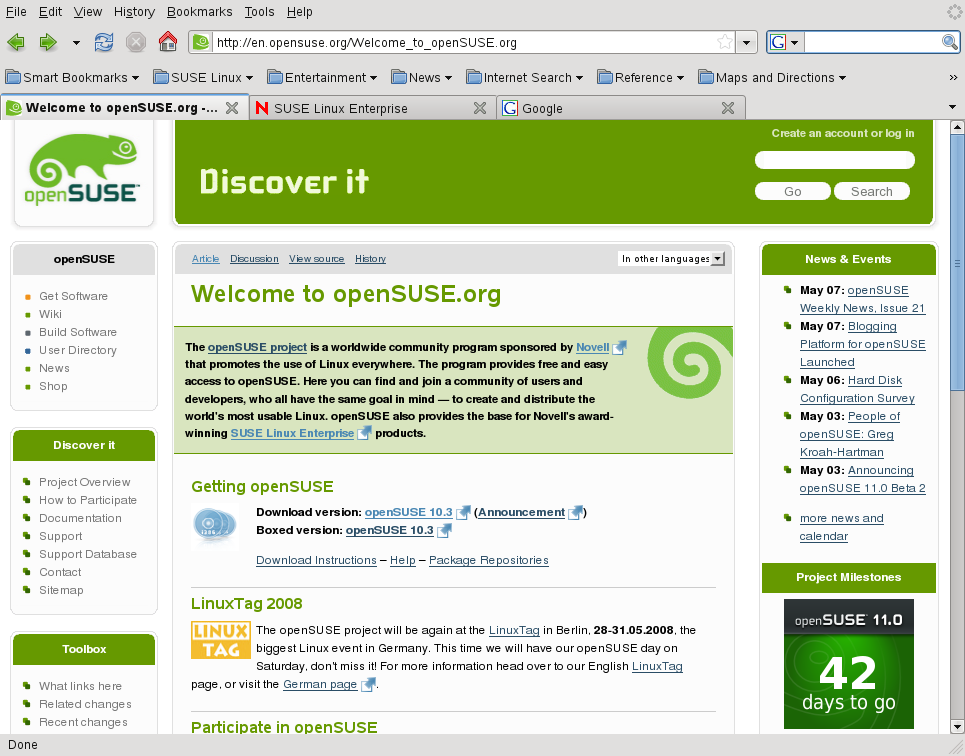
Enter a URL in the location bar to start browsing. To open a new, empty tab, press Ctrl+T and enter a new URL. To open a link in a new tab, click the link with your middle mouse button. Right-click the tab itself to access more tab options. You can create a new tab, reload one or all existing tabs, or close them. You can also change the sequence of the tabs by dragging and dropping them to the desired position.
Finding Information
Both browsers offer different kinds of search options: you can find information on the Web or you can search the current Web page for keywords.
Searching the Web
-
To start a search on the Web, click the left icon in the search bar on the right to open a list of search engines, like Google* or Wikipedia.
-
Select the desired engine and type your search keywords into the input field.
-
Press Enter to start the search.
Searching the Current Web Page
-
To search the current Web page for keywords with Konqueror, press Ctrl+F to open a dialog. Type your search keyword and press Enter.
-
To search the current Web page with Firefox, press Ctrl+F to open a find bar at the bottom of the window. Enter your search keyword there and use the buttons beneath the bar to search in different directions or to highlight all hits in the text.
Konqueror offers Web shortcuts for quickly searching the Web. For example, to search the Web for yast using the Google search engine, just type gg:yast into the Konqueror location bar (or the dialog) and press Enter.
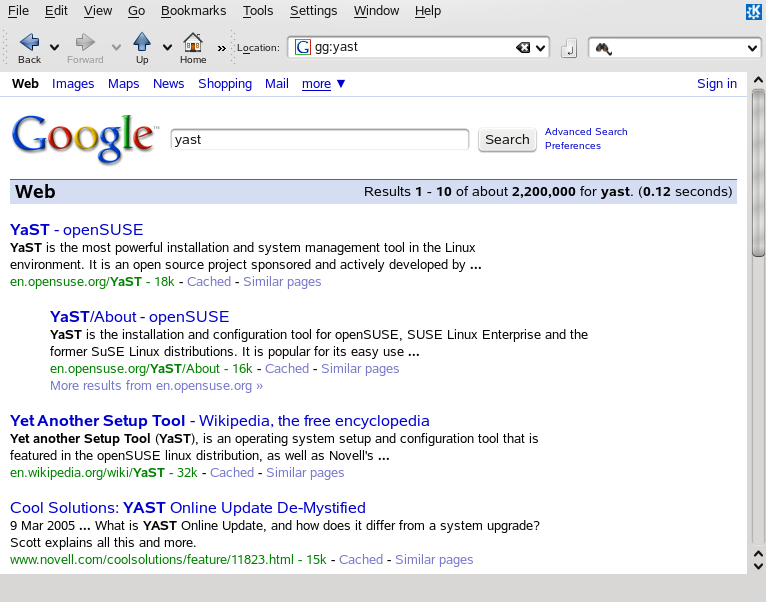
Apart from predefined shortcuts such as gg for Google or wp for Wikipedia, you can also define further, individual Web shortcuts as described in Configuring Preferences.
Downloading Files from the Web
If you download a file with Firefox or Konqueror, a dialog window appears asking you if you want to save the file. In Konqueror, you then need to specify the location for the file. Firefox by default saves the file to the folder configured in the and shows your finished downloads in the dialog.
To open the downloaded files directly from there, right-click and select . To clean up the history of downloaded files, right-click and select .
Configuring Preferences
To adjust Konqueror or Firefox to your needs and wishes, both
browsers offer configuration dialogs. In Konqueror, access the
configuration dialog with . To change the behavior of Konqueror as Web browser,
select one of the categories in the
left sidebar to show the options for the respective category. For
example, you can hide
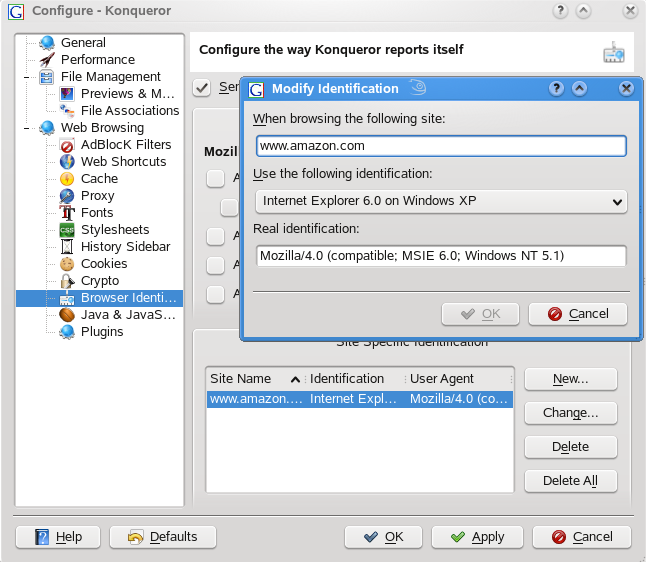
Konqueror's real identity and
make Konqueror identify as a different browser (e.g. Internet
Explorer*) for certain Web sites you visit. To do so, select
, and click
to add a new, site-specific identification.
You might also want to configure the Web shortcuts you can use with Konqueror (and the dialog). In the Konqueror configuration dialog, click to see which shortcuts are already defined. Click to define new shortcuts. Leave the Konqueror configuration dialog with to apply your changes.
In Firefox, select to open the . Click the icons in the upper display field to access the options for the respective category. For example, change the default download folder on the page, or adjust the pop-up blocking feature on the page. Click to apply the changes.