Starting Programs
Start programs from the main menu or from the command line, using the dialog or a shell. Additionally, you can start programs from the desktop or the panel by left-clicking the respective program icon once.
Using the Main Menu
To open the main menu, click the main menu icon in the panel. The main menu consists of the following elements: a search function at the top and several tabs at the bottom, providing quick access to the key functions of the menu. Additionally the menu displays your login name and the hostname of your computer.
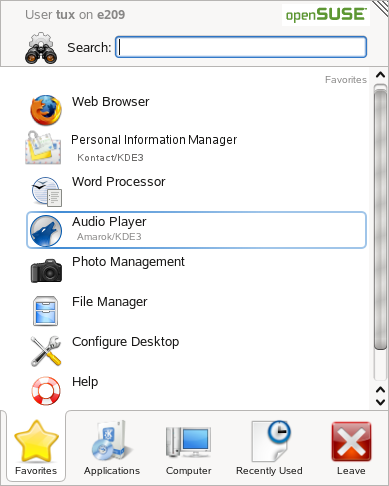
shows a default selection of key programs for quick access, whereas shows all applications installed on your system. To navigate through the menu structure, click an entry and use the arrow icons at the right or the left to switch back and forth. and provide quick access to some frequently used places, applications, or documents. shows several options for leaving the session such as logging out, locking the screen (access can only be regained with a password), shutting down or restarting the computer.
Using the Run Command Dialog
KRunner is a helper application with lets you quickly start programs. Apart from that, it offers a search function for finding applications or locations.
Press Alt+F2 to open the dialog. Type a command, for example, dolphin, and press Enter or click to start the application. The command to start the application is often (but not always) the application name written in lowercase.
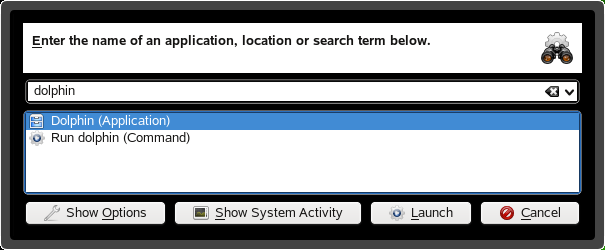
If you want to start an application as a different user (for example, as root), click in the dialog. Activate , enter the user's password and press Enter.
The dialog also allows you to use the so-called Web shortcuts defined in Konqueror. With these, you can send search requests directly to a search engine like Google*, without opening the browser and visiting the Web sites before. For more information, refer to Finding Information.
Searching for Programs
Both the main menu and the dialog offer a search function that lets you quickly start programs even if you do not know the exact application name or command yet. To search for an application, start typing a command or part of the application name in the main menu field or the input field in the dialog. Each character you enter narrows down the search.
From the list below the input field, choose the application matching your query.