4.8 Adding Password Self-Service to Your Company Portal
Most of the procedures in the Password Self-Service section assume that you are using the Password Self-Service features on an iManager 2.02 server.
Refer to the following table for instructions on how Password Self-Service features can be used with portal products, including products other than iManager.
Product |
Support for Password Self-Service |
Procedure |
|---|---|---|
iManager 2.0.2 |
You can integrate the features. This product supports Password Self-Service features if youinstall the password management plug-ins. These plug-ins are includedwith the DirXML® 2 plug-ins and are also available separately fromdownload.novell.com. |
Follow the steps in
|
exteNd Director Standard Edition 4.1with Support Pack 1 |
You can integrate the features. This version of exteNd Director supports Password Self-Servicefeatures if you install the necessary Novell portal modules (.npmfiles). To support the features, you must have Support Pack 1 or later. |
Section 4.8.1, Integrating Password Self-Service withexteNd Director 4.1 |
Virtual Office, provided with NetWare6.5 Support Pack 2, running on an iManager server |
You can integrate the features. You can use the Password Self-Service features on the sameNetWare server used for Virtual Office and iManager by installingthe plug-ins and completing some additional steps. |
Section 4.8.2, Integrating Password Self-Service withVirtual Office |
exteNd Director 5 |
You must link to the features. Because exteNd Director 5 is based on portlets and PasswordSelf-Service is based on Novell portal modules (NPMs), you can'tuse the Password Self-Service features directly in another product. To use this product with Password Self-Service, create linksfrom your company portal to the end user password features on aniManager server. |
Section 4.8.3, Linking to Password Self-Service froma Company Portal |
Novell Portal Services (NPS) versionsearlier than 4.1 |
You must link to the features. Although these legacy NPS products run Novell portal modules(NPMs), they don't have some of the enhancements that are requiredfor the Password Self-Service features of the ForgottenPassword.npm. To use this product with Password Self-Service, create linksfrom your company portal to the end-user password features on aniManager server. |
Section 4.8.3, Linking to Password Self-Service froma Company Portal |
Third-party products |
You must link to the features. Because third-party products don't run Novell portal modules,you can't use the Password Self-Service features directly in anotherproduct. To use third-party products with Password Self-Service, createlinks from your company portal to the end user password featureson an iManager server. |
Section 4.8.3, Linking to Password Self-Service froma Company Portal |
4.8.1 Integrating Password Self-Service with exteNd Director 4.1
If you are using exteNd Director Standard Edition 4.1 with Support Pack 1 for a company portal, you can add the Forgotten Password module to your portal like any other Novell portal module. This module provides the same features that are available when using it on iManager 2.0.2:
- New portal user tasks for Password
Self-Service:
- Hint Setup
- Answer Challenge Questions
- Change Password (Universal)
- Forgotten Password Self-Service (accessed from the Forgot your password? link on the portal login page)
- Post-authentication features to prompt users to change noncompliant passwords or update Forgotten Password items such as the hint or challenge questions
To add these features:
-
Make sure you have installed Support Pack 1.
It includes enhancements that are necessary for the ForgottenPassword.npm.
-
Make sure that SSL is configured between the exteNd Director Web server and eDirectory, even if they are running on the same machine.
This is a requirement of NMAS 2.3 or later.
-
To ensure security for the Forgotten Password gadgets, check your LDAP SSL port number.
If you are using an LDAP SSL port other than 636, you must add the following key pair into the PortalServlet.properties file:
LDAPSSLPort=your_port_number
For example, if your Web server is running Active Directory, you need to make this change because Active Directory uses port 636. If you are running Tomcat, change the setting in the PortalServlet.properties file in the tomcat\webapps\nps\WEB_INF directory.
This setting takes higher precedence than the default value of 636 if that value exists in the file.
-
After changing the setting, restart the Web server.
-
Make sure all the eDirectory users in the portal users container have rights to self for the Hint attribute named nsimHint.
When you install the DirXML plug-ins on an iManager Web server, this step is automatically completed for the tree that iManager is configured for.
However, if you are pointing to a different tree, you must complete this step manually.
A utility is provided to help you do this, which you can download and run by doing the following:
-
Go to http:\\download.novell.com.
-
Fill in the following fields:
-
Search By:Product
-
Choose a Product:Nsure® Identity Manager
-
-
Download the item named 2.0 Password Management Plug-in for iManager 2.0.x.
-
Follow the instructions in the nsimhintreadme.txt file.
If users do not have rights to self for the nsimHint attribute, they get an error like the following when they try to create a hint:
“Could not write user hint” (Task could not be completed).
-
-
(Conditional) If you have not installed Identity Manager on the server that holds eDirectory and NMAS, install the Challenge Response Login Method for NMAS.
This Login Method is installed automatically with Identity Manager and is provided as part of the eDirectory 8.7.3 product.
One way to install a Login Method is on Windows, using the Method Installer:
-
Locate the MethodInstaller.exe file in the \nmas\NmasMethods\ directory of the eDirectory CD.
-
Run the executable on a workstation and select the Challenge Response method.
-
Accept the agreement and the defaults for the Login Sequence.
The method is added to the Authorized Login Methods.Security.tree_name container.
For more information on installing a Login Method, including installing on UNIX, see “Installing a Login Method” in the NMAS 2.3 Administration Guide.
-
-
Add the following modules to exteNd Director:
- ForgottenPassword.npm
- nmasclient.npm
They are included with the DirXML product distribution.
For instructions on adding a module, see the Novell exteNd Director Standard Edition Installation and Configuration Guide.
4.8.2 Integrating Password Self-Service with Virtual Office
Virtual Office supports all the features of Password Self-Service in NetWare 6.5 Support Pack 2 or later, OES for Linux, and OES for NetWare.
For instructions, see the Virtual Office Configuration Guide.
4.8.3 Linking to Password Self-Service from a Company Portal
For products that can't provide the Password Self-Service features by running the ForgottenPassword.npm (as noted in the table in Section 4.8, Adding Password Self-Service to Your Company Portal), you can use the Password Self-Service features by creating another iManager server with the password management plug-ins installed and then linking from your portal home page to the iManager portal on the other server, such as https://iManager_server_IP_address/nps.
The password management plug-ins are included with the DirXML 2 plug-ins and are available separately by downloading the 2.0 Password Management Plug-in for iManager 2.0.x from http:\\download.novell.com.
The one feature that is not easy to incorporate is post-authentication services, which prompts users to update their passwords to comply with password policies and prompts them to set up Forgotten Password Self-Service according to the password policy, such as creating a password hint. To make sure that users have compliant passwords and are set up to use Forgotten Password Self-Service, you need to make sure that users log in to the iManager portal at least once to create compliant passwords and complete the password management setup, and then again whenever you make changes to Password Policies.
Complete the tasks in these sections:
Prerequisites
The iManager server and the tree you are using must be prepared as follows:
- Meet the prerequisites described in Section 3.3, Prerequisite Tasks for Using Password Policies
- Make sure you have set up Password Policies for your eDirectory users
Linking to Forgotten Password Self-Service
To give users access to Forgotten Password Self-Service from your company portal, you can link to that service on a separate iManager Web server.
-
Create a link such as “Forgot your password?” on the login page for your company portal and point it to the following URL on your iManager Web server:
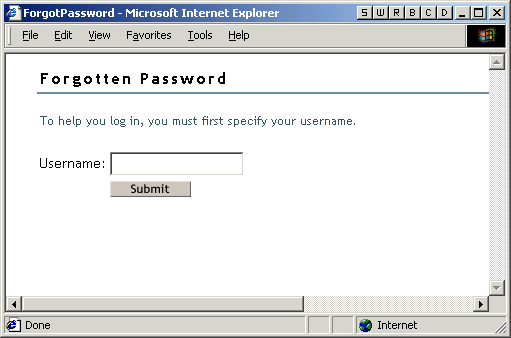
http://iManager_server_IP_address/nps/servlet/fullpageservice?NPService=ForgotPassword&nextState=getUserID
This URL takes users to the following page, where they begin the Forgotten Password process.
-
Complete the steps in Returning Self-Service Users to the Company Portal.
Linking to User Password Management Tasks
-
Make sure all the eDirectory users in the portal users container have rights to self for the Hint attribute, named nsimHint.
When you install the DirXML plug-ins on an iManager Web server, this step is automatically completed for the tree that iManager is configured for.
If you are pointing to a different tree, you must complete this step manually.
A utility is provided to help you do this, which you can download and run by doing the following:
-
Go to http:\\download.novell.com.
-
Fill in the following fields:
-
Search By:Product
-
Choose a Product:Nsure Identity Manager
-
-
Download the item named 2.0 Password Management Plug-in for iManager 2.0.x.
-
Follow the instructions in the nsimhintreadme.txt file.
If users do not have rights to self for the nsimHint attribute, they get an error like the following when they try to create a hint:
“Could not write user hint” (Task could not be completed).
-
-
Provide users with a link from your company portal to the password management tasks.
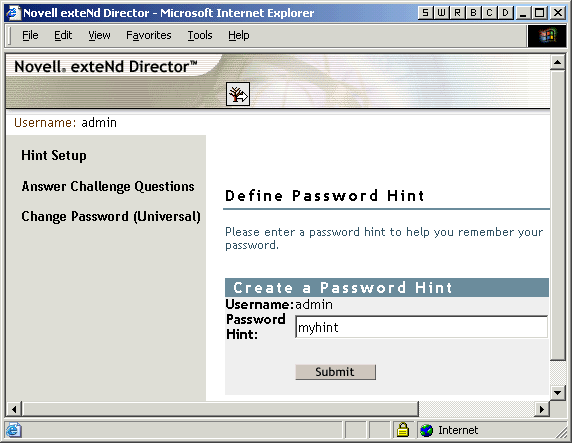
You can create a Manage Passwords link from the company portal and link to https://other_iManager_server/nps. This link would provide access to the Password Management end user tasks:
- Hint Setup
- Answer Challenge Questions
- Change Password (Universal)
A user who clicks on the link would first need to log in and then would see a page like the following example:
-
Complete the steps in Returning Self-Service Users to the Company Portal.
Returning Self-Service Users to the Company Portal
The Password Self-Service features include scenarios in which users are provided with a link that lets them return to the login page. For example, when a user changes a password using the Forgotten Password Self-Service, a page is displayed with the message Your password has been successfully changed. Click here to return to login page.
If you point from your company portal to Password Self-Service on a separate iManager server, you might want to customize the default return page so that users are returned to the login page for your company portal when they complete password tasks. By default, clicking the button returns the user to a page on the iManager Web server.
A link to return to the login page is provided in these three places:
- The page where a user can set a new password
- The page displayed after a user successfully changes a password
- The page where a user views a hint
To customize the return page to go to the login page for your company portal:
-
On the iManager Web server you are using for Forgotten Password Self-Service, locate the following directory:
\tomcat\webapps\nps\portal\modules\ForgottenPassword\skins\default\devices\default
-
Locate the following file in that directory:
forgottenpassword.xsl
-
Edit the forgottenpassword.xsl file to customize the default return page.
Replace the code
href="{LoginURL}"with a hard-coded URL such as
href="(http:\\www.your_company_portal_home_page.com)"You need to make this change in three places in the file.
-
Stop and restart Tomcat on the iManager server.
The Return to Login Page links now redirect users to your company's portal login page.
4.8.4 Making Sure Users Have Configured Password Features
When users log in to the iManager portal at https://iManager_server_IP_address/nps, they are prompted to take action through a series of post-authentication pages if conditions such as the following are true:
- The user password doesn't comply with Advanced Password Rules in the password policy
- The password policy requires Challenge Questions when using Forgotten Password Self-Service and the user has not configured these questions
- The password policy is using Forgotten Password with Display Password Hint as the action and the user has not created a hint
For example, these prompts are necessary to make sure that the user can use Forgotten Password Self-Service. If the password policy requires users to answer Challenge Questions and the user has never configured them initially, the user can't access Forgotten Password Self-Service. If the user has not created a password hint, the user can't retrieve it to help in remembering the password.
Because other portal products won't automatically provide the post-authentication features, you need to make sure that users log in to the iManager portal at least once to create compliant passwords and complete password management setup, and then again whenever you make changes to Password Policies.
This can be done by making sure that users go to a Manage Passwords link you provide as described in Linking to User Password Management Tasks, which requires users to log in to the iManager portal.