1.4 Searching Events
Novell Sentinel Rapid Deployment provides the ability to perform a search on events. The search includes all online data currently in the database, but internal events generated by the Sentinel system are excluded unless you select . By default, events are sorted based on the search engine’s relevancy algorithm.
Basic event information includes event name, source, time, severity, information about the initiator (represented by an arrow icon), and information about the target (represented by a bull’s-eye icon).
1.4.1 Enabling the Search Option in Web User Interface
To enhance the stability of Sentinel Rapid Deployment, the ability to search events from the Web user interface has been disabled. The preferred methods for searching are in the Sentinel Control Center by using the following options:
You can use the following procedure to enable the option in the Web user interface. However, under load, enabling this option might lead to das_binary crashes and even event loss:
-
Stop the Sentinel services:
<install_directory>/bin/sentinel.sh stop
-
Open the das_binary.xml file for editing.
<install_directory>/config/das_binary.xml
-
Uncomment the EventSearchComponent section:
<!--
<obj-component id=”EventSearchComponent”>
 <class>esecurity.ccs.comp.textsearch.EventSearchComponent</class>
 <property name="eventsearcher.sortableBatchSize">100000</property>
 <obj-component-ref>
 <name>EventProducer</name>
 <ref-id>EventStoreService</ref-id>
 </obj-component-ref>
 </obj-component>
 -->
-
Restart the Sentinel services:
<install_directory>/bin/sentinel.sh restart
The Search option is now enabled and you can search for events from the Web user interface.
1.4.2 Running an Event Search
You can run simple and advanced searches.
Basic Search
A basic search runs against all of the event fields in Table 1-2. Some sample basic searches include the following:
-
root
-
127.0.0.1
-
Lock*
-
driverset0
NOTE:If time is not synchronized between the end user machine and the Sentinel Rapid Deployment server (for example, one machine is 25 minutes behind), you might get unexpected results from your search. Searches such as or are based on the end user’s machine time.
-
Click the link on the left.
Sentinel Rapid Deployment is configured to run a default search for non-system events with severity 3 to 5 the first time you the link. Otherwise, it defaults to the last search term you entered.
When the Search UI first comes up, by default the UI shows the search results of the last search term you entered (saved in the user preferences).These user preferences are stored in the CONFIGS table in the database as an XML string.This XML string contains the last search term, date range, from time, to time, include system events, sort by time, and results per page. If there is no search term saved in the user's preferences, it defaults to Search Term = sev >=3, Date Range = last 30 days, To Time = Present Time, From Time = Last 30 days time from now, Include system events = false, Sort By time = false results per page = 25.

-
For a different search, type a search term in the search field (for example, admin). The search is not case sensitive.
-
Select a time period for which the search should be performed. Most of the time settings are self-explanatory, and the default is .
-
allows you to select a start date and time and an end date and time for the query. The start date must be before the end date, and the time is based on the browser’s local time.
-
searches all the data in the database.
-
-
Select to include events that are generated by Sentinel Rapid Deployment system operations.
-
Select to arrange data with the most recent events at the beginning.
Sorting by time takes longer than sorting by relevance, which is the default.
-
Click .
All fields in the index are searched for the specified text. A spinning icon indicates that the search is taking place.
The event summaries are displayed.

Advanced Search
An advanced search can search for a value in a specific event field or fields. The advanced search criteria are based on the short names for each event field and the search logic for the index. To view the field names and descriptions, the short names that are used in advanced searches, and whether the fields are visible in the basic and detailed event views, see Table 1-2.
To search for a value in a specific field, use the short name of the field, a colon, and the value. For example, to search for an authentication attempt to Sentinel RD by user2, use the following text in the search field:
-
evt:authentication AND sun:user2
Other advanced searches might include:
-
pn:NMAS AND sev:5
-
sip:123.45.67.89 AND evt:“Set Password”
Figure 1-5 Advanced Search Example
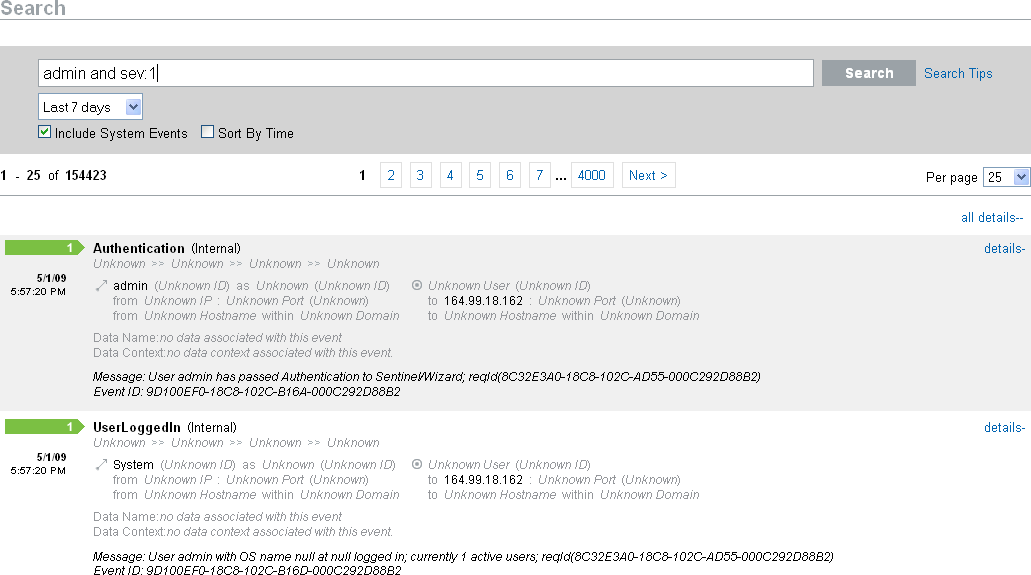
Multiple advanced search criteria can be combined by using the following Boolean operators:
-
AND (must be capitalized)
-
OR (must be capitalized)
-
NOT (must be capitalized and cannot be used as the only search criterion)
-
+
-
-
Special characters must be escaped by using a \ symbol:
+ - && || ! ( ) { } [ ] ^ " ~ * ? : \
The advanced search criteria are modeled on the search criteria for the Apache Lucene open source package. More detail about the search criteria is available on the Web: Lucene Query Parser Syntax.
1.4.3 Viewing Search Results
Searches return a set of events. Users can view basic or detailed event information and configure the number of results per page. Search results are returned in batches. The default batch size is 25 results, but this is easily configured.
When results are sorted by relevance, only the top 100,000 events can be viewed. When they are sorted by time, this limitation does not exist.
Basic Event View
The information in each event is grouped into initiator information and target information. If data isn’t available for a particular event field, the fields are labeled .
Figure 1-6 Basic Event View
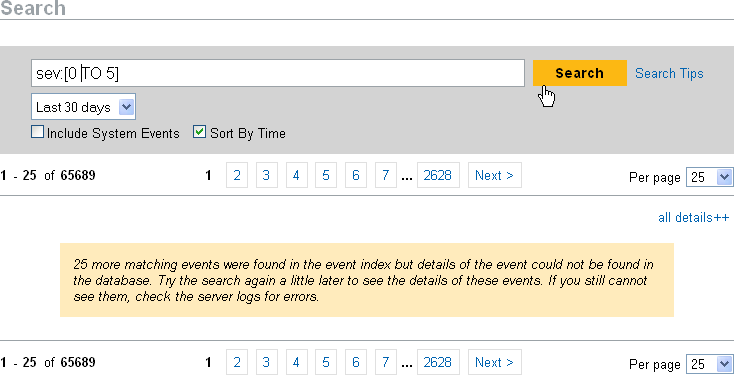
Occasionally, the search engine might index events faster than they are inserted into the database. If you run a search that returns events that have not been inserted into the database, you get a message that some events match the search query but could not be found in the database. If you run the search again later, the events are usually in the database and the search is successful.
Figure 1-7 Events Indexed but Not Yet in Database
Event View with Details
You can view additional details about any event or events by clicking the link on the right side of the page.The details for all events on a page can be expanded or collapsed by using the or link. This preference is retained as you scan through multiple pages of results or execute new searches.
Figure 1-8 Event View
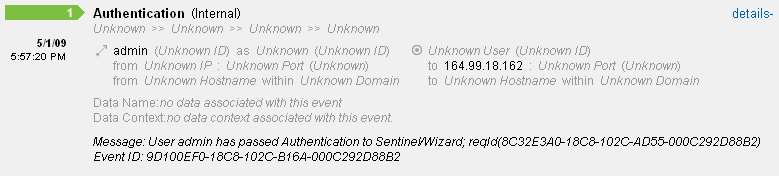
The event in Figure 1-8 shows the same event as in Figure 1-6, but with an expanded view that shows additional data fields that might have been populated.
Refining Search Results
After viewing the results of a search, it might be necessary to refine the search results and add additional search criteria. For example, you might see one initiator user’s name appear several times in the search results and want to see more events from that initiator.
To filter the search results using a specific value appearing in the search results:
-
Identify the desired filter criteria in the search results.
-
Click the value (for example, target hostname test 1900) by which you want to filter the results.

HINT:This adds the value to your filter with an AND operator. To add the value to your filter with an NOT operator, press the Alt key as you click the value.
-
Click .

Some fields cannot be selected to refine a search this way:
-
EventTime
-
Message
-
Any field related to the Reporter
-
Any field related to the Observer
-
Any field related to TargetTrust
-
Any field with a value Unknown
1.4.4 Event Fields
Each event has fields that might or might not be populated, depending on the specific event. The values for these event fields can be viewed by using a search or running a report. Each field has a short name that is used in advanced searches. The values for most of these fields are visible in the detailed event view; other values are also visible in the basic event view.
Table 1-2 Event Fields
Some fields are tokenized. Tokenizing the fields makes it possible to search for an individual word in the field without a wildcard. The fields are tokenized based on spaces and other special characters. For these fields, articles such as “a” or “the” are removed from the search index.
-
EventName
-
Message
-
ProductName
-
FileName
-
DataContext
-
TaxonomyLevel1
-
TaxonomyLevel2
-
TaxonomyLevel3
-
TaxonomyLevel4