The AutoAdminLogin feature lets you log in to the desktop and eDirectory without being prompted to enter login credentials.
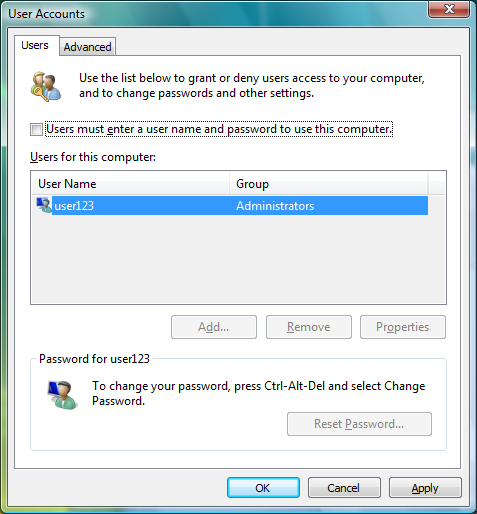
Click the Start button, then type netplwiz.exe (or control.exe userpasswords2) in the field.
Press Enter to open the User Accounts dialog box.
On the tabbed page, select the user that you want to enable AutoAdminLogon for in the list.
Deselect .
Click .
When prompted, enter the password for the selected user, then click .
After the machine is rebooted, a Windows-only logon occurs for the specified user.
Click the button, then type regedit.exe in the field.
Press Enter to open the Registry Editor.
Navigate to HKEY_LOCAL_MACHINE\SOFTWARE\Novell\Login, then add the following:
Value Type=REG_SZ, Name=AutoAdminLogon, Data=1
Value Type=REG_SZ, Name=DefaultUserName, Data=eDirectory username
Value Type=REG_SZ, Name=DefaultLocationProfile, Data=profile to use (that is, Default)
Value Type=REG_SZ, Name=DefaultPassword, Data=the user's eDirectory password
NOTE:
If the Windows password is the same as the eDirectory password, the last value is not necessary. In the future, a way to securely store the eDirectory password might be provided.
Once Windows AutoAdminlogon is configured, it will work with or without having the eDirectory AutoAdminLogon configured or enabled.
eDirectory AutoAdminLogon, even if configured, will work only if Windows AutoAdminlogon is configured and enabled.
Close the Registry Editor.