10.5 Manually Deploying the Agent
Rather than having a ZENworks Server deliver the Adaptive Agent to a device, you can manually download the Adaptive Agent deployment package from the server and install the agent.
-
Make sure the device meets the necessary requirements (see
Managed Device Requirements
in the ZENworks 10 Configuration Management Installation Guide). -
On the target device, open a Web browser to the following address:
http://server:port/zenworks-setup
Replace server with the DNS name or IP address of a ZENworks Server and replace the port only if the ZENworks Server is not using the default port (80 or 443).
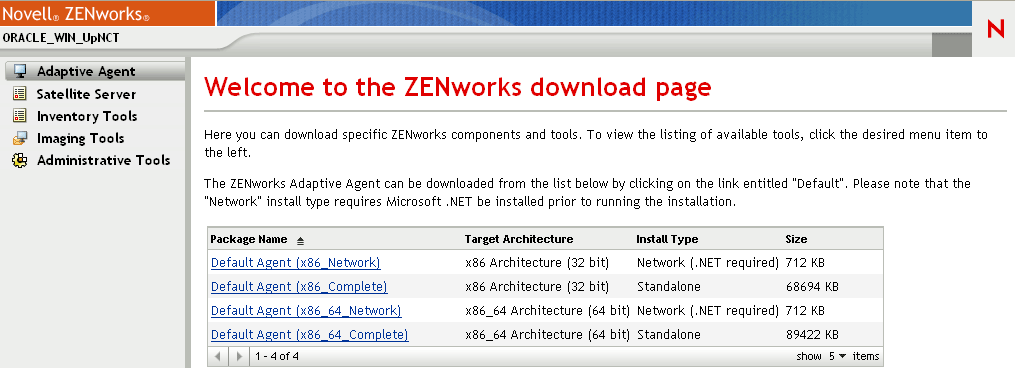
The Web browser displays a list of deployment packages. For each architecture (32-bit and 64-bit), there are two types of packages:
Network: The network package downloads and installs only the preagent to the target device; the preagent then downloads and installs the ZENworks Adaptive Agent from the ZENworks Server. The network package requires that Microsoft .NET is installed on the device prior to the deployment of the agent to the device.
Standalone: The standalone package downloads the preagent and Adaptive Agent to the target device; the preagent then installs the Adaptive Agent from the local device. The standalone package is useful when you need to install the ZENworks Adaptive Agent to a device that is currently disconnected from the network. You can save the package to removable media (CD, USB flash drive, and so on) and have the standalone device run the package from the media. The Adaptive Agent is installed to the device, but no registration or management occurs until the device connects to the network.
Custom: The package name, Default Agent, refers to the predefined deployment packages. The custom deployment packages created through > appears with the name given during the creation of the package.
-
Click the name of the deployment package you want to use, then save the package to the device’s local drive or run it from the ZENworks Server.
-
If you downloaded the package, launch the package on the device.
For information about options you can use with the package, see Package Options.
-
Upon completion of the installation, a message is displayed asking whether to reboot. Select one of the following options:
-
Do nothing and auto-reboot occurs after 5 minutes.
-
Click . You need to reboot later.
-
Click to reboot immediately.
When the device reboots, it is registered in the Management Zone and the ZENworks icon is placed in the notification area (system tray).
In ZENworks Control Center, the device appears in the \Servers folder or \Workstation folder on the Devices page.
-
Package Options
You can use the options listed below when launching a deployment package from the command line. The syntax is:
package name option1 option2 ...
For example:
PreAgentPkg_Agent.exe -q -v -k regkey1
The command accepts the following options:
-x: Do not reboot after installation. (for Windows only)
-q: Suppress the reboot prompt. (for Windows only)
-d target_path: Extract the files to the specified target path. The default target path is c:\windows\novell\zenworks\stage.
-h: Display help information.
-k: The registration key used to register the device in the management zone.
-l: List the contents of the package only. Do not extract the package and run the installation.
-n: Extract the package but do not run the installation.
-v: Turn on verbose screen logging.
-U: Force uninstall of older ZENworks Desktop Management Agent.
In addition to the options listed above, there are two additional BUILDTIME options (-f file and -o output_file) that are used when building packages. These options should only be used under the direction of Novell Technical Services.