3.21 Modifying Action Set Options
When you create a bundle, all actions are enabled by default, meaning that after you add them to a action set, they run according to the action set’s options. However, not all action sets are enabled by default. The Install, Launch, and Terminate action sets are enabled, meaning that after you add an action, it runs on assigned devices according to its action set’s options. The Uninstall action set is not enabled by default.
The following sections contain information about modifying action set options and enabling the Uninstall action set:
3.21.1 Install Action Set Options
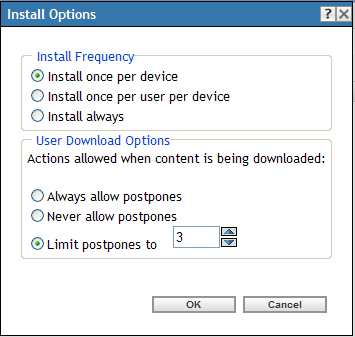
The Install Options dialog box lets you specify the how often the bundle’s install actions are performed on managed devices and to specify if users can postpone the bundle’s installation.
-
In the ZENworks Control Center, click the tab.
-
In the list, click a bundle’s underlined link in the column to display its Summary page.
-
Click the tab, then click the tab.
-
Click to display the Install Options dialog box.
-
Specify how often you want the bundle’s install actions performed:
Install once per device: Performs the bundle’s install actions once on each managed device.
Install once per user per device: Performs the bundle’s install actions once for each user on each managed device.
Install always: Performs the bundle’s install action each time the bundle is run on the managed device.
-
Specify whether to allow users to postpone performing the bundle’s install actions and specify the number of postpones to allow.
Always allow postpones: Allow the user to postpone the installation an unlimited number of times.
Never allow postpones: Do not allow the user to postpone the installation.
Limit postpones to: Specify the number of times that the user can postpone the installation.
-
Click , then click .
3.21.2 Launch Action Set Options
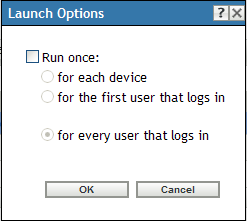
The Launch Options dialog box lets you configure how often the bundle’s launch actions are performed on managed devices. By default, the launch actions are performed according to the bundle’s schedule or when the user launches the bundle using its shortcut (from the Application Window, desktop, and so forth).
-
In the ZENworks Control Center, click the tab.
-
In the list, click a bundle’s underlined link in the column to display its Summary page.
-
Click the tab, then click the tab.
-
Click to display the Launch Options dialog box.
-
Fill in the fields:
Run Once: Select this option to configure the bundle’s launch actions, then select one of the following options. If you do not select this option (the default), the launch actions are performed each time a user launches the application contained in the bundle.
-
For each device: Launches the bundle’s actions once on each managed device.
-
For the first user that logs in: Launches the bundle’s actions once on each managed device when the first user logs in to that device. If subsequent users log in to the device, the action set is not launched. If you select this option, the bundle’s icon is removed from the device’s Application Window, desktop, and so forth.
-
For every user that logs in: Launches the bundle’s actions for every user that logs in to the device.
-
-
Click , then click .
3.21.3 Uninstall Action Set Options
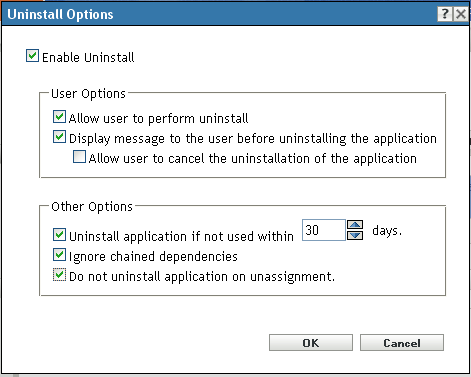
The Uninstall Options dialog box lets you enable the application to be uninstalled, allow the user to perform the uninstall, and specify that the application is uninstalled if it is not used with in a specified number of days.
When you create a bundle, the Undo Install action is enabled by default; however, the Uninstall Action Set is not enabled. Therefore, in order for any actions in the action set to run (including the Undo Install action), you must enable the action set.
-
In the ZENworks Control Center, click the tab.
-
In the list, click the bundle’s underlined link in the column to display its Summary page.
-
Click the tab, then click the tab.
-
Click to display the Uninstall Options dialog box.
-
Select the option. The following uninstall options are available only if option is selected:
User Options:
Specify whether the user should be allowed to uninstall or cancel the uninstallation of an application from a device:
Allow User to perform uninstall: Select this option to enable users to remove the application from their devices.
Display message to the user before uninstalling the application: Select this option to specify that a message warning the user that the application is going to be uninstalled from the device is displayed.
Allow user to cancel the uninstallation of the application: Select this option to specify whether the user can cancel the uninstallation of the application. You can enable this option only if the option is enabled.
Other Options:
Specify additional options to enable the uninstallation of the application from the device:
Uninstall application if not used within _days: Select this option to automatically remove the application if the user has not run it within the specified number of days (the default is 30).
Ignore Chained Dependencies: Select this option to enable the uninstallation of a dependent application that is referenced by two or more applications. For example, consider three applications (A, B, and C), where C is the dependent application. Assume application A installs application C, and application B uninstalls application C. Application C is uninstalled only if is selected.
Do not uninstall application on unassignment: Select this option to prevent the application from being uninstalled after it is unassigned from the device or user.
-
Click , then click .
3.21.4 Terminate Action Set Options
The Terminate Options dialog box lets you specify that the bundle’s actions can be terminated. This setting is used if a bundle has an availability schedule. For example, if a bundle can be installed only between 1 p.m. and 5 p.m. and the bundle is in the process of being installed at 5 p.m., the installation process terminates.
-
In the ZENworks Control Center, click the tab.
-
In the list, click the bundle’s underlined link in the column to display its Summary page.
-
Click the tab, then click the tab.
-
Click to display the Terminate Options dialog box.
-
Select or deselect the check box.
-
Click , then click .