Deploying Server Inventory
The following sections will help you to deploy Server Inventory:
IMPORTANT: The recommendations discussed in the scenarios are generic. Because of the unique nature of your topology, further refinements may become necessary.
Deploying Server Inventory in a LAN Environment
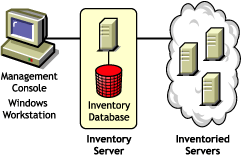
In ZfS, the deployment of Server Inventory in a LAN environment implies deploying the product on a single inventory site.
In this type of inventory configuration, the Inventory server components and database are located on a Standalone Server. There is no roll-up of data and the Sender-Receiver components are not used. This scenario is illustrated in the following figure.
Recommendations for Deployment in a LAN Environment
- The minimum base Inventory server configuration includes 256 MB RAM and a database cache of 64 MB. For a higher inventoried server range, the Inventory server configuration is 512 MB RAM and a database cache of 128 MB.
- All inventoried servers should send the scan data to the nearest Inventory server on the LAN; policies must be created based on this information.
- The transmission of scan data from inventory servers can take several hours or even more than a day. The scanning is an ongoing background process.
- If many inventoried servers are attached to the same inventory server, we recommend that you do not schedule the scan of all inventoried servers at the same time, because this will stress the Novell eDirectoryTM and the inventory server File System Services.
- Ensure that the time synchronization radius is set within 2 seconds.
- For all databases, the optimal database cache size requirement for the server may vary because of the server environment. Determine the database cache size that needs to be set by trying a range of cache sizes in the runtime environment. The default Sybase* database cache size is 32 MB.
Deploying Inventory over a WAN Environment
In a WAN environment, complete the following tasks, in order, to design the inventory tree and deploy inventory:
- 1. List the sites in the enterprise
- 2. What is the ideal place for the Root Server?
- 3. Is any other database needed?
- 4. Identify the route for Inventory data
- 5. Identify servers on each site for Inventory, Intermediate and Database Servers
- 6. Identify the location of the Distributors
- 7. Create the tree of servers for company Inventory collection
- 8. Create an implementation plan
- 9. Start the actual deployment
Guidelines for Sending Inventory Information in a WAN covers recommendations for deployment.
1. List the sites in the enterprise
Describe the entire network of your company.
- List the various sites in your company.
- List the physical links between the various sites.
- Identify the type of links in terms of bandwidth and reliability.
The following figure illustrates the network organization of a company with servers in different locations.


This illustration depicts four sites (Site A, Site, B, Site C, and Site D) connected to a central site. It depicts the physical links between the sites and the type of links in terms of bandwidth.
2. What is the ideal place for the Root Server?
The Root Server in the inventory tree is the highest-level server. Necessarily, an Inventory database is attached to the Root Server.
The inventory information available from the Inventory database of the Root Server will consist of all information from lower-level sites on the network and from the Root Server site.
Factors that you must consider include:
- There must be high-speed links between the Root Server and the management console.
- There must be high-speed links between the site having the Root Server and the sites having the lower-level Inventory servers.
- Using the management console, the administrator can collect the inventory information from any of the sites connected on high-speed links from the Root Server, or from the Root Server level site.
- A database server of suitable configuration should be provided for the Inventory server.
3. Is any other database needed?
Besides the database at the Root Server, you can maintain database servers at different sites.
You may want to maintain additional databases if there are sites or subtrees that are managed for inventory at different locations, and these sites are connected to the network over a slow link.
You should also determine if there are specific reasons to have a separate database for a single site or a set of sites. There may be some organizational needs for your company to have the database server on different sites, even if there is no product deployment need to have any other database.
NOTE: For a majority of enterprises, there may be no need to have any other database besides the enterprise-wide single database.
Optional step: If another database is needed
- If you decide to have additional database servers, identify the sites that need a database. Additionally, you need to examine whether the database will cater to the local site or a site with many subsites (subtrees). Also, identify the sites that require data in each Inventory database.
- All the sites served by a single database should typically access this database instead of the database at the Root Server for inventory management. This reduces the load on the database at Root Server.
- Database administrators should be available for these sites.
4. Identify the route for Inventory data
Identify the routes for inventory data for all sites to the nearest database, and then identify the route to the database on the Root Server.
To devise a route plan:
- Each route can have an Intermediate Server at a staging site. The Intermediate Server receives and transmits the data to the next destination. These are application-layer-level routes for inventory data. There can be various network-layer-level routes between two adjacent servers, which will be determined and managed by the routers in the network.
- The route provides information indicating how inventory data travels from a particular site to its final destination, which is the database at the Root Server.
- There may be multiple routes. Choose the fastest and most reliable route. To determine the route, consider the physical network links.
- Routes identified and made operational can be changed later, although there may be some cost in terms of management and traffic generation. If there is no intermediate database involved, you can change the route by only changing the eDirectory-based policy.
- Put Intermediate Servers on sites where the link parameters change substantially. Criteria to consider are difference in bandwidth, difference in reliability of the links, and the need for different scheduling.
- Availability of Inventory servers on the intermediate site for staging the inventory data should be considered in deciding the sites for Intermediate Servers. Provide enough disk space on these servers to store all the inventory data on the disk until the Sender sends it to the next destination.
- Inventoried servers should not be connected to the inventory server over a WAN because the inventoried server scanning should not be done across a WAN.
5. Identify servers on each site for Inventory, Intermediate and Database Servers
A single server can have different roles if it has sufficient resources. For example, an Inventory server can be a Leaf Server with Database. You can also designate an Inventory server as an Intermediate Server with Database, which receives inventory from the inventoried servers and also has an Inventory database. An Inventory server can have any combination of roles.
In ZfS, you choose the role for each Inventory server. For more information, see Understanding the Inventory Server Roles.
The number of inventoried servers attached to an Inventory server also determines the load. The following table lists the disk space requirements for the server:
In the table, n1 is the number of inventoried servers attached to the server.
s is the size of the scan data files. This file size varies depending on the data collected. Calculate 50 to 60 KB scan data from each inventoried server to calculate the load.
dbg is the storage space of the scan data in the database. Calculate 100 to 120 KB per inventoried server as the disk space for the database.
n2 is the number of inventoried servers rolled up to the Inventory server.
z is the size of the compressed scan data file per inventoried server. Calculate 7 to 10 KB for the roll-up of 50 KB scan data.
{ } denotes the disk space of the database server, depending on whether the database is on the same Inventory server or if it is connected to the Inventory server. If the database is on the same Inventory server, calculate the total disk space including the database space for the Inventory server. For example, if the Leaf Server with Database has the Inventory database on the same server, calculate the requirements for storage of scan data, including the database disk space.
6. Identify the location of the Distributors
The ZfS 3 Distributor component is required to distribute the inventory policies among the inventoried servers. For more information, see Configuring Policy and Distribution Services.
7. Create the tree of servers for company Inventory collection
Ensure that the inventory tree you design follows these guidelines:
- The root of the tree is the Root Server.
- At least one Inventory server per site is recommended.
- Each site has inventoried servers to be scanned.
- Optionally, there will be databases and Intermediate Servers on different sites.
8. Create an implementation plan
After you design the inventory tree, you should develop an implementation plan to cover the phased deployment plan for the network. Use the top-down deployment of the Server Inventory installation. Always begin the installation at the topmost level server (Root Server) and proceed with the next lower-level servers.
9. Start the actual deployment
After your implementation plan is finalized, start the actual deployment according to the plan.
Follow these steps:
- Install the Inventory servers on the sites.
- Create the policies applicable to inventoried servers.
- Create the Roll-Up policies to schedule the roll-up for each Inventory server.
Adding a Database Server to an Existing Inventory Setup
If you have already configured the servers for inventory setup, and you need to add another database server, follow these instructions:
-
Run the installation program to install the Inventory database on the server.
The installation program installs the Sybase database. If you are maintaining the database in Oracle*, make sure that the Oracle database exists. See Setting Up the Inventory Database for Oracle8i and Oracle9i.
-
Shut down the Inventory services. For more information, see Stopping the Inventory Service.
-
Based on the database you select, make sure that you configure the database. See Configuring the Database Location Policy.
-
Modify the role of the existing Inventory server in the Inventory Service object.
If you are adding a new Inventory server, you need not modify the role of that server. If you want to change the role of the Inventory server, for example, from Leaf Server to Leaf Server with Database, you need to modify the role of the Inventory server in the Inventory Service object.
-
In ConsoleOne®, right-click the Inventory Service object (servername_ZenInvservice), click Properties, then click the Inventory Service Object Properties tab.
You will see a list of actions that you should follow based on the chosen role. For example, if you change the Root Server to Root Server with Inventoried Servers, you need to configure the Server Inventory policy for the inventoried servers that you have attached. Similarly, to change the role to any other Inventory server, you need to follow the instructions to make the role change effective.
Follow the actions that you need to change the role. For more information, see Changing the Role of the Inventory Server.
-
-
Make sure that you enforce Full Scan for the Inventory Service object.
-
Bring up the Inventory service.
Possible Inventory Server Configurations for a WAN
The following sections cover these scenarios:
- Scenario 1: WAN Inventory Deployment for up to 50 Inventory Sites without Intermediate Servers
- Scenario 2: Up to 50 Intermediate Servers Connected to the Root Server
- Scenario 3: Intermediate Servers with Database Connected to the Root Server
- Scenario 4: Database on Inventory Servers and Intermediate Servers Connected to a Root Server
- Scenario 5: Roll-Up of the Inventory information Across eDirectory Trees
- Scenario 6: Merging eDirectory Trees
- Scenario 7: Deploying Inventory Server Across Firewall
- Guidelines for Sending Inventory Information in a WAN
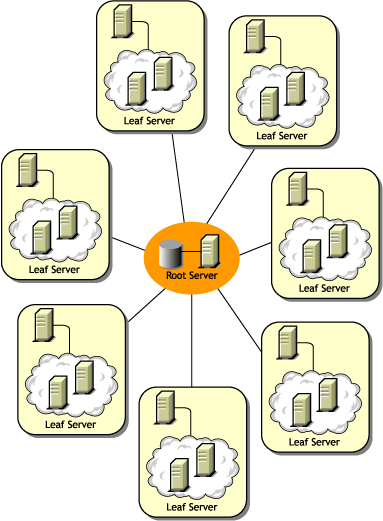
Scenario 1: WAN Inventory Deployment for up to 50 Inventory Sites without Intermediate Servers
In this configuration, all Inventory servers are connected to a central enterprise database server. The Leaf Servers do not have a database and Intermediate Servers are not required. This scenario is illustrated in the following figure:
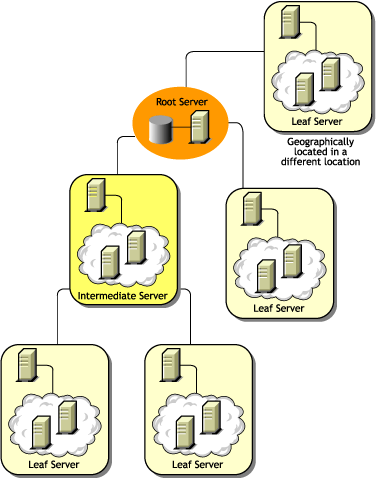
Scenario 2: Up to 50 Intermediate Servers Connected to the Root Server
In this configuration, the Leaf Servers roll up data to the next-level Intermediate Server and finally to the Root Server. Another Inventory server, at a different location, is also connected to the Root Server.
This scenario is illustrated in the following figure:
Scenario 3: Intermediate Servers with Database Connected to the Root Server
In this configuration, the inventory servers are connected to the Intermediate Server over fast WAN links. The Intermediate Server also has an Inventory database and transmits the information to the Root Server. Other Inventory servers are also connected to the Root Server.
This scenario is illustrated in the following figure:

Scenario 4: Database on Inventory Servers and Intermediate Servers Connected to a Root Server
In this configuration, there are branch offices and a main office. Both branch offices store inventory information.
At one branch office, the Inventory server is a Leaf Server with Inventory Database, and the other branch office has a Leaf Server. At the next level, there is another branch office with an Intermediate Server with Database. The two branch offices at the lower level roll up data to this Intermediate Server. In turn, this Intermediate Server with Database rolls up data to the main office at the next level. There is also another sales outlet with a Leaf Server with Database at a sales outlet. This server directly rolls up data to the main office. The sales outlet and the two branch offices connect to the main office over low-speed WAN. One branch office connects to the main site over high-speed WAN.
This scenario is illustrated in the following figure:

Scenario 5: Roll-Up of the Inventory information Across eDirectory Trees
In this configuration, you can deploy any of the previous scenarios. The highest-level Inventory server of one eDirectory tree rolls up the scan data to an Inventory server located on the other eDirectory tree.
In this configuration, you must install the Distributor on each eDirectory tree for the policies to be distributed.
The following illustration depicts a sample scenario where you can deploy this inventory configuration.
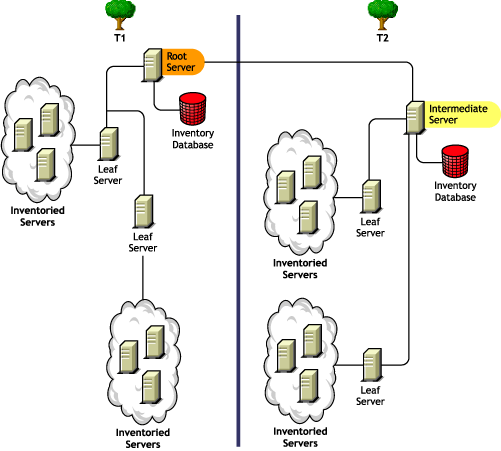
There are two organizations: A and B. Each organization has its own eDirectory tree and inventory tree. Organization A has two Leaf Servers and a Root Server in its inventory tree. Organization B also has two Leaf Servers and a Root Server in its inventory tree. A decision is taken to merge both the organizations and both the inventory trees but to retain the eDirectory trees. After the merger, the role of the Root Server on the eDirectory tree T2 is changed to Intermediate Server with Database and the scan data is rolled up from the Intermediate Server to the Root Server residing on the eDirectory tree T1.
Scenario 6: Merging eDirectory Trees
In this configuration, you can merge the inventory trees and the eDirectory trees. After you merge the eDirectory trees, you must manually change the eDirectory tree name and (optionally) the Inventory Service DN in the Inventory_server_installation_directory\wminv\
properties\config.properties file before starting the Inventory service. For more information on merging the eDirectory trees, see the Novell eDirectory documentation Web site.
To merge the inventory trees, you must change the role of the Root Server of one inventory tree to roll up to an Inventory server in the other inventory tree.
To change the eDirectory tree name and the DN of an Inventory server, edit the following entries of the config.properties file:
NDSTree=Target_eDirectory_tree_name
InventoryServiceDN=New_DN_of_the_Inventory_server
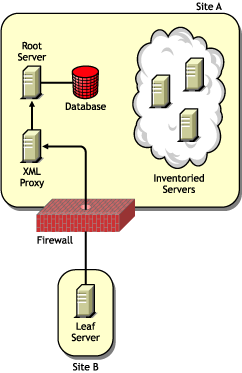
Scenario 7: Deploying Inventory Server Across Firewall
There are two sites; Site A and Site B connected through a WAN link. The Inventory server of Site A rolls up to an Inventory server in Site B. All communication from Site A to Site B flows through the firewall at Site B.
The following illustration depicts a sample scenario where you can deploy this inventory configuration:
Guidelines for Sending Inventory Information in a WAN
In this type of inventory deployment, the scanners transmit information to the servers over a WAN or dial-up connection.
- When you configure the inventory scanning of inventoried servers, we recommend staggering the inventory scanning to scan at different times or to scan some inventoried servers at a time.
- If many inventoried servers are attached to the same inventory server, we recommend that you do not schedule the scan of all inventoried servers at the same time, because this will stress the Novell eDirectory and the inventory server File System Service.
- You can attach inventoried servers to the server as determined by the number of connections supported by NetWare® or Windows* NT*/2000 servers up to a maximum of 5,000 inventoried servers.
- When you schedule the roll-up of data in the Inventory policies, we recommend the roll-up frequency should be at least one day. If the roll-up of scan data is scheduled too frequently, for example less than one hour, there may be some performance degradation of the inventory server.