| Field |
Description |
|
|
|---|
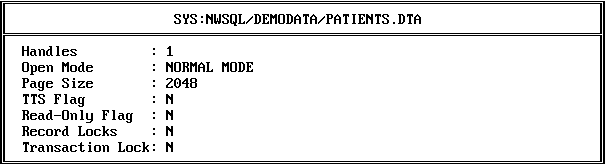
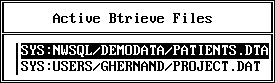
Handles |
Shows the number of Btrieve handles the user has as a result of opening files. Btrieve creates a handle each time a user opens a file; therefore, a single user can have several handles for the same file. |
|
|
Open Mode |
Indicates the mode used to open the file: |
|
|
|
Accelerated |
The application that opened the file has shared, read/write access. With Btrieve 6.x, Accelerated mode is equivalent to Normal mode unless the file is flagged transactional. |
|
|
Exclusive |
The application that opened the file has exclusive access. Other applications cannot open the file until the calling application closes it. |
|
|
Normal |
The application that opened the file has normal shared, read/write access. |
|
|
Read only |
The application that opened the file has read-only access; the application cannot modify the file. |
|
Page Size |
Indicates the page size (in bytes) of this file. (A page is the smallest unit of storage that Btrieve moves between main memory and the disk.) |
|
|
TTS Flag |
Indicates whether TTSTM is being used with the file. (For more information on TTS, refer to your NetWare documentation.) |
|
|
Read-Only Flag |
Indicates whether the file is flagged through NetWare as read only. |
|
|
Record Locks |
Shows the lock status of the current record: s---Single-record lock outside a transaction S---Single-record lock within a transaction m---Multiple-record lock outside a transaction M---Multiple-record lock within a transaction N---No record locks Single-record locks allow a user to lock only one record at a time. Multiple-record locks allow a user to lock more than one record at a time. |
|
|
Transaction Lock |
Indicates whether the entire file is locked by a transaction. A transactional file lock exists only as long as the application that opened the file is processing a transaction. Y indicates the entire file is locked. N indicates the file is not locked. |
|
|
| Field |
Description |
|
|
|---|
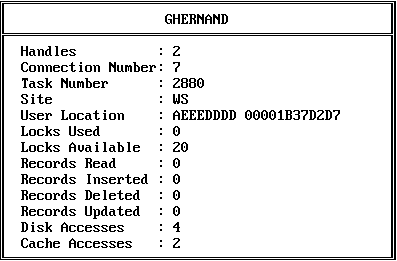
Handles |
Shows the number of Btrieve handles the user has as a result of opening files. Btrieve creates a handle each time a user opens a file. A single user can therefore have several handles for the same file. |
|
|
Connection Number |
Displays the NetWare connection number of the process if the process originates at a workstation. If the process originates at a server, this column is empty. |
|
|
Task Number |
Contains the process-supplied task number if the process originates at the server, a MS Windows workstation, or an OS/2 workstation. If the process originates at a DOS workstation, this column contains the SPX socket number. |
|
|
Site |
Specifies the location of the user process, as follows: LS---Local server RS---Remote server WS---Workstation |
|
|
User Location |
Identifies the user process, as follows: - If the user is located at a workstation, this column contains the network number and node address.
- If the user is located at the server, this column contains the server name.
|
|
|
Locks Used |
Indicates the number of locks that the user has explicitly requested. The number of locks in use varies, depending on whether the user is in a transaction, as follows: - If the user is outside a transaction, this number indicates the number of records that the user has explicitly locked.
- If the user is inside a concurrent transaction, this number indicates the number of pages in the file that the user has explicitly locked. Although the user actually requests record locks, these are converted to page locks inside a concurrent transaction. Consequently, five record locks are shown as two page locks if the five records are stored on two pages.
- If the user is inside an exclusive transaction or the user holds no locks, this number is zero.
|
|
|
Locks Available |
Indicates the total number of read locks available to the user. |
|
|
Records Read |
Number of records the user has read. |
|
|
Records Inserted |
Number of records the user has inserted. |
|
|
Records Deleted |
Number of records the user has deleted. |
|
|
Records Updated |
Number of records the user has updated. |
|
|
Disk Accesses |
Shows the number of times the user has made Btrieve calls that required disk I/O. |
|
|
Cache Accesses |
Shows the number of times the user has made Btrieve calls that accessed the Btrieve cache buffers. |
|
|
Figure 17
Monitor Utility: Available Options: Btrieve Resource Usage Screen
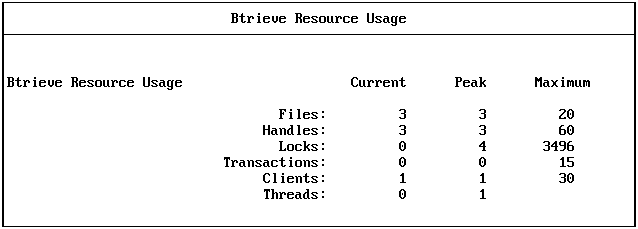
Since the utility dynamically updates the statistics shown on this screen, you may notice the totals changing as you view the information.
NOTE: The Current values on the Btrieve Resource Usage screen are cumulative from the time you first access the screen.
Table 4 includes a description of each field and an explanation of each statistic that appears on the Resource Usage screen.
| Field |
Description |
Statistics |
Explanation |
|---|
Files |
Number of active Btrieve files. |
Current |
Number of active Btrieve files. |
|
|
Peak |
Highest number of Btrieve files that have been open simultaneously since the Btrieve NLM was loaded. |
|
|
Maximum |
Value set for the Number of Open Files configuration option. |
Handles |
Number of handles issued for Btrieve files. |
Current |
Number of active file handles. |
|
|
Peak |
Highest number of handles used simultaneously since the Btrieve NLM was loaded. |
|
|
Maximum |
Value set for the Number of Handles configuration option. |
Locks |
Number of implicit (system) page locks involved in concurrent transactions. |
Current |
Number of implicit active page locks. |
|
|
Peak |
Highest number of implicit page locks used simultaneously since the Btrieve NLM was loaded. |
|
|
Maximum |
Maximum simultaneous page locks that the system will allow. |
Transactions |
Number of concurrent and exclusive transactions. |
Current |
Number of active concurrent and exclusive transactions. |
|
|
Peak |
Highest number of transactions active simultaneously since the Btrieve NLM was loaded. |
|
|
Maximum |
Value set for the Number of Transactions configuration option. |
Clients |
Number of Btrieve processes. |
Current |
Number of active Btrieve processes. |
|
A process can be a BSPXCOM thread representing a client, a Message Router thread representing a client, or a client NLM on the present server. |
Peak |
Highest number of processes simultaneously active since the Btrieve NLM was loaded. |
|
|
Maximum |
Value set for the Number of Remote Sessions configuration option. |
Threads |
Number of programs or program threads calling Btrieve simultaneously. |
Current |
Last system snapshot of active programs or program threads calling Btrieve simultaneously. |
|
|
Peak |
Maximum value ever encountered for the Current value since the NLM was loaded. |
Monitoring SPX Activity with the Communication Statistics Option
The Communication Statistics option on the Available Options menu shows you (in real time) the network requests, packet buffers, and sessions in use for the communications module you have loaded.
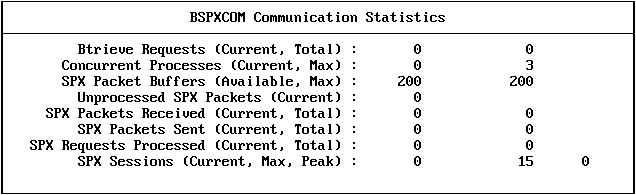
When you select this option, the Btrieve Monitor utility displays the Communications Statistics screen for BSPXCOM, BSPXSTUB, or RSPXSTUB (depending on which communications module is loaded). This screen is similar to that shown in Figure 18.
The communication activity shown on this screen reflects the communication activity of the communications module loaded at your server:
This screen does not show the communication activity of any remote NLMs.
NOTE: The Total values shown on this screen are cumulative from the time Btrieve is loaded. The Current values are cumulative from the time you display the screen.
Table 5 includes a description of each field and an explanation of each statistic that appears on the Communication Statistics screen.
| Field |
Description |
Statistics |
Explanation |
|---|
Btrieve Requests |
Number of network requests the NLM has processed from workstations or remote server- based applications. |
Current |
Current value since the last screen update. |
|
|
Total |
The number of requests received since the Btrieve NLM was loaded. |
Concurrent Processes |
Number of remote requests the NLM processes at one time. |
Current |
Current value since the last screen update. |
|
|
Max |
The maximum number of remote clients the Btrieve NLM can process at one time. |
SPX Packet Buffers |
Number of SPX packet buffers available to the NLM. |
Available |
Current number of available packet buffers (as of the last screen update). |
|
|
Max |
Value set for the maximum number of available packet buffers. Each session is allocated two packet buffers for Btrieve requests. |
Unprocessed SPX Packets |
Number of SPX packets the NLM has received but not yet processed. |
Current |
Current value since the last screen update. |
SPX Packets Received |
Number of SPX packets the NLM has received from applications. |
Current |
Current value since the last screen update. |
|
|
Total |
The number of packets received since the communications NLM was loaded. |
SPX Packets Sent |
Number of SPX packets the NLM has sent to other applications. |
Current |
Current value since the last screen update. |
|
|
Total |
The number of packets sent since the communications NLM was loaded. The total packets sent may be larger than the total packets received because a single request received might produce several packets sent. |
SPX Requests Processed |
Number of SPX requests the NLM has processed. |
Current |
Current value since the last screen update. |
|
|
Total |
The number of requests processed since the communications NLM was loaded. |
SPX Sessions |
Number of remote clients who have established SPX sessions with the communications NLM. |
Current |
Current value since the communications NLM was loaded. |
|
|
Max |
Value set for the Number of Remote Sessions configuration option. |
|
|
Peak |
Highest value since the communications NLM was loaded. This value indicates the highest number of SPX clients that have simultaneously had concurrent active sessions with the communications NLM. |